
1. Introduction
The SUPVAN E12 is a versatile and portable thermal label maker designed for efficient organization in various environments, including office, home, and school. It features a QWERTY keyboard for direct input and Bluetooth connectivity for advanced customization via a mobile application. This manual provides detailed instructions for setup, operation, maintenance, and troubleshooting to ensure optimal use of your device.

2. Safety Information
- Do not disassemble or attempt to repair the device yourself.
- Keep the device away from water, high temperatures, and direct sunlight.
- Use only SUPVAN-approved label tapes to prevent damage and ensure print quality.
- Keep out of reach of children.
- Use the provided USB-C cable for charging.
3. Package Contents
Verify that all items are present in the package:
- SUPVAN E12 Label Maker
- 1 Roll of White Label Tape (15 mm x 6 m)
- USB-C Charging Cable
- User Manual

4. Product Overview
Familiarize yourself with the main components of your SUPVAN E12 label maker:

- QWERTY Keyboard: For direct text input.
- LCD Display: Shows text, settings, and battery status.
- Power Button: Turns the device on/off.
- Print Button: Initiates printing.
- USB-C Port: For charging the device.
- Label Output Slot: Where printed labels exit.
- Label Compartment: Holds the label roll.
5. Setup
5.1. Charging the Device
The SUPVAN E12 comes with a built-in 1200mAh rechargeable battery. Before first use, fully charge the device.
- Connect the provided USB-C charging cable to the USB-C port on the side of the label maker.
- Plug the other end of the cable into a standard USB power adapter (not included) or a computer USB port.
- The charging indicator on the device will show its status. A full charge provides up to one month of standby time.

5.2. Inserting Label Roll
Proper label roll insertion is crucial for optimal printing.
- Open the label compartment cover on the back of the device.
- Insert the label roll with the printing surface facing up, ensuring it is seated correctly.
- Pull a small portion of the label tape out through the label output slot.
- Close the label compartment cover securely.
5.3. Bluetooth Connection and App Download
To unlock advanced features, connect your label maker to the SUPVAN app.
- Download the "SUPVAN" app from your device's app store (compatible with Android and iOS).
- Turn on the SUPVAN E12 label maker.
- Enable Bluetooth on your smartphone or tablet.
- Open the SUPVAN app and follow the on-screen instructions to pair with your E12 device. No registration is required.
6. Operating Instructions
6.1. Using the QWERTY Keyboard
The integrated QWERTY keyboard allows for direct and quick label creation.
- Typing: Use the QWERTY keys to enter text, numbers, and special characters.
- Backlight: Press the Fn key followed by the Backlight key to toggle the screen backlight for improved visibility in various lighting conditions.
- Special Characters: Access additional symbols and functions using the Fn key in combination with other keys.


6.2. Using the Mobile App
The SUPVAN app offers extensive customization options for your labels.
- Text Customization: Choose from over 30 fonts, adjust size, style, and alignment.
- Icons and Frames: Access a library of over 860 icons and 50 frames to enhance your labels.
- QR Codes & Barcodes: Generate and print QR codes and various barcode types directly from the app.
- Images & Shapes: Incorporate images and shapes into your label designs.
- Templates: Utilize pre-designed templates for common labeling tasks.


6.3. Printing Process
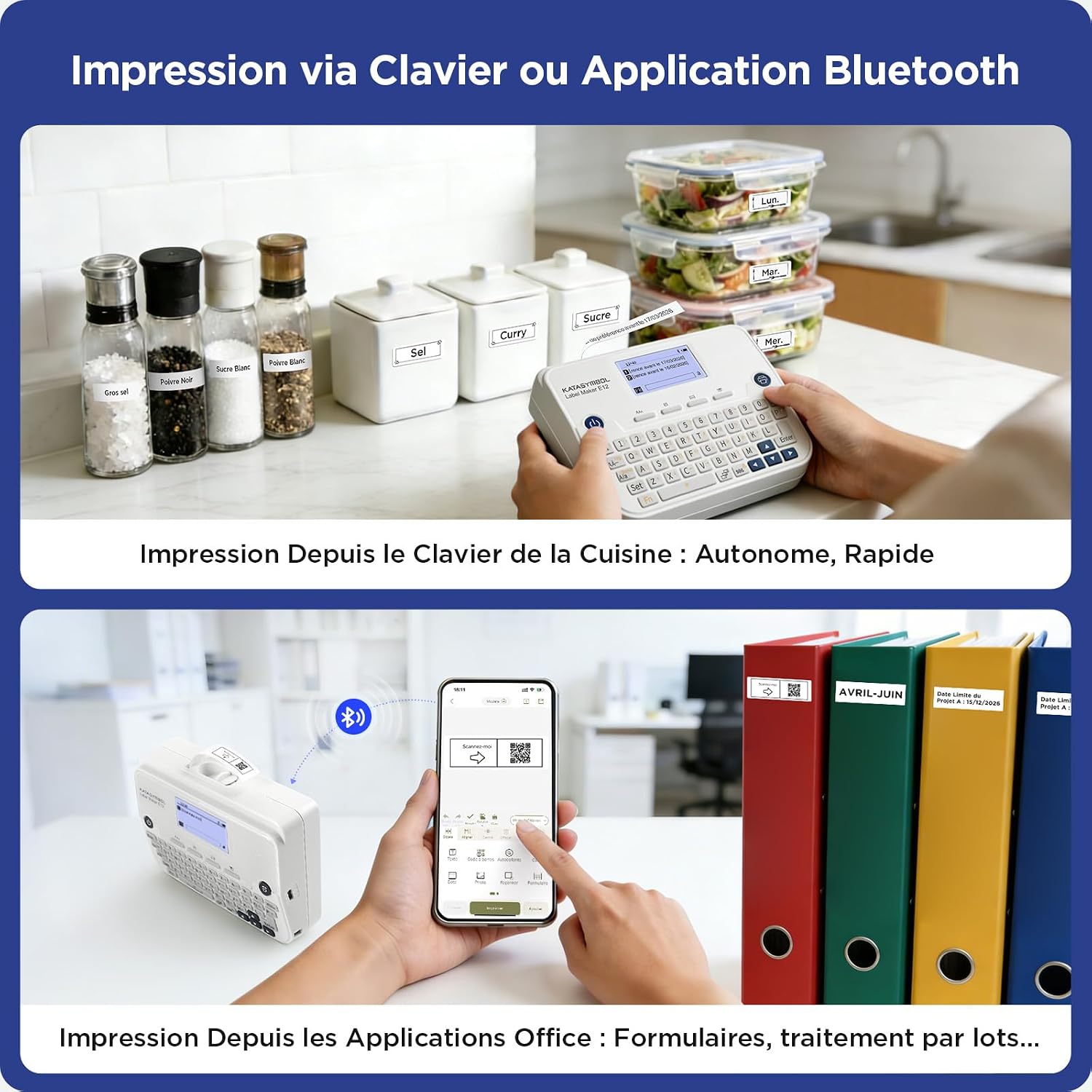
Labels can be printed directly from the keyboard or via the mobile app.

- From Keyboard: Type your desired text using the QWERTY keyboard. Review the text on the LCD display. Press the Print button to print the label.
- From App: Create and customize your label design within the SUPVAN app. Ensure the label maker is connected via Bluetooth. Tap the Print icon in the app.
- After printing, manually cut the label using the integrated cutter or scissors.
6.4. Label Customization and Types
The SUPVAN E12 supports various label types and allows for extensive customization.
- Fixed Size Labels: Available in white, colored, special designs, and transparent options.
- Continuous Labels: Allows for custom label lengths, minimizing waste with reduced margins.
- Variety: Over 40 types of durable labels are available in different sizes and colors.


6.5. Label Features and Applications
SUPVAN labels are designed for durability and versatility.
- Strong Adhesion: Labels adhere firmly to various surfaces.
- Clean Removal: Labels can be removed cleanly without leaving residue.
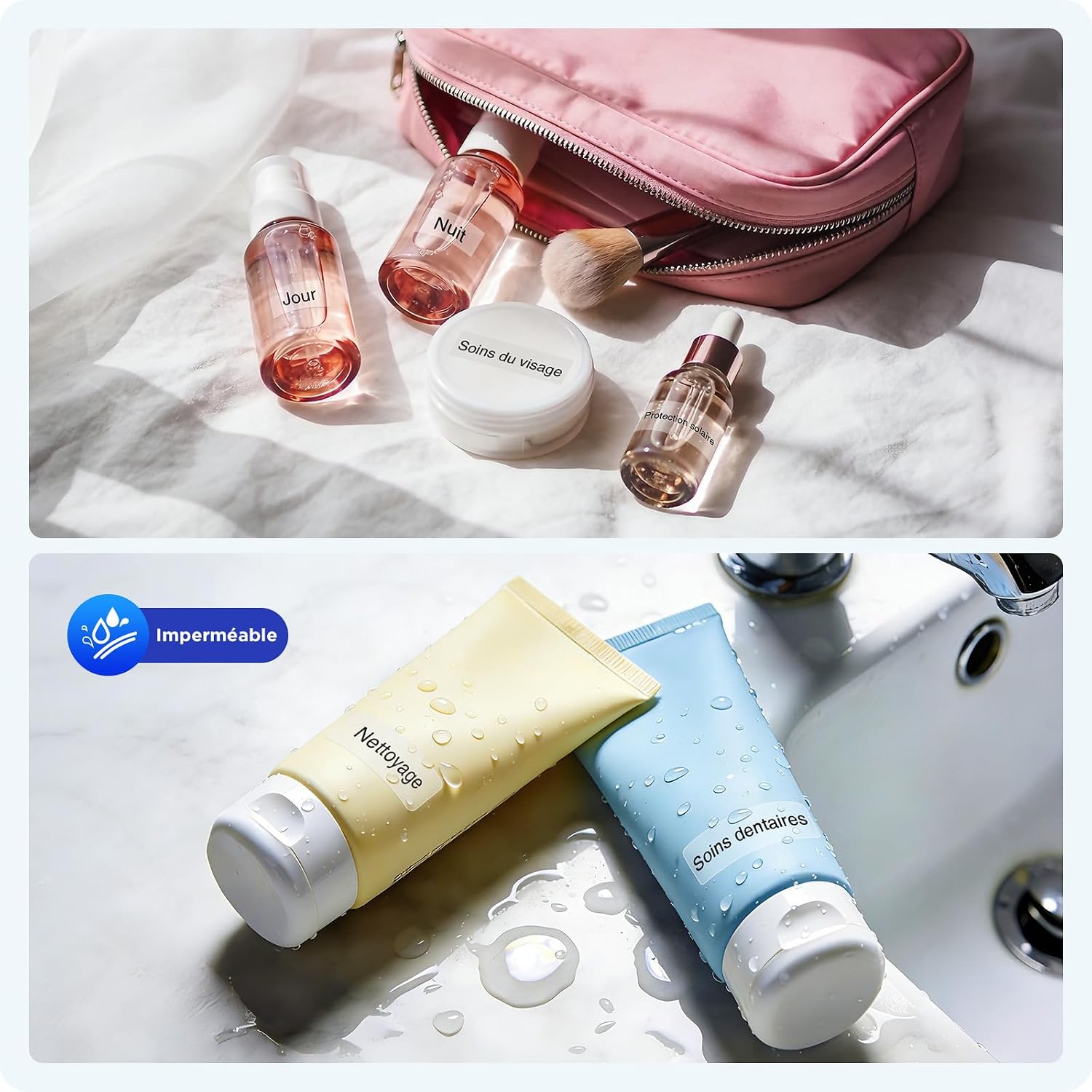
- Waterproof: Resistant to water, suitable for items exposed to moisture.
- Scratch-Resistant: Designed to withstand minor abrasions.
- BPA-Free: Made from safe, environmentally friendly materials.

6.6. Application Examples
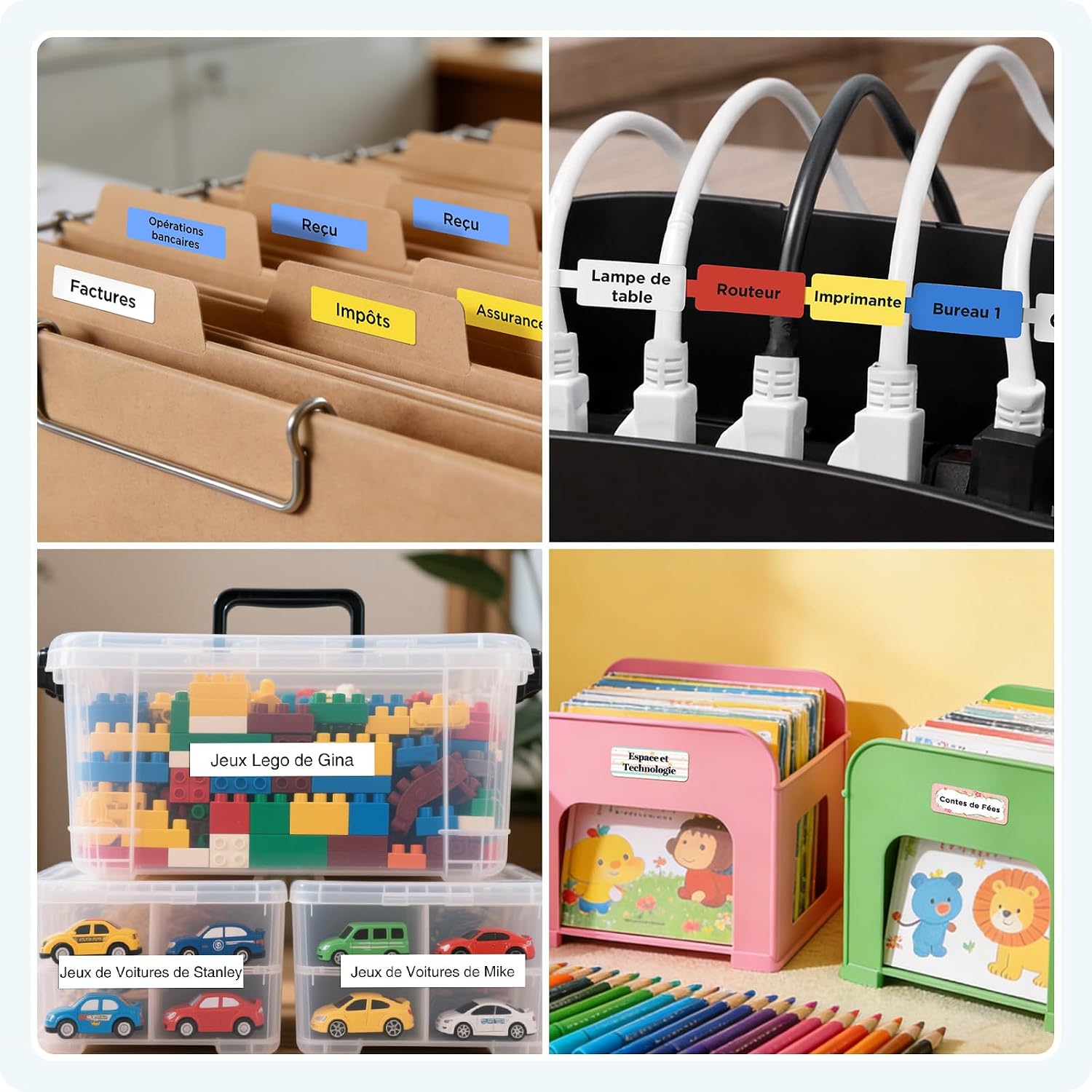
The SUPVAN E12 is suitable for a wide range of labeling needs:
- Home Organization: Labeling kitchen containers, storage bins, and personal items.
- Office Organization: Categorizing files, identifying cables, and organizing stationery.
- School Supplies: Labeling notebooks, pens, water bottles, and other school items.


7. Maintenance
7.1. Cleaning
- Regularly clean the print head with a soft, lint-free cloth or a cotton swab lightly dampened with isopropyl alcohol.
- Wipe the exterior of the device with a soft, dry cloth. Do not use abrasive cleaners or solvents.
7.2. Battery Care
- To prolong battery life, avoid fully discharging the battery frequently.
- If storing the device for an extended period, charge it to about 50% and store in a cool, dry place.
7.3. Label Storage
- Store label rolls in a cool, dry place away from direct sunlight and extreme temperatures to maintain adhesive quality and printability.
8. Troubleshooting
| Problem | Possible Cause | Solution |
|---|---|---|
| Device does not turn on | Low battery or no charge | Charge the device using the USB-C cable. |
| Poor print quality | Dirty print head or incorrect label insertion | Clean the print head. Re-insert the label roll correctly. Ensure you are using SUPVAN labels. |
| Cannot connect via Bluetooth | Bluetooth off, device out of range, or app issue | Ensure Bluetooth is enabled on both devices. Move the label maker closer to your phone. Restart the app and the label maker. |
| Label jam | Improper label roll insertion or foreign object | Open the label compartment, remove the jammed label, and re-insert the roll correctly. |
| Blank labels printing | Label roll inserted upside down | Re-insert the label roll with the printing surface facing up. |
9. Specifications
| Feature | Detail |
|---|---|
| Brand | SUPVAN |
| Model Name | E12 |
| Connectivity Technology | Bluetooth, USB Type C |
| Printing Technology | Thermal |
| Printer Output | Monochrome |
| Max Print Speed (Monochrome) | 25 Pages per minute |
| Max Print Speed (Color) | 12 Pages per minute |
| Special Feature | Display Screen |
| Item Weight | 280 Grams |
| Item Dimensions (L x W x H) | 147L x 39W x 78H millimeters |
| Print Media Type | Labels |
| Battery | 1 A - included |
| Total USB Ports | 1 |
| Country of Origin | China |
| Manufacturer | Beijing Supvan Information Technology Co., Ltd. |
| Specific Product Uses | Office, Home, School |
10. Warranty
The SUPVAN E12 Label Maker comes with a 2-year manufacturer's warranty. Please retain your proof of purchase for warranty claims. For specific terms and conditions, refer to the warranty information provided with your product or contact SUPVAN customer support.
11. Customer Support
If you encounter any issues not covered in this manual or require further assistance, please contact SUPVAN customer support through the retailer's platform or the official SUPVAN website. Have your product model (E12) and purchase details ready when contacting support.


