
1. Introduction
This manual provides detailed instructions for the HEIBAS G7 Bluetooth Headset. Please read this guide thoroughly to ensure proper use and optimal performance of your device. This headset is designed for clear communication and comfortable wear, featuring advanced Bluetooth technology and a long-lasting battery.
2. Package Contents
The HEIBAS G7 Bluetooth Headset package includes the following items:
- Bluetooth Headphone x 1
- 500mAh Charging Case x 1
- Ear tips x 5 (Sizes: S/M/L)
- USB-C cable x 1 (AC adapter not included)
- Welcome Guide x 1
3. Product Overview
Familiarize yourself with the components of your HEIBAS G7 Bluetooth Headset.
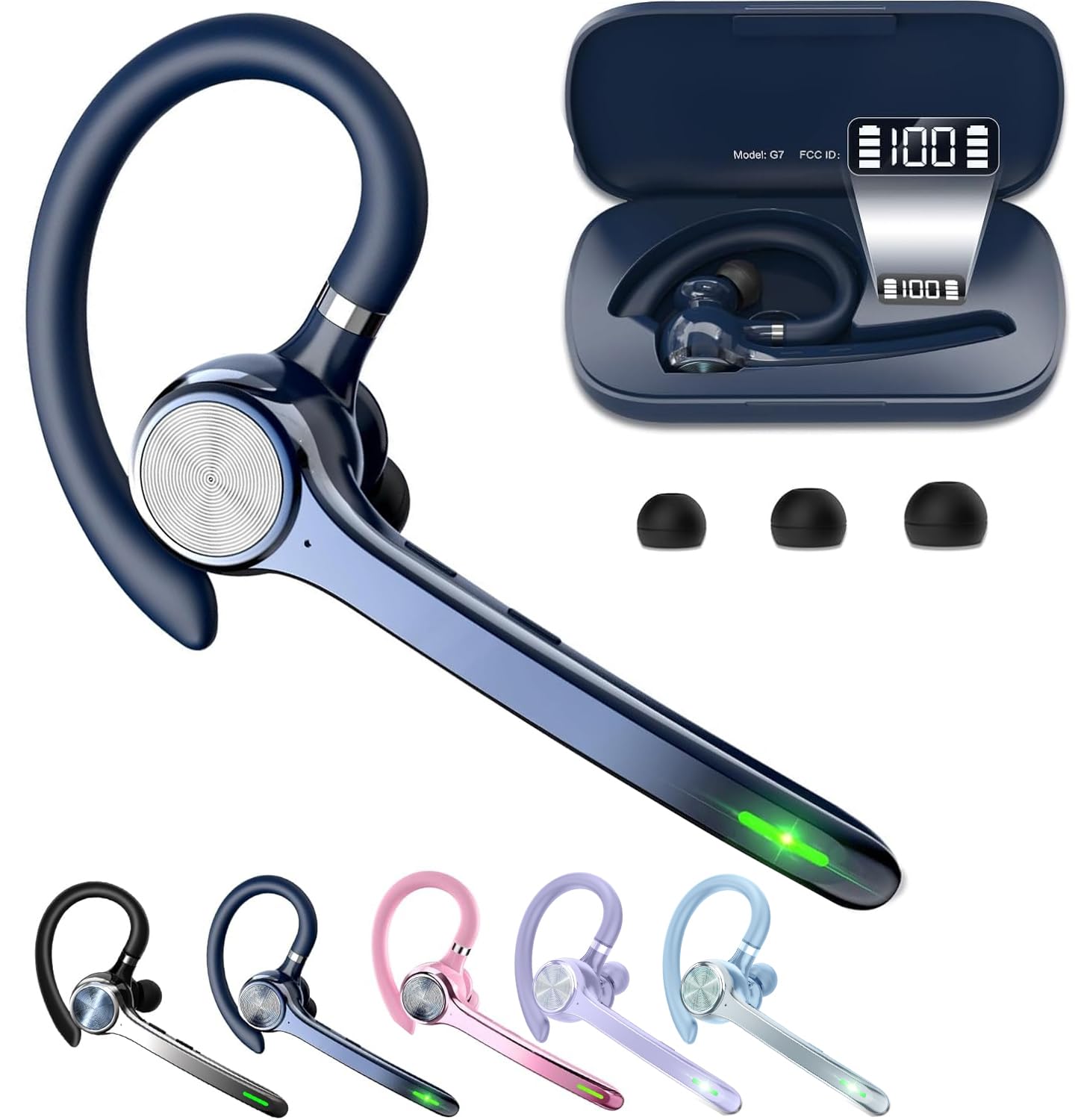
Image: The HEIBAS G7 Bluetooth Headset in blue, shown alongside its charging case. The headset features an ear hook design and an in-ear earpiece.
Headset Components:
- Earpiece: Delivers audio.
- Ear Hook: Secures the headset over the ear.
- Microphone Boom: Captures your voice for calls.
- Multi-Function Button (MFB): Controls power, calls, and music playback.
- Volume Buttons: Adjusts audio volume.
- Mute Button: Mutes the microphone during calls.
- Charging Contacts: For charging the headset in the case.
Charging Case Components:
- Charging Slot: Holds the headset for charging.
- Digital Display: Shows the remaining battery percentage of the charging case.
- USB-C Charging Port: For charging the case.
4. Setup
4.1 Charging the Headset and Case
- Initial Charge: Before first use, fully charge both the headset and the charging case.
- Charge Headset: Place the headset into the charging slot of the charging case. Ensure the charging contacts align. The headset will begin charging automatically.
- Charge Case: Connect the provided USB-C cable to the charging port on the case and plug the other end into a USB power source (e.g., computer, wall adapter - not included). The digital display on the case will show the charging progress.

Image: The HEIBAS G7 charging case with the headset inside, displaying the battery percentage on its digital screen. This illustrates the charging process and battery level indicator.
4.2 Power On/Off
- Power On: Press and hold the Multi-Function Button (MFB) for approximately 3 seconds until you hear a power-on prompt and the indicator light flashes.
- Power Off: Press and hold the MFB for approximately 5 seconds until you hear a power-off prompt and the indicator light turns off.
4.3 Bluetooth Pairing
- Enter Pairing Mode: With the headset powered off, press and hold the MFB for about 5-7 seconds until the indicator light flashes red and blue alternately. This indicates it is in pairing mode.
- Activate Bluetooth: On your device (smartphone, tablet, computer), enable Bluetooth.
- Select Headset: In your device's Bluetooth settings, search for available devices and select "HEIBAS G7" from the list.
- Confirm Connection: Once connected, the headset's indicator light will flash blue slowly, and you will hear a confirmation prompt.
Note: The headset will automatically attempt to reconnect to the last paired device when powered on.
5. Operating Instructions

Image: A diagram illustrating the functions of the Multi-Function Button (MFB) and Volume Buttons on the HEIBAS G7 headset, including call, music, and voice assistant controls.
5.1 Call Management
- Answer/End Call: Press the MFB once.
- Reject Call: Press and hold the MFB for 2 seconds.
- Mute/Unmute: Press the dedicated Mute button once during an active call. (Note: Mute function only works during phone calls.)

Image: An illustration showing the mute button on the HEIBAS G7 headset, emphasizing its use for quick mute control during calls.
5.2 Music Control
- Play/Pause Music: Press the MFB once.
- Next Song: Press the Volume Up button once.
- Previous Song: Press the Volume Down button once.
5.3 Volume Control
- Volume Up: Press the Volume Up button.
- Volume Down: Press the Volume Down button.
5.4 Voice Assistant Activation
- Activate Siri/Google Assistant: Press the MFB twice.
5.5 Wearing the Headset
The HEIBAS G7 headset is designed for comfortable and stable wear, and can be worn on either the left or right ear.
- Choose Ear Tip: Select the ear tip size (S, M, L) that provides the best fit and comfort for your ear canal.
- Adjust Ear Hook: The ear hook can be rotated 180 degrees to fit either ear. Gently rotate the earpiece to position it correctly.
- Position Headset: Place the ear hook over your ear and gently insert the earpiece into your ear canal. Adjust the microphone boom towards your mouth for optimal voice pickup.

Image: The HEIBAS G7 headset shown with different ear tip sizes (S, M, L) and diagrams illustrating how the ear hook can be rotated for a tailored fit on either ear.
6. Connectivity
6.1 Bluetooth 5.3 Technology
The HEIBAS G7 utilizes advanced Bluetooth 5.3 technology for a fast, stable, and efficient wireless connection. This ensures improved pairing speed, connection stability, and a reliable connection range of up to 10 meters (33 feet).

Image: An exploded view of the HEIBAS G7 headset highlighting its internal components and the 'Upgraded Bluetooth 5.3' feature, indicating faster pairing, stronger signal, and more stable connection.
6.2 Multipoint Connectivity
The headset supports multipoint connection, allowing you to connect to two Bluetooth devices simultaneously. This feature enables seamless switching between devices, for example, taking a call from your phone while listening to music on your laptop.

Image: The HEIBAS G7 headset connected to both a tablet and a smartphone, illustrating its ability to connect to two devices simultaneously for a hassle-free experience.
6.3 Wide Compatibility
The HEIBAS G7 headset is compatible with a broad range of Bluetooth-enabled devices, including:
- iOS devices (iPhones, iPads)
- Android devices (smartphones, tablets)
- Laptops and Desktop computers
- Smart Speakers and Televisions with Bluetooth functionality

Image: Various mobile devices including iPhones, Android phones, tablets, and laptops surrounding the HEIBAS G7 headset, demonstrating its wide compatibility across different operating systems and device types.
7. Battery and Charging
The HEIBAS G7 headset and its charging case offer extended battery life for prolonged use.
- Single Headset Talk/Music Time: Approximately 18-23 hours on a full charge.
- Total Talk/Music Time with Charging Case: Up to 72 hours.
- Charging Case Capacity: 500mAh.
- Digital Display: The charging case features a digital display that shows the remaining battery percentage, allowing you to monitor power levels easily.

Image: A visual representation of the HEIBAS G7 headset's battery life, showing 72 hours with the charging case and 18 hours for a single headset, along with the charging case's digital display.
8. Maintenance
Proper maintenance ensures the longevity and optimal performance of your HEIBAS G7 headset.
- Cleaning: Use a soft, dry, lint-free cloth to clean the headset and charging case. Avoid using harsh chemicals or abrasive materials.
- Ear Tips: Regularly remove and clean the ear tips with a damp cloth. Ensure they are completely dry before reattaching.
- Storage: When not in use, store the headset in its charging case in a cool, dry place, away from extreme temperatures and direct sunlight.
- Water Resistance: The headset is water resistant, meaning it can withstand splashes and light rain. It is not designed for submersion in water. Avoid exposing it to heavy rain, showering, or swimming.
9. Troubleshooting
If you encounter any issues with your HEIBAS G7 headset, refer to the following common solutions:
| Problem | Solution |
|---|---|
| Headset does not power on. | Ensure the headset is charged. Place it in the charging case or connect the case to power. |
| Cannot pair with device. |
|
| No sound or low volume. |
|
| Mute button not working. | The mute button is designed to function only during an active phone call. It will not mute other audio. |
| Charging case digital display is off. | The display activates when the case is opened, closed, or connected to a power source. If it remains off, the case battery might be fully depleted or there might be a charging issue. |
10. Specifications
| Feature | Detail |
|---|---|
| Brand | HEIBAS |
| Model | G7 |
| Connectivity Technology | Bluetooth 5.3 |
| Wireless Range | Up to 10 meters (33 feet) |
| Headset Battery Life (Talk/Music) | 18-23 hours |
| Total Battery Life (with Charging Case) | Up to 72 hours |
| Charging Case Capacity | 500mAh |
| Headset Weight | 0.42 oz |
| Control Method | Push Button |
| Ear Placement | In Ear (with adjustable ear hook) |
| Noise Control | ENC Noise Cancellation (up to 95% background noise reduction) |
| Water Resistance Level | Water Resistant |
| Compatible Devices | Telephones, Tablets, Laptops, Desktops, Smart Speaker, Television, Cellphones |
11. Warranty and Support
For detailed warranty information, customer service, and technical support, please refer to the welcome guide included in your product package. You may also visit the official HEIBAS website for the most up-to-date support resources and contact information.
If you have any questions or require assistance, do not hesitate to contact HEIBAS customer support.