
1. Overview
The SUPVAN E12 is a versatile Bluetooth label maker designed for efficient organization in various environments, including office, home, and technical applications. It features a QWERTY keyboard for standalone operation and can also be controlled via a mobile application for enhanced customization.
Key Features:
- Standalone Operation with QWERTY Keyboard: Ready to use without adaptation; direct input of letters, numbers, and special characters.
- Optimized Keyboard and Screen Design: Landscape format keyboard with larger keys for comfortable two-hand use; backlit graphic screen for clear reading in bright or dark environments.
- Customizable Application: Bluetooth connection without registration; numerous fonts, icons, and frames, as well as QR code, barcode, and image printing; compatible with Android and iOS.
- Rechargeable Battery: Integrated 1200 mAh battery offering up to one month of autonomy; no AAA batteries or replacement needed.
- Premium SUPVAN Labels: Over 40 types of durable labels available in different sizes and colors; strong adhesion and clean removal without leaving residues.
2. Package Contents
Verify that all items are present in the package before proceeding with setup.

Image: SUPVAN E12 label maker with its label compartment open, revealing four label rolls. Next to it are a USB-C charging cable and a user manual. A list details the package contents.
- SUPVAN E12 Label Maker
- 2 x Pre-cut White Label Rolls
- 2 x Continuous White Label Rolls
- USB-C Charging Cable
- User Manual
3. Setup
3.1 Inserting Labels
- Open the label compartment cover located at the back of the device.
- Insert a label roll into the compartment, ensuring the label tape feeds out correctly through the slot.
- Close the compartment cover securely.

Image: Bottom view of the SUPVAN E12 label maker showing the open label compartment with four label rolls inserted.
3.2 Charging the Device
The SUPVAN E12 features a built-in rechargeable battery. Charge the device before first use or when the battery indicator is low.
- Connect the provided USB-C charging cable to the charging port on the side of the label maker.
- Connect the other end of the USB-C cable to a compatible USB power adapter (not included) or a computer's USB port.
- The charging indicator light will show the charging status. A full charge provides up to one month of standby time.

Image: The SUPVAN E12 label maker connected to a USB-C charger, with an icon indicating a 1200mAh rechargeable battery and a 'one month standby' duration.
3.3 Connecting via Bluetooth (Mobile Application)
To use the advanced features and customization options, connect the label maker to your smartphone via Bluetooth.
- Download the official SUPVAN application from your device's app store (compatible with Android and iOS).
- Ensure Bluetooth is enabled on your smartphone.
- Turn on the SUPVAN E12 label maker.
- Open the SUPVAN application and follow the on-screen instructions to pair with your E12 device. No registration is required.
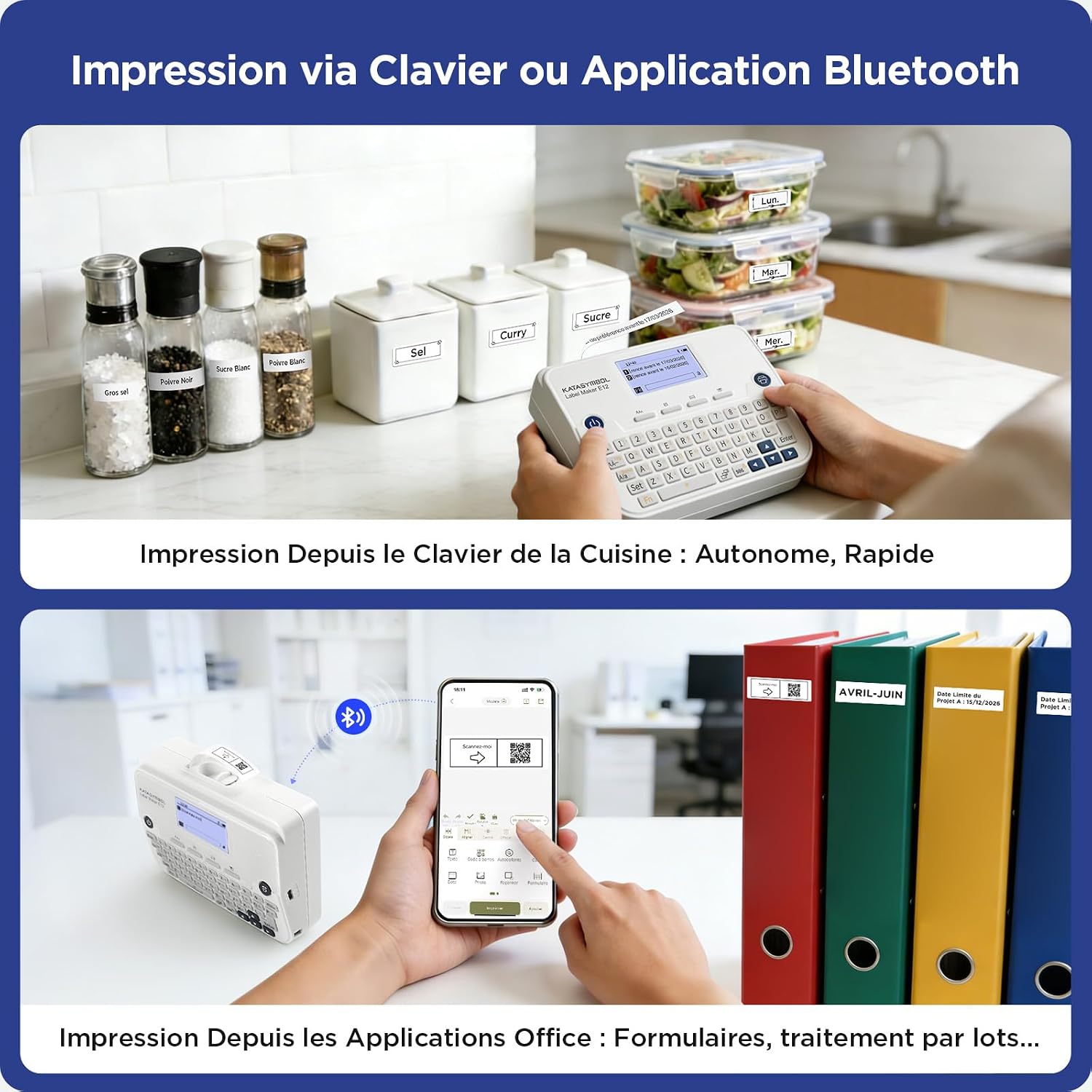
Image: The SUPVAN E12 label maker in use in a kitchen and connected to a smartphone via its mobile application.
4. Operating Instructions
4.1 Using the QWERTY Keyboard
The integrated QWERTY keyboard allows for direct text input and printing without needing a smartphone.
- Turn on the label maker using the power button.
- Use the QWERTY keys to type your desired text. The backlit graphic screen will display your input clearly.
- Utilize the function (Fn) key for special characters, numbers, and other symbols.
- Press the 'Print' button to generate your label.

Image: Close-up of the SUPVAN E12 label maker's QWERTY keyboard with backlit keys.
4.2 Using the Mobile Application
The SUPVAN app provides extensive customization options for your labels.
- Ensure your label maker is connected to the app via Bluetooth (refer to Section 3.3).
- Within the app, select your desired label template or start a new design.
- Input text, add icons, frames, QR codes, barcodes, or images using the app's interface.
- Adjust font styles, sizes, and other formatting options.
- Preview your label and then tap the 'Print' button in the app.

Image: Smartphone screen displaying the SUPVAN label editing app interface.
4.3 Customization Options
The SUPVAN E12, especially when used with the mobile app, offers a wide range of customization features:
- Fonts: Access to over 30 different font styles.
- Icons: A library of over 860 icons to enhance your labels.
- Frames: Choose from more than 50 decorative frames.
- Barcodes & QR Codes: Generate and print various types of barcodes and QR codes.
- Images: Integrate images into your label designs.

Image: Infographic detailing the extensive customization options available with the SUPVAN E12.
5. Maintenance
5.1 Cleaning the Device
To ensure optimal performance and longevity of your label maker:
- Turn off the device and disconnect any cables before cleaning.
- Use a soft, dry cloth to wipe the exterior of the label maker.
- For the print head, use a cotton swab lightly dampened with isopropyl alcohol. Gently wipe the print head to remove any residue. Allow it to dry completely before use.
- Do not use abrasive cleaners or solvents, as these can damage the device.
5.2 Label Care
SUPVAN labels are designed for durability and ease of use.
- Durability: Labels are scratch-resistant and waterproof, making them suitable for various environments.
- Adhesion: They offer strong adhesion to many surfaces.
- Removal: Labels can be removed cleanly without leaving sticky residues, protecting your items' surfaces.
- Material: Labels are BPA-free and made from environmentally friendly materials.

Image: Demonstrations of SUPVAN label durability, including scratch resistance, residue-free removal, and waterproof properties.
6. Troubleshooting
If you encounter issues with your SUPVAN E12 label maker, refer to the following common problems and solutions:
| Problem | Possible Cause | Solution |
|---|---|---|
| Device does not turn on | Low battery; Power button not pressed correctly | Charge the device using the USB-C cable; Press and hold the power button for a few seconds. |
| Labels not printing correctly or blank | Label roll inserted incorrectly; Print head dirty; Incorrect label type selected in app | Re-insert the label roll, ensuring it feeds properly; Clean the print head (see Section 5.1); Verify label type settings in the app. |
| Bluetooth connection fails | Bluetooth not enabled; Device too far; App not updated | Ensure Bluetooth is on for both devices; Move the label maker closer to your smartphone; Update the SUPVAN app to the latest version. |
| App is unresponsive or crashes | Software glitch; Outdated app version | Restart the app and the label maker; Check for app updates in your app store. |
7. Specifications
| Feature | Detail |
|---|---|
| Model Number | E12 |
| Brand | SUPVAN |
| Connectivity Technology | Bluetooth |
| Printing Technology | Thermal |
| Special Features | QWERTY Keyboard, Graphic Screen, Serial Printing |
| Item Weight | 280 Grams |
| Dimensions (L x W x H) | 147 x 39 x 78 mm |
| Print Media Type | Labels |
| Resolution | 203 dpi |
| Power | 10 Watt-hours |
| Hardware Connectivity | USB Type C |
| Total USB Ports | 1 |
8. Warranty & Support
8.1 Warranty Information
The SUPVAN E12 Label Maker comes with a 2-year manufacturer warranty from the date of purchase. This warranty covers defects in materials and workmanship under normal use. Please retain your proof of purchase for warranty claims.
8.2 Customer Support
For technical assistance, troubleshooting not covered in this manual, or warranty inquiries, please contact SUPVAN customer support through the official website or your retailer. You may also find additional resources and FAQs on the SUPVAN Brand Store.


