
1. Introduction
This manual provides essential information for setting up, operating, maintaining, and troubleshooting your HP 14-em 14-inch HD Laptop. Please read this guide thoroughly to ensure optimal performance and longevity of your device.
The HP 14-em laptop features an AMD Athlon Silver 7120U processor, 4GB RAM, 512GB eMMC storage, and runs on Windows 11 Pro. It is designed for everyday tasks, offering a balance of performance and portability.
2. Setup
2.1 Unpacking and Initial Inspection
Carefully remove the laptop and all accessories from the packaging. Verify that all components are present:
- HP 14-inch Laptop
- Power Adapter
- Mytrix 2.4GHz Wireless Gaming Headset
- Documentation
Inspect the laptop for any physical damage. If any damage is found, contact your retailer immediately.
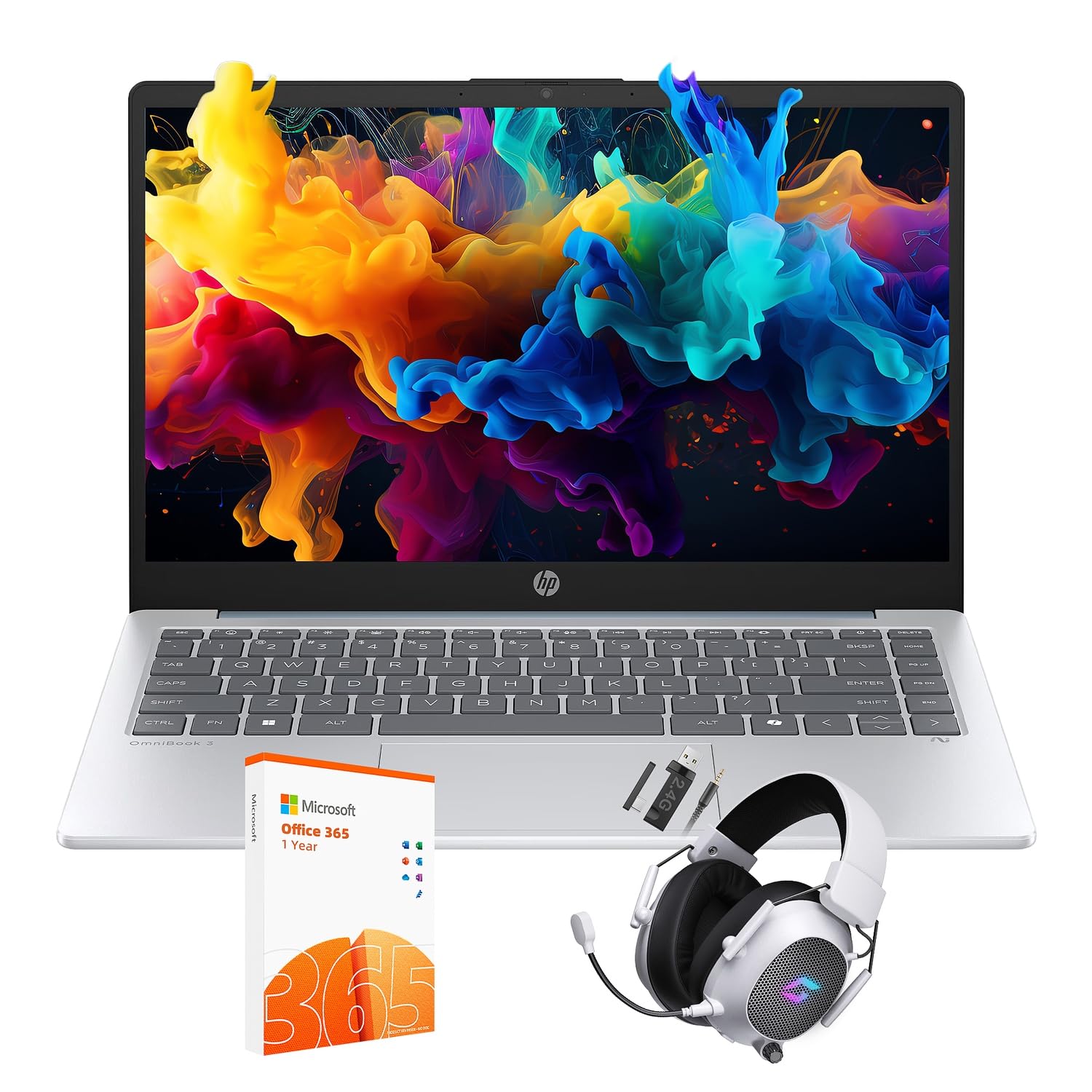
Figure 2.1: The HP 14-inch HD Laptop in Moonlight Blue, showcasing its sleek design.
2.2 Connecting the Power Adapter
Connect the power adapter to the laptop's power port and then plug it into a wall outlet. It is recommended to fully charge the battery before initial use.
2.3 Initial Power On and Windows 11 Pro Setup
Press the power button located on the keyboard deck. The laptop will boot up and guide you through the Windows 11 Pro setup process. Follow the on-screen instructions to:
- Select your region and language.
- Connect to a Wi-Fi network.
- Accept the license terms.
- Create a user account or sign in with a Microsoft account.
- Configure privacy settings.
2.4 Setting up the Mytrix Wireless Gaming Headset
Refer to the separate instructions provided with the Mytrix 2.4GHz Wireless Gaming Headset for detailed setup. Generally, this involves:
- Charging the headset.
- Connecting the wireless dongle to an available USB port on the laptop.
- Powering on the headset and ensuring it pairs with the dongle.
- Configuring audio input/output settings in Windows 11 Pro.
3. Operating the Laptop
3.1 Power Management
- Power On: Press the power button.
- Sleep Mode: Close the lid or select "Sleep" from the Start Menu.
- Shut Down: Select "Shut down" from the Start Menu.
- Restart: Select "Restart" from the Start Menu.
3.2 Using the Touchpad
The touchpad supports multi-touch gestures for navigation. Common gestures include:
- Tap: Single finger tap for left-click.
- Two-finger tap: Right-click.
- Two-finger scroll: Scroll up or down.
- Pinch-to-zoom: Zoom in or out.
3.3 Connecting to Networks (Wi-Fi 6 and Bluetooth 5.4)
To connect to a Wi-Fi network:
- Click the Wi-Fi icon in the taskbar.
- Select your desired network from the list.
- Enter the network password if prompted.
To connect a Bluetooth device:
- Go to Settings > Bluetooth & devices.
- Ensure Bluetooth is turned on.
- Select "Add device" and follow the pairing instructions for your device.
3.4 External Port Usage
Your laptop is equipped with various ports for connecting external devices:

Figure 3.1: Available ports on the HP 14-inch HD Laptop.
- USB Type-A: For connecting standard USB devices like mice, keyboards, and external storage.
- USB Type-C: For data transfer.
- HDMI: For connecting to external displays or projectors.
- Headphone/Microphone Combo: For connecting a headset or external speakers/microphone.
3.5 Windows 11 Pro Features
Windows 11 Pro offers advanced security, management tools, and productivity features. Explore the Start Menu, Taskbar, and Settings app to customize your experience. The laptop also supports a 180-degree hinge for flexible viewing angles.
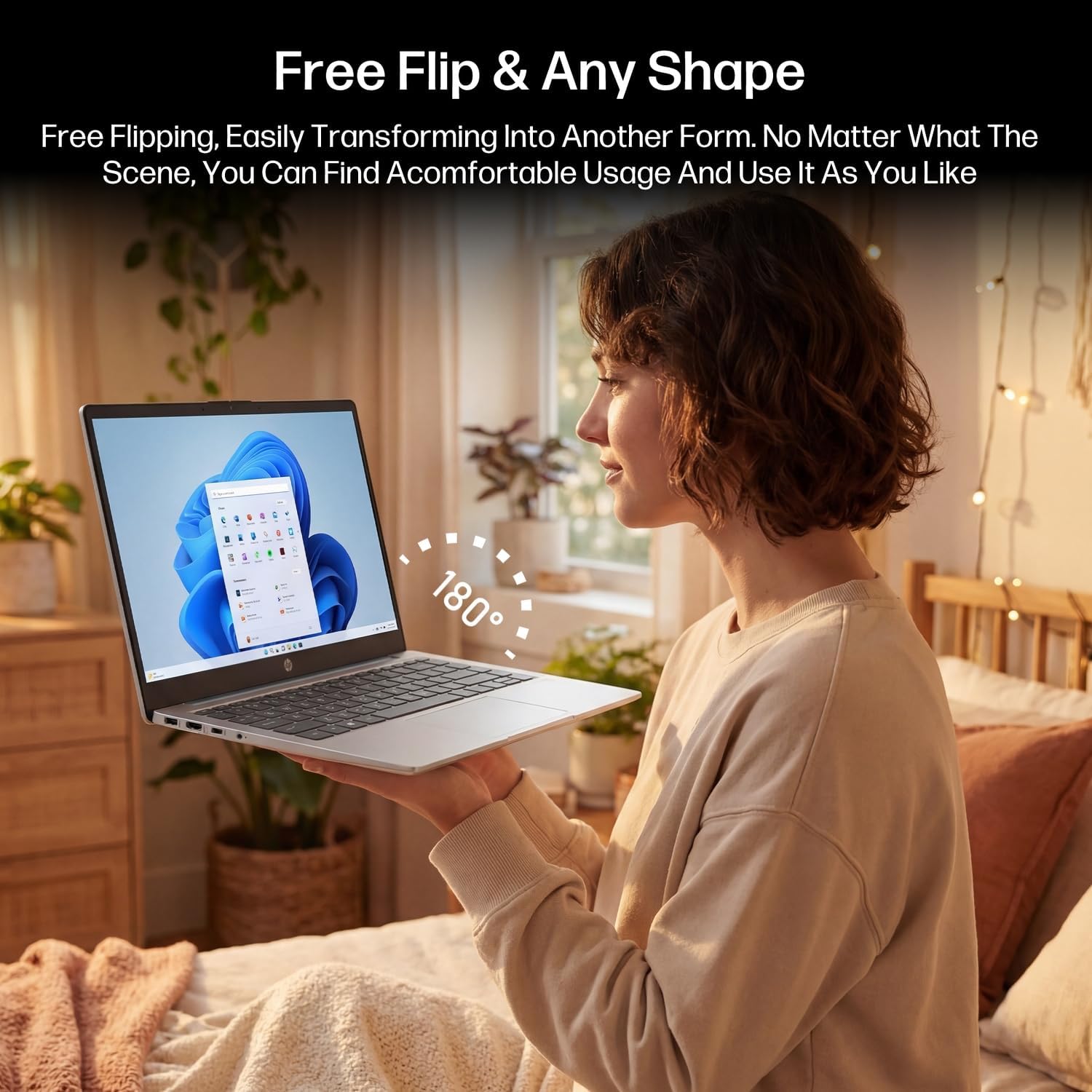
Figure 3.2: The laptop's 180-degree hinge for versatile use.

Figure 3.3: The HP laptop efficiently handles daily tasks.
4. Maintenance
4.1 Cleaning the Laptop
- Screen: Use a soft, lint-free cloth lightly dampened with water or a screen cleaner. Do not spray cleaner directly onto the screen.
- Chassis and Keyboard: Use a soft, dry cloth. For stubborn dirt, a slightly damp cloth can be used. Avoid excessive moisture.
- Ports: Use compressed air to gently clear dust from ports.
4.2 Battery Care
To maximize battery life:
- Avoid extreme temperatures.
- Do not let the battery fully discharge frequently.
- Utilize HP Fast Charge technology for quick recharging when needed.
4.3 Software Updates
Regularly check for and install Windows updates to ensure your system has the latest security patches and performance improvements. Go to Settings > Windows Update.
4.4 Storage Management
The 512GB eMMC storage provides fast boot-ups and file access. To maintain performance, periodically:
- Delete unnecessary files.
- Uninstall unused applications.
- Use Windows' built-in Disk Cleanup tool.
5. Troubleshooting
This section addresses common issues you might encounter. For more complex problems, refer to HP's official support resources.
5.1 Laptop Does Not Power On
- Ensure the power adapter is securely connected to both the laptop and a working power outlet.
- Verify the power outlet is functional by plugging in another device.
- If the battery is completely drained, allow it to charge for at least 30 minutes before attempting to power on again.
5.2 Wi-Fi Connectivity Issues
- Check if Wi-Fi is enabled in Windows settings.
- Restart your router and modem.
- Forget the network and reconnect, entering the password again.
- Ensure your laptop is within range of the Wi-Fi signal.
5.3 External Display Not Detected
- Ensure the HDMI cable is securely connected to both the laptop and the external display.
- Check the input source on your external display (e.g., HDMI 1, HDMI 2).
- Press Windows key + P and select a display option (Duplicate, Extend, Second screen only).
5.4 Audio Problems
- Check volume levels in Windows and on any connected external audio devices.
- Ensure the correct audio output device is selected in Windows sound settings.
- If using the Mytrix headset, ensure it is powered on and properly paired.
6. Specifications
Detailed technical specifications for your HP 14-em 14-inch HD Laptop:
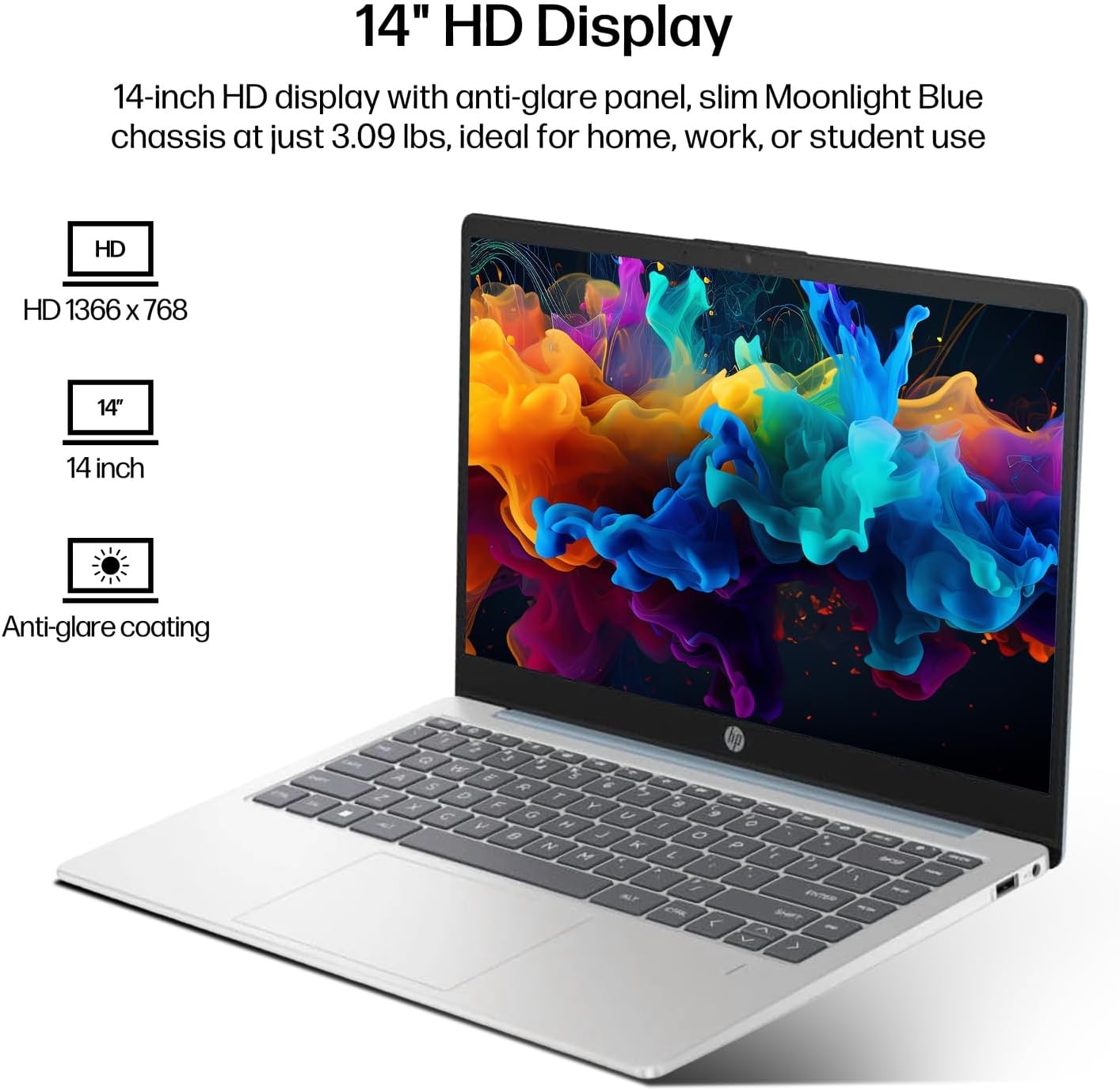
Figure 6.1: The 14-inch HD display features a resolution of 1366 x 768 pixels and an anti-glare coating.

Figure 6.2: The laptop is powered by an AMD Athlon Silver 7120U Processor with integrated AMD Radeon Graphics.
| Feature | Specification |
|---|---|
| Brand | HP |
| Model Name | 14-em |
| Processor | AMD Athlon Silver 7120U (2 Cores, 2 Threads, up to 3.5 GHz Boost Clock) |
| Graphics | AMD Radeon Graphics (Integrated) |
| RAM | 4 GB DDR4 SODIMM |
| Storage | 512 GB eMMC (Solid State) |
| Display | 14-inch HD (1366 x 768) LED, Anti-Glare |
| Operating System | Windows 11 Pro |
| Wireless Connectivity | Wi-Fi 6 (802.11ax), Bluetooth 5.4 |
| Ports | 2x USB Type-A, 1x USB Type-C (Data Transfer), 1x HDMI, 1x Headphone/Microphone Combo |
| Camera | Front-facing |
| Audio | HD Audio |
| Dimensions (L x W x H) | 12.74" x 8.46" x 0.7" |
| Weight | Approximately 3.09 lbs |
| Included Accessories | Mytrix 2.4GHz Wireless Gaming Headset |

Figure 6.3: Physical dimensions of the HP 14-inch HD Laptop.
7. Warranty and Support
7.1 Product Warranty
Your HP 14-em laptop comes with a 12-month manufacturer's warranty. This warranty covers defects in materials and workmanship under normal use. For specific terms and conditions, please refer to the warranty documentation included with your product or visit the official HP support website.
7.2 Technical Support
For technical assistance, troubleshooting beyond this manual, or warranty claims, please contact HP Customer Support. You can find contact information on the official HP website or through the support application pre-installed on your laptop.
Additional protection plans are available for purchase, including 2-Year and 4-Year Protection Plans, and a monthly Complete Protect plan. Details can be found where you purchased the product.


