
1. Product Overview
The Monster Mission 320 Gaming Headset (Model H16) is designed to provide an immersive audio experience for gamers across multiple platforms. It features Bionic 7.1 Audio, dynamic RGB lighting, comfortable earcups, and an adaptive noise-canceling microphone for clear communication. This manual provides essential information for setup, operation, and maintenance.

Image: Overview of the Monster Mission 320 Gaming Headset highlighting its key features.
2. Setup and Connectivity
The Monster Mission 320 headset offers versatile connectivity options for various gaming platforms and devices.
2.1 Wired Connection (3.5mm Jack)
For most gaming consoles (PS5, PS4, Switch) and mobile devices, connect the headset directly using the integrated 3.5mm audio jack. Ensure the jack is fully inserted into the device's audio port.
2.2 USB Connection (for PC)
For PC gaming, the headset can be connected via USB for enhanced features like 7.1 surround sound and RGB lighting control. Plug the USB connector into an available USB port on your computer. Drivers may install automatically.
2.3 Bluetooth Connection
For wireless audio on compatible devices, activate Bluetooth pairing mode on the headset (refer to the operating instructions for specific steps). Search for 'Monster Mission 320' on your device's Bluetooth settings and select to pair.

Image: The headset demonstrating wide compatibility with various gaming consoles and PCs.
3. Operating Instructions
3.1 Power On/Off
Locate the power button on the headset. Press and hold for 3 seconds to power on or off. An indicator light will confirm the status.
3.2 Volume Control
Adjust the audio volume using the integrated volume roller or buttons on the headset's earcup or inline control, if present.
3.3 Microphone Usage
The adaptive noise-canceling microphone is omnidirectional and swivel-adjustable. Position it optimally for clear voice pickup. To mute the microphone, use the dedicated mute switch on the headset or inline control.

Image: A user demonstrating the adaptive noise-canceling microphone feature of the headset.
3.4 7.1 Surround Sound Activation
When connected via USB to a compatible PC, the Bionic 7.1 Audio feature can be activated for an immersive surround sound experience. Refer to your PC's audio settings or any accompanying software for specific activation steps.
3.5 Dynamic RGB Lighting
The headset features dynamic RGB lighting effects. These lights automatically cycle through colors, enhancing the gaming atmosphere. There may be a dedicated button on the headset or inline control to cycle through lighting modes or turn them off.
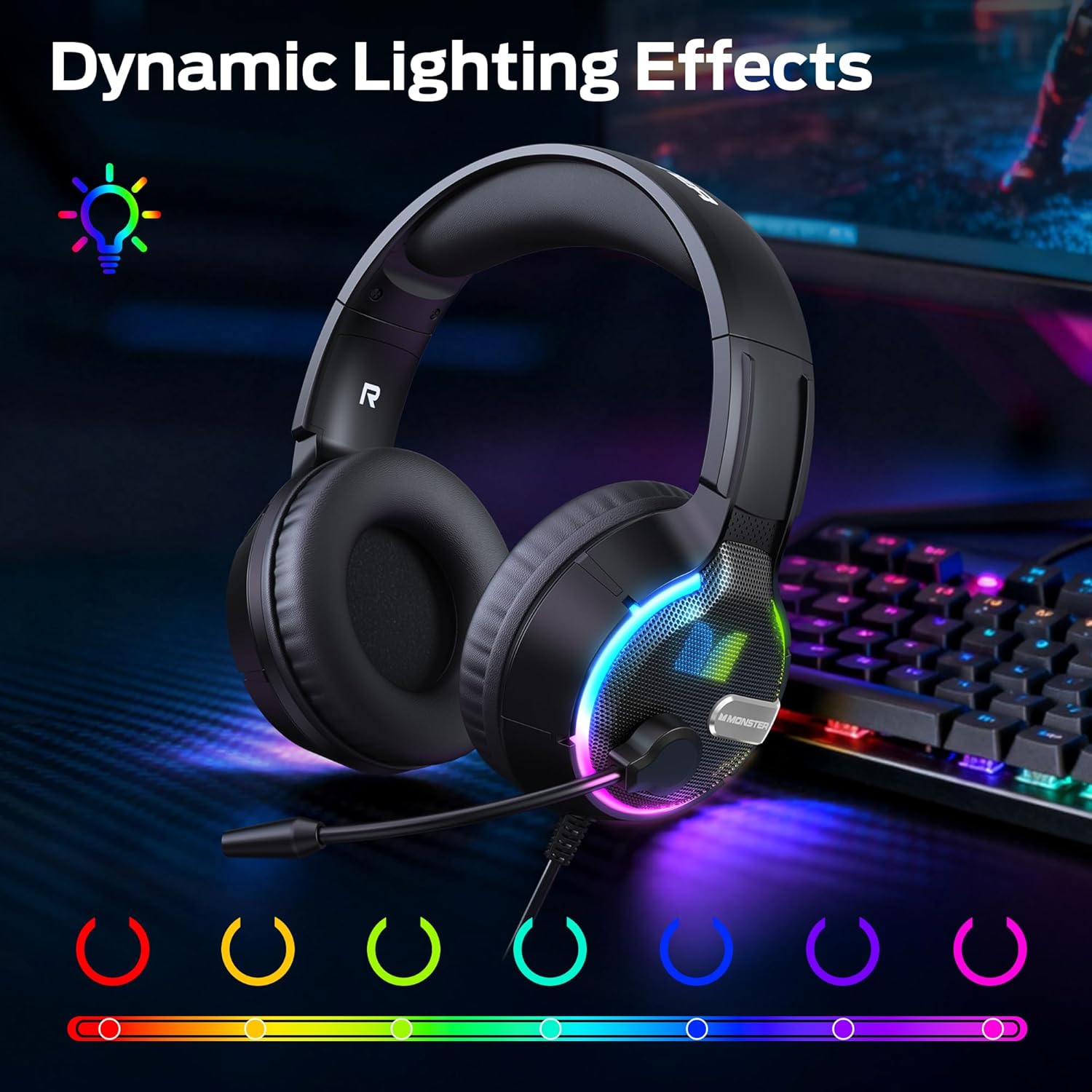
Image: The headset showcasing its vibrant dynamic RGB lighting effects.
4. Key Features
4.1 Bionic 7.1 Audio
Experience specialized, professional-grade 7.1 surround sound that enhances positional audio cues in games, providing a competitive edge and deeper immersion. This feature is primarily available via USB connection on compatible platforms.
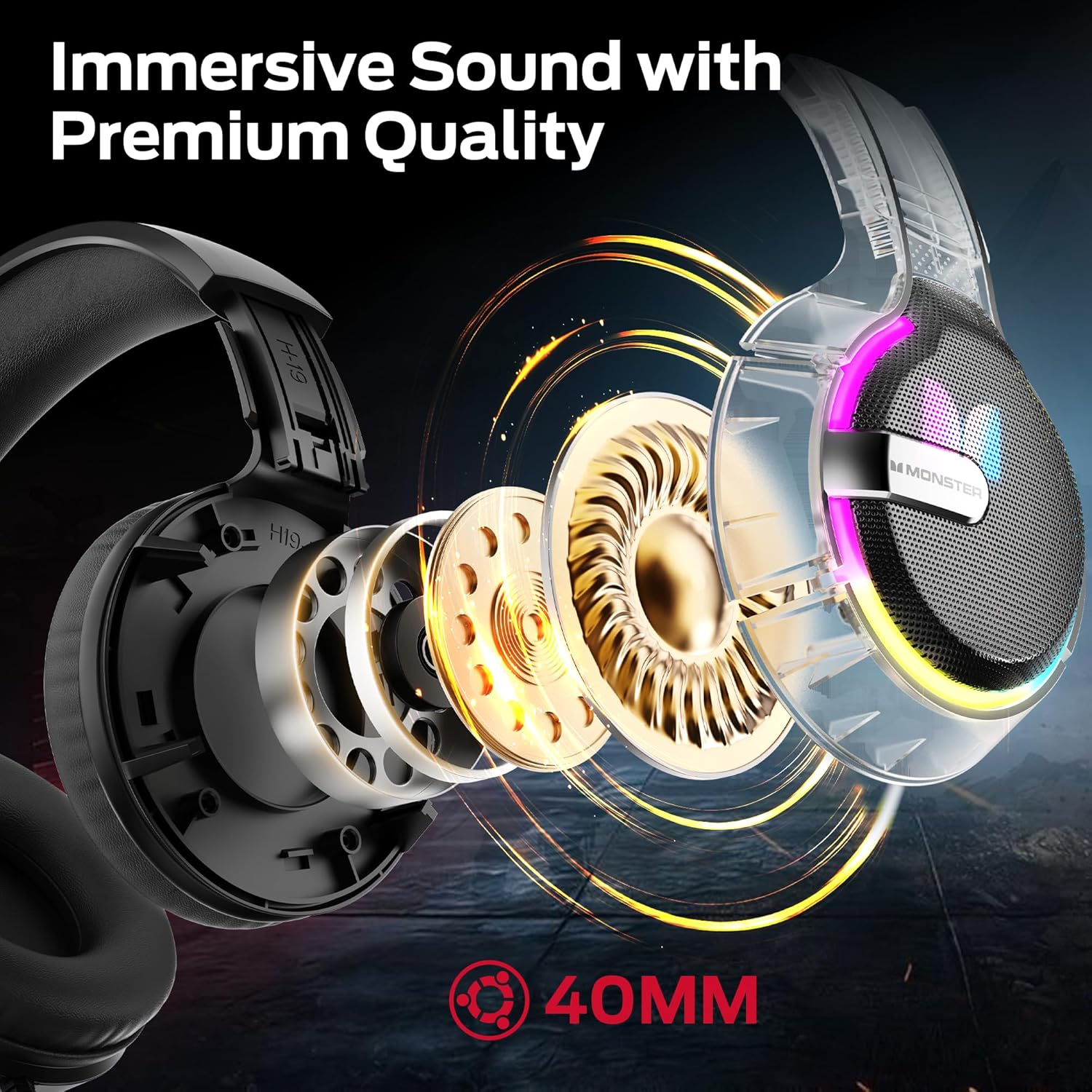
Image: An internal view of the headset's 40mm audio drivers, responsible for its immersive sound.
4.2 Dynamic RGB Lighting Effects
The headset's earcups feature vibrant RGB lighting that cycles dynamically, adding a visual flair to your gaming setup and integrating with the game atmosphere.
4.3 Comfortable Earmuff Design
Soft and smooth imitation protein leather earmuffs, combined with an optimized headband ergonomic curvature, ensure a comfortable fit without negative pressure. The earmuff-style cavity provides excellent comfort during extended gaming sessions for all ages.

Image: A detailed view of the soft, skin-friendly earmuffs designed for comfort and ventilation.
4.4 Adaptive Noise-Canceling Microphone
The omnidirectional, swivel microphone includes high-quality adaptive noise cancellation. Coupled with passive noise-canceling earmuffs, it effectively blocks external noise, ensuring your voice is clearly transmitted for in-game commands.
5. Specifications
| Feature | Detail |
|---|---|
| Brand | Monster |
| Model Name | H16 |
| Connectivity Technology | Bluetooth (also supports wired 3.5mm and USB) |
| Color | Black |
| Ear Placement | Over Ear |
| Item Weight | 15.8 ounces |
| Package Dimensions | 8.86 x 7.76 x 4.17 inches |
| Included Components | User Manual |
6. Maintenance
To ensure the longevity and optimal performance of your Monster Mission 320 Gaming Headset, follow these maintenance guidelines:
- Cleaning: Use a soft, dry cloth to wipe down the earcups and headband. For deeper cleaning, a slightly damp cloth with mild soap can be used, ensuring no moisture enters the speaker grilles or microphone.
- Storage: Store the headset in a cool, dry place away from direct sunlight and extreme temperatures. Avoid placing heavy objects on top of the headset.
- Cable Care: Avoid sharp bends or excessive pulling on the cables. When not in use, gently coil the cables to prevent tangling and damage.
- Microphone Care: If the microphone is detachable, remove it when not needed to prevent accidental damage. Keep the microphone clean and free from dust.
7. Troubleshooting
If you encounter any issues with your Monster Mission 320 Gaming Headset, refer to the following common troubleshooting steps:
- No Sound:
- Ensure the headset is properly connected to your device (3.5mm jack fully inserted, USB securely plugged in, or Bluetooth successfully paired).
- Check the volume levels on both the headset and your connected device.
- Verify that the correct audio output device is selected in your device's sound settings.
- Microphone Not Working:
- Ensure the microphone is not muted (check the mute switch on the headset/inline control).
- Verify that the microphone is securely plugged into the headset, if detachable.
- Check your device's sound settings to ensure the headset microphone is selected as the input device and its volume is not set to zero.
- RGB Lights Not Working:
- Ensure the headset is powered on and connected via USB, as RGB lighting often requires USB power.
- Check for a dedicated RGB control button on the headset or inline control.
- Distorted Audio:
- Lower the volume on both the headset and your device.
- Test the headset with another device to rule out a device-specific issue.
8. Warranty and Support
Monster provides a one-year warranty for the Mission 320 Gaming Headset. For any questions or assistance with your product, please contact our customer support. Our team is dedicated to providing high-quality after-sales service to ensure a worry-free experience.
Please refer to the contact information provided with your purchase or visit the official Monster website for support details.


