
Introduction
This manual provides instructions for the setup, operation, and maintenance of your xiskt R36MAX Retro Gaming Console. Please read this manual thoroughly before using the device to ensure proper functionality and to maximize your gaming experience.
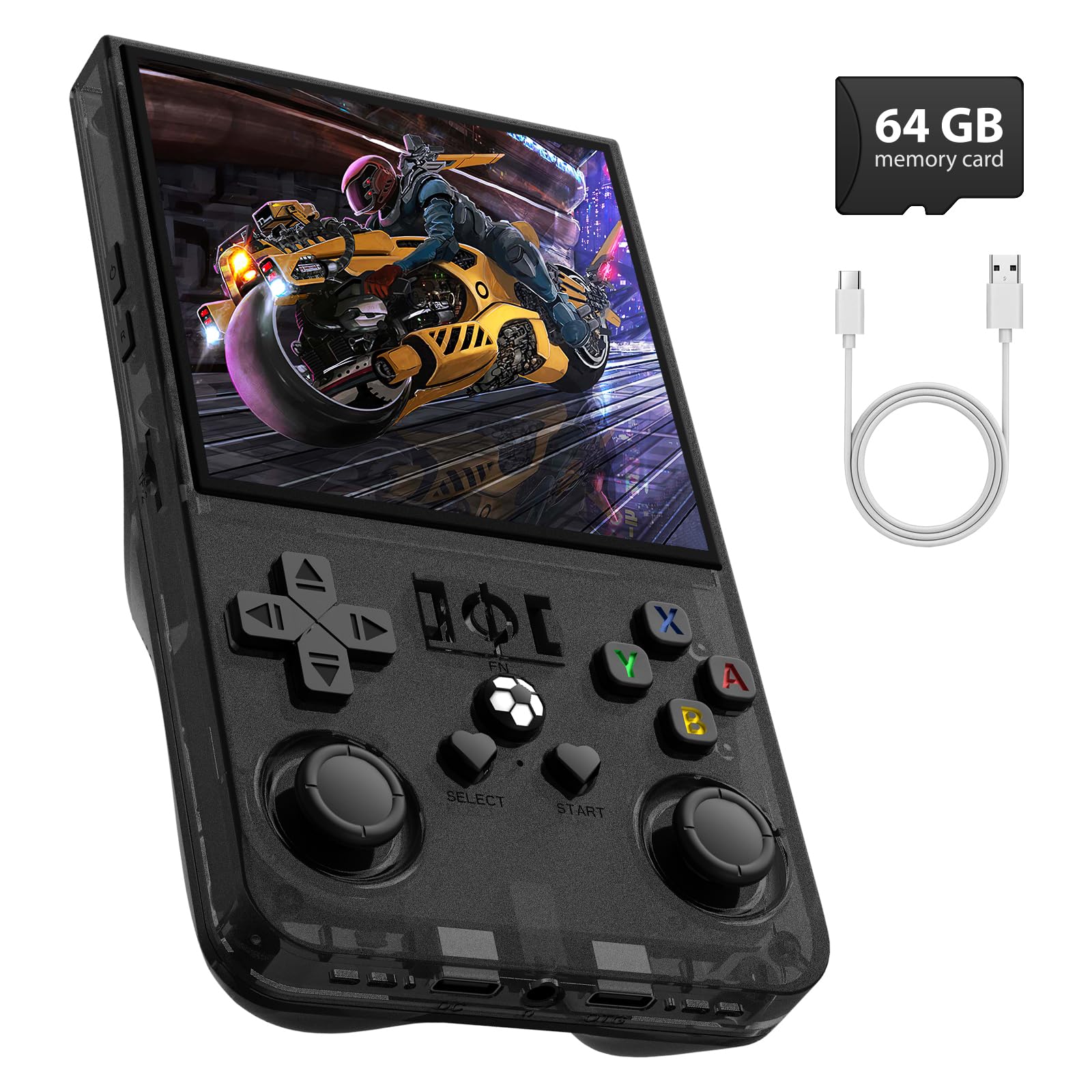
Image: The xiskt R36MAX Retro Gaming Console, black model.
1. Setup
1.1 Unboxing and Initial Inspection
Upon opening the package, verify that all components are present:
- R36MAX Handheld Game Console
- Type-C USB Charging Cable
- 64GB TF Card (pre-installed or included separately)
- Screen Protector
- User Manual (this document)
- Gift Box (packaging)

Image: Visual representation of the R36MAX console's packing list, including the console, cables, and accessories.
1.2 Charging the Device
Before first use, fully charge the R36MAX console.
- Connect the provided Type-C USB charging cable to the charging port on the console.
- Connect the other end of the cable to a compatible USB power adapter (5V 1.5-2A recommended, not included) or a computer's USB port.
- The charging indicator light will illuminate. A full charge typically takes approximately 2 hours.
- Once fully charged, disconnect the cable.
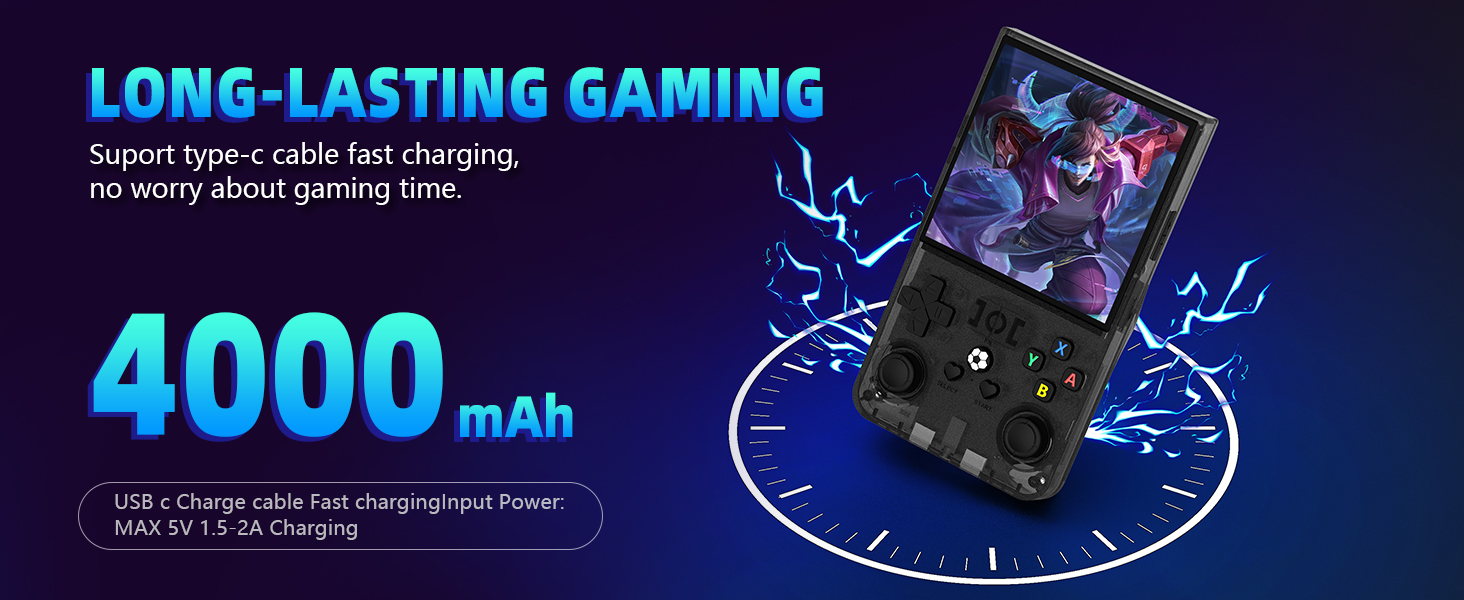
Image: Illustration showing the R36MAX console being charged via a Type-C cable, highlighting the 4000mAh battery capacity.
1.3 Inserting the TF Card
The R36MAX comes with a 64GB TF card pre-installed or included separately, containing the operating system and preloaded games.
- If the TF card is not pre-installed, locate the TF card slot on the console.
- Gently insert the TF card into the slot until it clicks into place. Ensure it is inserted correctly to avoid damage.

Image: The R36MAX console highlighting the included 64GB TF card.
2. Operating Instructions
2.1 Device Layout and Controls
Familiarize yourself with the buttons and ports on your R36MAX console.

Image: Diagram illustrating the function keys and ports on the R36MAX console, including Power, Reset, TF card slots, Volume keys, Directional pad, ABXY buttons, Select, Start, Left/Right Rockers, Charging port, Headset jack, and shoulder buttons (R1, R2, L1, L2).
- Power Button: Turns the device on or off.
- Reset Button: Restarts the device.
- TF-game / TF1-OS Slots: For game storage and operating system.
- Volume Keys (+/-): Adjusts audio volume.
- Directional Pad (D-Pad): For menu navigation and in-game movement.
- ABXY Buttons: Primary action buttons for gameplay.
- Select / Start Buttons: For menu selections and starting games.
- Left / Right Rockers (Analog Sticks): For precise control in supported games.
- Charging Port (Type-C): For power input.
- Headset Port (3.5mm): For connecting headphones.
- Shoulder Buttons (R1, R2, L1, L2): Additional action buttons, typically for in-game functions.
2.2 Powering On/Off
- To Power On: Press and hold the Power button until the screen illuminates.
- To Power Off: Press and hold the Power button until a power-off menu appears, then select "Power Off". Alternatively, a quick press of the Reset button will restart the device.
2.3 Navigating the System
The R36MAX runs on an open-source Linux system. Use the D-Pad and ABXY buttons to navigate through menus and select games.
2.4 Playing Games
The console comes preloaded with a library of classic video games and supports over 30 simulators.
- From the main menu, navigate to the desired game system or game list.
- Select a game using the A button (or equivalent action button).
- The game will load. Use the console's controls for gameplay.
2.5 In-Game Combination Keys
Certain key combinations provide quick access to in-game functions:

Image: Diagram showing the R36MAX console with a list of in-game combination keys and their functions, such as SELECT + START to exit game, SELECT + X to switch to RetroArch menu, SELECT + A to pause, etc.
- SELECT + START: Exit the current game.
- SELECT + X: Switch to the RetroArch menu.
- SELECT + A: Pause the game.
- SELECT + Y: Take a screenshot.
- SELECT + B: Display FPS (Frames Per Second).
- SELECT + L1: Save game state.
- SELECT + L2: Load game state.
- SELECT + R1: Frame-by-frame advance.
- SELECT + R2: Press and hold to fast forward the game, release to resume normal speed.
2.6 Screen Rotation Adjustment
If you encounter a screen rotation issue in a game, follow these steps to adjust it:

Image: Step-by-step visual guide for adjusting screen rotation on the R36MAX console, showing menu navigation within RetroArch.
- In the game interface, press SELECT + X. Then press B to return to the RetroArch menu.
- Navigate to Settings and select it.
- From the Settings menu, select Video.
- Within the Video settings, select Output.
- Select Video Rotation.
- Choose Normal.
Note: Some games may require a restart for the changes to take effect.
3. Maintenance
3.1 Cleaning the Device
To keep your R36MAX console in optimal condition:
- Use a soft, dry, lint-free cloth to wipe the screen and exterior.
- Avoid using harsh chemicals, abrasive cleaners, or excessive moisture.
- Do not spray cleaners directly onto the device.
3.2 Battery Care
The R36MAX features a 4000mAh rechargeable battery. To prolong battery life:
- Avoid fully discharging the battery frequently.
- Store the device in a cool, dry place when not in use for extended periods.
- Charge the device regularly, even if not in frequent use, to prevent deep discharge.
4. Troubleshooting
4.1 Common Issues and Solutions
- Device does not power on:
- Ensure the battery is charged. Connect the charger and wait a few minutes before attempting to power on again.
- Press the Reset button with a thin object (e.g., a paperclip) and then try powering on.
- Screen is blank or frozen:
- Press and hold the Power button for 10-15 seconds to force a shutdown, then restart the device.
- If unresponsive, use the Reset button.
- Game performance issues (lag, stuttering):
- Ensure the TF card is properly inserted.
- Some games, especially more demanding 3D titles, may have varying performance.
- Ensure the device is adequately charged.
- Screen rotation issue in game:
- Refer to Section 2.6, "Screen Rotation Adjustment," for detailed steps.
- No sound:
- Check the volume level using the Volume + button.
- Ensure no headphones are plugged in if you intend to use the built-in speakers.
- If headphones are connected, ensure they are fully plugged into the 3.5mm jack.
5. Specifications
Key technical specifications for the xiskt R36MAX Retro Gaming Console:
| Feature | Detail |
|---|---|
| System | Open Source Linux System |
| Screen | 4.0 inch IPS OCA full fit HD MiPi screen |
| Resolution | 720x720 pixels |
| CPU | RK3326 ARM 64bit quad core Cortex-A35 CPU up to 1.5GHz |
| GPU | MALI-G31MP2 (520MHz), Support for OpenGL ES 3.2 |
| RAM | 1GB+8GB EMMC |
| TF Card | 64GB (included) |
| Horn | Built-in 8W cavity horn |
| Battery | 4000mAh rechargeable battery |
| Battery Life | Up to 6 hours |
| Charging Time | Approximately 2 hours |
| Input Power | 5V 1.5-2A |
| Charging Interface | Type-C |
| Data Port | Type-C OTG |
| Earphone Interface | Standard 3.5mm |
| Product Dimensions | 6.5 x 4.9 x 1.8 inches |
| Item Weight | 13.7 ounces |
| Material | Plastic |

Image: Close-up of the R36MAX console's 4.0-inch HD color screen, showing 720x720 pixel resolution.

Image: Illustration of the RK3326 professional gaming chip, highlighting its role in smooth 2D and 3D game performance.
6. Warranty and Support
For information regarding warranty coverage, please refer to the purchase documentation or contact the retailer where the product was acquired.
For technical support or further assistance, please contact xiskt customer service through their official channels.
7. Product Videos
The following videos provide additional visual guidance and demonstrations for the R36MAX Retro Gaming Console.
Product Overview
Video: A general overview of the R36MAX Retro Gaming Console, showcasing its features and design.
Gameplay Demonstration
Video: A demonstration of various games being played on the R36MAX console, highlighting its performance and display quality.
Ergonomic Design and Portability
Video: This video showcases the portable and ergonomic design of the R36MAX, demonstrating how it fits comfortably in hand and is easy to carry.