
1. Introduction
This manual provides detailed instructions for the Yoidesu Wireless Gaming Mouse, model Yoidesun06fcxph14-12. This lightweight gaming mouse features a high-accuracy sensor, programmable macros, and versatile 3-mode connectivity (Wired, 2.4G Wireless, and BT 5.3). It is designed for use with PC and laptop systems, offering precise control and a comfortable user experience.
2. Package Contents
Verify that all items listed below are included in your package:
- 1 x Yoidesu Wireless Gaming Mouse
- 1 x Magnetic Charging Base
- 1 x Charging Cable
- 1 x User Manual
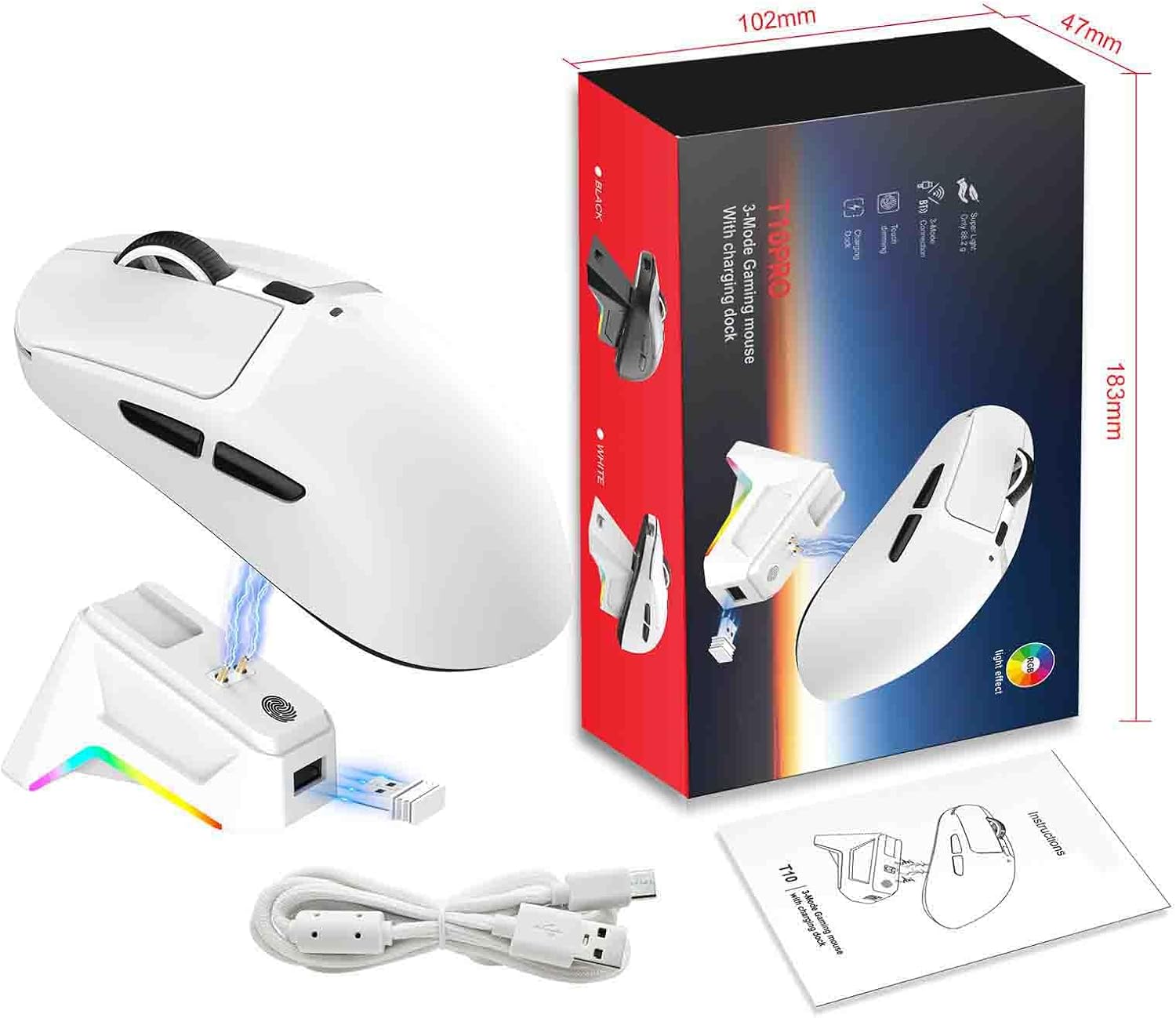
Image: Contents of the Yoidesu Wireless Gaming Mouse package, showing the mouse, magnetic charging base, charging cable, and user manual.
3. Setup
3.1 Initial Charging
Before first use, it is recommended to fully charge the mouse. Connect the provided charging cable to the magnetic charging base and then to a USB power source. Place the mouse onto the magnetic charging base. The mouse will begin charging automatically.

Image: The Yoidesu mouse being charged on its magnetic RGB charging dock, illustrating the convenient charging method.
3.2 Connecting the Mouse
The Yoidesu gaming mouse supports three connection modes: Wired, 2.4G Wireless, and BT 5.3. You can switch between these modes as needed.
3.2.1 Wired Mode
- Connect the provided USB-C charging cable directly from the mouse to your computer's USB port.
- The mouse will automatically switch to wired mode and be ready for use.
3.2.2 2.4G Wireless Mode
- Locate the 2.4G USB receiver (dongle) typically stored in the magnetic charging base or within the mouse itself.
- Plug the 2.4G USB receiver into an available USB port on your computer.
- Ensure the mouse is powered on and set to 2.4G mode (usually indicated by a switch on the bottom of the mouse). The mouse should connect automatically.
3.2.3 BT 5.3 Mode
- Ensure your computer's Bluetooth is enabled.
- Switch the mouse to BT 5.3 mode using the switch on the bottom of the mouse. The mouse's indicator light will typically flash, indicating it's in pairing mode.
- On your computer, go to Bluetooth settings and search for new devices. Select the Yoidesu mouse from the list to pair.
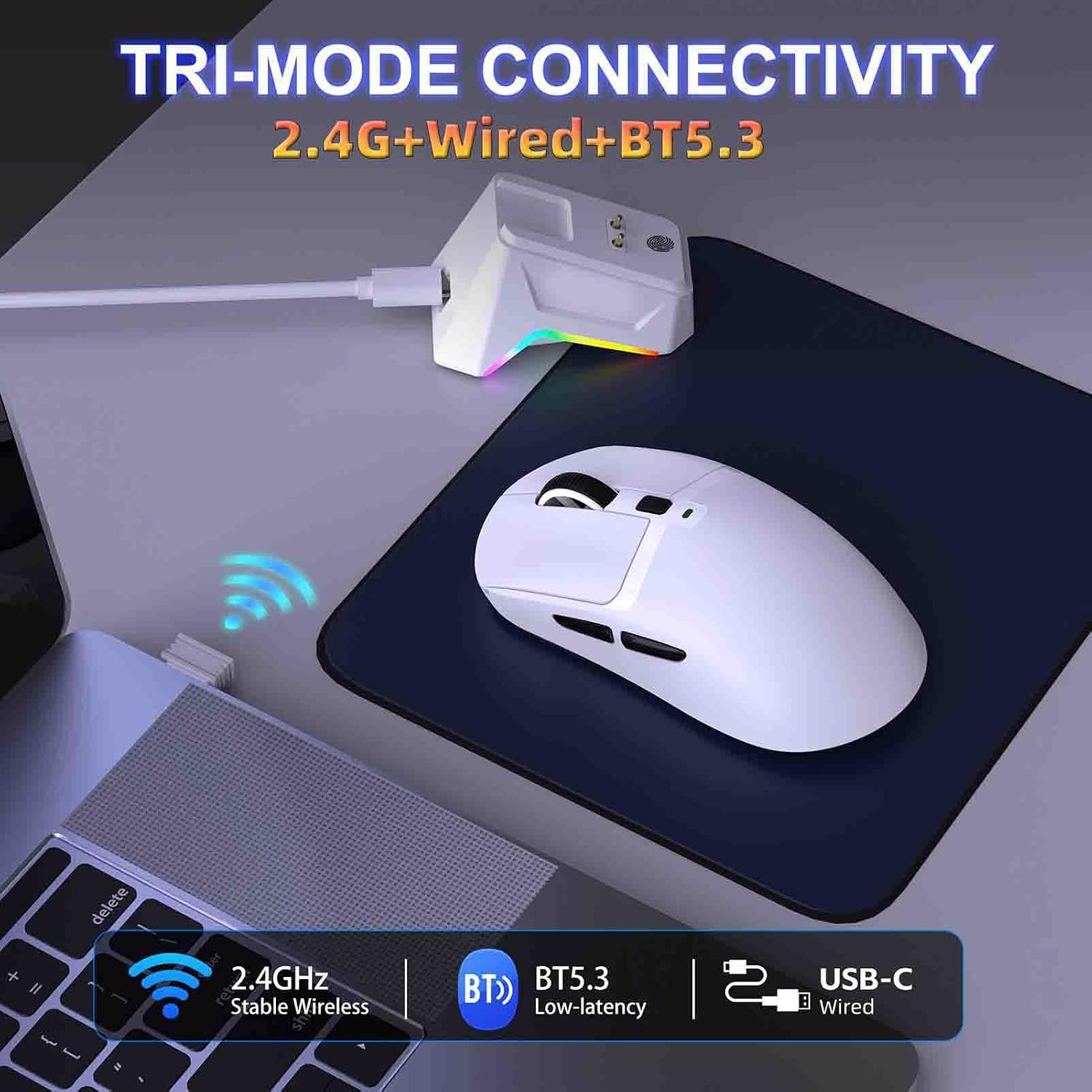
Image: Illustration of the three connectivity options: 2.4G wireless, Bluetooth 5.3, and USB-C wired, demonstrating the mouse's versatility.
4. Operating Instructions
4.1 Switching Connection Modes
The mouse features a mode switch on its underside, allowing you to select between Wired, 2.4G Wireless, and BT 5.3 modes. Ensure the correct mode is selected for your desired connection type.

Image: Visual representation of the three connection modes (2.4G, BT 5.3, Wired) available on the Yoidesu gaming mouse.
4.2 DPI Adjustment
The mouse offers adjustable Dots Per Inch (DPI) settings, ranging from 1200 to 12000 DPI. You can cycle through the DPI settings using the dedicated DPI button, usually located near the scroll wheel. Each DPI level is indicated by a specific color prompt:
- Red: 1200 DPI
- Green: 1600 DPI
- Blue: 2400 DPI
- Yellow: 3200 DPI
- Green (second): 6400 DPI
- Purple: 12000 DPI
The mouse features a memory function for the last selected DPI setting.
4.3 Polling Rate Adjustment (2.4G Mode)
In 2.4G Wireless mode, the polling rate can be adjusted. To switch between 125Hz, 250Hz (default), 500Hz, and 1000Hz, press and hold the right mouse button for 3 seconds.
4.4 Programmable Buttons
The mouse is equipped with 6 programmable buttons. Macro programming functionality is supported only in 2.4G Wireless and Wired modes. To customize these buttons, download the official driver from the Yoidesu website. The driver allows you to assign complex commands and macros to enhance your workflow or gaming experience.
4.5 Magnetic Charging Dock
The magnetic charging dock provides a convenient way to charge your mouse. Simply place the mouse onto the dock, ensuring the magnetic contacts align. The dock also features RGB lighting effects that can be switched.
5. Maintenance
5.1 Cleaning
To maintain optimal performance, regularly clean your mouse. Use a soft, dry cloth to wipe the surface. For stubborn dirt, a slightly damp cloth can be used, ensuring no moisture enters the internal components. Avoid using harsh chemicals or abrasive materials.
5.2 Battery Care
The mouse contains a built-in 500mAh rechargeable battery. To prolong battery life:
- Avoid fully discharging the battery frequently.
- Store the mouse in a cool, dry place when not in use for extended periods.
- Charge the mouse using only the provided charging cable and magnetic base.
A full charge provides approximately 70 hours of working time.
6. Troubleshooting
If you encounter issues with your Yoidesu Wireless Gaming Mouse, refer to the following common solutions:
- Mouse not responding: Ensure the mouse is charged. Check the connection mode switch on the bottom of the mouse and verify that the correct mode (Wired, 2.4G, or BT) is selected and properly connected to your device. For 2.4G, ensure the USB receiver is securely plugged in. For Bluetooth, re-pair the device.
- Lag or intermittent connection: For 2.4G wireless, try plugging the USB receiver into a different USB port, preferably one closer to the mouse. Reduce interference from other wireless devices. For Bluetooth, ensure your device's Bluetooth drivers are up to date.
- Charging issues: Ensure the charging cable is securely connected to both the magnetic base and the power source. Verify that the mouse is correctly seated on the magnetic charging base and the contacts are clean.
- Programmable buttons not working: Ensure the mouse is in Wired or 2.4G Wireless mode. Download and install the official Yoidesu driver from the manufacturer's website to configure macros and button assignments.
- DPI not changing: Press the DPI button firmly. If the indicator light does not change color, ensure the mouse is powered on and functioning correctly.
If problems persist, consult the Yoidesu support website or contact customer service.
7. Specifications
| Item Type | Lightweight 3-Mode Gaming Mouse with Magnetic Charging Dock |
| Chipset | FR 2012+S205 |
| Connection Modes | Wired + 2.4G Wireless + BT5.3 |
| Working Mode | Optical |
| Dots per inch (DPI) | 12000 (1200-1600-2400-3200-6400-12000) |
| Gear Prompt Colors | Red, Green, Blue, Yellow, Green, Purple (with memory) |
| Buttons Lifespan | 50 Million Clicks |
| Refresh Rate (Wired Mode) | 1000Hz |
| Refresh Rate (2.4G Mode) | 250Hz (125Hz/250Hz (default)/500Hz/1000Hz, switch by pressing right key for 3 seconds) |
| Refresh Rate (BT5.3 Mode) | 125Hz |
| Acceleration | 10/25G |
| Frame Rate | 2000/7200FPS |
| Number of Buttons | 6 |
| Battery | 500mAh (built-in) |
| Working Time | 70 hours |
| Macro Programming | Yes (6 programmable buttons, supported in 2.4G and wired modes) |
| Cable Length | 150cm |
| Item Size | 12 x 5.9 x 3.9 cm / 4.72 x 2.32 x 1.54 inches |
| Item Weight | 58.2g / 2.05oz |

Image: Detailed dimensions of the Yoidesu Wireless Gaming Mouse.
8. Warranty and Support
For warranty information, please refer to the documentation included with your product or visit the official Yoidesu website. For technical support or further assistance, please contact Yoidesu customer service through their official channels.