
toocki Wi-Fi 6 USB Adapter
Toocki Wi-Fi 6 USB Adapter Instruction Manual
Model: Wi-Fi 6 USB Adapter
Introduction
This manual provides detailed instructions for the installation, operation, and maintenance of your Toocki Wi-Fi 6 USB Adapter. This device is designed to provide high-speed wireless internet connectivity and Bluetooth 5.4 functionality to your desktop or laptop computer. Please read this manual thoroughly before using the product to ensure proper setup and optimal performance.
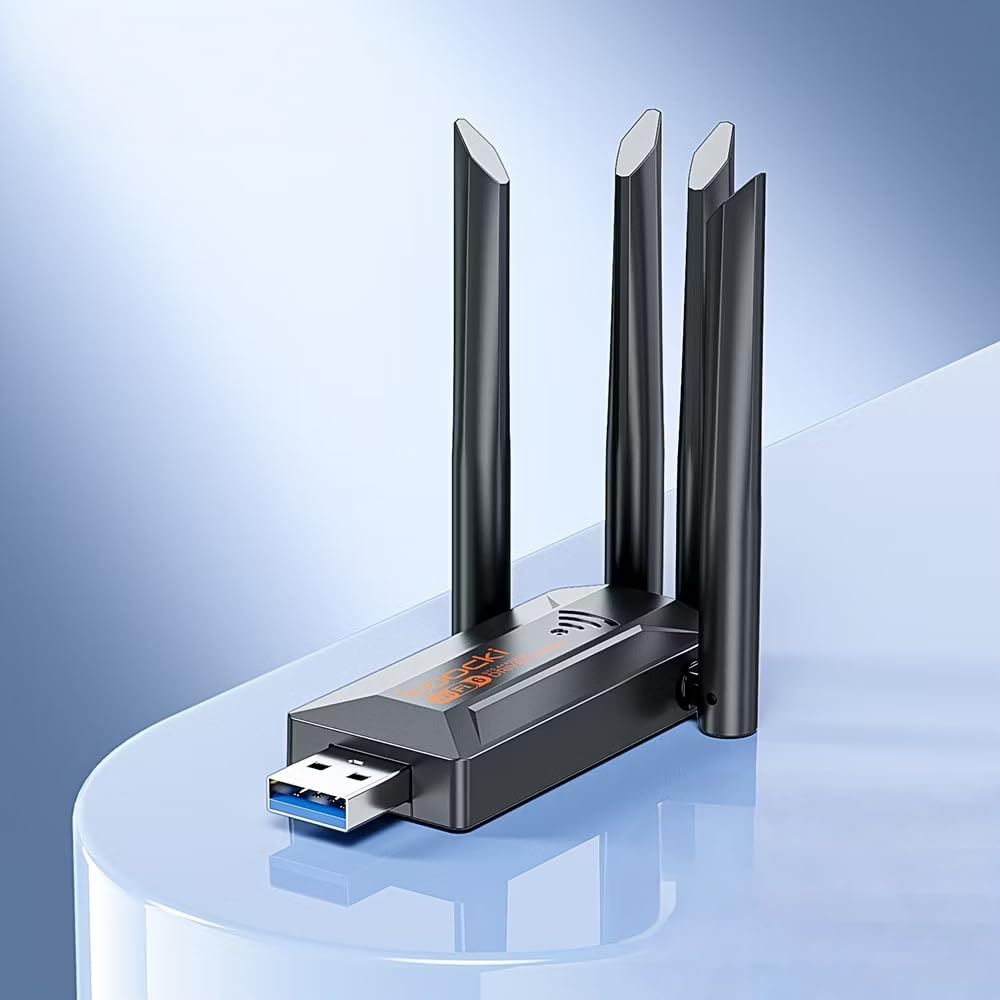
Image: The Toocki Wi-Fi 6 USB Adapter, showcasing its compact design and four adjustable antennas.
Safety Information
- Keep the device away from water, fire, high humidity, or hot environments.
- Do not attempt to disassemble, repair, or modify the device.
- Avoid exposing the device to direct sunlight or heat sources.
- Use only with compatible USB ports (USB 3.0 recommended for optimal performance).
- Keep out of reach of children.
Package Contents
Verify that all items are present in your package:
- Toocki Wi-Fi 6 USB Adapter (1 unit)
- User Manual (this document)
Note: The product is designed for driver-free installation on Windows 10/11. No separate driver CD is included.
Product Overview
The Toocki Wi-Fi 6 USB Adapter integrates advanced Wi-Fi 6 technology and Bluetooth 5.4 into a compact USB device. It features four high-gain external antennas for improved signal reception and transmission.

Image: Internal view highlighting the Wi-Fi 6 smart algorithm chip, indicating enhanced signal stability and wider coverage.
Key Features:
- Wi-Fi 6 (802.11ax) Support: Provides stronger signal stability and wider coverage.
- Dual-Band Connectivity: Supports both 2.4GHz and 5GHz frequencies for flexible network options and speeds up to 900Mbps.
- Bluetooth 5.4: Enables stable, multi-device connections for peripherals like mice, keyboards, and headphones.
- Four High-Gain Antennas: Enhances signal strength and extends wireless range.
- USB 3.0 Interface: Ensures rapid data transfer speeds.
- Driver-Free Installation: Plug-and-play compatibility for Windows 10/11.
- Dual Functionality: Acts as a Wi-Fi receiver and an AP/Hotspot.
Setup Instructions
1. Connect the Adapter
- Ensure your computer is powered on.
- Locate an available USB 3.0 port on your desktop or laptop. For optimal performance, use a USB 3.0 port (typically blue inside).
- Carefully insert the Toocki Wi-Fi 6 USB Adapter into the USB port.
- The operating system (Windows 10/11) should automatically detect and install the necessary drivers. A notification may appear indicating successful installation.
2. Adjust Antennas
The adapter features four adjustable antennas. For best signal reception and transmission, position the antennas vertically or at an angle that provides the strongest signal in your environment. Experiment with different orientations to find the optimal setup.

Image: The Toocki Wi-Fi 6 USB Adapter with its four antennas fully extended, ready for use.
Operating Instructions
1. Connecting to Wi-Fi (Receiver Mode)
- After successful driver installation, click on the Wi-Fi icon in your computer's system tray (usually bottom-right corner for Windows).
- A list of available wireless networks will appear.
- Select your desired Wi-Fi network (either 2.4GHz or 5GHz band, if both are available).
- Enter the network security key (password) if prompted.
- Click "Connect". Your computer should now be connected to the internet wirelessly.

Image: Illustration of the adapter functioning as a Wi-Fi receiver, enabling a desktop PC to connect to a wireless network without cables.
2. Using as an AP/Hotspot (Transmission Mode)
The adapter can also create a Wi-Fi hotspot, allowing other devices (phones, tablets) to connect to your computer's internet connection.
- Ensure your computer is connected to the internet via an Ethernet cable or another Wi-Fi adapter.
- On Windows 10/11, go to Settings > Network & Internet > Mobile hotspot.
- Toggle the "Share my Internet connection with other devices" switch to On.
- You can customize the network name (SSID) and password under "Edit".
- Other devices can now search for and connect to this hotspot.

Image: Illustration demonstrating the adapter's Wi-Fi transmission function, creating a hotspot from a connected PC to share internet with mobile devices.
3. Bluetooth 5.4 Connection
The integrated Bluetooth 5.4 allows for stable connections with multiple Bluetooth-enabled devices.
- On Windows 10/11, go to Settings > Devices > Bluetooth & other devices.
- Ensure Bluetooth is toggled On.
- Click "Add Bluetooth or other device" and select "Bluetooth".
- Put your Bluetooth device (e.g., headphones, mouse, keyboard) into pairing mode.
- Select your device from the list and follow any on-screen prompts to complete pairing.

Image: The Toocki Wi-Fi 6 USB Adapter connected to a laptop, symbolizing its Bluetooth 5.4 capability for multiple device connections.
Maintenance
- Keep the adapter clean by wiping it with a soft, dry cloth.
- Avoid using liquid cleaners or solvents.
- Ensure the adapter is not obstructed to allow for proper heat dissipation.
- When not in use for extended periods, it is recommended to safely remove the adapter from the USB port.
Troubleshooting
No Wi-Fi Connection:
- Check USB Port: Ensure the adapter is firmly inserted into a working USB port. Try a different USB port, preferably a USB 3.0 port.
- Driver Installation: For Windows 10/11, the driver should install automatically. Verify in Device Manager (search "Device Manager" in Windows) under "Network adapters" that the Toocki adapter is listed and has no error symbols. If not, try restarting your computer.
- Antenna Position: Adjust the antennas for optimal signal reception.
- Router Settings: Ensure your Wi-Fi router is powered on and broadcasting a signal. Check if other devices can connect to the same network.
- Network Profile: Forget the network and try reconnecting.
Slow Wi-Fi Speed:
- USB 3.0 Port: Ensure the adapter is connected to a USB 3.0 port for maximum speed. USB 2.0 ports will limit performance.
- Signal Strength: Check your Wi-Fi signal strength. A weak signal can lead to slower speeds. Move closer to the router or adjust antennas.
- Network Congestion: Too many devices on the same network or channel can cause slowdowns. Try switching to the 5GHz band if available and less congested.
- Interference: Other electronic devices (microwaves, cordless phones) can interfere with Wi-Fi signals.
Bluetooth Not Working:
- Bluetooth On: Verify Bluetooth is enabled in Windows Settings.
- Device Pairing: Ensure your Bluetooth device is in pairing mode and within range.
- Interference: Reduce distance between devices and remove any obstructions.
- Restart: Try restarting your computer and re-pairing the device.
Specifications

Image: Visual representation emphasizing the 900Mbps dual-band Wi-Fi 6 features for faster, more stable connections.
| Feature | Detail |
|---|---|
| Brand | Toocki |
| Model | Wi-Fi 6 USB Adapter |
| Hardware Interface | USB 3.0 |
| Wireless Standard | Wi-Fi 6 (IEEE 802.11ax), IEEE 802.11ac, IEEE 802.11n, IEEE 802.11g, IEEE 802.11b, IEEE 802.11a |
| Data Transfer Rate | Up to 900 Megabits Per Second |
| Frequency Bands | 2.4GHz, 5GHz |
| Bluetooth Version | Bluetooth 5.4 |
| Antennas | 4 High-Gain External Antennas |
| Compatible Devices | Desktop, Laptop |
| Operating System Support | Windows 10/11 (Driver-Free) |
| Product Dimensions | 30L x 20W x 60H Millimeters (approx. 3 x 2 x 6 cm) |
| Item Weight | 30 Grams |
| Color | Black |
Warranty Information
This Toocki Wi-Fi 6 USB Adapter comes with a 6-month warranty from the date of purchase. This warranty covers manufacturing defects and malfunctions under normal use. It does not cover damage caused by misuse, accidents, unauthorized modifications, or external factors. Please retain your proof of purchase for warranty claims.
Customer Support
If you encounter any issues or have questions regarding your Toocki Wi-Fi 6 USB Adapter that are not addressed in this manual, please contact your retailer or the manufacturer's customer support.
For support inquiries, please refer to the contact information provided with your purchase documentation or visit the official Toocki website.
Related documentsWi-Fi 6 USB Adapter


Ask a question about this manual
Ask about setup, troubleshooting, compatibility, parts, safety, or missing instructions. Manuals+ will review the question and use this page’s manual context to help answer it.