
Introduction
This manual provides essential information for setting up, operating, maintaining, and troubleshooting your HP OMEN Transcend 14 AI Gaming Laptop. Please read this guide thoroughly to ensure optimal performance and longevity of your device.
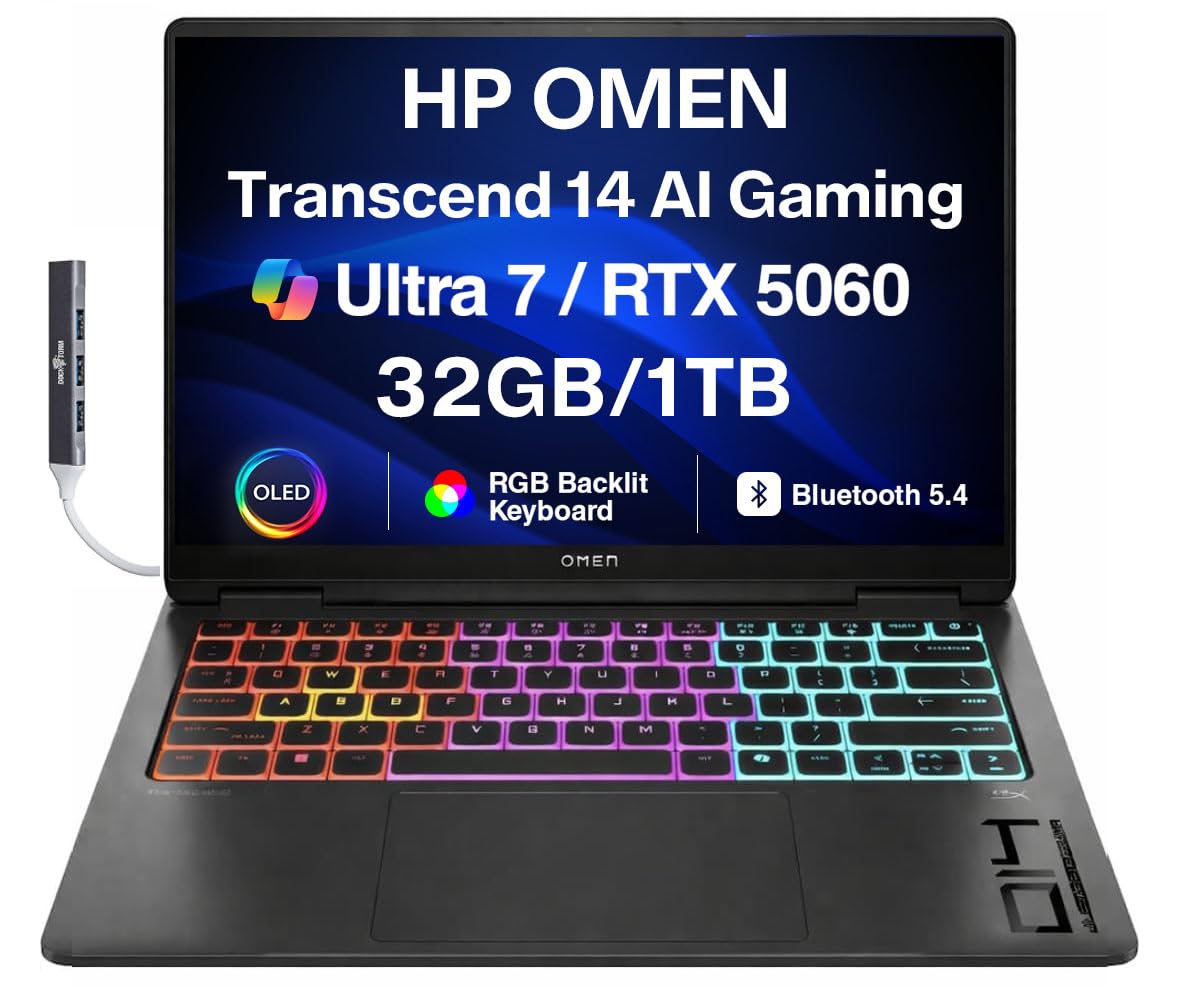
Figure 1: HP OMEN Transcend 14 AI Gaming Laptop.
What's in the Box
Verify that all items are present in the packaging:
- HP OMEN Transcend 14 AI Gaming Laptop
- Power Adapter and Cable
- Dockztorm Portable USB Hub
- Documentation (Quick Start Guide, Warranty Information)

Figure 2: Included Dockztorm Portable USB Hub.
Product Overview
Ports and Connectors
Familiarize yourself with the various ports on your laptop for connecting peripherals and power.

Figure 3: Overview of laptop ports.
- HDMI 2.1: For connecting to external displays.
- USB Type-C (10Gbps signaling rate): Supports USB Power Delivery and DisplayPort 1.4a.
- USB Type-A (10Gbps signaling rate): For standard USB devices.
- Headphone/Microphone Combo Jack: For audio input and output.
- Thunderbolt 4 with USB Type-C (40Gbps signaling rate): Supports USB Power Delivery, DisplayPort 2.1, HP Sleep and Charge.
Display
The laptop features a 14.0-inch 3K (2880x1800) 120Hz OLED display with 500 nits brightness, offering vibrant visuals and quick response times for an immersive experience.

Figure 4: The OLED display in action.
Setup
- Unpack the Laptop: Carefully remove the laptop and all accessories from the packaging.
- Connect Power: Plug the power adapter into the laptop's power port (USB Type-C) and then into a wall outlet. Ensure the battery is sufficiently charged before first use.
- Initial Boot: Open the laptop lid and press the power button. The laptop will guide you through the initial Windows 11 Pro setup process. Follow the on-screen instructions to configure your operating system, network, and user account.
- Connect Peripherals: Connect any external devices such as a mouse, keyboard, or external monitor to the appropriate ports.
- Install Updates: After initial setup, connect to the internet and check for Windows updates and HP driver updates to ensure your system is running the latest software.
Operating Instructions
Power On/Off
- Power On: Press the power button located on the keyboard deck.
- Shut Down: Click the Start button, then Power > Shut down.
- Restart: Click the Start button, then Power > Restart.
- Sleep: Close the lid or click the Start button, then Power > Sleep.
Keyboard and Touchpad
The laptop features an RGB backlit keyboard and a precision touchpad. Customize keyboard lighting and touchpad settings through Windows settings or the OMEN Gaming Hub software.

Figure 5: RGB Backlit Keyboard.
OMEN Gaming Hub
The OMEN Gaming Hub software provides centralized control for system performance, lighting, network booster, and other gaming-specific features. It allows you to monitor system vitals, adjust performance modes, and customize RGB lighting effects.

Figure 6: OMEN Gaming Hub interface.
Maintenance
- Cleaning: Use a soft, lint-free cloth to clean the screen and chassis. For stubborn marks, dampen the cloth slightly with water or a screen-safe cleaner. Avoid harsh chemicals.
- Software Updates: Regularly check for and install operating system updates (Windows Update) and driver updates (HP Support Assistant or OMEN Gaming Hub) to ensure system stability and security.
- Battery Care: To prolong battery life, avoid extreme temperatures and try to keep the battery charge between 20% and 80% when possible.
- Ventilation: Ensure the laptop's vents are clear of obstructions to prevent overheating. Use the laptop on a hard, flat surface.
Troubleshooting
Common Issues and Solutions
- Laptop does not power on:
- Ensure the power adapter is securely connected to both the laptop and a working power outlet.
- Try a different power outlet.
- Perform a hard reset by holding the power button for 15 seconds.
- Screen is blank or black:
- Connect an external monitor to check if the display output is working.
- Adjust screen brightness using function keys.
- Restart the laptop.
- Wi-Fi connection issues:
- Ensure Wi-Fi is enabled in Windows settings.
- Restart your router and modem.
- Update Wi-Fi drivers.
- Overheating:
- Ensure vents are clear and the laptop is on a hard, flat surface.
- Clean dust from vents using compressed air.
- Adjust performance settings in OMEN Gaming Hub to a cooler mode.
Specifications
| Brand | HP |
| Model Name | OMEN Transcend 14 |
| Operating System | Windows 11 Pro |
| CPU Model | Intel Ultra 7-255H (15th Gen) |
| CPU Speed | 2.00GHz (up to 5.1 GHz) |
| Graphics Coprocessor | GeForce RTX 5060 8GB GDDR7 |
| Screen Size | 14 Inches |
| Display Type | OLED 3K (2880x1800) 120Hz |
| RAM Memory Installed Size | 32 GB LPDDR5X |
| Storage | 1TB PCIe NVMe SSD |
| Connectivity | 802.11ax Wi-Fi, Bluetooth 5.4, Thunderbolt 4, USB 3.2 Type-C, USB 3.2 Type-A, HDMI 2.1 |
| Battery | 6-Cell 71 WHr |
| Item Dimensions (LxWxH) | 12.4 x 9.25 x 0.9 inches |
Warranty and Support
Warranty Information
Your HP OMEN Transcend 14 AI Gaming Laptop comes with a 1 Year Manufacturer Warranty from GreatPriceTech. Please refer to the warranty documentation included in your product packaging for full terms and conditions.
Customer Support
For technical assistance, driver downloads, or further support, please visit the official HP support website or contact HP customer service. Keep your product's serial number handy when contacting support.
- HP Support Website: support.hp.com
- OMEN Gaming Hub: Utilize the built-in OMEN Gaming Hub for system diagnostics and updates.


