
1. Introduction
The blurams SolarGuard 360 E22C is a 4MP wireless outdoor security camera designed for comprehensive home protection. Featuring a 100% wire-free design with integrated solar charging, dual-band WiFi 6, and 360° pan/tilt capabilities, this camera offers clear 2.5K resolution day and night. It includes human detection, IR/color night vision, two-way audio, and works with Alexa for convenient monitoring. Its IP65 weather-resistant build ensures reliable performance in any season.
2. What's in the Box
- blurams SolarGuard 360 E22C Camera with Integrated Solar Panel
- Mounting Bracket
- USB-C Charging Cable
- Screws and Wall Anchors
- User Manual
3. Product Overview
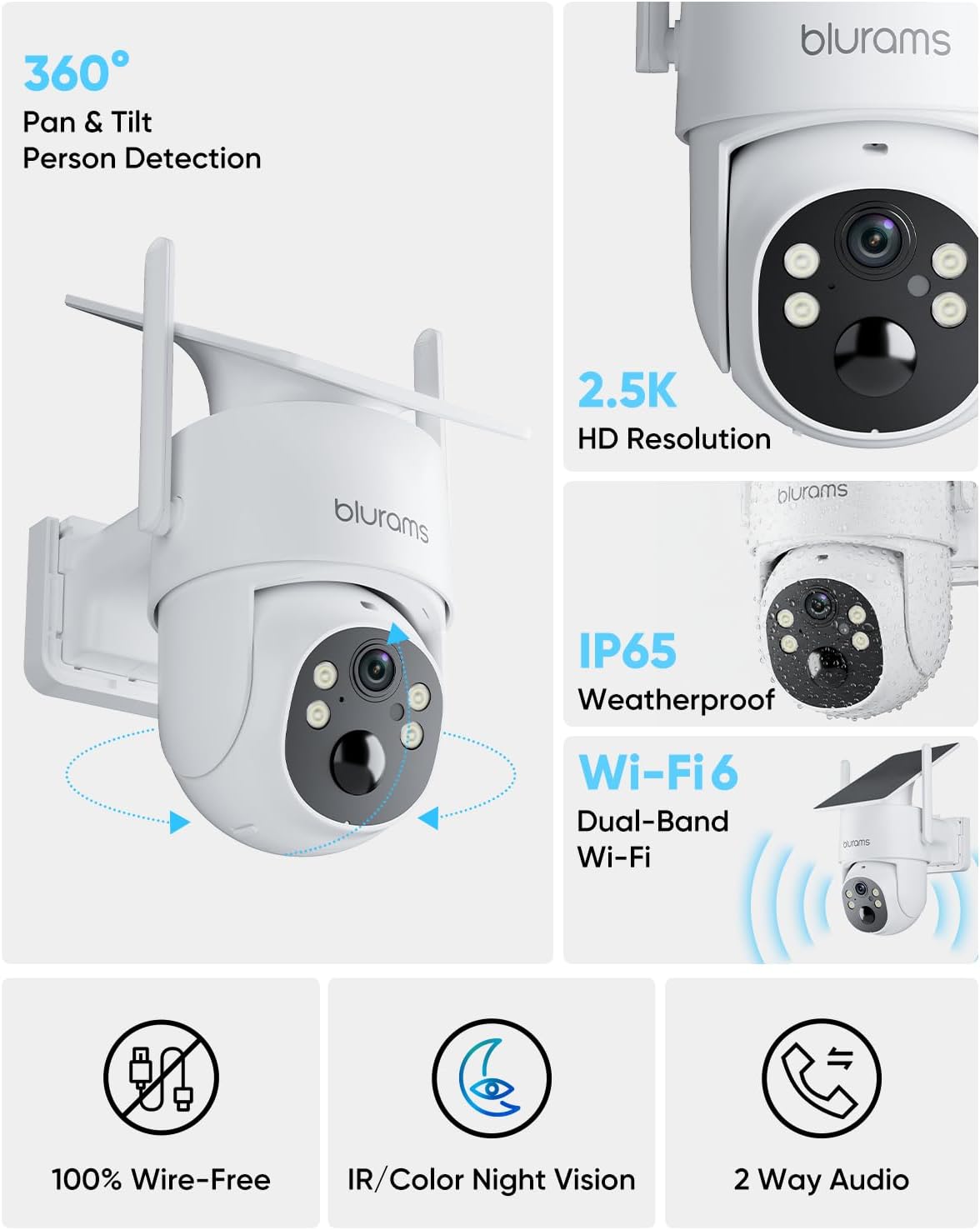
Figure 1: blurams SolarGuard 360 E22C Camera highlighting 360° Pan & Tilt, Person Detection, 2.5K HD Resolution, IP65 Weatherproof, Dual-Band Wi-Fi 6, 100% Wire-Free operation, IR/Color Night Vision, and 2-Way Audio.
Key Features:
- 100% Wire-Free Operation: No power cords or complicated wiring needed, supported by solar charging.
- Dual-Band WiFi 6: Supports both 2.4GHz and 5GHz WiFi 6 for stable, faster, and lower-latency outdoor connectivity.
- 4MP Ultra-HD Clarity: Delivers sharp 2.5K resolution with 4x digital zoom for clear day and night viewing.
- 355° Pan & 90° Tilt: Remotely adjust viewing angles via the blurams app to cover wider areas and reduce blind spots.
- Local Storage & Smart Alerts: Supports microSD cards (8–128GB, FAT32, Class 10 / U1 or above) for local recording without subscription. Provides instant motion alerts.
- IR/Color Night Vision: Offers clear visibility in low-light conditions, with options for infrared or full-color night vision.
- Two-Way Audio: Built-in microphone and speaker allow for real-time listening and speaking.
- Works with Alexa: Integrate with Amazon Alexa for hands-free control and viewing.
- IP65 Weather Resistance: Durable design ensures reliable outdoor use in various weather conditions.
4. Setup
4.1 Initial Charging
Before installation, fully charge the camera using the provided USB-C charging cable and a 5V 1A/2A adapter (not included). This ensures the battery is ready for optimal performance.

Figure 2: Step 1: Charge fully before installation. Step 2: Secure the bracket with two screws. Step 3: Align & Slide Down to Lock.
4.2 App Installation & Pairing
- Download the blurams app from your device's app store.
- Create an account or log in.
- Add a new device and select the E22C model.
- Ensure the camera is powered on. The indicator light should flash red and blue alternately to indicate pairing mode. If not, press and hold the reset button for 8–15 seconds until it does.
- Follow the in-app instructions to connect the camera to your dual-band WiFi 6 network (2.4GHz or 5GHz).
4.3 Physical Installation
Choose a location with good WiFi signal and sufficient sunlight for the solar panel. Secure the mounting bracket to a wall or other surface using the provided screws and wall anchors. Once the bracket is secure, align the camera with the bracket and slide it down to lock it into place.

Figure 3: Wire-Free Installation: With its all-in-one solar design, the camera reduces wiring needs and simplifies outdoor installation. Note: Please fully charge the camera before installation.
5. Operating the Camera
5.1 Live View & Pan/Tilt Control
Open the blurams app and select your camera to access the live view. Use the on-screen controls to pan (355°) and tilt (90°) the camera to monitor different areas. You can also set preset positions for quick viewing.
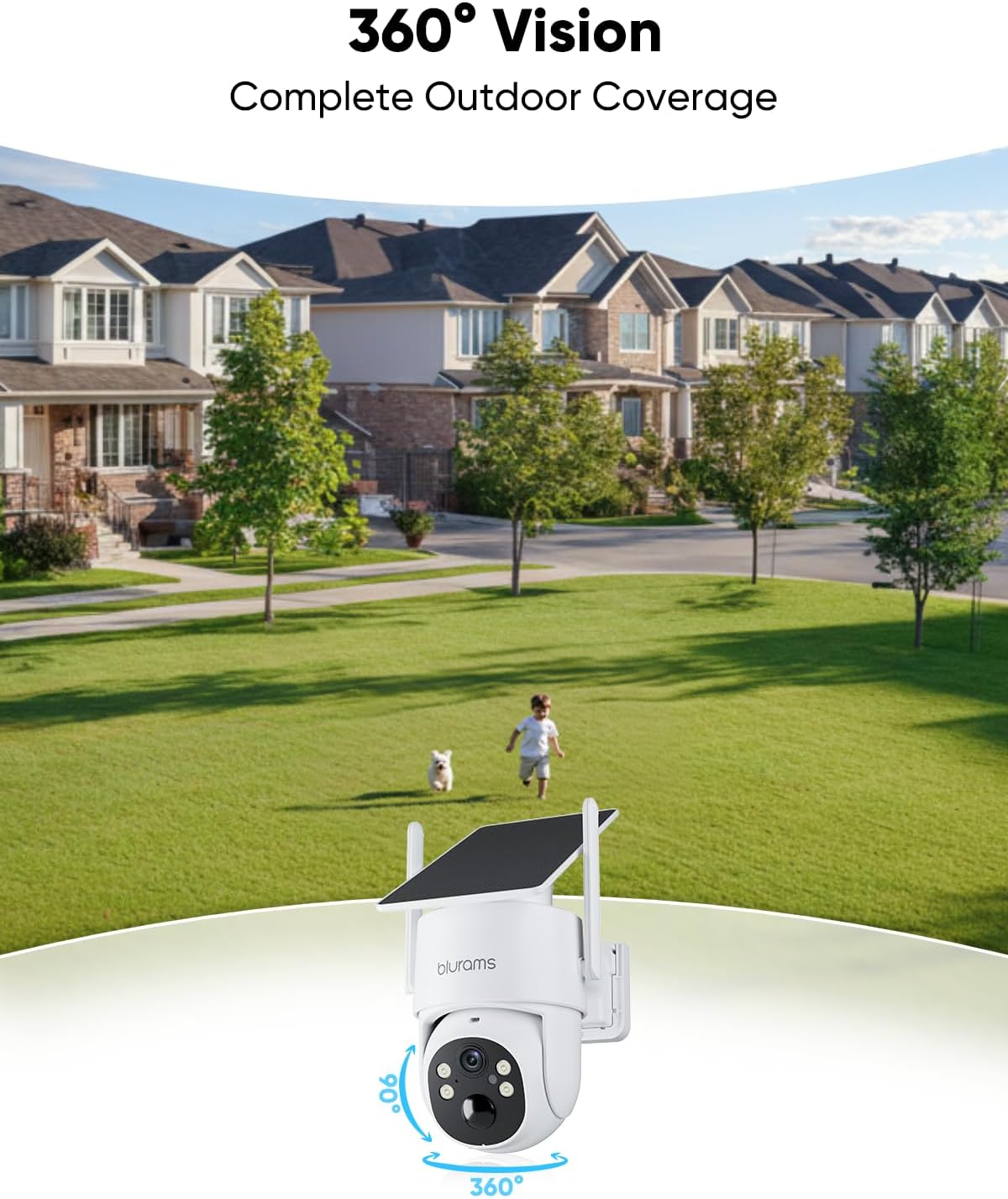
Figure 4: 360° Vision: Complete Outdoor Coverage. Remotely adjust viewing angles through the blurams app.
5.2 Night Vision Modes
The camera offers IR (infrared) night vision for clear black-and-white footage in complete darkness, and color night vision for more detailed, illuminated views. You can switch between these modes in the app settings.

Figure 5: Color & IR Night Vision: Clear View, Day or Night. See More Details After Dark with color night vision or Clear Black-and-White View with IR night vision.
5.3 Two-Way Audio
Utilize the two-way audio feature to communicate with visitors or deter intruders. Tap the microphone icon in the live view to speak, and listen through the camera's speaker.
5.4 Motion Detection & Smart Alerts
Configure motion detection settings in the app to receive instant alerts on your smartphone when activity is detected. You can define custom detection zones to focus on specific areas, such as your driveway or front porch, reducing false alarms.

Figure 6: Custom Zones, Smarter Alerts: Custom detection zones allow you to focus alerts on areas that matter most, such as your driveway or front porch.
5.5 Local Storage & Cloud Service
Insert a microSD card (8-128GB, FAT32, Class 10 / U1 or above) into the designated slot for local video recording. New footage automatically overwrites the oldest recordings when storage is full. An optional cloud service is available for extended video history and additional features.

Figure 7: Supports up to 128GB memory card storage. *Memory card not included.
5.6 Alexa Integration
Connect your blurams camera to Amazon Alexa for voice control. Use commands like "Alexa, show me the yard" to view your camera feed on compatible Alexa-enabled devices.

Figure 8: Works with Alexa: Hands-Free Control Made Easy. "Alexa, show me the yard."
6. Maintenance
6.1 Solar Charging
The integrated solar panel continuously charges the camera's battery during daylight hours. Ensure the solar panel is positioned to receive maximum sunlight for optimal charging. Regular cleaning of the solar panel surface can improve efficiency.

Figure 9: Powered by the Sun: No Wires Required. No Battery? No Problem! 100% Wire-Free, 2.5K HD Resolution, Dual-Band Wi-Fi 6.
6.2 Weather Resistance
The camera is IP65 weather-resistant, designed to withstand various outdoor conditions. Periodically check the camera and mounting for any debris or damage, especially after severe weather events.
7. Troubleshooting
7.1 Camera Not Entering Pairing Mode
If the camera's indicator light does not flash red and blue alternately after powering on, press and hold the reset button for 8–15 seconds until it enters pairing mode. Then, proceed with the setup in the blurams app.
7.2 Connectivity Issues
Ensure your WiFi network is stable and within range. The camera supports both 2.4GHz and 5GHz WiFi 6. If experiencing issues, try moving the camera closer to your router or switching between the 2.4GHz and 5GHz bands in the app settings.
8. Specifications
| Feature | Specification |
|---|---|
| Brand | blurams |
| Model Name | E22C |
| Recommended Uses | Outdoor Security |
| Connectivity Technology | Wireless (Dual-Band WiFi 6: 2.4GHz & 5GHz) |
| Video Capture Resolution | 4MP (2.5K) |
| Digital Zoom | 4x |
| Pan/Tilt Range | 355° Pan, 90° Tilt |
| Night Vision | IR / Color Night Vision |
| Storage Options | microSD Card (8-128GB, FAT32, Class 10 / U1 or above), Optional Cloud Service |
| Weather Resistance | IP65 |
| Power Source | Solar Powered (Rechargeable Battery) |
| Compatible Devices | Amazon Alexa |
| Material | Acrylonitrile Butadiene Styrene (ABS) |
| Item Dimensions | 10 x 3 x 3 inches |
9. Warranty & Support
blurams offers friendly and professional support. For any questions or assistance, please contact their support team. They aim to help within 24 hours. Information regarding specific warranty periods or extended protection plans may be available through your purchase platform or directly from blurams customer service.
For technical support, contact: support@blurams.com
10. Official Product Videos
blurams SolarGuard 360 E22C - Full Feature Walkthrough
Video 1: A comprehensive walkthrough of the blurams SolarGuard 360 E22C camera's features and functionalities, provided by the seller.
blurams SolarGuard 360 E22C - Quick Highlights
Video 2: A short video highlighting the main features and benefits of the blurams SolarGuard 360 E22C camera, provided by the seller.


