
1. Introduction
Thank you for choosing the Boldever H2 Smart Projector. This device integrates advanced projection technology with the convenience of Google TV, offering a seamless entertainment experience. Designed for both indoor and outdoor use, it delivers crisp 1080P native resolution with 4K support, 1000 ANSI lumens brightness, and powerful 20W Hi-Fi speakers. Enjoy effortless setup with auto focus and auto keystone correction, along with extensive connectivity options including WiFi 6 and Bluetooth 5.4.
2. What's in the Box
Upon unboxing your Boldever H2 Projector, please ensure all the following items are included:
- Boldever H2 Projector
- Power Cord
- Remote Control
- HDMI Cable
- Cleaning Kit (includes lens cleaning swabs and wiping cloth)
- User Manual
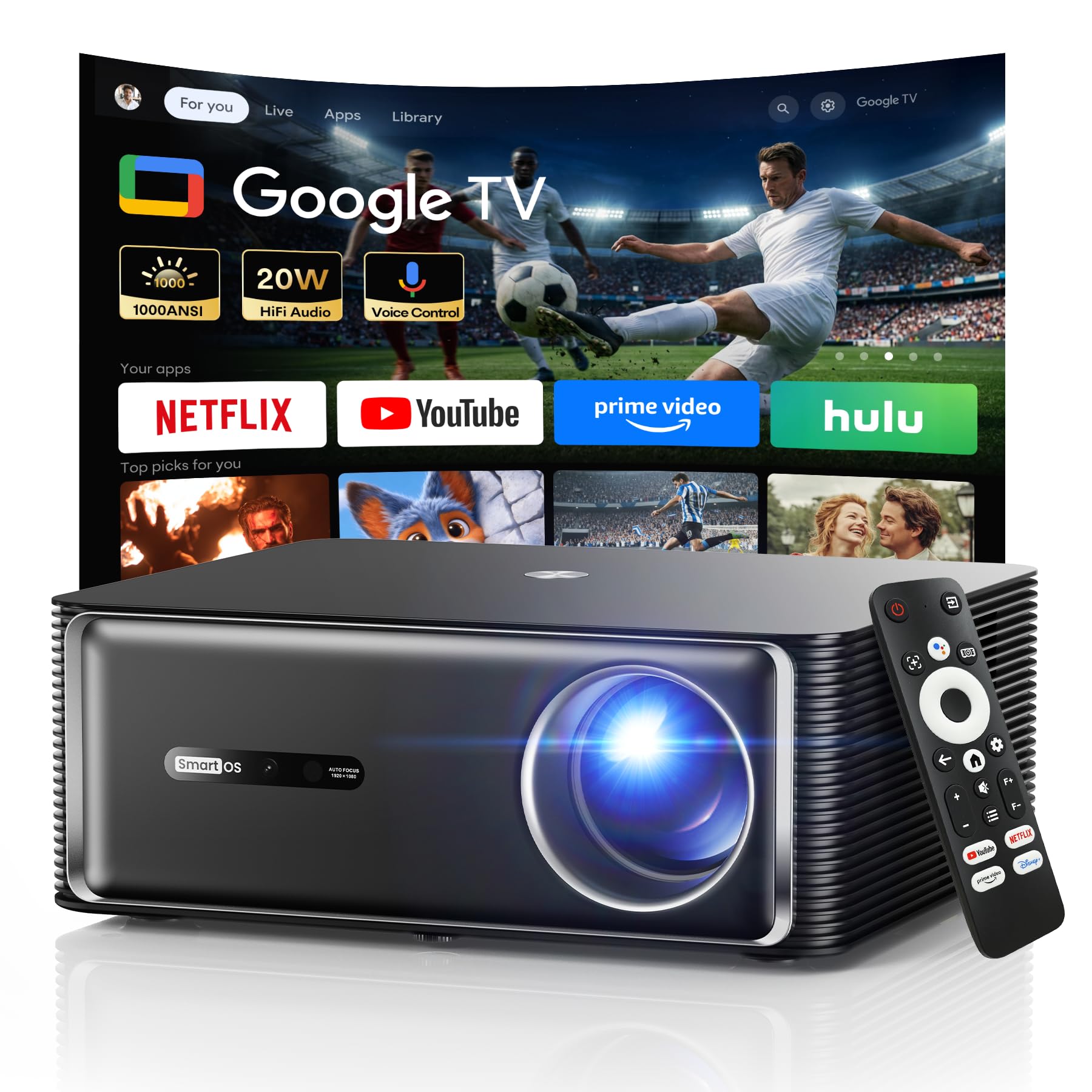
Image: Boldever H2 Projector with included accessories like remote, cables, and cleaning kit.
Product Overview Video
Video: Official product overview showcasing the Boldever 1000 ANSI Google TV Smart Projector and its key features.
3. Product Features
3.1. Official Google TV System
The Boldever H2 features an officially licensed Google TV system, providing access to over 10,000 apps including Netflix, Prime Video, YouTube, Disney+, Max, Apple TV+, Peacock, and Paramount+. Enjoy personalized recommendations and seamless navigation without the need for external streaming devices. Live channels from apps like ESPN, Fox Sports, CNN, and NBC are also accessible.

Image: The Google TV home screen displayed on the projector, showing various streaming app icons.
3.2. True 1000 ANSI Lumens Brightness
Experience consistently bright, vivid images with accurate colors and sharp details, even in rooms with ambient light, thanks to the true 1000 ANSI lumens output. This ensures a clear, immersive display for movies, sports, and gaming.

Image: Visual comparison of projector brightness levels (500, 800, 1000 ANSI lumens).
3.3. Google Voice AI Assistant
Control your projector effortlessly using the AI-powered Google Voice Assistant. Simply press the voice button on the remote to search for content, open apps, adjust volume, or check the weather with intelligent voice recognition.

Image: A child using the Google Voice Assistant on the remote to control the projector.
3.4. Powerful 20W Hi-Fi Speakers
Enjoy rich, powerful sound with the built-in 20W speakers. Designed for volume and clarity, they fill your room with crisp dialogue and balanced audio, eliminating the need for external speakers for most uses.

Image: Diagram illustrating the 20W Hi-Fi audio output and 360-degree surround sound from the projector.
3.5. Native 1080P & 4K Supported Display
The projector delivers a premium viewing experience with native 1080P resolution and support for 4K content. This ensures crisp details, enhanced contrast, and smooth visuals for cinematic clarity.
3.6. Auto Focus, Auto Keystone & Zoom Function
Set up your perfect view in seconds with automatic focus and keystone correction, which deliver sharp, perfectly aligned images without manual adjustments. The 50%–100% zoom function allows you to resize the screen without moving the projector, offering flexibility for screen sizes from 40" to 200".

Image: Visual representation of the projector automatically adjusting focus and keystone correction for a perfect image.
3.7. Fast WiFi 6 & Dual Bluetooth 5.4
Enjoy seamless wireless streaming with ultra-fast WiFi 6, offering smoother, lag-free screen casting (up to 2.4x faster than WiFi 5). Dual Bluetooth 5.4 supports both audio output and input, allowing connection to wireless headphones, external speakers, or streaming audio from other devices.

Image: Diagram showing WiFi 6 and Bluetooth 5.4 connectivity for various devices.
4. Setup Guide
4.1. Powering On/Off
- Remove the lens cover from the projector.
- Connect the power cable to the projector and then to an electrical outlet.
- Press the Power button on the top of the projector or on the remote control to turn it on.
4.2. Remote Control Pairing
Upon initial power-on or after replacing batteries, the remote may need to be paired. Follow the on-screen instructions or refer to the user manual for specific pairing steps (usually involves holding down specific buttons on the remote).
4.3. Initial Google TV Setup
After powering on, the projector will guide you through the initial Google TV setup process. This typically involves:
- Selecting your preferred language.
- Connecting to a Wi-Fi network.
- Signing in with your Google account to access apps and personalized recommendations.
- Accepting Google Services terms and conditions.
4.4. Installation Options
The Boldever H2 projector offers flexible installation options:
- Front Desktop: Place the projector on a flat surface in front of the screen.
- Rear Desktop: Place the projector on a flat surface behind a translucent screen.
- Front Ceiling: Mount the projector to the ceiling in front of the screen (mount sold separately).
- Rear Ceiling: Mount the projector to the ceiling behind a translucent screen (mount sold separately).

Image: Diagrams illustrating various projector placement scenarios: front desktop, rear desktop, front ceiling, and rear ceiling.
5. Operating Instructions
5.1. Image Adjustment
The projector features advanced image adjustment capabilities:
- Auto Focus: The projector automatically detects shaking/rapid movement and adjusts focus for a clear image. You can also trigger auto focus by pressing the dedicated button on the remote.
- Auto Keystone Correction: Upon powering on or detecting movement, the projector automatically corrects keystone distortion within a range of vertical ±45°.
- Manual Keystone Correction: For fine-tuning, press the dedicated button on the remote to enter the projector's settings page, then navigate to Image Correction > Manual Keystone Correction to manually adjust the image shape using four points.
- Brightness Adjustment: Press the dedicated button on the remote to enter the projector's settings page, then go to Brightness Mode to select the desired brightness level.
- 50%-100% Zoom: Adjust the screen size without moving the projector.
5.2. Projector Connection and Input Source
Connect your devices to the projector using the available ports:
- Audio Out (3.5mm jack): Connect external speaker systems or headphones.
- USB: Play media files directly from a USB drive. Go to Home Page > Apps > Google Play Store, search for and download 'CX File Explorer' or 'File Manager' for the first time. Insert your USB device and open the file manager to play files.
- HDMI: Connect devices like laptops, gaming consoles (Xbox, PS5), or Blu-ray players. Press the dedicated button on the remote to select the HDMI input source.

Image: Close-up of the projector's rear panel showing IR receiver, headphone jack, USB ports, and HDMI port.
5.3. Screen Mirroring
Mirror your smartphone, tablet, or laptop screen wirelessly to the projector. Note: Copyrighted content from Hulu, Disney+, or other similar streaming services CANNOT be wirelessly mirrored due to copyright restrictions.
- For iOS System: Connect the projector and your mobile device to the same Wi-Fi network. Go to Home Page > Apps > Google Play Store, then search and download 'AirScreen' app. Open the AirScreen app and follow the on-screen instructions. From your iOS device's Control Center, tap 'Screen Mirroring' to search for the projector. Select 'AirPlay' from the list.
- For Android System: Connect the projector and your mobile device to the same Wi-Fi network. Download the Google Home app on your phone. Open the Google Home app, select your phone, choose 'Cast my screen'.
5.4. Bluetooth Connection
The projector supports two-way Bluetooth functionality:
- Using as a BT Speaker: Press the dedicated Bluetooth button on the remote. Search for 'H2_XXXX' in your mobile device's Bluetooth settings and connect. The projector screen will automatically enter Screen Off mode after 10 seconds.
- Connect to an External BT Speaker: Turn on your BT device and make it ready for BT connection. Go to Home Page > Settings > Remotes & Accessories > Add accessory to search for your BT device. Select your device from the list to connect.
5.5. Screen Off Mode
Press the Power button on the remote to enter Screen Off mode. The projector will continue to play audio with the screen off. Press the Home button, Back button, or OK button to wake up the screen.
5.6. Android TV Settings
Go to Home Page > Settings > Network & Internet to connect to Wi-Fi. Go to Home Page > Settings > Accounts & Sign-in to sign in to your Google account and download streaming apps.
6. Maintenance
To ensure optimal performance and longevity of your Boldever H2 Projector, regular maintenance is recommended:
- Lens Cleaning: Use the provided cleaning cloth and swabs to gently wipe the projector lens. Avoid abrasive materials or harsh chemicals.
- Dust Filter Cleaning: The projector has a removable filter on the bottom. Periodically remove and clean it to prevent dust buildup and maintain proper airflow.
- Ventilation: Ensure the projector's vents are not obstructed during operation to prevent overheating.
- Storage: When not in use, store the projector in a cool, dry place, ideally in its original packaging or a protective case.
7. Troubleshooting Guide
If you encounter any issues with your projector, please refer to the following common solutions:
| Problem | Solution |
|---|---|
| Cannot play Netflix/Prime Video/Hulu/Disney+ | Ensure you are logged into your respective accounts. Some content may have regional restrictions or require specific app versions. |
| Image is blurry | Trigger auto focus or manually adjust focus using the remote. Ensure the projection surface is flat and the projector is stable. |
| Remote control not responding | Check and replace batteries (2x AAA, not included). Ensure no obstructions between the remote and the projector's IR receiver. Re-pair the remote if necessary (long press 'A' and 'B' buttons for 5s). |
| No audio when using Bluetooth | Ensure the projector is correctly paired with the Bluetooth speaker/headphones. Check volume levels on both devices. |
| Screen mirroring issues | Ensure both devices are on the same Wi-Fi network. Verify app compatibility (e.g., AirScreen for iOS, Google Home for Android). Note copyright restrictions for certain content. |
8. Specifications
| Feature | Detail |
|---|---|
| Brand | Boldever |
| Model | H2 |
| Brightness | 1000 ANSI Lumens |
| Native Resolution | 1920 x 1080 (1080P) |
| Display Resolution Maximum | 4K Pixels (Supported) |
| Operating System | Official Google TV |
| Audio | 20W Hi-Fi Speakers |
| Connectivity Technology | Wireless (WiFi 6, Bluetooth 5.4), HDMI, USB, Audio Out |
| Special Features | Auto Focus, Auto Keystone, Smart Obstacle Avoidance, Screen Alignment, 50%–100% Zoom, Google Assistant, Built-in Chromecast |
| Recommended Uses | Indoor/Outdoor |
| Item Dimensions (L x W x H) | 11.2"L x 9.45"W x 4.33"H |
| Item Weight | 5.8 Pounds |
9. Warranty and Support
The Boldever H2 Projector comes with a 1-Year Warranty. For any product-related inquiries, technical support, or warranty claims, please contact our customer service team:
Email: cs@projectorcs.com
Our customer support is available to assist you with any questions or issues you may encounter.