
1. Introduction
Thank you for purchasing the ThruNite T5 Rechargeable EDC Flashlight. This manual provides essential information for the safe and efficient operation, maintenance, and troubleshooting of your device. Please read it thoroughly before use and retain it for future reference.
2. Package Contents
- ThruNite T5 Flashlight
- Built-in Battery
- USB-C Charging Cable
- Key Ring
3. Product Features
- Dual Light Source: Features both White LED (up to 523 lumens) and RGB LEDs (Red, Green, Blue).
- Multiple Modes: 6 White light modes (Firefly, Low, Medium, High, Turbo, Strobe) and various RGB modes (Steady-on, Signal, SOS, Red/Blue Warning Strobe).
- 180° Rotating Head: Allows for flexible illumination angles.
- Magnetic Base: Provides hands-free operation by attaching to metal surfaces.
- Integrated Clip: For secure attachment to hat brims, pockets, or backpack straps.
- USB-C Rechargeable: Fast charging capability, fully charged in approximately 1.4 hours.
- Ultra-Compact Design: Flat profile for easy everyday carry.
- Rugged Construction: Crafted from aircraft-grade aluminum for durability and impact resistance.
- Lockout Mode: Prevents accidental activation.
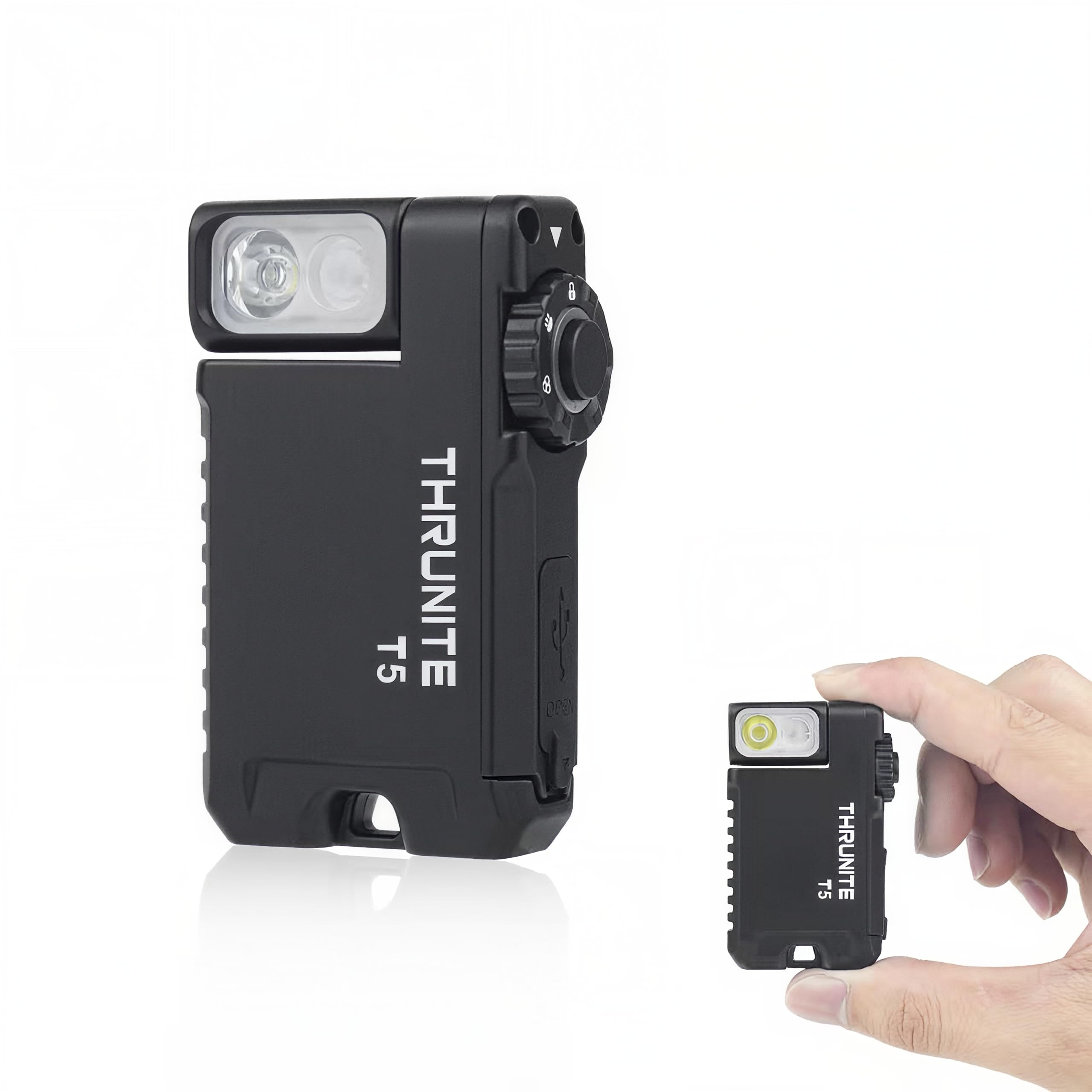
Image: ThruNite T5 Flashlight showcasing its compact size, rotating head, and magnetic base.
4. Setup and Initial Charge
Before first use, it is recommended to fully charge your ThruNite T5 flashlight.
- Locate the USB-C charging port on the side of the flashlight.
- Gently lift the rubber cover to expose the port.
- Connect the provided USB-C charging cable to the flashlight and a compatible USB power source (e.g., wall adapter, computer USB port).
- The indicator light will show charging status. Refer to the 'Charging' section for details.
- Once fully charged, disconnect the cable and securely close the rubber cover to maintain water resistance.

Image: The ThruNite T5 flashlight being charged via its USB-C port.
5. Operating Instructions
The ThruNite T5 features a rotary switch for mode selection and a main button for activation and brightness adjustments.
5.1 Rotary Switch Functions
- Lock Position: Prevents accidental activation.
- White Light Position: Activates the White LED modes.
- RGB Light Position: Activates the RGB LED modes.
5.2 White Light Operation
- Turn On/Off: From the White Light position, single click the main button.
- Change Brightness (Low/Med/High): With the light ON in White Light mode, press and hold the main button to cycle through Low, Medium, and High. Release to select.
- Firefly Mode: With the light OFF in White Light mode, press and hold the main button for 1 second.
- Turbo Mode: Double click the main button from any White Light mode (including OFF).
- Strobe Mode: Triple click the main button from any White Light mode (including OFF).
5.3 RGB Light Operation
- Turn On/Off: From the RGB Light position, single click the main button.
- Change Color (Red/Green/Blue Steady-on): With the light ON in RGB Light mode, press and hold the main button to cycle through Red, Green, and Blue steady-on. Release to select.
- Signal Mode (Red/Green/Blue): With the light OFF in RGB Light mode, press and hold the main button for 1 second.
- Red/Blue Warning Strobe: Double click the main button from any RGB Light mode (including OFF).
- SOS Mode (Red/Green/Blue): Triple click the main button from any RGB Light mode (including OFF).
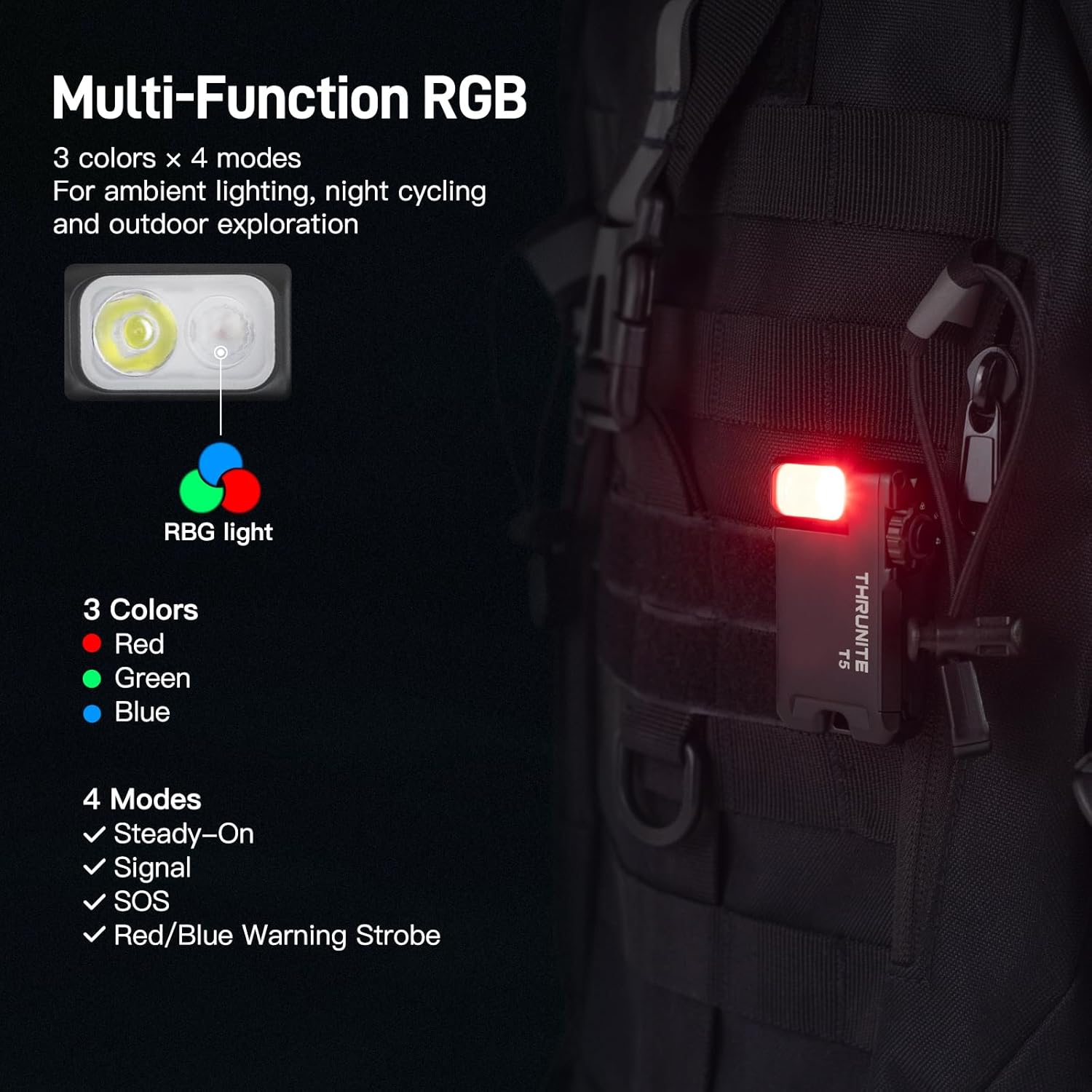
Image: The ThruNite T5 flashlight demonstrating its multi-function RGB light modes.
Video: A user demonstrating the various light modes and controls of the ThruNite T5 flashlight.
6. Magnetic Base and Rotating Head
The ThruNite T5 is designed for versatile hands-free use:
- Magnetic Base: The powerful magnetic base allows the flashlight to securely attach to any steel surface, providing stable, multi-angle illumination for tasks like car repairs or working in server rooms.
- 180° Rotating Head: The head of the flashlight can rotate 180 degrees, enabling you to direct the light precisely where needed, whether it's clipped to your hat, pocket, or a metal surface.

Image: The ThruNite T5 flashlight utilizing its magnetic base for hands-free lighting during a repair task.

Image: The 180-degree rotating head of the ThruNite T5 flashlight, demonstrating its flexibility.
7. Lockout Mode
To prevent accidental activation and preserve battery life, use the Lockout Mode:
- Rotate the switch to the Lock Position (indicated by a lock icon).
- In this position, the main button will not activate the light.
- To exit Lockout Mode, rotate the switch to either the White Light or RGB Light position.
8. Maintenance
Proper maintenance ensures the longevity and optimal performance of your ThruNite T5 flashlight:
- Cleaning: Wipe the flashlight with a clean, soft cloth. Avoid using harsh chemicals or abrasive materials.
- Water Resistance: Ensure the USB-C port cover is securely closed to maintain its waterproof rating. Do not submerge the flashlight if the cover is open.
- Storage: Store the flashlight in a cool, dry place away from direct sunlight and extreme temperatures.
- Battery Care: For long-term storage, charge the battery to approximately 50% every few months to prevent deep discharge.
9. Troubleshooting
If you encounter issues with your ThruNite T5, try the following steps:
- Light Not Turning On:
- Check if the rotary switch is in the Lock Position. Rotate it to White Light or RGB Light.
- Ensure the battery is charged. Connect the flashlight to a power source using the USB-C cable.
- Intermittent Operation:
- Ensure the battery is fully charged.
- Check for any debris or obstruction around the main button or rotary switch.
- Charging Issues:
- Verify the USB-C cable is properly connected to both the flashlight and the power source.
- Try a different USB-C cable or power adapter.
If problems persist, please contact ThruNite customer support.
10. Specifications
| Feature | Detail |
|---|---|
| White Brightness | Up to 523 Lumens |
| Light Source Type | LED (White & RGB) |
| Power Source | Battery Powered (Lithium Polymer) |
| Battery Type | 1 Nonstandard Battery (included) |
| Runtime | Up to 188 hours |
| Material | Aircraft-grade Aluminum |
| Water Resistance Level | Waterproof (IPX-6) |
| Item Weight | 2.24 ounces (65g) |
| Item Dimensions (L x W x H) | 2.44" x 1.53" x 0.71" (62mm x 39mm x 18mm) |
| Special Features | Adjustable Light Modes, Keychain, Lightweight, Magnetic Base, Rechargeable, 180° Rotating Head |
11. Warranty and Support
ThruNite stands behind the quality of its products.
- Warranty: The ThruNite T5 comes with an industry-leading 2-year replacement service.
- Customer Support: For any questions, concerns, or warranty claims, please contact ThruNite customer service through their official website or the retailer where the product was purchased.


