
1. Introduction
Thank you for choosing the Yamnweo MD-14 14-Channel Professional Audio Mixer. This manual provides essential information for the safe and efficient operation of your new audio mixer. Please read it thoroughly before use and retain it for future reference.

Figure 1: Yamnweo MD-14 14-Channel Professional Audio Mixer
2. Key Features
- 14 Independent Channels with Large LED Display: Features 14 separate input channels, each with individual controls, and a large LED screen for real-time parameter monitoring. Ideal for stage performances, DJ mixing, and professional studio use.
- 99 Built-in Professional DSP Sound Effects: Equipped with 99 high-precision digital effects, including Hall, Plate, Room, Club, Church reverbs, as well as Delays, Choruses, Flangers, Pitch Shifters, and more—ready for any performance scenario.
- Wireless Playback & USB Lossless Audio Support: Supports Bluetooth wireless connection for stable, high-fidelity audio streaming. Includes a USB port for direct playback of lossless audio files—no additional devices needed.
- Intelligent Noise Reduction & Professional Sound Processing: Built with a high-fidelity processing chip and smart noise reduction technology to effectively minimize floor noise and hum. Features a 9-band equalizer and 48V phantom power for clear, clean audio output.
- All-in-One Professional Mixing Console: Combines extended faders, real-time monitoring, and multiple effect chains (e.g., Reverb+Delay, Chorus+Reverb) to meet the demands of live sound engineering, recording, and more.
3. Setup Guide
3.1 Power Connection
Connect the provided power cord to the AC IN port on the rear panel of the mixer and then to a suitable power outlet (110V AC). Ensure the power switch is in the OFF position before connecting.
3.2 Connecting Microphones and Line-Level Devices
The MD-14 mixer features 14 input channels. Channels 1-14 support both XLR and 6.35mm (1/4-inch) inputs for microphones and line-level instruments.
- XLR Inputs: Use XLR cables for microphones. For condenser microphones, activate the +48V Phantom Power switch located near the input.
- 6.35mm (1/4-inch) Inputs: Use 6.35mm cables for line-level instruments (e.g., keyboards, guitars with preamps) or dynamic microphones.
- PAD Button: If an input signal is too strong, press the PAD button to attenuate the signal and prevent distortion.
3.3 Connecting Output Devices
The mixer offers various output options:
- MAIN OUT (XLR/RCA): Connect your main speakers or power amplifier using XLR or RCA cables.
- AUX OUT: For sending signals to external effects processors or monitor speakers.
- PHONES: Connect headphones for monitoring.

Figure 2: Rear Panel Connections
3.4 Bluetooth Pairing
To connect a Bluetooth device:
- Press the MODE button on the digital display section until 'BT' appears.
- On your smart device, enable Bluetooth and search for 'BT-5.0' (or similar).
- Select the mixer to pair. Once connected, you can play audio wirelessly through the mixer.

Figure 3: Bluetooth Wireless Playback
3.5 USB Playback/Recording
Insert a USB flash drive into the USB port on the mixer. The digital display will show the track information. Use the control buttons (play/pause, next/previous) to navigate and play audio files. The mixer also supports direct recording to the USB drive.

Figure 4: USB Playback
Video 1: Overview of MD-14/MD-16 Mixer Features, including 99 DSP Effects and Large LED Display. This video demonstrates various connections and control operations.
4. Operating Instructions
4.1 Channel Controls
Each channel (1-14) has dedicated controls:
- GAIN: Adjusts the input sensitivity for the connected microphone or instrument.
- EQ (HIGH, MID, LOW): 3-band equalizer for shaping the tone of each channel. Adjust High for treble, Mid for midrange, and Low for bass frequencies.
- AUX: Controls the amount of signal sent to the auxiliary output.
- FX: Controls the amount of signal sent to the internal DSP effects processor.
- PAN: Adjusts the stereo position (left/right) of the channel's signal in the main mix.
- MUTE: Mutes the channel's output to the main mix.
- PFL (Pre-Fader Listen): Allows monitoring of the channel's signal through headphones before it reaches the main fader.
- Channel Fader: Adjusts the overall volume level of the channel in the main mix.
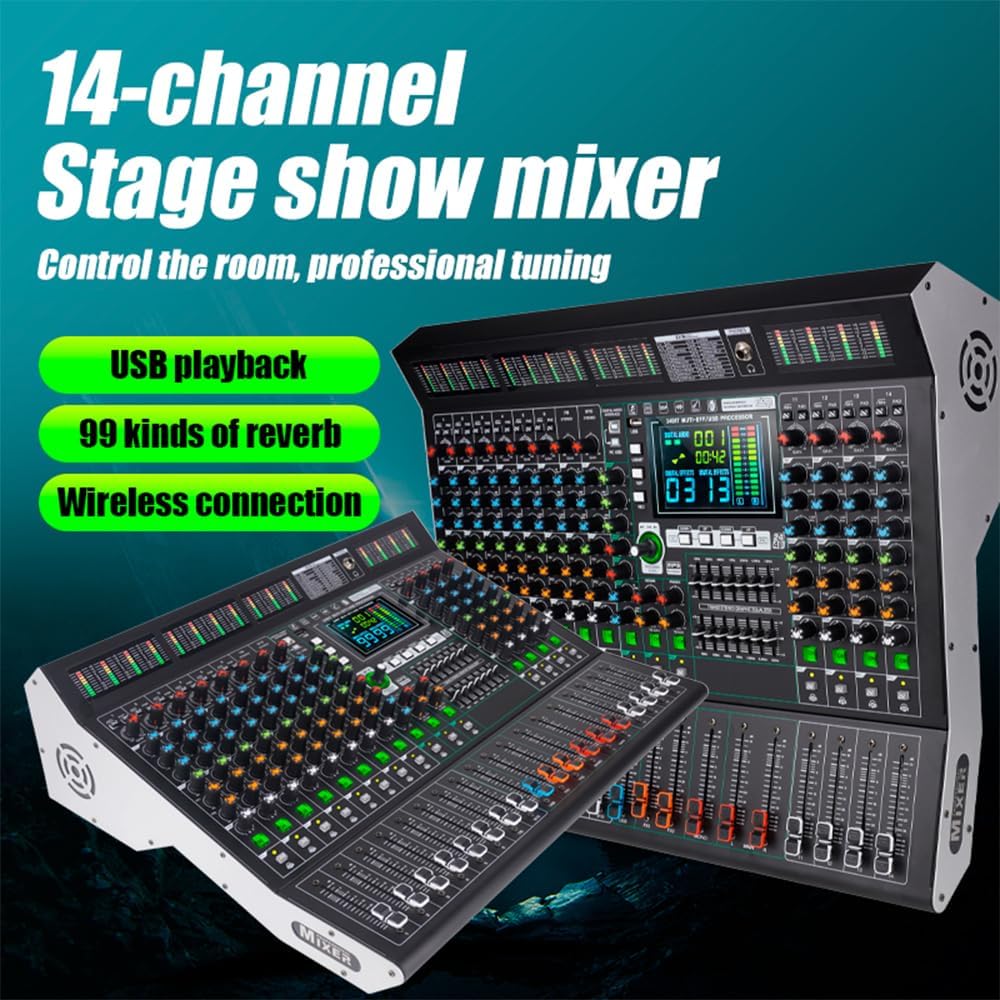
Figure 5: Front Panel Controls Overview
4.2 DSP Effects
The MD-14 features 99 built-in DSP effects. Use the PROGRAM knob and ENTER button on the digital display to select your desired effect. Adjust the FX knob on each channel to send signal to the effect, and use the main FX fader to control the overall effect level in the mix.

Figure 6: 99 DSP Reverberation Effects
4.3 9-Band Equalizer
The master section includes a 9-band graphic equalizer to fine-tune the overall sound of your mix. Adjust the sliders to boost or cut specific frequency ranges.

Figure 7: Tritonal Tone Mono Independent Tone (EQ Curves)
4.4 Intelligent Noise Reduction
The mixer incorporates intelligent noise reduction technology to minimize unwanted floor noise and hum, ensuring a clean audio output.

Figure 8: Intelligent Noise Reduction
5. Maintenance
- Cleaning: Use a soft, dry cloth to clean the mixer's surface. Avoid using liquid cleaners or solvents, as they may damage the finish or internal components.
- Storage: Store the mixer in a cool, dry place away from direct sunlight and extreme temperatures.
- Ventilation: Ensure proper ventilation around the mixer to prevent overheating. Do not block the ventilation openings.
6. Troubleshooting
- No Sound Output:
- Check all power connections and ensure the mixer is turned on.
- Verify that main faders and channel faders are raised.
- Ensure MUTE buttons are not engaged on active channels.
- Check speaker connections and ensure speakers are powered on.
- Distorted Sound:
- Reduce the GAIN knob on the input channel.
- Press the PAD button if the input signal is too hot.
- Lower the main faders or individual channel faders.
- Condenser Microphone Not Working:
- Ensure the +48V Phantom Power switch is activated for the respective channel.
- Check the XLR cable connection.
- Bluetooth Connectivity Issues:
- Ensure the mixer is in Bluetooth mode ('BT' displayed).
- Forget the device on your smart device's Bluetooth settings and try pairing again.
- Ensure no other devices are actively connected to the mixer via Bluetooth.
- USB Playback/Recording Issues:
- Ensure the USB drive is formatted correctly (FAT32 is recommended).
- Check that audio files are in a supported format (e.g., MP3, WAV).
7. Specifications
| Feature | Specification |
|---|---|
| Brand | Yamnweo |
| Model | MD-14 |
| Number of Channels | 14 |
| Product Dimensions (D x W x H) | 16.1" x 19.9" x 5.5" (40.8cm x 50.5cm x 14cm) |
| Item Weight | 18 Pounds (8.15 kg) |
| Connectivity Technology | Bluetooth, USB |
| Power Source | Corded Electric |
| Output Connector Type | RCA, XLR |
| Audio Input | XLR, 6.35mm (1/4-inch) |
| Voltage | 110 Volts (AC) |
| DSP Effects | 99 Built-in Effects |
| Equalizer | 9-Band Graphic EQ |
| Phantom Power | +48V |

Figure 9: Product Dimensions and Weight
8. Warranty and Support
For warranty information or technical support, please refer to the documentation included with your purchase or contact Yamnweo customer service directly. Keep your proof of purchase for any warranty claims.