
Introduction to Your BLU G35 Smartphone
This manual provides comprehensive instructions for using your BLU G35 smartphone. It covers essential topics from initial setup to advanced features, ensuring you can maximize your device's capabilities. Please read this guide thoroughly to understand your phone's functions and maintain its optimal performance.
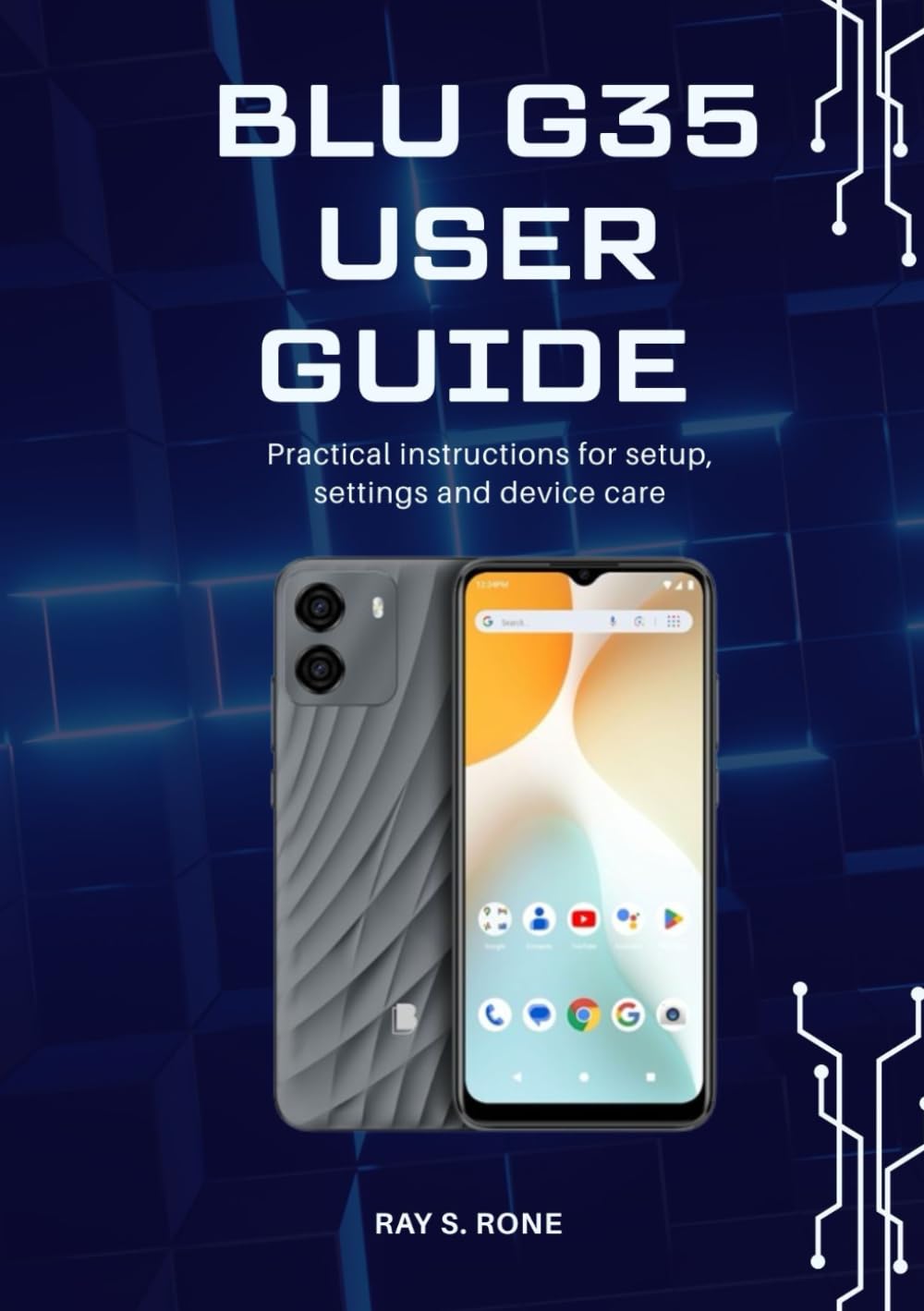
Image: Front cover of the official BLU G35 User Guide, which this manual is based upon.
1. Initial Setup
1.1 Unboxing and First Power On
Carefully remove your BLU G35 smartphone and all accessories from the packaging. Insert your SIM card(s) and microSD card (if applicable) into the designated slots. Press and hold the power button until the BLU logo appears to turn on your device for the first time.
1.2 Basic Configuration
Follow the on-screen prompts to complete the initial setup. This includes selecting your language, connecting to a Wi-Fi network, setting up your Google account, and configuring security options like a PIN, pattern, or fingerprint.
2. Operating Your BLU G35
2.1 Making Calls and Sending Messages
To make a call, open the Phone app, enter the number, and tap the call icon. To send a message, open the Messages app, tap the new message icon, enter the recipient's number or select from contacts, type your message, and tap send.
2.2 Managing Applications
Your BLU G35 comes with pre-installed applications. You can download more from the Google Play Store. To manage apps, go to Settings > Apps & notifications. Here you can view, uninstall, or force stop applications.
2.3 Internet Connections
Connect to the internet via Wi-Fi or mobile data. For Wi-Fi, go to Settings > Network & internet > Wi-Fi, select a network, and enter the password. For mobile data, ensure your SIM card is active and mobile data is enabled in Settings > Network & internet > Mobile network.
2.4 Camera Features
Open the Camera app to capture photos and videos. Tap the shutter button to take a picture. Swipe left or right to switch between photo, video, and other modes. Access settings within the camera app to adjust resolution, flash, and other parameters.
2.5 System Settings
The Settings app allows you to customize your device. Explore options for display, sound, storage, battery, security, and more to personalize your BLU G35 experience.
3. Device Care and Maintenance
3.1 Battery Optimization
To extend battery life, reduce screen brightness, disable unused features like Bluetooth or GPS, and close background applications. Regularly check battery usage in Settings > Battery to identify power-hungry apps.
3.2 Software Updates
Keep your BLU G35 updated with the latest software. Go to Settings > System > System update to check for and install available updates. Updates often include performance improvements and security patches.
3.3 Cleaning Your Device
Use a soft, lint-free cloth to clean your phone's screen and body. Avoid harsh chemicals or abrasive materials. For stubborn smudges, slightly dampen the cloth with water. Ensure all ports are dry before charging.
4. Troubleshooting Common Issues
4.1 Device Not Responding
If your BLU G35 becomes unresponsive, press and hold the power button for approximately 10-15 seconds to force a restart.
4.2 Connectivity Problems
If you experience issues with Wi-Fi or mobile data, try toggling airplane mode on and off. For Wi-Fi, forget the network and reconnect. For mobile data, ensure your APN settings are correct (consult your carrier).
4.3 App Crashes
If an app frequently crashes, try clearing its cache and data via Settings > Apps & notifications > [App Name] > Storage & cache. If the issue persists, uninstall and reinstall the app.
5. Specifications
Please note: The provided product data primarily describes the user guide book itself. Specific technical specifications for the BLU G35 smartphone are not available in the provided data. For detailed phone specifications, please refer to the official BLU website or your device's packaging.
Book Specifications (for reference)
| ASIN | B0GCKXJWNB |
| Publisher | Independently published |
| Publication Date | 25 December 2025 |
| Language | English |
| ISBN-13 | 979-8241251145 |
| Item Weight | 150 g |
| Dimensions | 5.83 x 0.16 x 8.27 inches |
6. Warranty Information
Your BLU G35 smartphone is covered by a limited manufacturer's warranty. The terms and conditions of this warranty vary by region and retailer. Please refer to the warranty card included with your device packaging or visit the official BLU website for detailed information regarding warranty coverage, duration, and claims procedures.
7. Customer Support
For further assistance, technical support, or service inquiries regarding your BLU G35 smartphone, please contact BLU customer support. You can typically find contact information (phone numbers, email, or support portals) on the official BLU website or within your device's Settings > About phone > Legal information section.
For information related to this user guide book, please refer to the publisher's contact details if available within the book itself.


