
1. Product Overview
The DELUX GM909-M618PLUS combo includes a full-size ergonomic split keyboard (GM909) and a wireless vertical mouse (M618PLUS), designed to enhance comfort and reduce strain during extended computer use.
Keyboard Features (GM909)
- Ultra-thin Ergonomic Split Design: Features a scientific wave key layout and natural arc to promote a comfortable typing posture and minimize wrist bending.
- Leather Cushioned Palm Rest: Integrated soft synthetic leather and memory foam for wrist support.
- Multi-Device Connection: Supports 2.4G wireless and Bluetooth (BT1, BT2) dual channels, allowing easy switching between up to three devices.
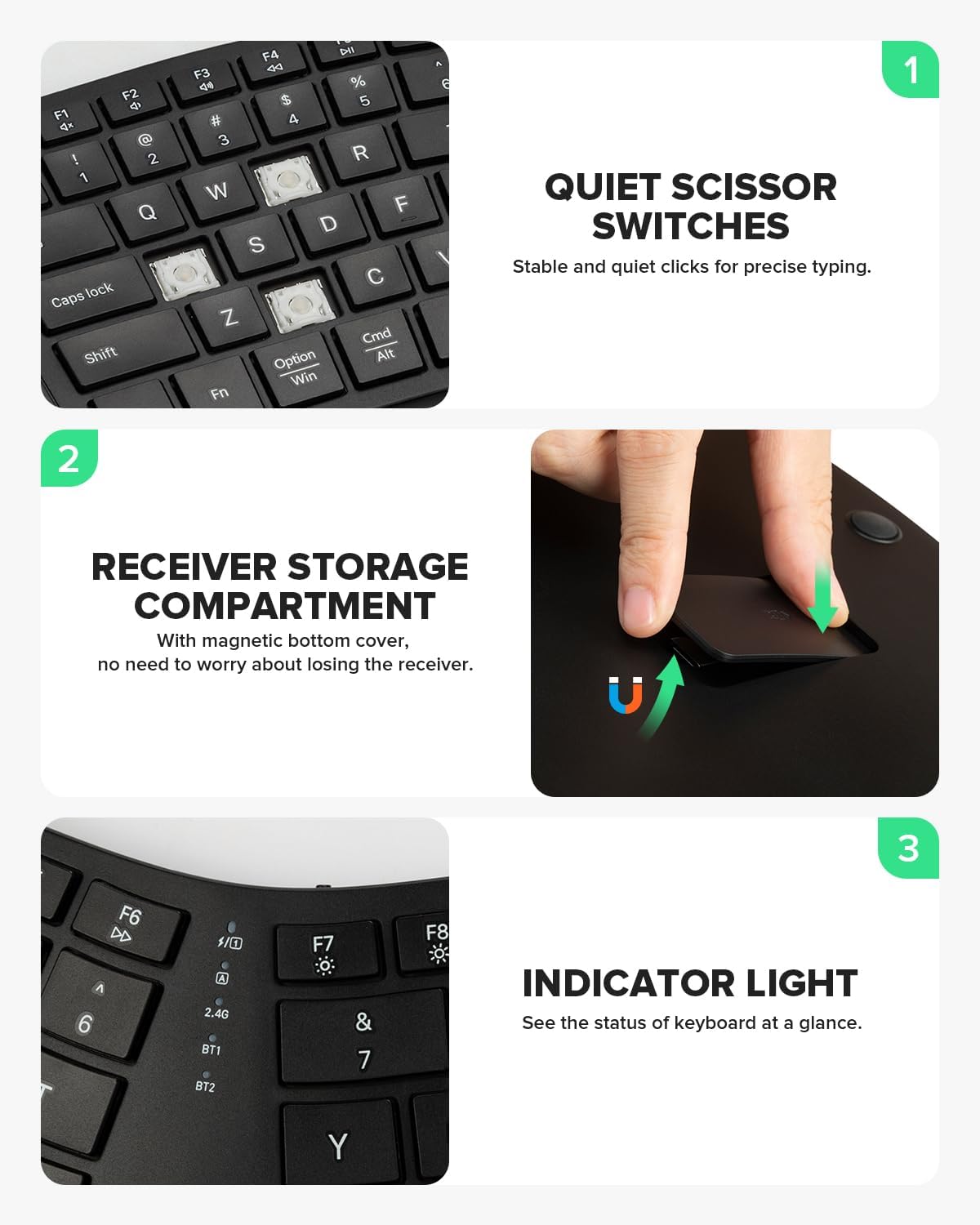
- Quiet Scissor Switches: Provides stable and quiet key presses for precise typing.
- Receiver Storage Compartment: Magnetic bottom cover for secure storage of the USB receiver.
- Indicator Lights: Visual indicators for keyboard status.
Mouse Features (M618PLUS)
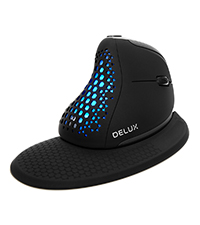
- Unique Ergonomic Vertical Design: Special volute bionic design minimizes arm discomfort and alleviates hand stiffness, particularly suited for individuals with larger hands.
- 2.4G Wireless Connection: Connects via a USB receiver, powered by one AA battery (not included).
- Adjustable DPI: Three DPI settings (800/1200/1600) for high-precision tracking, adjustable via a dedicated button.
- Quiet Clicks: Designed for reduced noise during use.
- Removable Palm Rest: Provides additional support and comfort.
- Wide Compatibility: Compatible with Windows XP, Vista, 7, 8, 10. Limited support for macOS (side buttons may not be available).
2. Setup Guide
2.1 Mouse Setup (M618PLUS)
- Insert Battery: Open the battery compartment located at the bottom of the mouse. Insert one AA battery (not included), ensuring correct polarity.
- Locate USB Receiver: The 2.4G USB receiver is stored in a dedicated slot within the mouse's battery compartment. Carefully remove it.
- Connect Receiver: Plug the USB receiver into an available USB port on your computer.
- Power On: Turn on the mouse using the ON/OFF switch located on the bottom. The mouse should automatically connect to your computer.


2.2 Keyboard Setup (GM909)
- Locate USB Receiver: The 2.4G USB receiver for the keyboard is typically stored in a magnetic compartment on the underside of the keyboard.
- Connect Receiver: Plug the USB receiver into an available USB port on your computer.
- Power On: Turn on the keyboard using its power switch (if available). The keyboard should automatically connect.
- Bluetooth Connection (Optional): To connect via Bluetooth, press and hold the BT1 or BT2 key until the indicator light flashes, then pair with your device through its Bluetooth settings.
2.3 Initial Adjustment for Vertical Mouse
The ergonomic vertical design of the M618PLUS mouse may require an adaptation period. Users typically adjust over a few days to a week to achieve full comfort and grip mastery.

3. Operating Instructions
3.1 Using the GM909 Keyboard
- Typing Posture: Position your hands naturally on the split keyboard, allowing your wrists to rest comfortably on the integrated palm rest. The design encourages a neutral wrist angle.
- Switching Devices: Use the dedicated BT1, BT2, and 2.4G keys to switch between connected devices. Press the corresponding key to select the desired connection.
- Function Keys: The top row of keys includes multimedia and function shortcuts. Refer to the key legends for specific functions.


3.2 Using the M618PLUS Vertical Mouse
- Grip: Hold the mouse in a natural handshake position. The vertical orientation helps maintain a neutral wrist and forearm posture.
- DPI Adjustment: Press the DPI button (located on the bottom of the mouse or sometimes on top, depending on the specific model variant) to cycle through 800, 1200, and 1600 DPI settings. The LED indicator may change color to show the current DPI.
- Side Buttons: Use the forward and backward side buttons for navigation in web browsers or file explorers. Note that these buttons may have limited functionality on macOS.
- Removable Palm Rest: The palm rest can be attached or detached based on user preference for additional wrist support.


4. Maintenance
4.1 Cleaning
- Use a soft, damp cloth to clean the surfaces of the keyboard and mouse.
- Avoid using harsh chemicals or abrasive cleaners, as these can damage the finish.
- For the keyboard, use compressed air to remove dust and debris from between the keys.
4.2 Battery Replacement (M618PLUS Mouse)
The M618PLUS mouse requires one AA battery. When the mouse's performance degrades or it stops responding, it is time to replace the battery.
- Turn off the mouse using the ON/OFF switch on the bottom.
- Open the battery compartment cover.
- Remove the old AA battery and insert a new one, observing the correct polarity (+/-).
- Close the battery compartment cover and turn the mouse back on.
5. Troubleshooting
- Device Not Responding:
- Ensure the USB receiver is securely plugged into a working USB port.
- Check if the devices are powered on and have sufficient battery charge. Replace the mouse battery if needed.
- For Bluetooth connections, ensure Bluetooth is enabled on your device and the keyboard is paired correctly. Try re-pairing if necessary.
- Try plugging the USB receiver into a different USB port.
- Intermittent Connection:
- Move the devices closer to the USB receiver to minimize interference.
- Avoid placing the receiver near other wireless devices or large metal objects.
- Mouse Cursor Movement Issues:
- Clean the optical sensor on the bottom of the mouse.
- Adjust the DPI setting using the DPI button on the mouse.
- Ensure you are using the mouse on a suitable surface (not highly reflective or transparent).
- Keyboard Keys Not Working:
- Ensure the keyboard is fully charged or has fresh batteries.
- Clean any debris from under the affected keys.
6. Specifications
| Feature | Specification |
|---|---|
| Brand | DELUX |
| Model | GM909 (Keyboard), M618PLUS (Mouse) |
| Color | Black |
| Connectivity Technology | Radio Frequency (2.4G Wireless), Bluetooth (Keyboard) |
| Special Feature | Ergonomic Design |
| Compatible Devices | Laptop, Personal Computer |
| Power Source (Mouse) | Battery Powered (1 AA battery required, not included) |
| Keyboard Layout | QWERTY |
| Keyboard Description | Full Size Ergonomic Split Keyboard with Scissor-Switch Keys |
| Mouse DPI Settings | 800/1200/1600 DPI |
| Operating System Compatibility | Windows XP, Vista, 7, 8, 10, macOS (limited mouse side button support) |
7. Warranty and Support
DELUX products are designed for quality and reliability. For specific warranty information, please refer to the warranty card included with your product or visit the official DELUX website. If you encounter any issues or require technical assistance, please contact DELUX customer support through their official channels.


