
1. Product Overview
The HAMCUBE PRO Morse Code Trainer is an all-in-one device designed to facilitate the learning, practice, and improvement of Morse code skills. Featuring a 2.8-inch color display, it provides a comprehensive and interactive platform for users of all proficiency levels. The unit supports both English and Chinese decoding, offering visual feedback and guided training modes to enhance memory, recognition, and transcription abilities. Its portable and self-contained design, coupled with an intuitive interface and tactile controls, makes it suitable for various environments, from home to travel. The trainer also includes flexible connectivity options for external accessories and boasts an extended battery life with convenient USB charging.
- Complete Training Workflow: Supports character memory, reading, listening, transcription, and sending.
- 2.8" Color Display: Offers clear visual feedback and multilingual decoding (English and Chinese).
- Portable Design: Compact and lightweight with up to 10 hours of battery endurance.
- Shortcut Function Keys: Dedicated keys for common practice functions, custom phrases, and daily settings.
- Versatile Interfaces: Connects to earphones, speakers, decoder signal outputs, and USB-C for charging/upgrading.
2. Setup Instructions
2.1 Powering On/Off
To power on the HAMCUBE PRO, press and hold the power button for 3-5 seconds. A short press will not activate the unit. To power off, repeat the same action.
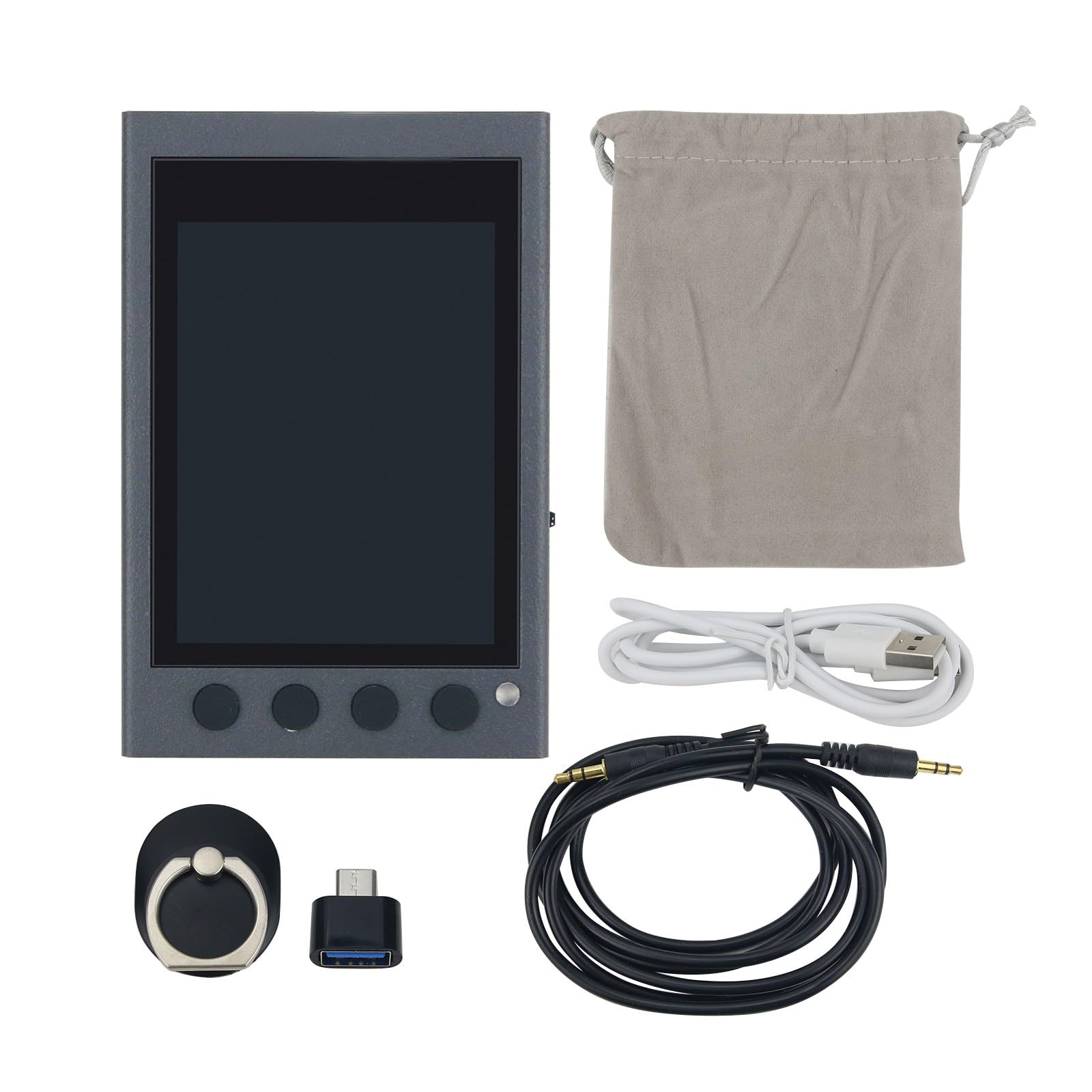
Figure 1: Powering on the HAMCUBE PRO by pressing and holding the top-right button.
2.2 Charging the Device
Connect the provided USB-C cable to the USB-C port on the side of the device and plug the other end into a compatible USB power source (e.g., computer, wall adapter). The device supports straightforward USB charging.
2.3 Connecting External Devices
The HAMCUBE PRO features multiple interfaces for enhanced practice:
- Earphones/Speakers: Use the 'PHONE' port to connect standard 3.5mm earphones or external speakers for audio output.
- External CW Key: Connect your external Morse code key to the 'KEY' port for sending practice.
- Auxiliary Ports: AUX1, AUX2, and AUX3 ports are available for additional connectivity, such as decoder signal outputs.

Figure 2: Side view showing the various input/output ports for external connections.
3. Operating Instructions
3.1 Navigating the Display
The 2.8-inch color display provides a clear interface for all functions. It visually presents characters, practice progress, and decoding results, aiding in quick and accurate association of Morse symbols with letters.

Figure 3: Front view of the HAMCUBE PRO displaying Morse code characters on its screen.
3.2 Using Shortcut Function Keys
The device is equipped with four shortcut function areas with dedicated keys. These keys streamline your training workflow and make repeated practice faster and more efficient. Refer to the on-screen prompts or the device's internal menu for specific functions assigned to each key.

Figure 4: Top view highlighting the four shortcut buttons for quick access to functions.
3.3 Training Modes
The HAMCUBE PRO offers guided training modes that are customizable to your pace and comfort. These modes support various aspects of Morse code learning, including character memory, reading, listening, transcription, and sending. Explore the device's menu to select and configure your preferred training exercises.
4. Maintenance
To ensure the longevity and optimal performance of your HAMCUBE PRO Morse Code Trainer, follow these general maintenance guidelines:
- Cleaning: Use a soft, dry cloth to clean the device. Avoid abrasive cleaners or solvents.
- Storage: Store the device in a cool, dry place away from direct sunlight and extreme temperatures.
- Battery Care: Charge the battery regularly, even if the device is not in frequent use, to maintain battery health. Avoid fully discharging the battery for extended periods.
- Physical Protection: Handle the device with care to prevent drops or impacts that could damage the screen or internal components.
5. Troubleshooting
If you encounter issues with your HAMCUBE PRO, try the following troubleshooting steps:
- Device Not Powering On: Ensure the battery is sufficiently charged. Press and hold the power button for 3-5 seconds. If the issue persists, try charging the device for at least 30 minutes.
- Display Not Working: Check if the device is powered on. If the screen is dim or unreadable, try adjusting the display brightness through the device settings.
- No Audio Output: Verify that earphones or speakers are correctly plugged into the 'PHONE' port. Check the volume settings on the device.
- External Key Not Responding: Ensure the external key is securely connected to the 'KEY' port. Check the device settings to confirm the external key input is enabled.
- Device Unresponsive: If the device becomes unresponsive, locate the 'RESET' button (often a small pinhole) and gently press it with a thin object (e.g., paperclip) to restart the device.
If these steps do not resolve the issue, please refer to the manufacturer's support resources.
6. Specifications
| Feature | Specification |
|---|---|
| Model Number | HAMCUBE PRO |
| Display | 2.8-inch Color Display |
| Decoding Support | English, Chinese |
| Battery Life | Up to 10 hours |
| Charging Interface | USB-C |
| Connectivity | Earphone, Speaker, Decoder Signal Outputs, External Key |
| Package Dimensions | 7.09 x 4.92 x 3.94 inches |
| Item Weight | 14.1 ounces |
| Batteries | 1 AA batteries required (included) |

Figure 5: Back view of the HAMCUBE PRO, displaying its model name and reset button.
7. Warranty and Support
For detailed warranty information, technical support, and service inquiries, please refer to the official Hamgeek manufacturer's website or contact their customer service directly. Keep your purchase receipt for warranty claims.
