
1. Introduction
This manual provides essential information for the safe and efficient use of your Fujitsu Stylistic Q5010 Tablet. Please read it thoroughly before using the device to ensure proper operation and to prevent damage. The Fujitsu Stylistic Q5010 is a versatile 10.1-inch Full HD touchscreen tablet powered by an Intel Celeron N4020 processor, featuring 4GB RAM, 64GB SSD storage, Windows 11 Professional, dual webcams, Wi-Fi, Bluetooth, and a USB Type-C port. It is designed for business and student use, offering robust performance in a portable form factor.
2. Setup
2.1 Unboxing and Initial Inspection
Carefully remove all components from the packaging. Verify that the following items are present:
- Fujitsu Stylistic Q5010 Tablet
- Japanese Keyboard Dock
- Power Adapter
- Documentation
Inspect the tablet and accessories for any signs of damage. If any items are missing or damaged, contact your vendor immediately.
2.2 Charging the Tablet
Before first use, fully charge the tablet. Connect the power adapter to the USB Type-C port on the tablet and then to a power outlet. The charging indicator light will illuminate.
2.3 Powering On/Off
To power on the tablet, press and hold the power button located on the side until the Fujitsu logo appears. To power off, navigate to the Start Menu in Windows 11, select the Power icon, and choose 'Shut down'.
2.4 Initial Windows 11 Setup
Upon first power-on, you will be guided through the Windows 11 setup process. Follow the on-screen instructions to:
- Select your region and keyboard layout.
- Connect to a Wi-Fi network.
- Sign in with a Microsoft account or create a local account.
- Set up privacy settings.

Figure 2.4.1: Fujitsu Stylistic Q5010 Tablet with its keyboard dock, illustrating the connection mechanism.
3. Operating Instructions
3.1 Touchscreen Usage
The 10.1-inch Full HD display supports multi-touch gestures. Common gestures include:
- Tap: Select an item or open an application.
- Tap and Hold: Access context menus or drag items.
- Pinch-to-Zoom: Zoom in or out on images and web pages.
- Swipe: Scroll through content or navigate between screens.
3.2 Using the Keyboard Dock
The Japanese Keyboard Dock transforms your tablet into a laptop-like experience. Simply align the tablet with the dock's connectors and gently press until it clicks into place. The keyboard and touchpad will become active automatically. To detach, press the release mechanism (if present) or gently pull the tablet upwards from the dock.

Figure 3.2.1: Fujitsu Stylistic Q5010 Tablet in laptop configuration with the keyboard dock.
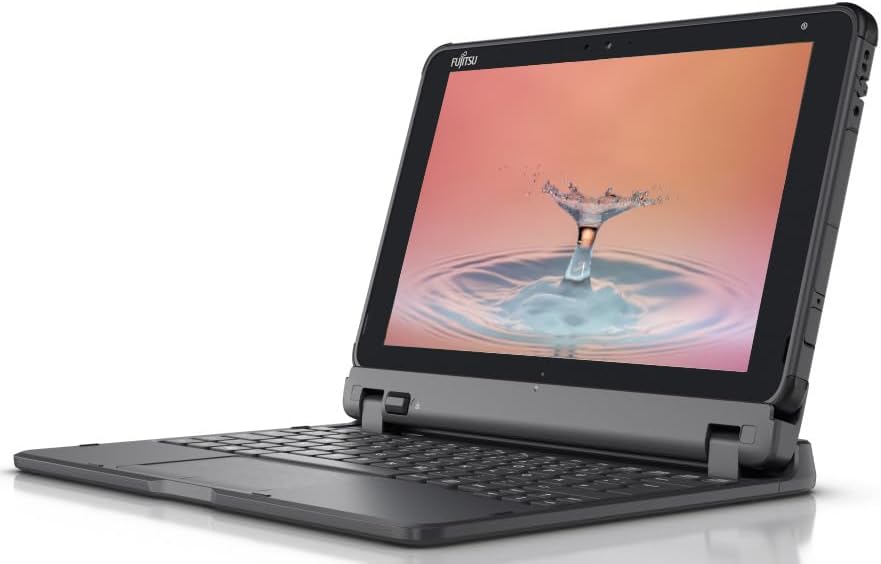
Figure 3.2.2: Fujitsu Stylistic Q5010 Tablet in standalone tablet mode.
3.3 Connecting Peripherals
The tablet supports various connectivity options:
- USB Type-C: Connect external storage, chargers, or compatible accessories.
- Bluetooth: Pair with wireless headphones, mice, or keyboards via Windows settings.
- Wi-Fi: Connect to wireless networks for internet access.
3.4 Using the Webcams
The Fujitsu Stylistic Q5010 is equipped with both front and rear cameras. To use them, open the 'Camera' application in Windows 11. You can switch between the front and rear cameras within the application interface.
4. Maintenance
4.1 Cleaning the Tablet
To clean the screen, use a soft, lint-free cloth slightly dampened with water or a screen-cleaning solution. Avoid harsh chemicals. For the tablet body, use a soft, dry cloth. Ensure all ports are free of dust and debris.
4.2 Software Updates
Regularly check for and install Windows updates to ensure optimal performance, security, and compatibility. Go to Settings > Windows Update to manage updates.
4.3 Storage Management
To maintain performance, periodically manage your 64GB SSD storage. Delete unnecessary files, uninstall unused applications, and consider using cloud storage for large files.
4.4 Battery Care
To prolong battery life, avoid extreme temperatures and do not allow the battery to fully discharge frequently. For long-term storage, charge the battery to approximately 50%.
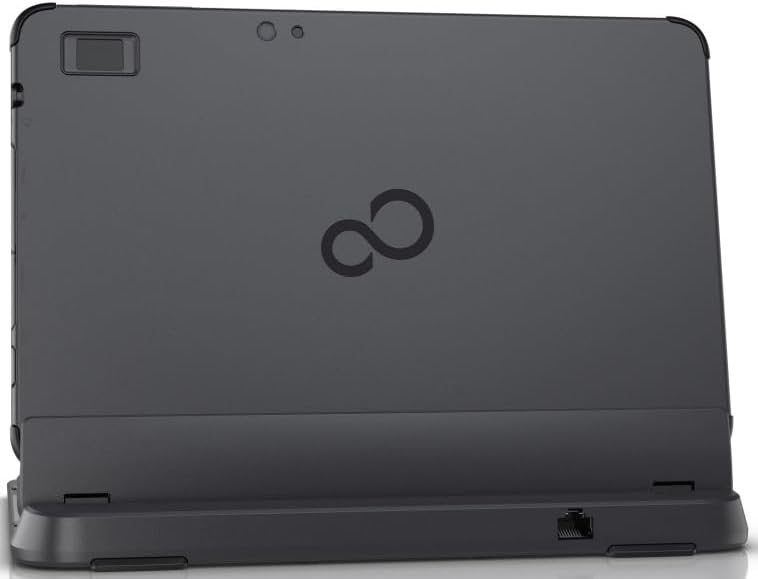
Figure 4.4.1: Rear view of the Fujitsu Stylistic Q5010 Tablet and keyboard dock, highlighting connectivity options.
5. Troubleshooting
5.1 Device Not Powering On
- Ensure the tablet is charged. Connect the power adapter and wait a few minutes before attempting to power on.
- Press and hold the power button for 10-15 seconds to perform a hard reset.
5.2 Wi-Fi Connectivity Issues
- Check if Wi-Fi is enabled in Windows settings.
- Restart your Wi-Fi router and the tablet.
- Forget the network and reconnect, entering the password again.
5.3 Touchscreen Unresponsive
- Restart the tablet.
- Ensure the screen is clean and free of moisture or debris.
- If the issue persists, consider updating or reinstalling the touchscreen drivers via Device Manager.
5.4 General Performance Issues
- Close unnecessary applications running in the background.
- Ensure Windows is up to date.
- Run a disk cleanup to free up storage space.
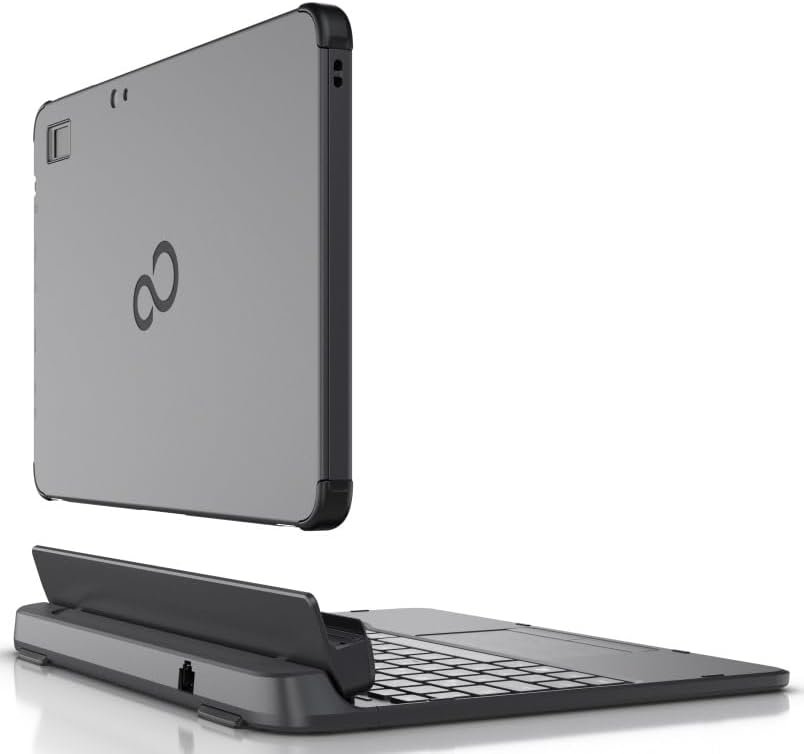
Figure 5.4.1: Side view of the Fujitsu Stylistic Q5010 Tablet, demonstrating its compact form.
6. Specifications
The following table outlines the key technical specifications of the Fujitsu Stylistic Q5010 Tablet:
| Feature | Specification |
|---|---|
| Brand | Fujitsu |
| Model Name | Fujitsu Stylistic Q5010 Tablet |
| Processor | Intel Celeron N4020 (1.1 GHz) |
| RAM Memory | 4 GB |
| Storage | 64 GB SSD |
| Operating System | Windows 11 Professional |
| Screen Size | 10.1 Inches |
| Display Resolution | 1920 x 1200 Pixels (FHD) |
| Human-Interface Input | Touchscreen |
| Connectivity | Bluetooth, Wi-Fi, USB Type-C |
| Cameras | Front, Rear (2x Webcam) |
| Dimensions (L x W x Th) | 10.3" x 0.5" x 6.6" |
| Built-In Media | Japanese Keyboard |
| UPC | 762221962979 |
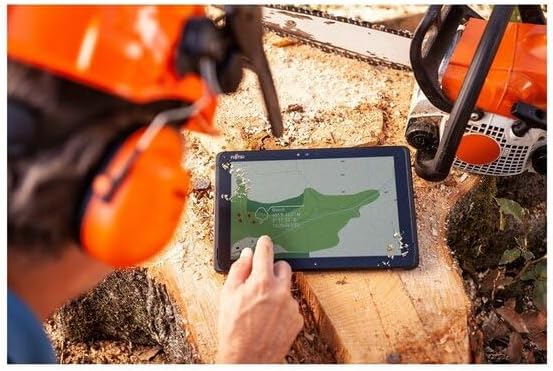
Figure 6.1: The Fujitsu Stylistic Q5010 Tablet is designed for robust use in various professional settings.
7. Warranty Information
This Fujitsu Stylistic Q5010 Tablet comes with a 90-day limited warranty. This warranty covers defects in materials and workmanship under normal use. For specific terms and conditions, please refer to the warranty documentation provided with your purchase or contact your vendor. As this is a renewed product, warranty terms may differ from new products.
8. Support
If you encounter issues that cannot be resolved using the troubleshooting steps in this manual, or if you require further assistance, please contact the vendor or the authorized service provider from whom you purchased the device. Have your product model number (Q5010) and purchase details ready when contacting support.


