
1. Introduction
Thank you for choosing the iCAN KY-K9961 60% Wired Gaming Keyboard. This compact 62-key membrane keyboard is designed for users seeking a space-saving solution with responsive typing and vibrant RGB backlighting. This manual provides essential information for setting up, operating, and maintaining your keyboard.
2. Product Overview
The iCAN KY-K9961 keyboard features a 60% layout, offering a compact design without sacrificing core functionality. It includes quiet membrane switches, customizable RGB rainbow backlighting, and multi-function shortcuts for enhanced usability.
Key Features:
- Compact 60% Layout: 62-key design saves desk space and enhances portability.
- Quiet Membrane Switches: Provides a soft, cushioned, and quiet typing experience.
- RGB Rainbow Backlighting: 7 dynamic lighting modes with adjustable brightness and speed.
- Multi-Function Shortcuts: Access F1-F12, media controls, and arrow keys via FN key combinations.
- 6-Key Anti-Ghosting: Ensures accurate input for simultaneous key presses.
- Plug & Play: No drivers or software required for operation.
- Spill-Resistant Design: Offers protection against minor liquid spills.
Visual Overview:
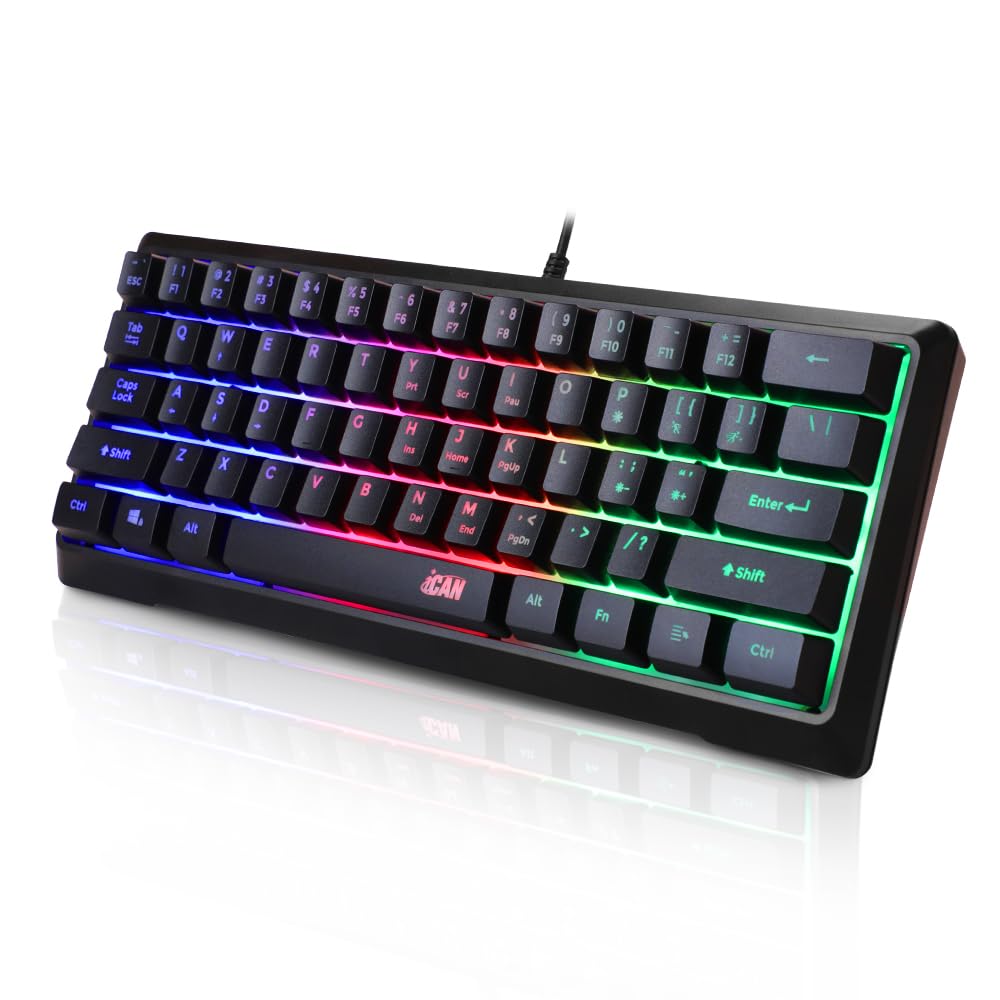
Image: The iCAN KY-K9961 60% Wired Gaming Keyboard, showcasing its compact layout and RGB lighting.

Image: A visual comparison demonstrating how the 60% keyboard saves desk space compared to a standard full-size keyboard.
3. Setup Instructions
The iCAN KY-K9961 keyboard is designed for simple plug-and-play operation.
- Connect the USB Cable: Locate the USB-A connector at the end of the keyboard's integrated cable.
- Insert into Device: Plug the USB-A connector into an available USB port on your computer (PC, Mac), laptop, PS4, or PS5.
- Automatic Recognition: Your operating system will automatically detect and install the necessary drivers. No additional software installation is required.
- Begin Use: The keyboard is now ready for use.

Image: The keyboard connected via its USB cable to a device, illustrating the plug-and-play setup.
Compatibility Note: While compatible with Mac, certain multimedia keys may function differently or require specific operating system settings.
4. Operating Instructions
Function (FN) Key Combinations:
Due to its compact 60% layout, many standard functions are accessed by holding down the FN key in combination with other keys. Refer to the keycaps for secondary functions, often indicated by smaller icons or text.
- F1-F12 Keys: Press FN + the corresponding number key (e.g., FN + 1 for F1, FN + = for F12).
- Media Controls: Access play/pause, volume up/down, mute, etc., by pressing FN + the designated media keys.
- Arrow Keys: The arrow keys are integrated into the right-hand side of the keyboard. Press FN + the designated keys (e.g., FN + W for Up, FN + A for Left, FN + S for Down, FN + D for Right) to activate them.
- Editing Keys: Functions like Home, End, PgUp, PgDn, Insert, Delete are also accessed via FN combinations.

Image: The keyboard layout highlighting the various multi-function shortcuts for media, F-keys, arrow keys, and editing keys.
RGB Backlighting Control:
The keyboard features 7 dynamic RGB rainbow lighting modes. You can adjust these settings using the following key combinations:
- Change Mode: Press FN + P to cycle through the 7 different lighting modes.
- Adjust Brightness: Press FN + [ (decrease brightness) or FN + ] (increase brightness). There are 3 brightness levels.
- Adjust Speed: Press FN + ; (decrease speed) or FN + ' (increase speed). There are 3 speed levels for dynamic modes.

Image: A close-up of the keyboard keys, emphasizing the quiet and soft membrane typing experience.
5. Maintenance
To ensure the longevity and optimal performance of your iCAN KY-K9961 keyboard, follow these maintenance guidelines:
- Cleaning: Use a soft, dry cloth to wipe down the keyboard surface. For dust and debris between keys, use compressed air. Avoid harsh chemicals or abrasive materials.
- Spill-Resistance: The keyboard features a spill-resistant design. In case of minor liquid spills, immediately unplug the keyboard, invert it to drain liquid, and allow it to dry completely before reconnecting. This feature is for minor spills and does not guarantee full waterproofing.
- Storage: When not in use, store the keyboard in a clean, dry environment away from extreme temperatures and direct sunlight.
6. Troubleshooting
If you encounter issues with your iCAN KY-K9961 keyboard, please refer to the following common solutions:
- Keyboard Not Responding:
- Ensure the USB cable is securely plugged into both the keyboard and your device.
- Try plugging the keyboard into a different USB port on your device.
- Test the keyboard on another computer or device to rule out a device-specific issue.
- Restart your computer.
- RGB Lighting Not Working or Incorrect:
- Ensure the keyboard is properly connected.
- Cycle through the RGB modes using FN + P.
- Adjust brightness using FN + [ / ].
- Keys Not Registering or Ghosting:
- The keyboard features 6-key anti-ghosting. If more than 6 keys are pressed simultaneously, some inputs may not register.
- Clean around the affected keys to ensure no debris is obstructing the switch.
- Keyboard is Not Completely Silent:
- The term "quiet typing" refers to the membrane switch design, which is generally quieter than mechanical switches. It does not imply absolute silence. Some audible feedback is normal during key presses.
7. Specifications
| Feature | Detail |
|---|---|
| Model | KY-K9961 |
| Layout | 60% Compact (62 Keys) |
| Switch Type | Membrane (Quiet & Soft) |
| Anti-Ghosting | 6 Keys |
| Backlight | RGB Rainbow (7 Modes) |
| Connection | Wired USB (1.5m Cable) |
| Key Life | 10 Million Keystrokes |
| Dimensions | 296 x 114 x 36 mm (11.65 x 4.49 x 1.42 inches) |
| Weight | 380g (0.84 lbs) |
| Material | Plastic |
| Compatibility | Windows PC, Laptop, Mac, PS4, PS5 |
8. Warranty and Support
Warranty information for the iCAN KY-K9961 keyboard is not explicitly provided in this manual. For any warranty claims, technical support, or product inquiries, please contact the retailer or seller from whom you purchased the product. They will be able to provide the most accurate and up-to-date support information.