
Introduction
This manual provides detailed instructions for the installation, operation, and maintenance of your CAMECHO Android Car Stereo, designed specifically for Hyundai IX35 models from 2010 to 2015. Please read this manual thoroughly before using the product to ensure proper functionality and safety.
Product Overview
The CAMECHO Android Car Stereo is an advanced infotainment system featuring a 10-inch display and running on Android 15. It offers a seamless driving experience with its powerful 8-core processor, 4GB RAM, and 64GB ROM.
Key Features:
- Operating System: Android 15
- Processor: 8-Core
- Memory: 4GB RAM + 64GB ROM
- Display: 10-inch Touchscreen
- Connectivity: Wireless CarPlay, Wireless Android Auto, MirrorLink, Bluetooth 5.0, Wi-Fi
- Navigation: Built-in GPS (supports online and offline maps)
- Audio: Professional EQ (DSP), FM/RDS Radio
- Control: Steering Wheel Control (SWC) support
- Camera Support: AHD Rear Camera input with automatic display switching
- Output Power: 45 Watts per channel (180 Watts total)

Image: Overview of the CAMECHO Android Car Stereo's main features, including 1080P HD touchscreen, 8-core chipset, built-in WiFi, CarPlay, GPS, Android Auto, steering wheel control, rear camera support, FM/RDS radio, DSP, Bluetooth, and intelligent voice control.
Setup and Installation
Before beginning installation, ensure your vehicle's ignition is off and the battery is disconnected. Professional installation is recommended.
Compatibility Check:
This unit is designed for Hyundai IX35 models from 2010-2015. If your original car has an amplifier or if the back of your original CD player differs from the image provided below, this product may not be compatible. For compatibility inquiries, please contact customer support with photos of your car's central console and the rear of your original CD player.

Image: Top shows the CAMECHO stereo installed in a Hyundai IX35 dashboard. Bottom shows the rear view of an original car CD player, indicating incompatibility if it matches this specific configuration.
Package Contents:
Verify that all components are present in the package:
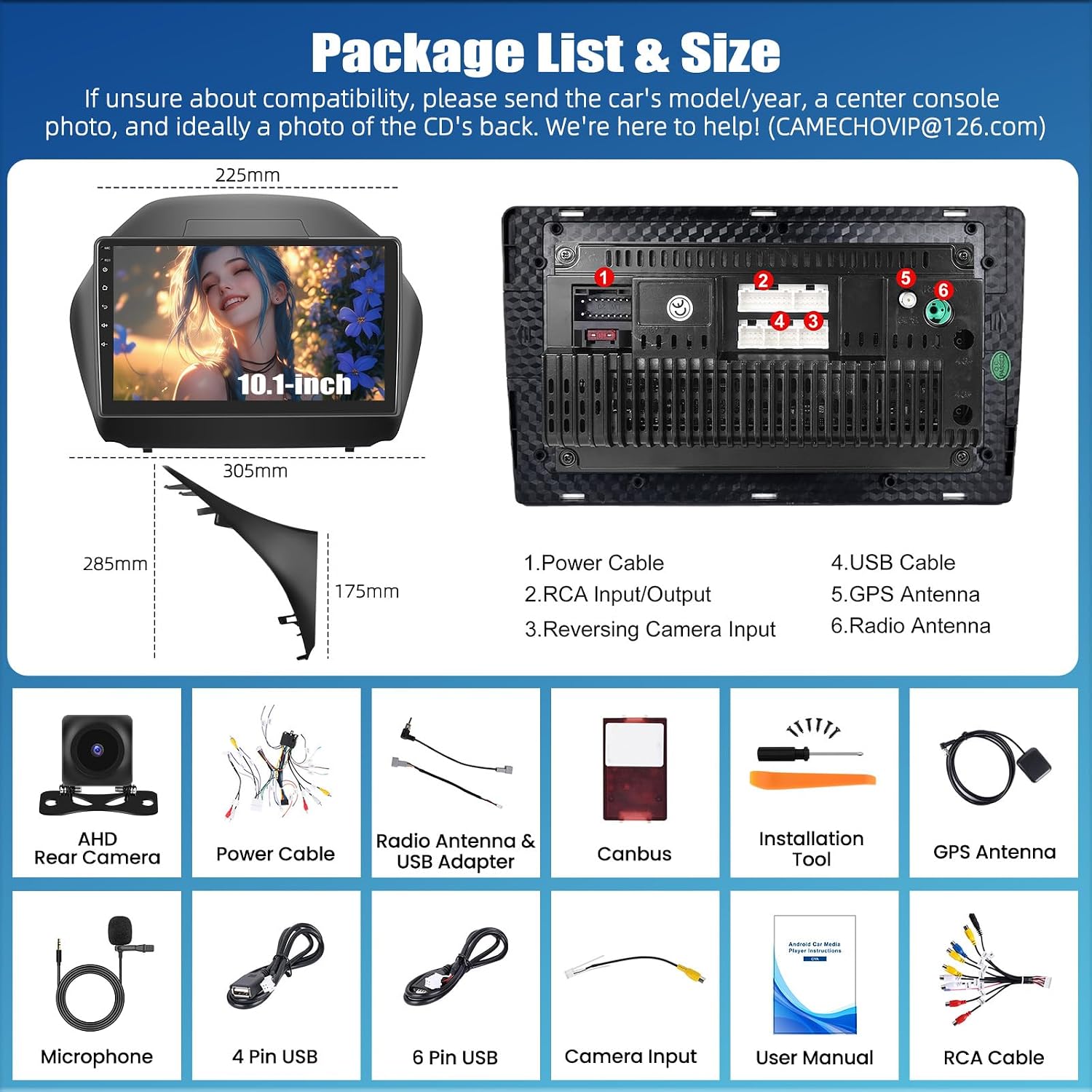
Image: Diagram showing the dimensions of the 10.1-inch car stereo and a list of included accessories: Power Cable, RCA Input/Output, Reversing Camera Input, USB Cable, GPS Antenna, Radio Antenna, AHD Rear Camera, Canbus, Installation Tool, Microphone, 4 Pin USB, 6 Pin USB, Camera Input, User Manual, RCA Cable.
- Carplay Autoradio Unit (10.1-inch display)
- Power Cable
- RCA Input/Output Cables
- Reversing Camera Input Cable
- USB Cables (4-pin and 6-pin)
- GPS Antenna
- Radio Antenna
- AHD Rear Camera
- Canbus Decoder
- Installation Tool
- External Microphone
- User Manual
Wiring Connections:
Refer to the wiring diagram provided in the package list image for correct connections. Ensure all cables are securely connected to their respective ports on the back of the head unit and to your vehicle's wiring harness.
- Power Cable: Connect to the vehicle's power supply.
- RCA Input/Output: For external audio/video devices.
- Reversing Camera Input: Connect the AHD Rear Camera here.
- USB Cable: For USB devices and data transfer.
- GPS Antenna: Mount in a location with a clear view of the sky for optimal signal.
- Radio Antenna: Connect to the vehicle's radio antenna.
Operating Instructions
1. Wireless CarPlay & Android Auto:
Connect your smartphone wirelessly via Bluetooth and Wi-Fi to access navigation, music, calls, and more directly on the car stereo display.
- For Wireless Apple CarPlay:
- Activate Bluetooth on your iPhone and pair it with the car radio.
- Open the "Zlink" app on the car stereo.
- If connection fails, connect your phone to the car stereo's hotspot and then reopen the "Zlink" app.
- Maintain both Bluetooth and hotspot connections.
- For Wireless Android Auto:
- Ensure Android Auto app is installed on your phone.
- Activate Bluetooth on your phone and pair it with the car radio.
- Switch to the "Zlink" app on the car stereo.

Image: Visual guide detailing the steps to connect wirelessly to Apple CarPlay and Android Auto using the Zlink app.
2. MirrorLink:
MirrorLink allows you to duplicate your smartphone screen onto the car stereo display.
- For iPhone (via Wi-Fi):
- Turn on your iPhone's personal hotspot.
- Connect the car radio's Wi-Fi to your iPhone's hotspot.
- Open the "Phone Link" app on the car stereo.
- Enter the AirPlay function on your iPhone, choose the car radio, and start mirroring.
- For Android Phones (via Wi-Fi/USB):
- Click on "Phone Link" and scan the QR code to download the app on your phone.
- Follow the instructions to choose connection via USB cable or Wi-Fi.
- For USB connection, enable "USB debugging" in your phone's developer options and set USB configuration to data transmission.

Image: Diagram illustrating the MirrorLink function, showing how a smartphone screen can be mirrored to the car stereo display via USB or Wi-Fi.
3. GPS Navigation:
The unit has built-in GPS for navigation. It supports both online and offline maps.
- For offline navigation, connect to the internet and download free maps using the pre-installed Here WeGo app.
- Ensure the GPS antenna is properly installed and has a clear view of the sky.

Image: The car stereo display showing a GPS navigation map with route information and various navigation app icons.
4. Wi-Fi Connection:
Connect to a Wi-Fi network to browse the internet, stream videos, and download applications from the Google Play Store.

Image: Illustration of Wi-Fi connectivity, showing the car stereo displaying web content and social media icons, indicating internet access.
5. Bluetooth 5.0:
The integrated Bluetooth 5.0 module supports hands-free calling, voice chat, and wireless audio streaming. The unit can automatically load your phone's address book.

Image: Depicts Bluetooth 5.0 functionality, showing a driver making a hands-free call and the car stereo displaying a dial pad and music playback interface.
6. FM/RDS Radio:
Tune into your favorite radio stations. RDS (Radio Data System) provides real-time information such as traffic conditions, news, and weather forecasts.

Image: The car stereo displaying the FM/RDS radio interface with frequency tuning and station presets.
7. EQ & DSP:
The professional EQ and DSP (Digital Signal Processor) allow for precise audio adjustments, making your music sound richer and more layered. Customize sound settings to your preference.

Image: Screenshots of the car stereo's interface showing various audio adjustment options, including a 32-band EQ, sound field settings, and delay adjustments.
8. Steering Wheel Control (SWC):
The unit supports your vehicle's original steering wheel control buttons. This allows you to manage calls, change songs, adjust volume, and more without taking your hands off the wheel.

Image: The car stereo display showing the interface for programming steering wheel control buttons, allowing users to assign functions like volume, track change, and mode.
9. Rear Camera Function:
When reversing, the screen automatically switches to the AHD rear camera display, providing a clear view of the area behind your vehicle for safer parking and maneuvering.

Image: The car stereo display showing the view from a rear camera with parking guidelines, highlighting features like HD image quality, night vision, and waterproof design.
10. Split Screen Function:
The split-screen feature allows you to run two applications simultaneously on the 10-inch display, such as navigation and music playback.

Image: The car stereo display demonstrating the split-screen feature, showing two applications running side-by-side, with options for 2-split or 3-split layouts.
11. Multiple UI Options:
Customize your user interface with various themes and layouts to match your preference.

Image: A collage of various user interface themes and layouts available for the CAMECHO car stereo, showing different icon styles, widget arrangements, and background designs.
12. Optional Functions (Not Included):
The unit supports additional functions that can be purchased separately:
- DVR (Dash Cam)
- DAB+ (Digital Audio Broadcasting)
- 360 Panoramic Camera
- OBD2 (On-Board Diagnostics)
- Video Output
- External Microphone (if not included in your package)

Image: A graphic illustrating various optional functions that can be added to the car stereo, such as DVR, DAB+, 360 panoramic camera, OBD2, video output, and external microphone.
Maintenance
- Cleaning the Screen: Use a soft, lint-free cloth to gently wipe the touchscreen. Avoid abrasive cleaners or solvents.
- Software Updates: Periodically check for software updates to ensure optimal performance and access to new features. Updates can usually be found through the system settings or the manufacturer's website.
- Temperature: Avoid exposing the unit to extreme temperatures, both hot and cold, as this can affect its lifespan and performance.
- Power Supply: Ensure a stable 12V power supply to prevent damage to the unit.
Troubleshooting
| Problem | Possible Cause | Solution |
|---|---|---|
| Unit does not power on. | Incorrect wiring, blown fuse, insufficient power. | Check power cable connections. Verify vehicle fuse. Ensure stable 12V power. |
| No sound. | Volume too low, incorrect audio settings, speaker wiring issues. | Increase volume. Check EQ/DSP settings. Verify speaker connections. |
| GPS signal lost or inaccurate. | GPS antenna improperly installed, obstructed view of sky. | Ensure GPS antenna is mounted in a clear location. Check antenna connection. |
| Bluetooth connection issues. | Phone not discoverable, incorrect pairing process. | Ensure Bluetooth is enabled on both devices. Delete previous pairings and re-pair. |
| CarPlay/Android Auto not connecting. | Incorrect app usage, Wi-Fi/Bluetooth issues, phone settings. | Refer to the specific connection steps in the "Operating Instructions" section. Check phone's Wi-Fi/Bluetooth. |
| Rear camera not displaying. | Camera wiring issue, camera malfunction. | Check reversing camera input connection. Ensure camera is powered correctly. |
If you encounter issues not listed here or if the suggested solutions do not resolve the problem, please contact customer support.
Specifications
| Feature | Detail |
|---|---|
| Model Number | 1 |
| Operating System | Android 15 |
| Processor | 8 Core |
| RAM | 4GB |
| ROM | 64GB |
| Display Size | 10 inches |
| Connectivity Technology | Bluetooth 5.0, Wi-Fi |
| Special Features | GPS Navigation, CarPlay, Android Auto, Touchscreen, EQ, FM/RDS |
| Compatible Devices | Smartphone, Tablet, PC, Speaker, Amplifier, TV, Rear Camera, External Microphone |
| Connector Type | RCA, USB |
| Audio Output Mode | Stereo (4.0 channel) |
| Video Encoding | H.264 |
| Output Power | 45 Watts (per channel), 180 Watts (total) |
| Supported Audio Formats | WAV, WMA |
| Package Dimensions | 10 x 10 x 10 cm; 1 kg |
Warranty and Support
CAMECHO provides lifetime technical support for this product.
For technical assistance, troubleshooting, or warranty claims, please contact our support team:
Email: CAMECHOVIP@126.com

Image: A customer support representative wearing a headset, symbolizing available technical assistance.


