
Introduction
This manual provides detailed instructions for the LAICOMEIN BF05 Bluetooth 6.0 Transmitter Receiver. The device offers dual-mode functionality, allowing it to act as both a Bluetooth transmitter (TX) and a Bluetooth receiver (RX). It is designed to enhance your audio experience by enabling wireless connectivity with various devices, including in-flight entertainment systems, TVs, home stereos, and car audio systems.
Package Contents
- LAICOMEIN BF05 Bluetooth Transmitter Receiver
- USB-C Charging Cable
- RCA Audio Adapter Cable
- Dual-Prong Airplane Adapter
- User Manual
Product Overview
Familiarize yourself with the device's components and controls:
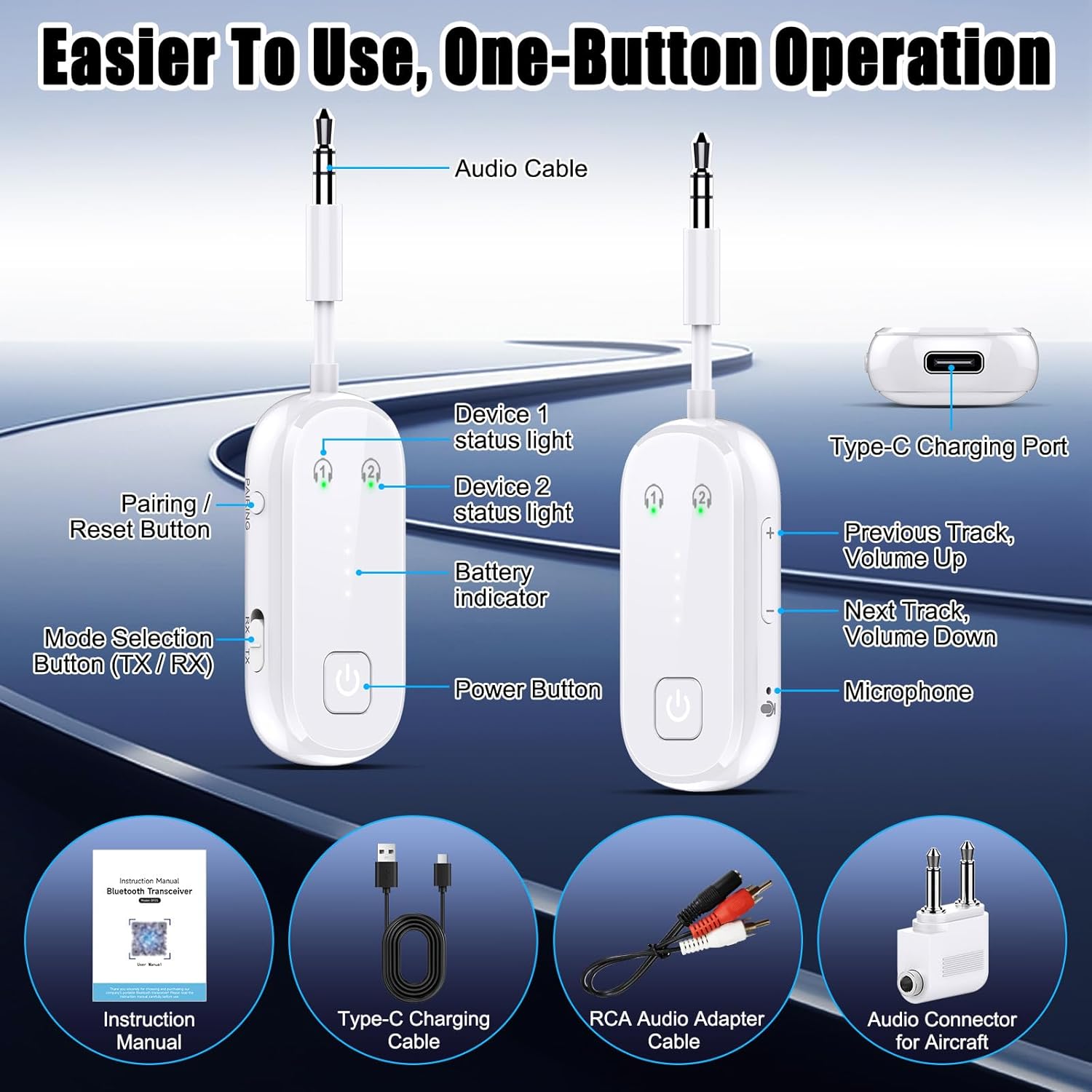
Figure 1: LAICOMEIN BF05 Device Layout. This image illustrates the various buttons and ports on the BF05, including the audio cable, device status lights, battery indicator, pairing/reset button, mode selection switch (TX/RX), power button, Type-C charging port, and microphone.
Key Features
- Bluetooth 6.0 Technology: Provides stable connection, low latency, and reduced power consumption.
- Dual-Mode Functionality (TX/RX): Easily switch between Transmitter and Receiver modes.
- Dual-Device Pairing: Connect two Bluetooth headphones in TX mode or two smartphones in RX mode simultaneously.
- Long Battery Life: Offers over 20 hours of continuous audio playback.
- Fast Charging: Fully recharges in approximately 1.5 hours via USB-C.
- Universal Compatibility: Works with various audio sources and Bluetooth devices, including AirPods, Bose, Sony, TVs, car stereos, and airplane entertainment systems.
- Built-in Microphone: Enables hands-free calling in RX mode.
- Compact and Portable Design: Ideal for travel and everyday use.
Operating Modes
The LAICOMEIN BF05 operates in two distinct modes:

Figure 2: TX and RX Mode Overview. This image illustrates the different applications for Transmitter (TX) and Receiver (RX) modes.
1. Transmitter (TX) Mode
In TX mode, the BF05 connects to non-Bluetooth audio sources (e.g., TV, airplane entertainment, gaming consoles) and transmits audio wirelessly to your Bluetooth headphones or speakers.
TX Mode for Airplane Entertainment

Figure 3: Using BF05 in TX Mode on an Airplane. A woman is shown enjoying in-flight entertainment with her wireless headphones connected via the BF05.
Watch this video for a demonstration on using the BF05 in TX mode for airplane entertainment:
Video 1: How to use the LAICOMEIN BF05 as a Bluetooth adapter for airplane entertainment. This video demonstrates the steps to connect your wireless headphones to an airplane's audio system using the BF05.
TX Mode for TV Audio
Connect your BF05 to your TV's audio output to enjoy TV sound through your Bluetooth headphones.
Watch this video for a demonstration on using the BF05 in TX mode for TV audio:
Video 2: How to use the LAICOMEIN BF05 as a Bluetooth transmitter for TV. This video guides you through connecting the BF05 to your television and pairing it with Bluetooth headphones.
Dual Headphone Pairing in TX Mode

Figure 4: Sharing Audio with Two Headphones in TX Mode. This image shows two individuals enjoying shared audio from a tablet using two separate Bluetooth headphones connected via the BF05.
Watch this video for a demonstration on pairing two headphones in TX mode:
Video 3: How to use the LAICOMEIN BF05 as a Bluetooth transmitter for two headphones. This video explains the process of connecting two Bluetooth headphones simultaneously to an audio source via the BF05.
2. Receiver (RX) Mode
In RX mode, the BF05 receives audio wirelessly from your smartphone or tablet and transmits it to wired audio systems (e.g., car stereo, home stereo, wired headphones).
RX Mode for Car Audio
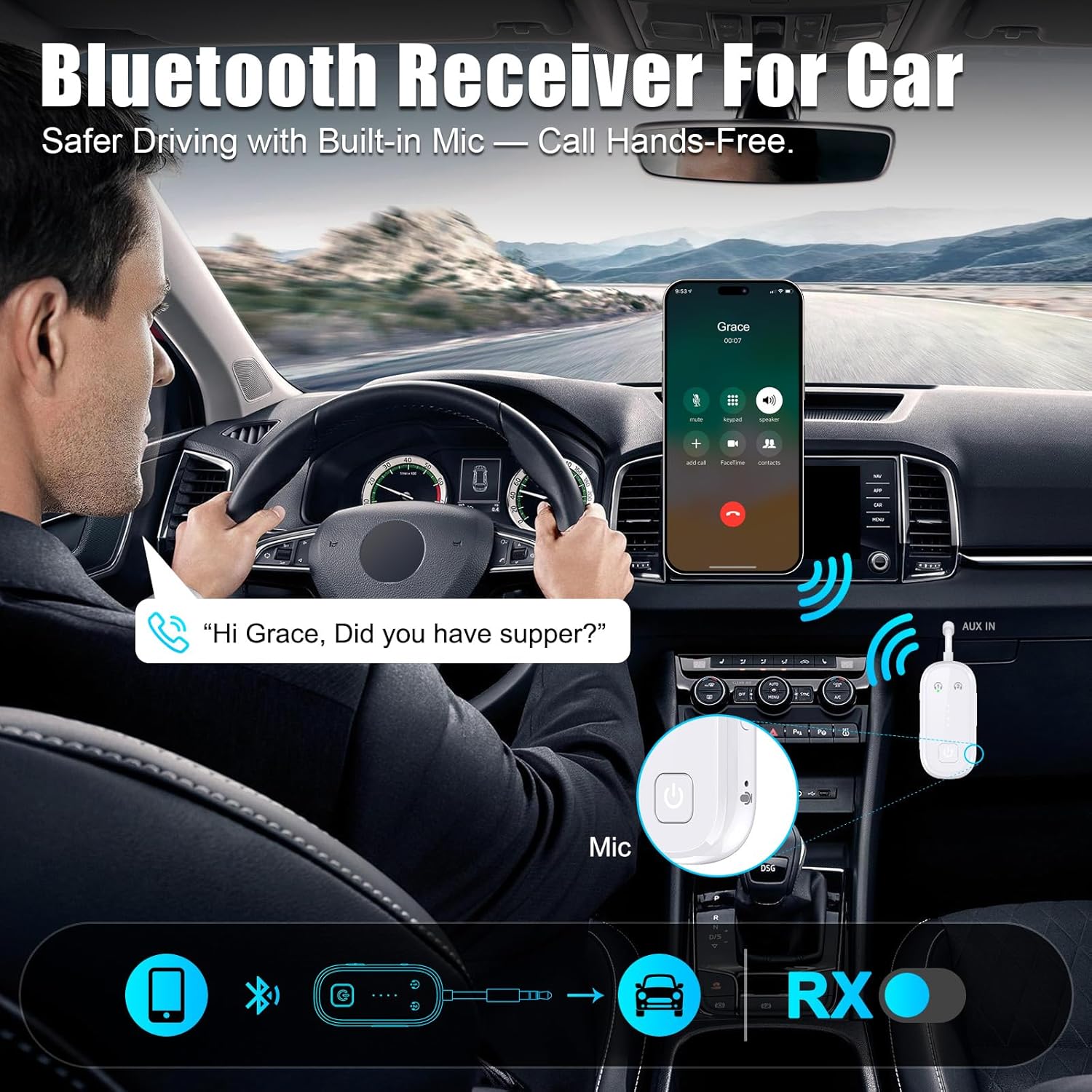
Figure 5: Using BF05 in RX Mode in a Car. A man is shown driving, taking a hands-free call through his car's audio system, connected via the BF05.
RX Mode for Home Stereo

Figure 6: Using BF05 in RX Mode with a Home Stereo. Friends and family are depicted enjoying music streamed from a phone to an outdoor speaker, enabled by the BF05.
Dual Smartphone Pairing in RX Mode
Watch this video for a demonstration on pairing two smartphones in RX mode:
Video 4: How to use the LAICOMEIN BF05 as a Bluetooth adapter for two phones. This video demonstrates how to connect two smartphones to the BF05 in receiver mode.
Setup & Pairing Instructions
Initial Pairing (TX Mode - First Device)
- Ensure your phone's Bluetooth is turned off to prevent interference.
- Set the BF05 mode switch to TX.
- Press and hold the Power button for 3 seconds to turn on the device.
- On first use, the BF05 will automatically enter pairing mode (Indicator 1 will flash rapidly). If not, press the 'PAIRING' button.
- Put your Bluetooth headphones/earbuds into pairing mode. For AirPods, place them in the charging case, open the lid, and hold the charging case button until the light flashes white.
- Once successfully paired, Indicator 1 on the BF05 will illuminate, and the charging case LED of your AirPods will turn green.

Figure 7: TX Mode First Pairing Steps. This diagram visually guides you through the initial pairing process for TX mode.
Dual Pairing (TX Mode - Second Device)
- After successfully pairing the first Bluetooth headset, put the second Bluetooth headset into pairing mode.
- Click the "PAIRING" button on the BF05. Indicator 2 will flash, indicating it's searching for the second device.
- When both Indicator 1 and Indicator 2 are solid, it indicates successful dual pairing.

Figure 8: TX Mode Dual Pairing Steps. This diagram illustrates how to connect a second pair of headphones in TX mode.
Initial Pairing (RX Mode - First Device)
- Set the BF05 mode switch to RX.
- Press and hold the Power button for 3 seconds to turn on the device.
- On first use, the BF05 will automatically enter pairing mode (Indicator 1 will flash rapidly). If not, press the 'PAIRING' button.
- Turn on Bluetooth on your smartphone/tablet and select "BF05" from the device list to establish a connection.
- When Indicator 1 on the BF05 is solid, pairing is successful.

Figure 9: RX Mode First Pairing Steps. This diagram shows the steps for initial pairing in RX mode with a smartphone.
Dual Pairing (RX Mode - Second Device)
- After successfully pairing the first smartphone, click the "PAIRING" button on the BF05. Indicator 2 will flash, indicating it's searching for the second device.
- Turn on Bluetooth on your second smartphone and select "BF05" from the device list to establish a connection.
- When both Indicator 1 and Indicator 2 are solid, it indicates successful dual pairing.

Figure 10: RX Mode Dual Pairing Steps. This diagram illustrates how to connect a second smartphone in RX mode.
Troubleshooting
If you encounter issues with your LAICOMEIN BF05, please refer to the following troubleshooting steps:
- Automatic Reconnections: For automatic reconnection, ensure your headphones are disconnected from any other devices first.
- No Sound from AirPods: If your AirPods have no sound, place them back in their case to reset the connection, then re-pair.
- Device Freeze/Unresponsive: In case of a freeze, press and hold the Power button for 10 seconds to force reset the device. It will shut down, and you can then restart it by holding the Power button for 3 seconds.
Watch this video for common troubleshooting tips:
Video 5: Troubleshooting the LAICOMEIN BF05 Bluetooth Transmitter. This video provides solutions for common issues encountered with the device.
Watch this video for instructions on how to reset the device:
Video 6: Resetting the LAICOMEIN BF05 Bluetooth Transmitter. This video demonstrates the steps to reset the BF05 device.
Maintenance
- Keep the device dry. Avoid exposure to moisture or liquids.
- Clean the device with a soft, dry cloth. Do not use harsh chemicals or abrasive materials.
- Store the device in a cool, dry place when not in use.
- Avoid extreme temperatures.
Specifications
| Model Name | BF05 |
| Brand | LAICOMEIN |
| Connectivity Technology | Bluetooth |
| Bluetooth Version | 6.0 |
| Power Source | Battery Powered (1 Lithium Ion battery included) |
| Battery Life | 20+ Hours |
| Battery Charge Time | 1.5 - 2 Hours |
| Color | White |
| Special Features | USB-C Charging, Auto-Pairing, Dual Mode TX/RX, 20+ Hours Battery Life |
| Supported Media Type | Audio |
| Compatible Devices | TV, Car Stereo, Home Stereo, Airplane Entertainment Systems, AirPods, Bose, Sony, Bluetooth audio devices |
| Supported Standards | FCC, CE, RoHS, BQB |
| Hardware Interface | 3.5mm Audio |
| Audio Input | AUX, RCA |
| Audio Output Mode | Transmitter and Receiver |
| Control Method | Push Button |
Warranty and Support
The LAICOMEIN BF05 comes with a 24-month warranty. Register your product to receive a 12-month free return/replacement period. For further assistance, please contact LAICOMEIN customer support.