
1. Introduction
This manual provides instructions for the installation, operation, and maintenance of your Biorunn 9-inch Touch Screen Stereo Head Unit. This unit is designed for specific Buick Enclave models from 2013 to 2017. It features an Android operating system, a 4-core processor, 2GB RAM, and 64GB ROM, with a 1280x720 IPS touch screen.
Please read this manual thoroughly before using the product to ensure proper operation and to prevent damage.
2. Safety Information
- Do not attempt to operate the unit while driving. Distracted driving can lead to accidents.
- Ensure all wiring is correctly connected to prevent short circuits or electrical hazards.
- Consult a qualified technician for installation if you are unsure about any steps.
- Keep the unit away from water and excessive moisture.
- Do not disassemble or modify the unit. This may void the warranty and cause damage.
3. What's in the Box
Verify that all components are present before beginning installation:
- 1 × Car Stereo Head Unit
- 1 × Dash Mounting Frame
- 1 × Wiring Harness with Canbus
- 1 × Backup Camera
- 1 × User Manual & Cables
- 1 × Power Cable
- 1 × RCA Cable
- 1 × Microphone (MIC)
- 1 × GPS Antenna
- 1 × USB Cable

Image: Included components for the Biorunn 9-inch Touch Screen Stereo Head Unit.
4. Setup and Installation
This head unit is designed for direct fitment in Buick Enclave models from 2013 to 2017. Before installation, confirm compatibility by comparing your vehicle's dashboard with the provided images.
- Pre-Installation Check: Ensure the vehicle's ignition is off and the battery is disconnected before starting.
- Dashboard Removal: Carefully remove the original car stereo and dashboard trim. Refer to your vehicle's service manual for specific instructions on trim removal.
- Wiring Connections: Connect the provided wiring harness to the vehicle's existing harness. Ensure all connections are secure. Connect the GPS antenna, USB cables, and backup camera input if applicable.
- Unit Mounting: Install the new Biorunn head unit into the dash opening using the provided mounting frame. Secure it firmly.
- Testing: Reconnect the battery and turn on the ignition to test the unit's functionality before fully reassembling the dashboard.
- Professional Installation: If you are not confident with the installation process, it is recommended to seek professional assistance.

Image: Dashboard appearance before and after the Biorunn stereo installation.
5. Operating Instructions
5.1 Basic Operation
- Power On/Off: Press and hold the power button on the unit or use the vehicle's ignition.
- Touch Screen: Navigate the interface by tapping, swiping, and pinching on the 9-inch IPS touch screen.
- Volume Control: Adjust volume using the on-screen controls or the steering wheel controls.
- Brightness Adjustment: Access display settings to adjust screen brightness for optimal visibility.
5.2 Steering Wheel Control (SWC)
The unit supports original steering wheel remote control functionality. This allows you to manage music playback, answer calls, and navigate menus without taking your hands off the steering wheel.

Image: Steering wheel control integration with the head unit.
5.3 Wireless Car-Play and Android Auto
The head unit features built-in Wireless Car-Play and Android Auto, allowing seamless integration with your smartphone for navigation, music, calls, and messages.
- For Android Auto: Connect your Android phone via Bluetooth. Open the Car-Play application on the head unit and follow the on-screen prompts to establish a connection.
- For Car-Play: Connect your iPhone via a USB cable to the designated USB port. Open the Car-Play application and wait for the connection to be established.

Image: Wireless Car-Play and Android Auto connection guide.
5.4 Bluetooth Functionality
The unit supports Bluetooth 5.0 for hands-free calling, phone book download, and music streaming.
- Pairing: Go to the Bluetooth settings on the head unit and your smartphone. Search for available devices and select the head unit's name to pair.
- Hands-Free Calling: Once paired, you can make and receive calls directly from the head unit's screen. The phone book can be synchronized for easy access.
- Bluetooth Music: Stream audio from your smartphone to the head unit wirelessly.
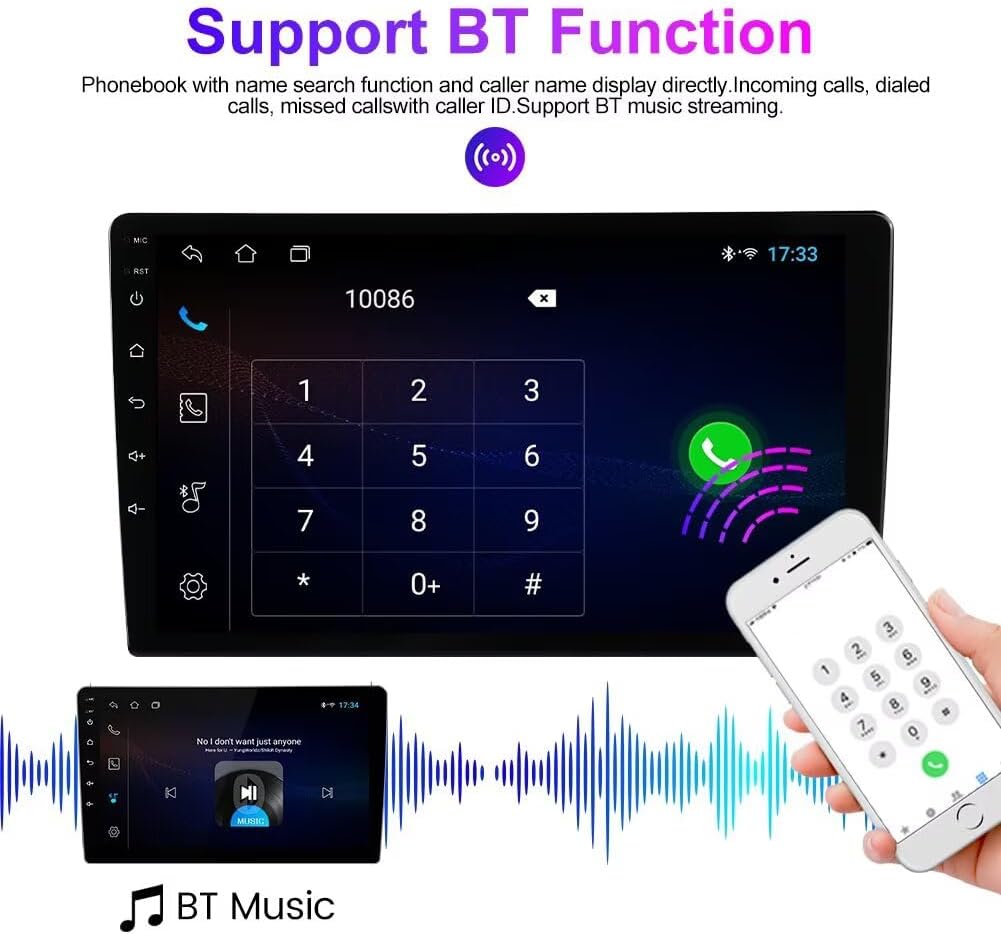
Image: Bluetooth call and music streaming interface.
5.5 FM RDS Radio
The built-in FM RDS radio allows you to listen to your favorite stations. It supports automatic search and manual tuning, with 18 preset stations available.
- Auto Search: Use the auto-search function to scan and save available radio stations.
- Manual Tuning: Manually tune to specific frequencies.
- Presets: Save your preferred stations to the 18 available preset slots for quick access.

Image: FM RDS Radio interface.
5.6 GPS Navigation
The unit includes a built-in global positioning system (GPS) for navigation. Access the navigation application to plan routes and receive turn-by-turn directions.
5.7 Split Screen Function
The split-screen feature allows two applications to be displayed simultaneously on the screen, enhancing multitasking capabilities.

Image: Split screen functionality displaying two applications.
5.8 Reversing Video Input
The unit supports a reversing camera input. When the vehicle is shifted into reverse, the display automatically switches to the camera view, providing assistance for parking and maneuvering.

Image: Reversing video display with parking guidelines.
6. Maintenance
- Screen Cleaning: Use a soft, lint-free cloth to clean the touch screen. Do not use abrasive cleaners or solvents.
- Software Updates: Periodically check for software updates to ensure optimal performance and access to new features.
- General Care: Avoid exposing the unit to extreme temperatures or direct sunlight for prolonged periods.
7. Troubleshooting
- No Power: Check all power connections and fuses. Ensure the vehicle's battery is properly connected.
- No Sound: Verify speaker connections. Check volume settings and ensure the mute function is not active.
- Touch Screen Unresponsive: Try restarting the unit. If the issue persists, a factory reset may be necessary (refer to system settings).
- Bluetooth Connection Issues: Ensure Bluetooth is enabled on both the head unit and your smartphone. Try unpairing and re-pairing the devices.
- GPS Signal Loss: Ensure the GPS antenna is properly installed and has a clear view of the sky.
For persistent issues, contact customer support.
8. Specifications
| Feature | Specification |
|---|---|
| Operating System | Android |
| Processor Core | 4 Core |
| Screen Size | 9 inches |
| RAM | 2GB |
| ROM | 64GB |
| Resolution | 1280 x 720, IPS Touch Screen |
| Bluetooth Version | 5.0 |
| Wireless Connectivity | WiFi, Wireless Car-Play, Android Auto |
| GPS | Built-in Global Positioning System |
| Supported Languages | English, German, French, Spanish, Italian, Portuguese, Russian, Dutch, Polish, Japanese, Simplified & Traditional Chinese, Arabic, etc. |
| Audio Formats | MP3, WMA, AAC, RM, FALC, etc. |
| Video Formats | MPEG-1/2/4, H264, H263, VC1, RV, RMVB, DivX, Sorenson Spark, Spark, VP8, AVS Stream |
| Photo Formats | JPG/BMP/JPEG/GIF/PNG |
| Memory Storage Capacity | 64 GB |
| Touch Screen Type | Capacitive |
| Display Type | LED |
| Human-Interface Input | Buttons, Keyboard, Mouse, Touchscreen |
| Control Method | Touch |
| Compatible Flash Memory Type | SD |
9. Warranty Information
This Biorunn product comes with a 1-year warranty from the date of purchase. The warranty covers manufacturing defects and malfunctions under normal use. It does not cover damage caused by improper installation, misuse, accidents, or unauthorized modifications.
Please retain your proof of purchase for warranty claims.
10. Support
If you encounter any issues or have questions not covered in this manual, please contact Biorunn customer support. Provide your product model number and a detailed description of the issue for efficient assistance.
For further assistance, visit the Biorunn Store on Amazon.