
1. Introduction
Welcome to the user manual for your new ASUS VivoBook 2026 Edition Laptop. This guide provides essential information to help you set up, operate, maintain, and troubleshoot your device. The ASUS VivoBook is designed for efficiency and portability, featuring an Intel 13th Gen processor, a vibrant 14-inch Full HD display, and Windows 11 Home.
Key Features:
- Powerful Intel i3 13th Gen Processor: Intel Core i3-1315U 6-Core (up to 4.5GHz) for efficient performance.
- Upgraded Memory & Storage: 16GB DDR4 RAM and 256GB PCIe SSD for smooth multitasking and fast data access.
- 14-inch Full HD Thin Bezel Display: 1920x1080 resolution with 250 nits brightness and anti-glare coating.
- Advanced Connectivity: Wi-Fi 6E and Bluetooth 5.3 for reliable wireless connections.
- Secure Webcam: 720p HD camera with an integrated privacy shutter.
- Portable Design: Lightweight at 3.09 lbs with up to 8 hours of battery life.
2. Setup
2.1 Unboxing and Initial Inspection
Carefully remove your laptop and all accessories from the packaging. Ensure all components listed in the 'What's in the Box' section are present and undamaged.
- ASUS VivoBook Laptop
- 65W USB-C Charger
- USB-C to USB-C Cable
2.2 Connecting Power
Before first use, connect the AC adapter to your laptop and a power outlet. It is recommended to fully charge the battery before initial operation.
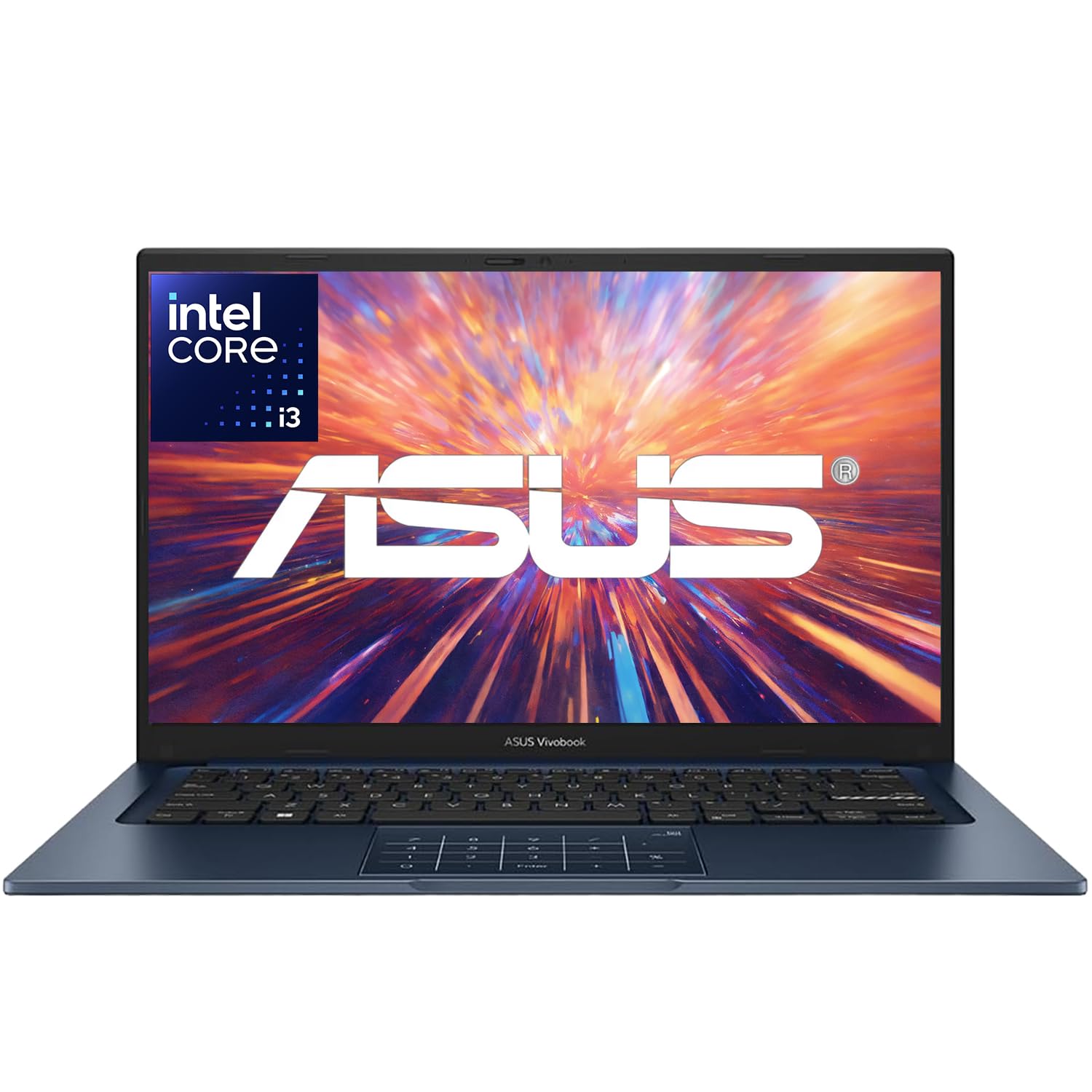
Image: The ASUS VivoBook Laptop, typically shown with its power adapter connected to the charging port.
2.3 First Boot and Windows 11 Setup
Press the power button to turn on your laptop. Follow the on-screen instructions to complete the Windows 11 Home setup process. This includes selecting your region, language, creating a user account, and accepting the license agreement.
2.4 Connecting to Wi-Fi
During the Windows setup or after, connect to a Wi-Fi network. Click the Wi-Fi icon in the taskbar, select your network, enter the password, and click Connect.
3. Operating Your Laptop
3.1 Processor Performance
Your ASUS VivoBook is equipped with an Intel Core i3-1315U Processor, featuring 6 cores and 8 threads, with a maximum turbo frequency of 4.5 GHz. This processor is designed for efficient handling of daily computing tasks, from browsing and document editing to light multimedia use.

Image: A visual representation of the Intel Core i3-1315U Processor, highlighting its 13th generation, 6 cores, 8 threads, and up to 4.5 GHz Max Turbo Frequency.
3.2 Display Features
The 14-inch Full HD (1920 x 1080) NanoEdge display offers a clear and immersive viewing experience with an 82.5% screen-to-body ratio. It features an anti-glare coating and is certified flicker-free and low blue light for reduced eye strain.

Image: The ASUS VivoBook laptop showcasing its 14-inch NanoEdge display with thin bezels, emphasizing the 82.5% screen-to-body ratio and certifications for flicker-free and low blue light.
3.3 Webcam and Privacy
The laptop includes a 720p HD camera with ASUS 3D Noise Reduction (3DNR) technology for clearer video calls. For enhanced privacy, a physical webcam privacy shield is integrated, allowing you to cover the camera lens when not in use.

Image: A close-up of the ASUS VivoBook's webcam, illustrating the ASUS 3D Noise Reduction technology for improved video clarity during conference calls.

Image: Details showing the physical webcam privacy shield that slides over the camera lens, and the laptop's 180-degree lay-flat hinge for easy screen sharing.
3.4 Keyboard and Touchpad
The laptop features a backlit keyboard for comfortable typing in various lighting conditions. The touchpad includes ASUS NumberPad 2.0, which allows you to activate a virtual numeric keypad on the touchpad for data entry. To enable or disable the NumberPad, simply tap the icon on the touchpad.

Image: The ASUS NumberPad 2.0 integrated into the touchpad, showing the numeric layout. Also depicted is the fingerprint sensor for quick and secure login.
3.5 Ports and Connectivity
Your VivoBook offers a range of ports for connecting peripherals and external displays:
- 1 x USB 3.2 Gen 1 Type-C
- 2 x USB 3.2 Gen 1 Type-A
- 2 x USB 2.0 Type-A
- 1 x HDMI v1.4
- 1 x Headphone / Microphone combo audio jack
- 1 x Coaxial plug power jack
Wireless connectivity includes MediaTek Wi-Fi 6E (2x2) and Bluetooth 5.3.

Image: A detailed view of the various ports on the side of the ASUS VivoBook laptop, including USB 2.0, USB 3.2 Gen 1, USB-C 3.2 Gen 1, HDMI, and the Audio Combo Jack.
3.6 Battery Management
The laptop is equipped with a 3-cell, 42Wh battery, providing up to 8 hours of non-gaming battery life. To optimize battery longevity, avoid frequently discharging the battery completely and use the provided charger.
4. Maintenance
4.1 Cleaning Your Laptop
- Use a soft, lint-free cloth dampened with water or a specialized screen cleaner for the display.
- For the keyboard and chassis, use a soft cloth. Avoid harsh chemicals or abrasive materials.
- Ensure the laptop is powered off and unplugged before cleaning.
4.2 Software Updates
Regularly check for and install Windows updates to ensure system stability, security, and performance. You can find these in Windows Settings > Update & Security > Windows Update.
4.3 Storage Management
Periodically review your installed applications and files to free up storage space on your 256GB PCIe SSD. Use Windows' built-in Disk Cleanup tool or uninstall unnecessary programs.
5. Troubleshooting
This section addresses common issues you might encounter with your ASUS VivoBook laptop.
5.1 Power Issues
- Laptop not turning on: Ensure the AC adapter is securely connected to both the laptop and a working power outlet. Check if the power indicator light is on.
- Battery not charging: Verify the AC adapter and cable are not damaged. Try a different power outlet.
5.2 Display Problems
- No display on screen: Connect an external monitor to the HDMI port to check if the issue is with the laptop's internal display. Ensure the laptop is powered on.
- Dim or flickering screen: Adjust brightness settings (Fn + F5/F6 keys). Check for updated graphics drivers.
5.3 Connectivity Issues
- Wi-Fi not connecting: Ensure Wi-Fi is enabled (Fn + F10 key or Windows Settings). Restart your router and laptop.
- Bluetooth device not pairing: Ensure Bluetooth is enabled in Windows Settings. Make sure the device is in pairing mode and within range.
5.4 Audio Problems
- No sound: Check volume levels in Windows and ensure speakers are not muted. Verify audio drivers are up to date.
For further assistance, please refer to the ASUS support website or contact customer service.
6. Specifications
The ASUS VivoBook 2026 Edition Laptop is built to meet US Military Grade MIL-STD 810H standards, undergoing multiple tests for durability and reliability.

Image: The ASUS VivoBook laptop with a badge indicating US Military Grade MIL-STD 810H certification, surrounded by icons representing various durability tests like shock, vibration, temperature, and humidity.
| Component | Specification |
|---|---|
| Processor | Intel Core i3-1315U (13th Gen), 6 Cores (2P+4E), 8 Threads, up to 4.5 GHz |
| Operating System | Windows 11 Home 64-bit |
| Graphics | Intel UHD Graphics (Integrated) |
| Memory (RAM) | 16GB DDR4 SDRAM (Max 40GB) |
| Storage | 256GB PCIe SSD |
| Display | 14-inch FHD (1920 x 1080), 250 nits, 45% NTSC, 60Hz, Anti-Glare, Thin Bezel LCD |
| Connectivity | MediaTek Wi-Fi 6E (2x2), Bluetooth 5.3 |
| Ports | 1x USB 3.2 Gen 1 Type-C, 2x USB 3.2 Gen 1 Type-A, 2x USB 2.0 Type-A, 1x HDMI v1.4, 1x Headphone/Mic Combo Jack, 1x Coaxial Power Jack |
| Audio | SonicMaster Built-in Speaker |
| Webcam | 720p HD camera with privacy shutter |
| Battery | 3 Cell 42Wh (up to 8 hours non-gaming) |
| Dimensions (L x W x H) | 12.79 x 8.42 x 0.7 inches |
| Weight | 3.09 lbs |
| Color | Quiet Blue |
| Model Year | 2026 |
7. Warranty and Support
Your ASUS VivoBook Laptop comes with a standard manufacturer's warranty. Please refer to the warranty card included with your product for specific terms and conditions, including coverage duration and service procedures.
7.1 Technical Support
For technical assistance, driver downloads, or further product information, please visit the official ASUS support website. You can typically find support resources by searching for your laptop model on the ASUS website.
ASUS Support Website: www.asus.com/support/
7.2 Protection Plans
Extended protection plans may be available for purchase separately to provide additional coverage beyond the standard warranty. Please inquire with your retailer or check the ASUS website for details on available protection options.


