
Introduction
Thank you for choosing the MANKIW X19 Wireless Gaming Headset. This manual provides detailed instructions for setting up, operating, and maintaining your headset to ensure optimal performance and longevity. The MANKIW X19 offers versatile connectivity, immersive 7.1 virtual surround sound, and a comfortable design for extended gaming and audio experiences across multiple platforms.
Package Contents
Please check the package contents to ensure all items are present:
- MANKIW X19 Wireless Gaming Headset
- 2.4G USB Wireless Adapter
- USB-C Charging Cable
- 3.5mm Audio Cable
- User Manual (this document)
Product Overview
Familiarize yourself with the headset's components and controls.
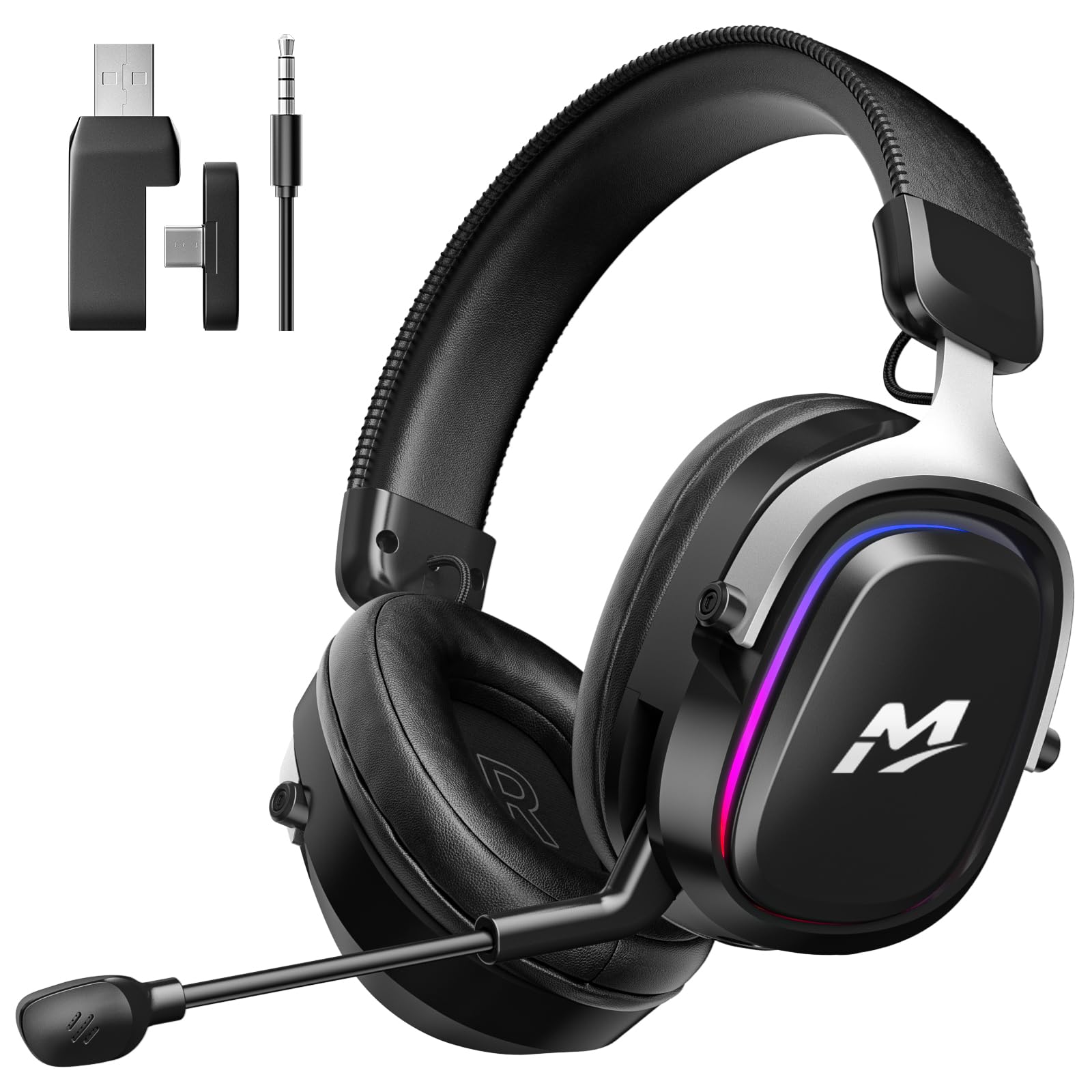
Image: MANKIW X19 Wireless Gaming Headset. This image displays the headset, the 2.4G USB wireless adapter, and various cables, illustrating the complete product package.
Headset Controls and Ports:
- Power Button: Press and hold to power on/off. Short press to switch RGB lighting modes.
- Volume Wheel: Adjusts the headset's audio output volume.
- Microphone Mute Button: Toggles microphone on/off.
- Mode Switch Button: Cycles between 2.4G wireless, Bluetooth, and 3.5mm wired modes.
- USB-C Port: For charging the headset.
- 3.5mm Audio Jack: For wired connection.
- Microphone: Detachable or retractable noise-cancelling microphone.
Setup
1. Charging the Headset
Before first use, fully charge the headset.
- Connect the USB-C charging cable to the headset's USB-C port.
- Connect the other end of the cable to a USB power source (e.g., computer USB port, USB wall adapter).
- The LED indicator on the headset will show charging status (e.g., red for charging, off or green for fully charged).
- A full charge takes approximately 2 hours and provides up to 82 hours of battery life without RGB lighting, or 38 hours with RGB lighting activated.
2. Connecting via 2.4GHz Wireless (PC, PS5, PS4, Nintendo Switch)
This mode offers a stable, low-latency connection.
- Insert the 2.4G USB wireless adapter into an available USB port on your device (PC, PS5, PS4, or Nintendo Switch dock).
- Power on the headset by pressing and holding the Power Button.
- Ensure the headset is in 2.4G wireless mode. If not, press the Mode Switch Button until the corresponding indicator light is active.
- The headset and adapter should automatically pair. The LED indicator on the headset will confirm a successful connection (e.g., solid blue light).
- On your device, navigate to sound settings and select "MANKIW X19" as the audio output and input device.
3. Connecting via Bluetooth 6.0 (PC, Smartphone, Nintendo Switch)
This mode is ideal for mobile devices and general wireless use.
- Power on the headset by pressing and holding the Power Button.
- Press the Mode Switch Button until the headset enters Bluetooth pairing mode (LED indicator will flash blue rapidly).
- On your device (PC, smartphone, or Nintendo Switch), enable Bluetooth and search for available devices.
- Select "MANKIW X19" from the list of found devices to pair.
- Once paired, the LED indicator on the headset will show a solid blue light.
4. Connecting via 3.5mm Audio Cable (Universal)
For devices without wireless capabilities or when battery is low.
- Connect one end of the 3.5mm audio cable to the headset's 3.5mm audio jack.
- Connect the other end of the cable to the 3.5mm audio output on your device.
- The headset will automatically switch to wired mode. No power is required for audio playback in this mode, but the microphone may require headset power.
5. PC Software Installation (Optional)
For advanced sound and microphone adjustments on PC.
- Visit the official MANKIW support website to download the dedicated PC software for the X19 headset.
- Follow the on-screen instructions to install the software.
- Once installed, launch the software to customize 7.1 virtual surround sound, equalizer settings, and microphone sensitivity.
Operating Instructions
Power On/Off
- To Power On: Press and hold the Power Button for 3 seconds.
- To Power Off: Press and hold the Power Button for 3 seconds.
Volume Control
- Rotate the Volume Wheel up to increase volume.
- Rotate the Volume Wheel down to decrease volume.
Microphone Usage
- Mute/Unmute: Press the Microphone Mute Button to toggle the microphone on or off. An indicator light on the microphone or headset will show its status.
- The built-in ENC (Environmental Noise Cancellation) microphone reduces background noise for clear communication.
RGB Lighting Control
- Short press the Power Button to cycle through different RGB lighting effects or to turn the lighting off.
7.1 Virtual Surround Sound
- 7.1 virtual surround sound is automatically enabled in 2.4G wireless mode on compatible platforms (PC, PS5, PS4).
- For PC, further customization of 7.1 virtual surround sound can be done through the dedicated PC software.
Switching Connectivity Modes
- Press the Mode Switch Button to cycle between 2.4G wireless, Bluetooth, and 3.5mm wired modes. The headset will indicate the active mode via LED indicators.
Maintenance
Cleaning
- Use a soft, dry cloth to clean the headset's surfaces.
- For ear cushions, gently wipe with a damp cloth and mild soap solution if necessary, then dry thoroughly.
- Avoid using harsh chemicals, solvents, or abrasive materials.
Storage
- Store the headset in a cool, dry place away from direct sunlight and extreme temperatures.
- When not in use for extended periods, ensure the headset is fully charged before storage to preserve battery health.
Troubleshooting
| Problem | Possible Cause | Solution |
|---|---|---|
| No sound from headset | Headset not powered on; Incorrect audio output selected; Low battery; Incorrect connection mode. | Ensure headset is powered on and charged. Verify correct audio output in device settings. Switch to the appropriate connection mode (2.4G, Bluetooth, or 3.5mm). |
| Microphone not working | Microphone muted; Incorrect audio input selected; Loose connection. | Press the Microphone Mute Button to unmute. Select "MANKIW X19" as the input device in your system settings. Ensure the microphone is securely connected if detachable. |
| Cannot connect wirelessly | Headset not in pairing mode; Adapter not recognized; Interference. | Ensure headset is in 2.4G or Bluetooth pairing mode. Reinsert the 2.4G adapter. Move closer to the adapter/device. Avoid strong electromagnetic interference. |
| Short battery life | RGB lighting active; High volume usage; Battery degradation. | Turn off RGB lighting. Reduce volume. Ensure headset is fully charged. |
Specifications
| Feature | Detail |
|---|---|
| Model Name | X19 |
| Brand | MANKIW |
| Connectivity | 2.4GHz Wireless, Bluetooth 6.0, 3.5mm Wired |
| Audio Driver | 50mm Dynamic Drivers |
| Surround Sound | 7.1 Virtual Surround Sound |
| Microphone | Noise Cancelling (ENC) |
| Battery Capacity | 900mAh |
| Battery Life (No RGB) | Up to 82 hours |
| Battery Life (With RGB) | Up to 38 hours |
| Charging Time | Approximately 2 hours (via USB-C) |
| Weight | 0.36 Kilograms (280g) |
| Ear Placement | Over-Ear |
| Material | Aluminium, Polyurethane (PU) Plastic |
| Compatible Devices | PC, PS5, PS4, Nintendo Switch, Mobile Phones, Laptops, Tablets |
Warranty and Support
The MANKIW X19 Wireless Gaming Headset comes with a standard manufacturer's warranty. For specific warranty terms and conditions, please refer to the warranty card included in your product packaging or visit the official MANKIW website. For technical support, troubleshooting assistance, or further inquiries, please contact MANKIW customer service through their official support channels.