
1. Introduction
This manual provides essential information for setting up, operating, maintaining, and troubleshooting your OPPO A6 Pro 5G smartphone. Please read this guide thoroughly to ensure proper use and to maximize the device's capabilities.
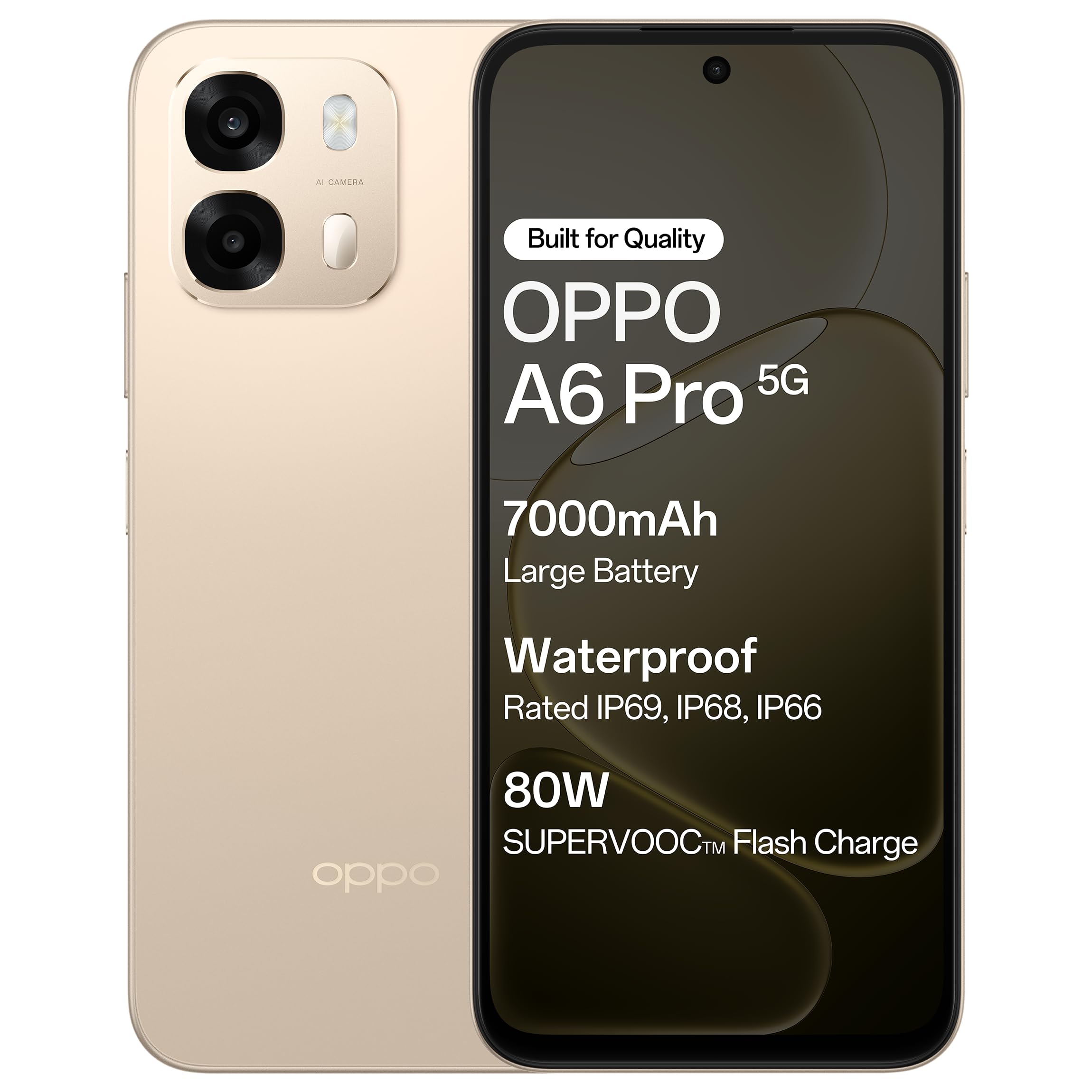
Figure 1.1: Front view of the OPPO A6 Pro 5G smartphone.
2. Package Contents
Verify that all items are present in your product package:
- OPPO A6 Pro 5G Smartphone
- Power Adapter
- USB Cable
- Phone Case
- SIM Tray Ejector
3. Setup
3.1. Inserting SIM Card and SD Card
- Locate the SIM card tray on the side of the device.
- Insert the SIM tray ejector tool into the small hole next to the tray and press gently until the tray pops out.
- Place your Nano-SIM card(s) and/or microSD card into the designated slots on the tray. Ensure the gold contacts face downwards.
- Carefully reinsert the tray into the phone until it clicks into place.
3.2. Initial Charging
Before first use, it is recommended to fully charge your device. Connect the USB cable to the power adapter and then to the phone's charging port. Plug the power adapter into a wall outlet.

Figure 3.1: The device screen displaying 80W SUPERVOOC Flash Charge status.
3.3. Powering On and Initial Configuration
- Press and hold the Power button (located on the right side) until the OPPO logo appears.
- Follow the on-screen prompts to select your language, region, connect to a Wi-Fi network, and set up your Google account.
- Configure security features such as fingerprint unlock or face unlock as desired.
4. Operating Instructions
4.1. Basic Navigation
- Power Button: Press and hold to power on/off or restart. Press briefly to lock/unlock the screen.
- Volume Buttons: Adjust media volume, call volume, or ringtone volume.
- Touch Gestures: Tap to select, swipe to scroll, pinch to zoom.
4.2. Making Calls and Sending Messages
Tap the Phone icon to make calls. Tap the Messages icon to send and receive text messages.
4.3. Camera Usage
Open the Camera app to capture photos and videos. Tap the shutter button to take a picture. Swipe left or right to switch between modes like Photo, Video, Portrait, etc.

Figure 4.1: The 50MP Ultra-Clear Camera capturing a detailed landscape.
4.4. Connectivity
Access Wi-Fi and Bluetooth settings from the Quick Settings panel (swipe down from the top of the screen) or through the Settings app.

Figure 4.2: AI LinkBoost 3.0 ensures stable online connectivity.
5. Key Features
5.1. Display
The OPPO A6 Pro 5G features a 17.14 cm (6.75-inch) HD+ IPS LCD Ultra Bright 1125 nits Display with a 120Hz high refresh rate, providing smooth visuals and enhanced outdoor visibility.

Figure 5.1: The 120Hz Ultra Bright Display offers fluid visuals.
5.2. Battery and Charging
Equipped with a massive 7000mAh battery, the device supports extended usage. The 80W SUPERVOOC Flash Charge technology allows for rapid charging. Additionally, the phone supports wired reverse charging, enabling it to charge other devices using a C-to-C data cable.
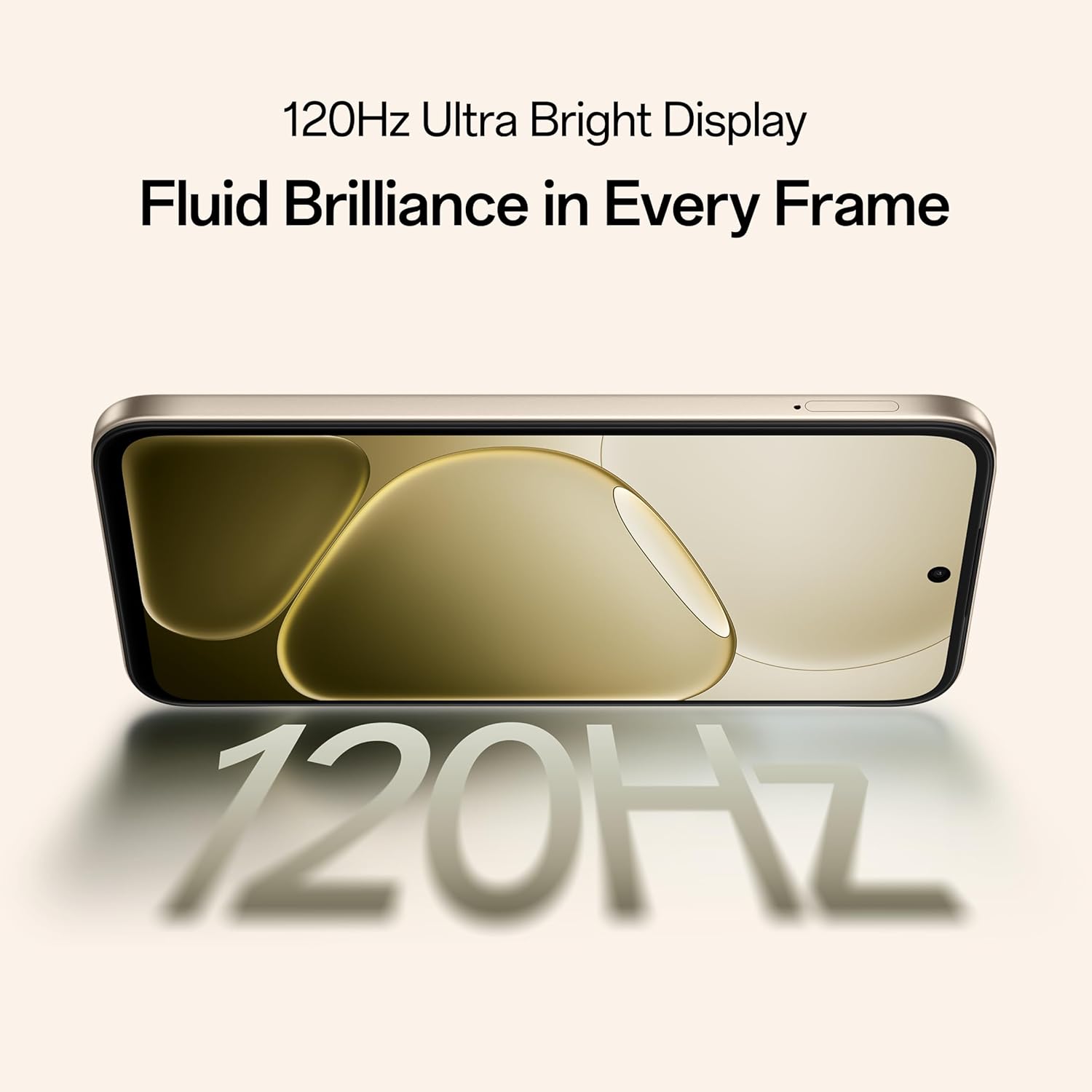
Figure 5.2: Internal representation of the 7000mAh large battery.

Figure 5.3: The device performing reverse wired charging to another gadget.
5.3. Durability
The OPPO A6 Pro 5G features triple IP-rated durability (IP69, IP68, and IP66), providing protection against water jets, immersion, hot water, steam, and dust.

Figure 5.4: The device demonstrating IP69 water and dust resistance.
5.4. Performance
Powered by the 6nm MediaTek Dimensity 6300 chipset, the phone offers enhanced performance and power efficiency with reliable 5G connectivity. It is optimized for long-lasting smoothness, tested to deliver up to 60 months of fluency.

Figure 5.5: The MediaTek Dimensity 6300 mobile platform.

Figure 5.6: The device designed for 60-month fluency protection.
5.5. Cooling System
An advanced cooling system, featuring a large vapor chamber and expanded graphite layers, helps maintain low temperatures during intensive use, ensuring stable performance.

Figure 5.7: Exploded view illustrating the SuperCool VC System.
5.6. Camera
The 50MP AI camera includes intelligent features like AI Eraser, AI Recompose, and AI Perfect Shot for enhanced photography.
6. Maintenance
6.1. Cleaning the Device
Use a soft, lint-free cloth to clean the screen and body of the phone. Avoid using harsh chemicals or abrasive materials. For stubborn stains, slightly dampen the cloth with water.
6.2. Software Updates
Regularly check for and install software updates to ensure optimal performance, security, and access to new features. Navigate to Settings > About device > Up to date to check for updates.
6.3. Battery Care
To prolong battery life, avoid exposing the phone to extreme temperatures. It is recommended to keep the battery charge between 20% and 80% for daily use.
6.4. Storage Management
Periodically clear unnecessary files, cache data, and uninstall unused applications to free up storage space and maintain device speed. You can manage storage in Settings > Storage.
7. Troubleshooting
This section addresses common issues you might encounter with your OPPO A6 Pro 5G.
| Problem | Solution |
|---|---|
| Device does not power on | Ensure the battery is charged. Connect to the charger for at least 10 minutes, then try powering on again. If it still doesn't work, perform a force restart by holding the Power button and Volume Up button simultaneously for about 10 seconds. |
| Apps are crashing or freezing | Clear the app's cache (Settings > Apps > [App Name] > Storage > Clear cache). If the issue persists, uninstall and reinstall the app. Ensure your device software is up to date. |
| Poor Wi-Fi or mobile data connection | Restart your phone. Check if Wi-Fi is enabled and you are within range of a known network. For mobile data, ensure your SIM card is properly inserted and mobile data is enabled in settings. Contact your service provider if the issue persists. |
| Battery drains quickly | Reduce screen brightness, disable unused features like Bluetooth/GPS, close background apps, and check battery usage in Settings to identify power-hungry applications. |
8. Specifications
Key technical specifications for the OPPO A6 Pro 5G (Model CPH2827):
| Feature | Detail |
|---|---|
| Model Number | CPH2827 |
| Operating System | Android 15 |
| Display | 17.14 cm (6.75") HD+ IPS LCD, 120Hz, 1125 nits |
| Processor | MediaTek Dimensity 6300 (6nm) |
| RAM | 8 GB |
| Internal Storage | 256 GB |
| Rear Camera | 50MP AI Camera |
| Battery Capacity | 7000 mAh |
| Charging | 80W SUPERVOOC Flash Charge, Wired Reverse Charging |
| Connectivity | 5G, Bluetooth, USB, Wi-Fi |
| Dimensions (LxWxH) | 15.8 x 7.5 x 0.7 cm |
| Weight | 198 g |
| Durability Rating | IP69, IP68, IP66 |
9. Warranty and Support
9.1. Manufacturer Information
Manufacturer: OPPO MOBILES INDIA PVT LTD.
Address: 5th FLOOR, Tower B, BUILDING, N-8, DLF Cyber City, DLF Phase 2, Gurugram, Haryana 122002, India
9.2. Customer Service
For technical support, warranty claims, or service inquiries, please contact OPPO customer service at 18001032777 or visit the official OPPO website for more information.


