
Introduction
This manual provides instructions for the setup, operation, maintenance, and troubleshooting of your Sceptre 32-inch 2K QHD Gaming Monitor, Model E325B-QW200D. Please read this manual thoroughly before using your monitor to ensure proper functionality and to maximize your viewing experience.
Setup
Package Contents
Verify that all components are present in the package:
- Sceptre 32-inch 2K QHD Gaming Monitor
- Monitor Stand (Base and Neck)
- Power Adapter
- HDMI Cable
- DisplayPort Cable
- USB Type-C Cable
- Instruction Manual
- Screwdriver (for stand assembly)

Image: Monitor packaging indicating included accessories such as a screwdriver and the instruction manual.
Assembling the Stand
- Carefully place the monitor face down on a soft, clean surface to prevent scratches.
- Attach the stand neck to the back of the monitor using the provided screws.
- Connect the stand base to the stand neck, securing it with the appropriate screws.
- Ensure all screws are tightened securely.
Connecting the Monitor
The monitor supports multiple connectivity options. Choose the appropriate cable for your device.
- DisplayPort (DP): For up to 210Hz refresh rate. Connect one end of the DisplayPort cable to the monitor's DP port and the other end to your computer's DisplayPort output.
- HDMI: For up to 144Hz refresh rate. Connect one end of the HDMI cable to the monitor's HDMI port and the other end to your computer's HDMI output. The monitor has two HDMI ports.
- USB Type-C: For display, power, and data with compatible devices. Connect the USB Type-C cable to the monitor's USB Type-C port and your device's USB Type-C port.
- Audio Out: Connect external speakers or headphones to the 3.5mm audio out jack.
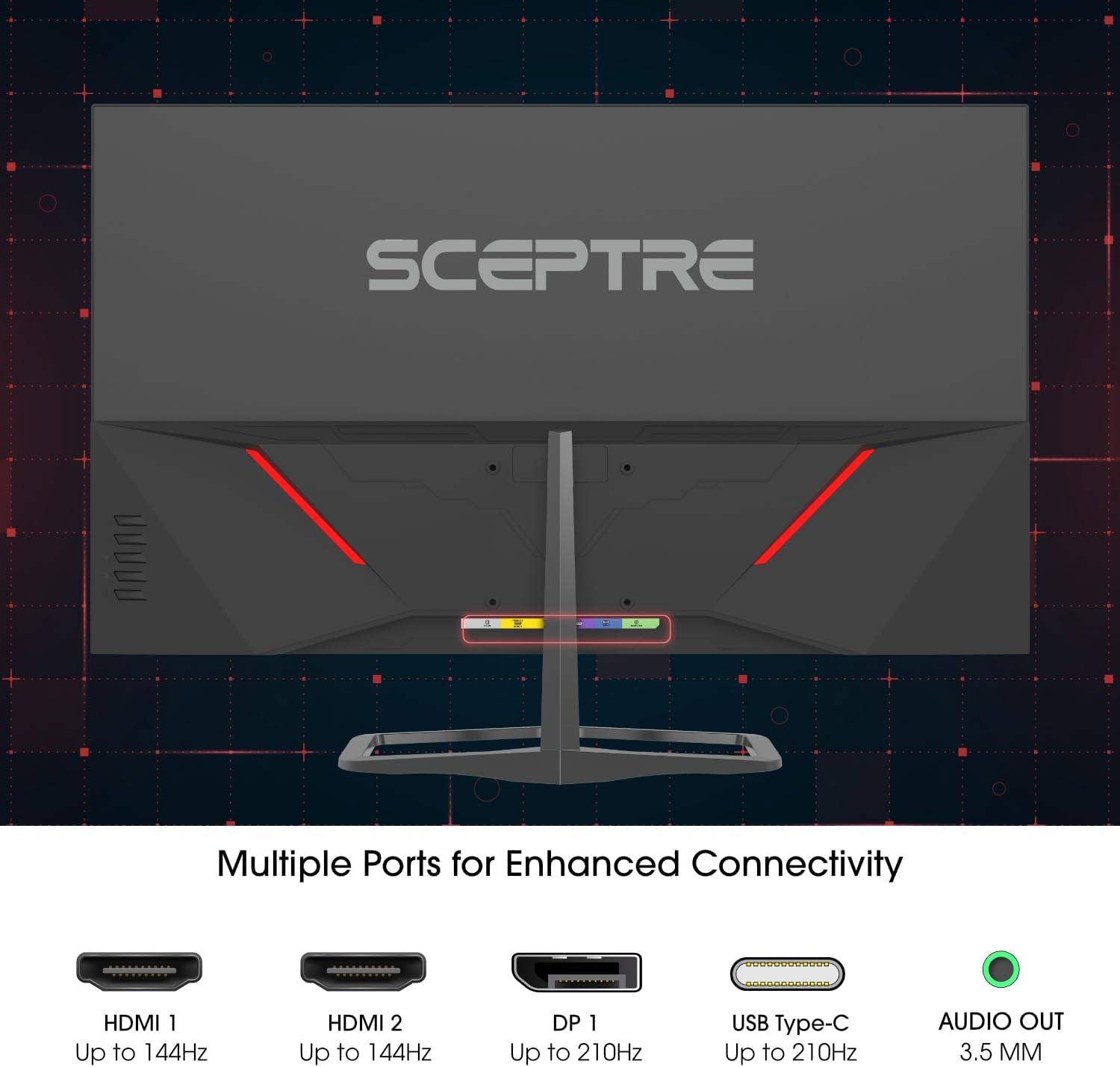
Image: Rear view of the monitor highlighting the HDMI, DisplayPort, USB Type-C, and Audio Out ports for connectivity.

Image: Front view of the Sceptre monitor, showcasing its display.
Power Connection
Connect the power adapter to the monitor's power input, then plug the adapter into a power outlet.
Operation
Power On/Off
Press the power button located on the monitor to turn it on or off. The power indicator light will illuminate when the monitor is on.
On-Screen Display (OSD) Menu
Use the navigation button (joystick) located on the back of the monitor to access and navigate the OSD menu. This menu allows you to adjust various display settings.
- Picture Settings: Adjust brightness, contrast, sharpness, and color temperature.
- Color Settings: Fine-tune color balance and gamma.
- OSD Settings: Configure OSD language, transparency, and timeout.
- Input Select: Manually switch between HDMI 1, HDMI 2, DisplayPort, and USB Type-C inputs.
- Audio Settings: Adjust volume for built-in speakers or connected headphones.
- Gaming Features: Access settings for FreeSync Premium, response time (1ms Blur Reduction), and custom gaming modes (FPS, RTS).
Key Features and Adjustments
- Resolution: The monitor supports QHD (2560 x 1440) resolution. Ensure your computer's display settings are configured to this resolution for optimal clarity.
- Refresh Rate: Achieve up to 210Hz refresh rate via DisplayPort or USB Type-C, and up to 144Hz via HDMI. Adjust this setting in your computer's display properties.
- 1ms Blur Reduction: This feature minimizes motion blur for fast-paced content. Enable or disable it through the OSD menu.
- Blue-Light Shift: Reduces blue light emissions to help alleviate eye strain. This feature can be adjusted in the OSD menu under picture quality enhancement technologies.
- AMD FreeSync Premium: Provides a tear-free and flicker-free gaming experience by synchronizing the monitor's refresh rate with your graphics card's frame rate. Ensure your graphics card supports FreeSync Premium and enable it in both your graphics card software and the monitor's OSD.
- Integrated Speakers: The monitor includes built-in speakers. Audio output can also be directed to external devices via the 3.5mm audio out jack.
- 115% sRGB Color Gamut: Delivers vibrant and accurate colors. No user adjustment is typically needed for this hardware feature.

Image: The monitor displaying a game, illustrating the 210Hz refresh rate capability.

Image: A visual comparison demonstrating the enhanced color vibrancy and accuracy of 115% sRGB compared to a conventional display.
Maintenance
Cleaning the Screen
- Turn off the monitor and unplug the power cord.
- Gently wipe the screen with a soft, lint-free cloth.
- For stubborn marks, lightly dampen the cloth with water or a non-abrasive screen cleaner. Do not spray cleaner directly onto the screen.
- Avoid using alcohol, ammonia, or abrasive cleaners, as these can damage the screen surface.
Cleaning the Casing
- Wipe the monitor casing with a soft, dry cloth.
- If necessary, use a slightly damp cloth. Ensure no liquid enters the monitor's vents.
General Care
- Avoid placing heavy objects on the monitor or its cables.
- Do not expose the monitor to direct sunlight, excessive heat, or extreme cold.
- Keep the monitor away from sources of strong electromagnetic fields.
- Ensure adequate ventilation around the monitor.
Troubleshooting
| Problem | Possible Cause | Solution |
|---|---|---|
| No image on screen |
|
|
| Image is blurry or distorted |
|
|
| No sound from speakers |
|
|
| Screen flickering or tearing (gaming) |
|
|
Specifications
| Feature | Detail |
|---|---|
| Brand | Sceptre |
| Model Number | E325B-QW200D |
| Screen Size | 32 Inches |
| Resolution | QHD Wide 1440p (2560 x 1440 Pixels) |
| Aspect Ratio | 16:9 |
| Refresh Rate | 210 Hz |
| Response Time | 1 Millisecond (Blur Reduction) |
| Display Type | LED |
| Screen Surface | Matte |
| Contrast Ratio | 1,000,000 : 1 |
| Color Gamut | 115% sRGB |
| Connectivity | 2x HDMI (up to 144Hz), 1x DisplayPort (up to 210Hz), 1x USB Type-C (up to 210Hz), 1x Audio Out (3.5mm) |
| Adaptive Sync | AMD FreeSync Premium |
| Special Features | Blue Light Filter, Built-In Speakers, Eye Care, Frameless Design, Tilt Adjustment, VESA Wall Mountable |
| Item Dimensions (D x W x H) | 8.32"D x 28.16"W x 19.49"H |
| Item Weight | 10.08 Pounds |
| Color | Machine Black |
Warranty and Support
Manufacturer's Warranty
This Sceptre monitor is covered by a limited 1-year manufacturer's warranty from the date of purchase. This warranty covers defects in materials and workmanship under normal use. It does not cover damage caused by misuse, accident, unauthorized modifications, or external causes.
For detailed warranty terms and conditions, please refer to the warranty card included with your product or visit the official Sceptre website.
Customer Support
If you encounter any issues or have questions regarding your Sceptre monitor, please contact Sceptre Customer Support. You can typically find contact information (phone number, email, or support portal) on the official Sceptre website or in the warranty documentation.
When contacting support, please have your monitor's model number (E325B-QW200D) and purchase information readily available.


