
Introduction
Welcome to the user manual for your new Texas Instruments TI-84 Evo Graphing Calculator. This guide provides essential information for setting up, operating, maintaining, and troubleshooting your device. The TI-84 Evo is designed to enhance learning in mathematics and science, featuring a faster processor, increased graphing space, an intuitive icon-based home screen, and Python programming capabilities.
Please read this manual thoroughly to ensure proper use and to maximize the functionality of your calculator.
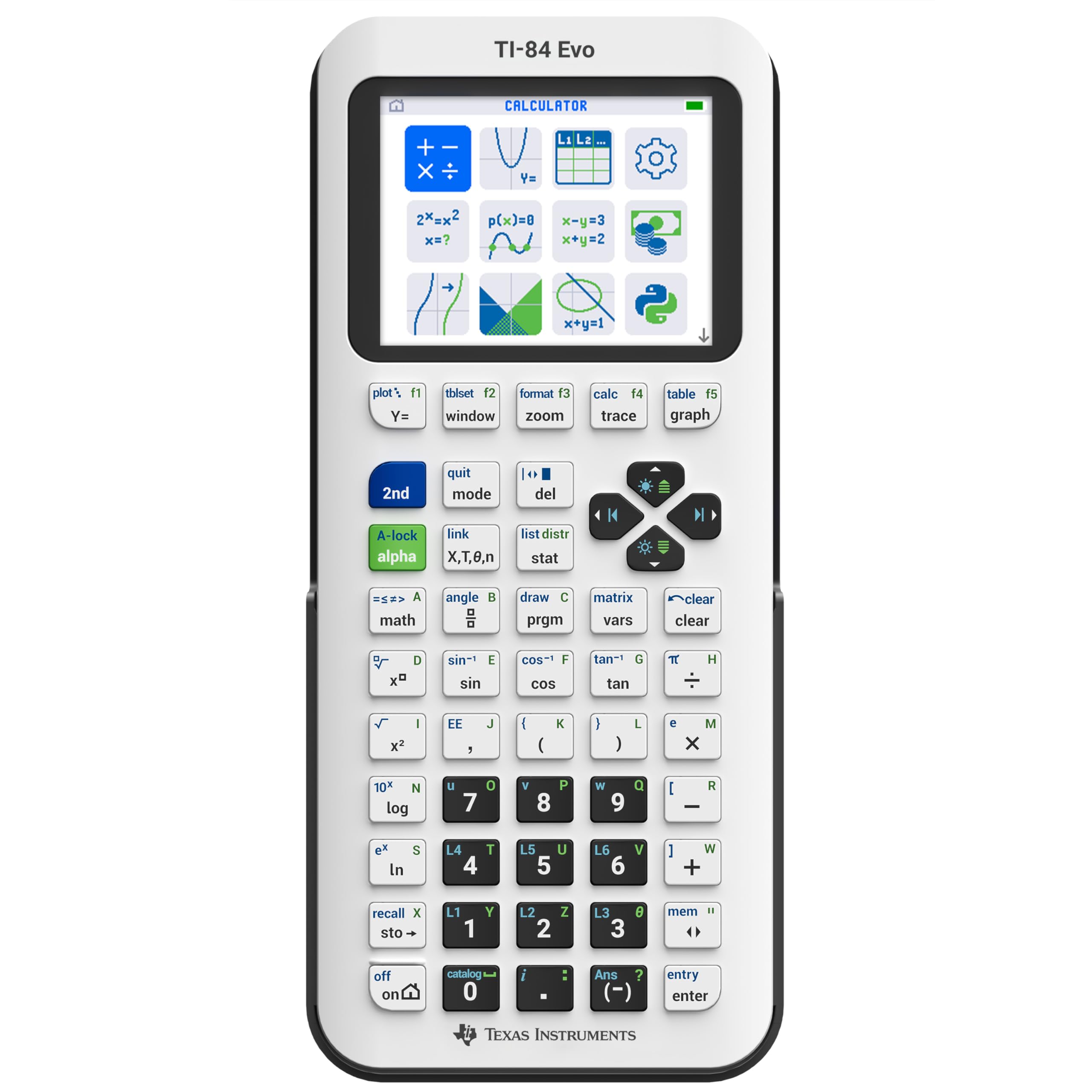
Image: Front view of the white TI-84 Evo Graphing Calculator.
Setup
1. Initial Charge
Before first use, fully charge your TI-84 Evo calculator.
- Connect the provided USB-C cable to the calculator's USB-C port.
- Connect the other end of the cable to a compatible USB power adapter (not included) or a computer's USB port.
- The charging indicator light will illuminate. A full charge typically takes several hours.
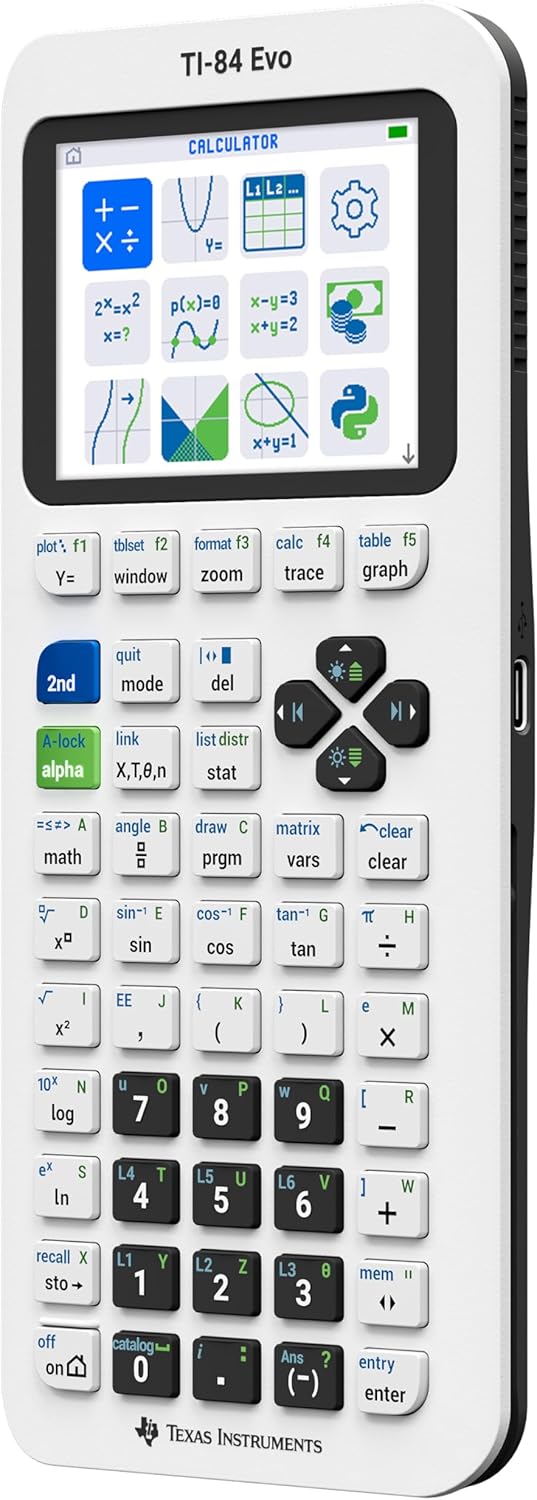
Image: Side view of the TI-84 Evo showing the USB-C charging port.
2. Power On/Off
- To power on, press the ON button located at the bottom left of the keypad.
- To power off, press 2nd, then ON (which functions as OFF).
- The calculator will automatically power off after a period of inactivity to conserve battery.
Operating Instructions
1. Icon-Based Home Screen
The TI-84 Evo features an intuitive icon-based home screen for quick access to common math tools and applications.

Image: The icon-based home screen of the TI-84 Evo, displaying various math tools and applications.
- Use the arrow keys to navigate between icons.
- Press ENTER to select an application or tool.
Video: Official Texas Instruments video demonstrating the TI-84 Evo Graphing Calculator's features, including the icon-based home screen.
2. Basic Calculations
Enter numbers and operations using the keypad. Press ENTER to compute the result.
- +, -, *, /: Standard arithmetic operations.
- ^: Exponentiation.
- 2nd: Accesses the secondary function printed above each key.
- ALPHA: Accesses the alphabetic character printed above each key.

Image: Close-up of the TI-84 Evo's simplified keypad, highlighting key layout and functions.
3. Graphing Functions
The TI-84 Evo offers 50% more graphing space for clearer visualization of mathematical relationships.
- Press Y= to enter function equations.
- Input your desired function (e.g., X^2).
- Press GRAPH to display the graph.
- Use WINDOW to adjust graph settings (Xmin, Xmax, Ymin, Ymax, etc.).
- Use ZOOM for various scaling options.
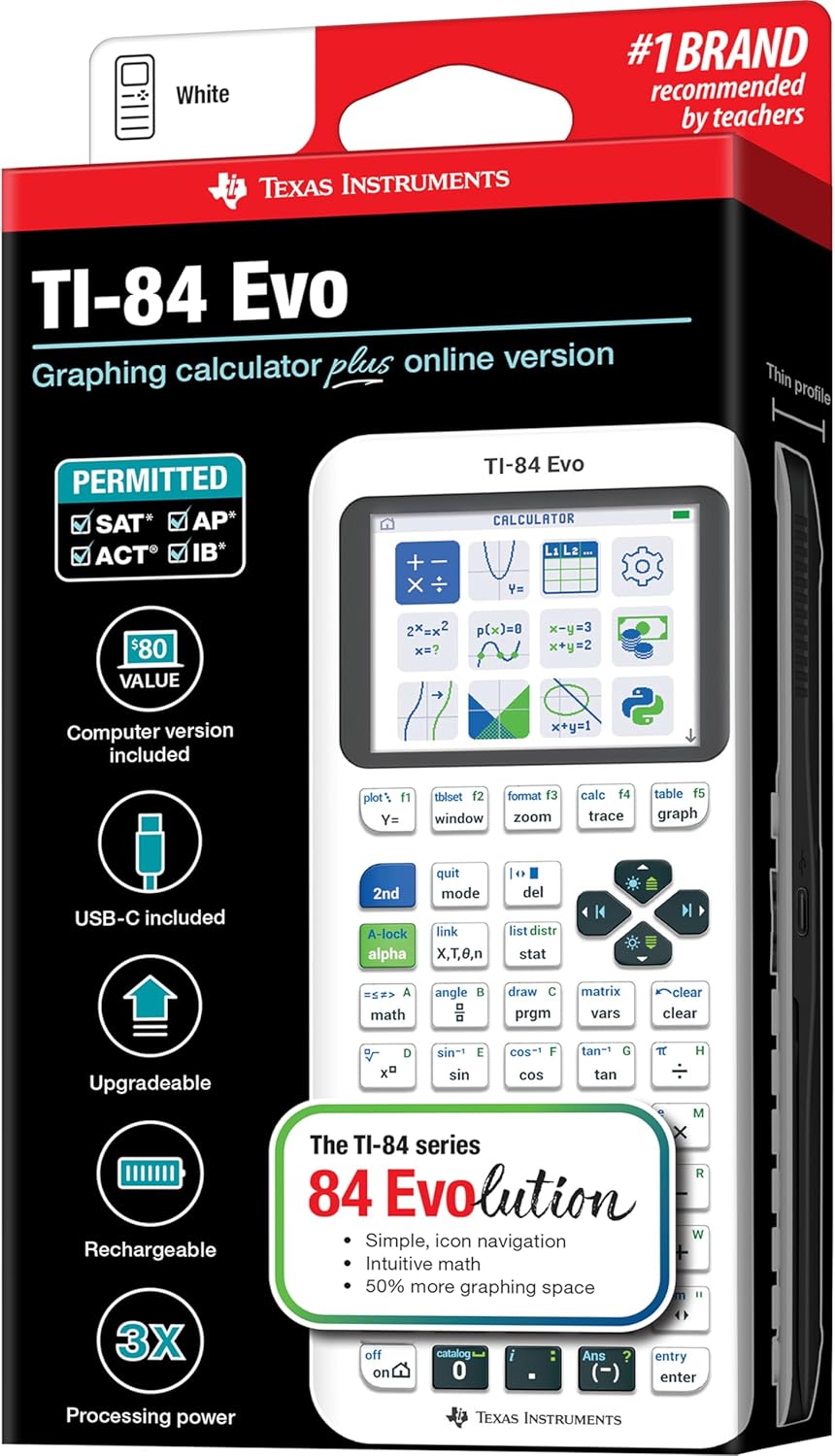
Image: The TI-84 Evo screen displaying a quadratic function graph.
Video: Official Texas Instruments video highlighting the evolution of the TI-84 series, including improved graphing capabilities of the Evo model.
4. Python Programming
The TI-84 Evo includes built-in Python programming functionality, allowing users to write and execute Python scripts.
- Access the Python editor from the icon-based home screen.
- Write, edit, and run Python programs directly on the calculator.
- This feature introduces basic coding skills relevant to real-world applications.
Maintenance
1. Battery Care
- The TI-84 Evo uses a rechargeable lithium-ion battery.
- Charge the battery regularly to maintain optimal performance.
- Avoid fully discharging the battery for extended periods.
- If the calculator will not be used for a long time, charge it to about 50% before storing.
2. Cleaning
- Use a soft, dry cloth to clean the screen and casing.
- Do not use abrasive cleaners, solvents, or aerosol sprays.
- Avoid getting moisture into any openings.
Troubleshooting
| Problem | Solution |
|---|---|
| Calculator does not turn on. | Ensure the battery is charged. Connect to a power source using the USB-C cable. If the issue persists, try resetting the calculator by pressing the RESET button (usually a small hole on the back, requiring a paperclip). |
| Screen is blank or frozen. | Press and hold the ON button for a few seconds to force a restart. If unresponsive, perform a hard reset using the RESET button. |
| Incorrect calculation results. | Check your input and ensure the calculator is in the correct mode (e.g., radian/degree, float/exact). Refer to the operating instructions for specific function usage. |
| Battery drains quickly. | Reduce screen brightness. Ensure the calculator is powered off when not in use. Avoid extreme temperatures. If the problem continues, the battery may need service. |
Specifications
| Feature | Detail |
|---|---|
| Brand | Texas Instruments |
| Model Name | TI-84 Evo |
| Model Number | 84EVO/FC |
| Calculator Type | Graphing |
| Color | White |
| Power Source | Battery Powered (1 Lithium Ion battery included) |
| Screen Size | 2.8 Inches |
| Display Type | LCD |
| Item Dimensions (L x W) | 7.57"L x 3.4"W |
| Item Weight | 7.2 ounces |
| UPC | 033317209927 |

Image: Packaging of the TI-84 Evo, showing key features and a comparison table with previous models.
Warranty and Support
Warranty Information
The Texas Instruments TI-84 Evo Graphing Calculator comes with a 1-year limited warranty from the manufacturer. For detailed warranty terms and conditions, please visit the official Texas Instruments education website.
Customer Support
For additional support, resources, and frequently asked questions, please visit the official TI-84 Evo information page: education.ti.com/84evo-info.


