
1. Introduction
Thank you for choosing the Segotep MU TH6 ARGB Air Cooler. This manual provides detailed instructions for the installation, operation, and maintenance of your new CPU cooler. Please read this manual carefully before installation to ensure proper function and to avoid any damage to your system components.
2. Package Contents
Verify that all items listed below are present in your package. If any components are missing or damaged, please contact your retailer for assistance.
- Segotep MU TH6 Heatsink
- 2 x 120mm ARGB Fans
- Mounting Kit (for Intel and AMD sockets)
- Thermal Paste
- User Manual (this document)
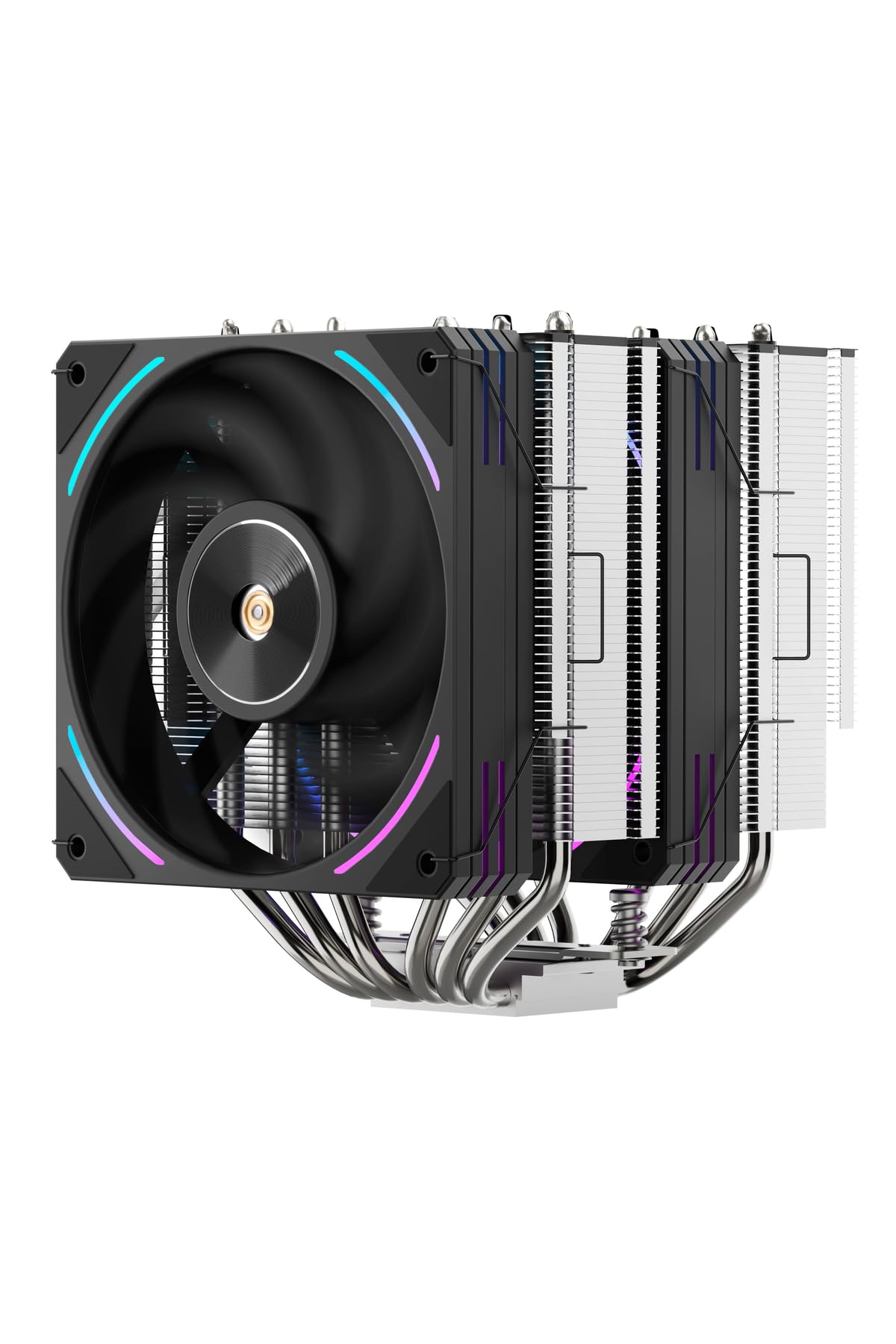
Image 1: Segotep MU TH6 ARGB Air Cooler and its included components. This image shows the main cooler unit with two fans attached, along with a small tube of thermal paste and various mounting brackets and screws.
3. Key Features
- Powerful Cooling: Dual 120mm fans provide efficient heat dissipation.
- ARGB Lighting System: Customizable lighting for visual effects and an enhanced gaming experience.
- Stylish Design: Black finish for a sleek and modern aesthetic.
- Silent Operation: Air cooling technology designed for low noise levels.
- Easy Installation: Quick system integration with a user-friendly mounting kit.
4. Installation Guide
Before beginning installation, ensure your computer is powered off and unplugged from the wall outlet. Refer to your motherboard manual for specific CPU socket information.
4.1. Prepare the Motherboard
- Remove any existing CPU cooler and clean off old thermal paste from the CPU surface using isopropyl alcohol and a lint-free cloth.
- Identify your CPU socket type (Intel LGA or AMD AM4/AM5) and select the appropriate mounting brackets from the kit.
- Attach the backplate to the rear of the motherboard, aligning the holes with the CPU socket.
- Secure the standoffs to the front of the motherboard through the backplate holes.
4.2. Apply Thermal Paste
Apply a small, pea-sized amount of thermal paste to the center of the CPU's integrated heat spreader (IHS). Do not spread the paste; the pressure from the cooler will distribute it evenly.
4.3. Mount the Heatsink
- Carefully place the heatsink onto the CPU, ensuring the base makes full contact with the thermal paste.
- Align the heatsink's mounting holes with the standoffs on the motherboard.
- Secure the heatsink using the provided screws, tightening them in a diagonal pattern until snug. Do not overtighten.
4.4. Connect the Fans and ARGB Cables
- Connect the 4-pin PWM fan cables from both 120mm fans to the CPU_FAN or CHA_FAN headers on your motherboard. Consult your motherboard manual for header locations.
- Connect the 3-pin ARGB cables from both fans to a 5V ARGB header on your motherboard. Ensure you connect to a 5V ARGB header, not a 12V RGB header, to prevent damage.
- If your motherboard does not have an ARGB header, you may need an external ARGB controller (not included).
5. Operation
5.1. Fan Speed Control
The fan speed is typically controlled by your motherboard's BIOS/UEFI settings or through motherboard software. You can configure fan curves to balance cooling performance and noise levels based on CPU temperature.
5.2. ARGB Lighting Control
The ARGB lighting can be controlled via your motherboard's RGB software (e.g., ASUS Aura Sync, MSI Mystic Light Sync, Gigabyte RGB Fusion, ASRock Polychrome Sync). Ensure your motherboard's software is up-to-date for the best compatibility and customization options.
6. Maintenance
Regular maintenance helps ensure optimal performance and longevity of your Segotep MU TH6 cooler.
- Dust Removal: Periodically clean dust from the heatsink fins and fan blades using compressed air or a soft brush. Ensure the fans are not spinning during cleaning to prevent damage.
- Thermal Paste: Reapply thermal paste every 2-3 years, or if you remove the cooler for any reason.
- Fan Inspection: Check fan cables for secure connections and ensure fans are spinning freely without obstruction.
7. Troubleshooting
| Problem | Possible Cause | Solution |
|---|---|---|
| Fans not spinning | Loose fan cable connection; Incorrect fan header; Fan failure. | Check fan cable connections to motherboard. Ensure connected to a 4-pin PWM header. Test fans on another header or system. |
| ARGB lights not working | Loose ARGB cable connection; Incorrect ARGB header (e.g., 12V instead of 5V); Software issue; ARGB controller issue. | Verify ARGB cable connection to a 5V ARGB header. Check motherboard RGB software settings. Ensure ARGB controller (if used) is powered and connected correctly. |
| High CPU temperatures | Insufficient thermal paste; Improper heatsink mounting; Dust buildup; Incorrect fan speed settings. | Reapply thermal paste. Re-mount heatsink ensuring even pressure. Clean dust from heatsink and fans. Adjust fan curves in BIOS/UEFI. |
| Excessive fan noise | High fan speed settings; Obstruction; Fan bearing issue. | Adjust fan curves in BIOS/UEFI to lower speeds at idle/low load. Check for cable obstructions. If noise persists, contact support. |
8. Specifications
| Feature | Detail |
|---|---|
| Brand | Segotep |
| Model | MU-TH6 |
| Cooler Type | Air Cooler |
| Fan Size | 2 x 120mm |
| Lighting | Addressable RGB (ARGB) |
| Included Components | 2x120mm ARGB Fan, Mounting Kit, Thermal Paste |
| ASIN | B0G8KLVRQS |
9. Warranty and Support
Segotep products are designed and manufactured to the highest quality standards. For information regarding warranty terms and conditions, please refer to the warranty card included with your product or visit the official Segotep website. For technical support or customer service, please contact your local retailer or Segotep customer support.
Official Website: www.segotep.com (Note: This is a placeholder URL, please verify the actual official website for Segotep.)