
1. Introduction
The DDPAI Z90 Master is an advanced dual-channel dash cam designed to provide comprehensive vehicle surveillance. It features dual 4K recording, enhanced night vision with STARVIS 2 sensors, 24-hour parking monitoring, integrated GPS, and fast 5G WiFi connectivity. This manual will guide you through the installation, operation, and maintenance of your dash cam to ensure optimal performance and safety.
2. Safety Information
- Ensure the dash cam is installed in a location that does not obstruct the driver's view or interfere with vehicle safety features.
- Do not operate the dash cam or adjust settings while driving. Always pull over safely before making any adjustments.
- Use only the original power cable and accessories provided with the device to prevent damage or fire.
- Keep the device away from water, moisture, and extreme temperatures. The operating temperature range is -20°C to 70°C.
- Do not attempt to disassemble or repair the device yourself. Contact customer support for assistance.
3. Package Contents
Please check the package for the following items:
- DDPAI Z90 Master Front Dash Cam
- Rear Camera
- Power Cable
- Car Charger
- 3M Adhesive Mounts
- Static Cling Film
- CPL Filter
- Crowbar Tool
- Quick Start Guide
4. Product Overview
Familiarize yourself with the main components of your DDPAI Z90 Master Dash Cam.

Image: DDPAI Z90 Master Front Dash Cam and Rear Camera components.

Image: The front dash cam unit with its display and the compact rear camera.

Image: Side view of the DDPAI Z90 Master Dash Cam, showing the 3-inch IPS display and control buttons.
5. Installation
Follow these steps for proper installation of your dash cam:
- Prepare the Windshield: Clean the area on your windshield where you intend to mount the front dash cam. Apply the static cling film to this area first.
- Mount the Front Camera: Attach the 3M adhesive mount to the front dash cam. Securely press the dash cam onto the static cling film on your windshield, ensuring a clear view of the road.
- Install the Rear Camera: Mount the rear camera on the rear windshield using its 3M adhesive. Ensure it has a clear view of the rear.
- Route the Cables: Connect the power cable to the front dash cam and route it along the edge of the windshield, down the A-pillar, and to the car's power outlet (cigarette lighter or hardwire kit). Use the crowbar tool to tuck the cable neatly under the trim. Connect the rear camera cable to the front camera and route it similarly to the rear of the vehicle.
- Connect Power: Plug the car charger into your vehicle's power outlet and connect it to the dash cam's power cable.

Image: The DDPAI Z90 Master Dash Cam installed on a vehicle's windshield, showing its discreet placement.

Image: The dash cam unit with its connected power cable and the cable extending to the rear camera.
6. Initial Setup and Operation
6.1 Power On and Basic Settings
Once powered, the dash cam will automatically turn on and begin recording. Use the 3-inch IPS display and physical buttons to navigate the menu for initial settings such as date/time, video resolution, and G-sensor sensitivity.
6.2 App Connection (5G WiFi & Bluetooth)
Download the DDPAI app on your smartphone. Enable Bluetooth and 5G WiFi on your phone. Open the app and follow the instructions to connect to your Z90 Master. The app allows for live view, video playback, settings adjustment, and video downloads.
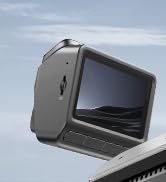
Image: Illustration of the dash cam connecting to a smartphone via 5G Wi-Fi for video viewing and download.
6.3 Recording Modes
- Normal Recording: Continuous recording when the vehicle is in motion. Videos are saved in segments and older files are overwritten by new ones (loop recording).
- Emergency Recording: Activated by the G-sensor upon detecting a collision or sudden movement. These files are locked and protected from being overwritten.
- Parking Surveillance (Requires Hardwire Kit): Provides 24-hour protection for your parked vehicle. It includes time-lapse recording to save storage space and collision detection to record incidents. A separate hardwire kit (ASIN: B0DP639X2D, B0DP6464P3) is required for this feature.

Image: Visual representation of the 24-hour parking protection, showing time-lapse and collision detection modes.
6.4 Dual 4K Recording with STARVIS 2 HDR
The Z90 Master records in dual 4K (front 4K@30fps, rear 4K@25fps) with Sony STARVIS 2 sensors and HDR technology. This ensures clear, detailed footage day and night, minimizing blur and glare. The Anti-Flicker feature helps eliminate light flickering from streetlights.

Image: Illustrates the dual 4K recording capability with STARVIS 2 and HDR for both front and rear cameras.
Image: Diagram showing the dual Sony STARVIS 2 IMX678 sensors, highlighting improved sensor area, light sensitivity, and low-light performance.

Image: Comparison showing crystal clear Dual HDR view capturing details in all lighting conditions, and stable, flicker-free footage eliminating streetlight flicker.
6.5 3K/60FPS High-Speed Mode
For high-speed driving, the front camera offers a 3K/60FPS option (without HDR support) to ensure clear, non-blurry image quality.
6.6 Integrated GPS and ADAS
The built-in GPS provides real-time position and lane information. The Advanced Driver-Assistance System (ADAS) proactively warns against driver fatigue and right-of-way violations, enhancing driving safety.

Image: Features of 4G LTE connectivity (requires additional 4G Cloud Box), including live remote view, instant app notifications for parking collisions, remote voice calls, and real-time GPS tracking.
6.7 CPL Filter
An original CPL (Circular Polarizing Lens) filter is included. Attach it to the front lens to effectively reduce road reflections and glare from the windshield, improving video clarity.
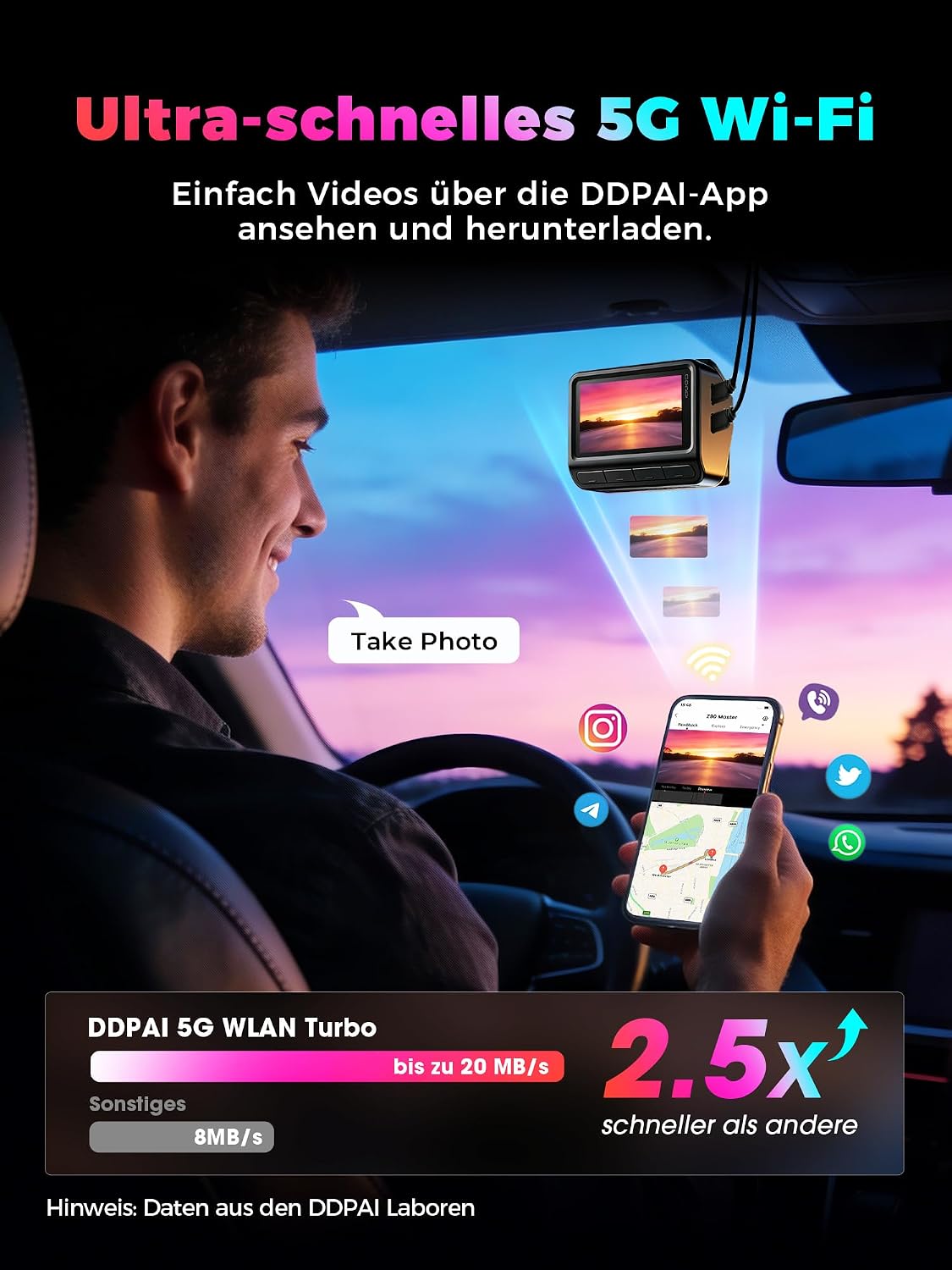
Image: The DDPAI Z90 Master Dash Cam with the CPL filter being attached to the lens.

Image: Comparison showing how the CPL filter reduces reflections and glare from the windshield, resulting in clearer footage.
6.8 Voice Control
The dash cam supports voice commands for hands-free operation. Refer to the quick start guide for a list of available commands.
7. Memory Management
The Z90 Master features built-in 128GB eMMC storage, offering enhanced stability and durability compared to external SD cards. This internal memory prevents data loss and ensures continuous recording. The device also supports expansion up to 512GB with a microSDXC card (not included).

Image: Diagram illustrating the internal eMMC storage (note: image states 64GB, but product features 128GB eMMC) and the option for microSD card expansion up to 512GB.
Loop Recording: When the storage is full, the dash cam automatically overwrites the oldest unprotected video files to make space for new recordings.
G-Sensor: In case of a collision, the G-sensor detects the impact and automatically locks the current video segment, preventing it from being overwritten.
8. Maintenance
- Cleaning: Gently wipe the lens with a soft, lint-free cloth. Do not use chemical cleaners. Clean the display with a dry, soft cloth.
- Firmware Updates: Regularly check the DDPAI app for available firmware updates to ensure optimal performance and access to new features. Follow the in-app instructions for updating.
- Memory Card (if used): If using an external microSD card, format it periodically (e.g., once a month) through the dash cam's settings to maintain performance and prevent data corruption.
9. Troubleshooting
| Problem | Possible Cause | Solution |
|---|---|---|
| Dash cam does not power on. | No power supply; faulty cable/charger. | Check power connection. Ensure car charger is working. Try a different USB port or cable. |
| Recording stops unexpectedly. | Memory full; faulty memory card; power interruption. | Ensure loop recording is enabled. Format the memory card (if external). Check power connection stability. |
| Video footage is blurry or unclear. | Protective film on lens; dirty lens; CPL filter misalignment. | Remove any protective film. Clean the lens. Adjust or remove the CPL filter if it's causing issues. |
| App cannot connect to dash cam. | WiFi/Bluetooth off; incorrect password; app issue. | Ensure dash cam WiFi and phone Bluetooth are on. Restart both devices. Reinstall the app. |
| GPS signal not found. | Poor satellite reception; dash cam placement. | Ensure the dash cam has a clear view of the sky. Move the vehicle to an open area. |
10. Specifications
| Feature | Detail |
|---|---|
| Model Name | DDPAI Z90 Master |
| Video Resolution | Front: 4K (2160p) @ 30fps, Rear: 4K (2160p) @ 25fps (HDR) / Front: 3K @ 60fps (without HDR) |
| Image Sensor | Dual Sony STARVIS 2 IMX678 |
| Display | 3-inch IPS LCD |
| Field of View | Front: 140 degrees, Rear: 126 degrees |
| Aperture | Front: F1.75, Rear: F1.7 |
| Storage | Built-in 128GB eMMC, expandable up to 512GB with microSDXC (not included) |
| Connectivity | 5G WiFi, Bluetooth, Optional 4G LTE (with additional module) |
| Special Features | Dual HDR, AI ISP Night Vision, 24-hour Parking Monitoring (requires hardwire kit), Built-in GPS, ADAS, Voice Control, G-sensor, Loop Recording, CPL Filter included, Supercapacitor |
| Operating Temperature | -20°C to 70°C (-4°F to 158°F) |
| Power Source | Supercapacitor (no lithium battery) |
| Control Method | App, Voice Control, Physical Buttons |
| Supported Video Format | MP4 |
11. Warranty and Support
Your DDPAI Z90 Master Dash Cam comes with an 18-month official warranty. We also offer a 30-day free return policy if you are not satisfied with the product.
For any technical assistance, troubleshooting, or warranty claims, please contact our professional customer support team, available 24/7.
Customer Support Email: servicecenter@ddpai.com


