
Introduction
This manual provides essential information for setting up, operating, maintaining, and troubleshooting your new HP 15.6" Touchscreen Laptop. Please read this guide thoroughly to ensure optimal performance and longevity of your device.
What's in the Box
Verify that all items are present in the packaging:
- 1 x HP Laptop (24GB RAM, 1TB SSD)
- 1 x 65W AC Power Adapter
- 1 x User Guide (this document)
Setup
1. Initial Power On and Charging
Before first use, connect the laptop to a power source using the included 65W AC power adapter. It is recommended to fully charge the battery before initial operation.
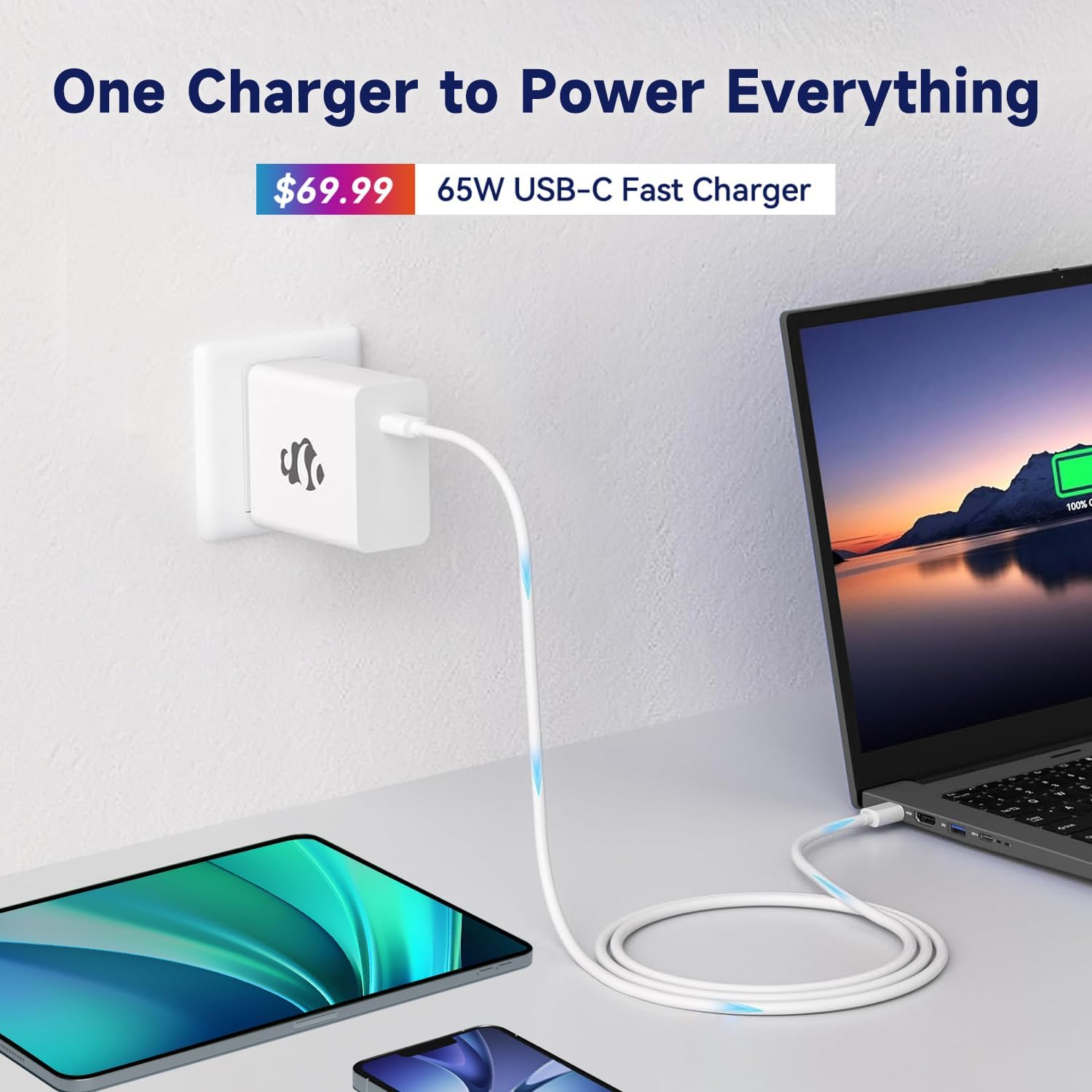
Image: The HP laptop connected to its 65W AC power adapter for charging.
2. Windows 11 Setup
Upon first boot, you will be guided through the Windows 11 setup process. Follow the on-screen instructions to:
- Select your region and keyboard layout.
- Connect to a Wi-Fi network.
- Sign in with or create a Microsoft account.
- Set up privacy settings and create a user PIN.
3. Connecting to Wi-Fi
During the Windows 11 setup, you will be prompted to connect to a wireless network. If you skip this step, you can connect later via:
- Click the Wi-Fi icon in the taskbar.
- Select your desired network from the list.
- Enter the network security key (password) if prompted.
- Click Connect.
Operating Your Laptop
1. Basic Navigation
Your HP laptop features a 15.6" Full HD touchscreen, a full-size keyboard with a numeric keypad, and a precision touchpad for versatile interaction.
- Touchscreen: Use gestures for navigation, zooming, and scrolling.
- Keyboard: Standard QWERTY layout with dedicated numeric keypad for data entry.
- Touchpad: Supports multi-touch gestures for efficient navigation.
2. Windows 11 Features
Explore the enhanced features of Windows 11, designed for productivity and creativity.

Image: The HP laptop screen showing the Microsoft Copilot interface, accessible via a dedicated key.
- Windows Copilot: Access intelligent assistance for content organization, information retrieval, and task management by pressing the dedicated Copilot key.
- Snap Layouts: Easily organize open windows for efficient multitasking.
- Widgets: Stay updated with personalized information at a glance.
3. Connecting Peripherals
Your laptop offers a variety of ports for connecting external devices:
- USB Type-C: For data transfer, display output, and power delivery (if supported by accessory).
- USB Type-A (x2): For connecting standard USB devices like mice, keyboards, or external drives.
- HDMI 1.4: For connecting to external displays or projectors.
- Headphone/Microphone Combo Jack: For audio input/output.
4. Webcam Usage
The integrated Wide Vision 720p HD Webcam with Privacy Shutter is suitable for video calls and online meetings. Ensure the privacy shutter is open when using the camera.
Maintenance
1. Cleaning Your Laptop
- Screen: Use a soft, lint-free cloth lightly dampened with water or a screen cleaner. Avoid harsh chemicals.
- Chassis and Keyboard: Use a soft, dry cloth. For stubborn dirt, a slightly damp cloth can be used. Ensure no liquid enters openings.
2. Battery Care
- Avoid extreme temperatures.
- Do not fully discharge the battery regularly.
- For long-term storage, charge the battery to about 50-70%.
3. Software Updates
Regularly check for and install Windows updates and HP driver updates to ensure system stability, security, and optimal performance.
4. Storage Management
Periodically review and delete unnecessary files to maintain sufficient free space on your 1TB SSD for optimal system responsiveness.
Troubleshooting
1. No Power / Laptop Not Turning On
- Ensure the AC adapter is securely connected to both the laptop and a working power outlet.
- Verify the power outlet is functional by plugging in another device.
- Try a hard reset: Disconnect the power adapter, press and hold the power button for 15 seconds, then reconnect and try to power on.
2. Display Issues
- If the screen is blank, try connecting an external monitor via HDMI to check if the issue is with the laptop's display or graphics output.
- Adjust screen brightness using the function keys (usually F2/F3 or similar icons).
3. Wi-Fi Connectivity Problems
- Ensure Wi-Fi is enabled in Windows settings.
- Restart your router and modem.
- Forget the network and reconnect.
- Update Wi-Fi drivers from the HP support website.
4. Slow Performance
- Close unnecessary applications running in the background.
- Check for and install any pending Windows updates.
- Run a disk cleanup and defragmentation (for HDD, though SSDs manage this differently).
- Scan for malware or viruses.
Specifications

Image: The HP 15.6" Laptop highlighting its Intel Core Ultra 5 125H processor and Intel Arc Graphics.
| Feature | Detail |
|---|---|
| Brand | HP |
| Model Name | HP Laptop |
| Processor | Intel Core Ultra 5 125H (up to 4.5 GHz, 14 Cores) |
| Memory (RAM) | 24GB DDR5 RAM |
| Storage | 1TB SSD (Solid State Drive) |
| Display | 15.6" Full HD (1920x1080) Touch-Screen, Anti-glare IPS Display |
| Graphics | Intel Integrated Graphics (Intel Arc Graphics) |
| Operating System | Windows 11 |
| Wireless Connectivity | Wi-Fi 6, Bluetooth 5.4 |
| Ports | 1x USB Type-C, 2x USB Type-A, 1x HDMI 1.4, 1x Headphone/Microphone Combo Jack |
| Webcam | Wide Vision 720p HD Webcam with Privacy Shutter |
| Keyboard | Full-Size with Numeric Keypad |
| Dimensions (W x D x H) | 14.17 x 9.29 x 0.73 inches |
| Weight | 3.65 lbs |
| Color | Natural Silver |

Image: The laptop's display features, including Full HD 1920x1080 resolution, IPS technology, Bright View, and Eye Protection.
Warranty and Support
Warranty Information
Your HP laptop comes with a standard manufacturer's warranty. Please refer to the warranty card included with your product or visit the official HP website for detailed terms and conditions regarding warranty coverage, duration, and service procedures.
Customer Support
For technical assistance, driver downloads, or further support, please visit the official HP support website:
You may also find helpful resources and FAQs on the HP brand store:


