
Introduction
Thank you for choosing the monTEK Heavy-Duty Under Desk PC Mount. This product is designed to securely hold your computer tower under your desk, optimizing workspace and protecting your PC from dust and accidental damage. This manual provides detailed instructions for assembly, installation, adjustment, and maintenance to ensure safe and efficient use of your PC mount.
Safety Information
- Read all instructions carefully before assembly and installation.
- Ensure all components are present and undamaged before proceeding.
- Do not exceed the maximum weight capacity of 30 kg (66 lbs).
- Verify that the desk surface is stable and capable of supporting the combined weight of the mount and your PC.
- Keep children and pets away from the installation area.
- Tighten all bolts and knobs securely to prevent instability.
- Regularly check the mount for any signs of wear or loosening.
Package Contents
Please check to ensure all parts are included in your package:
- PC Mount Frame (main components)
- C-Clamp Mechanism
- Protective EVA Pads
- Assembly Hardware (screws, bolts)
- Instruction Manual

Image: The monTEK PC mount securely holding a computer tower under a desk, illustrating its heavy-duty metal structure and 66 lbs weight capacity.
Setup and Installation
The monTEK PC mount features a no-drill C-clamp design for easy installation.
Step 1: Assemble the Mount
- Unpack all components and lay them out.
- Attach the main frame components using the provided hardware. A Phillips screwdriver may be required for some screws.
- Install the EVA protective pads onto the base and back of the mount where the PC will rest. These pads prevent scratches and provide a non-slip surface.
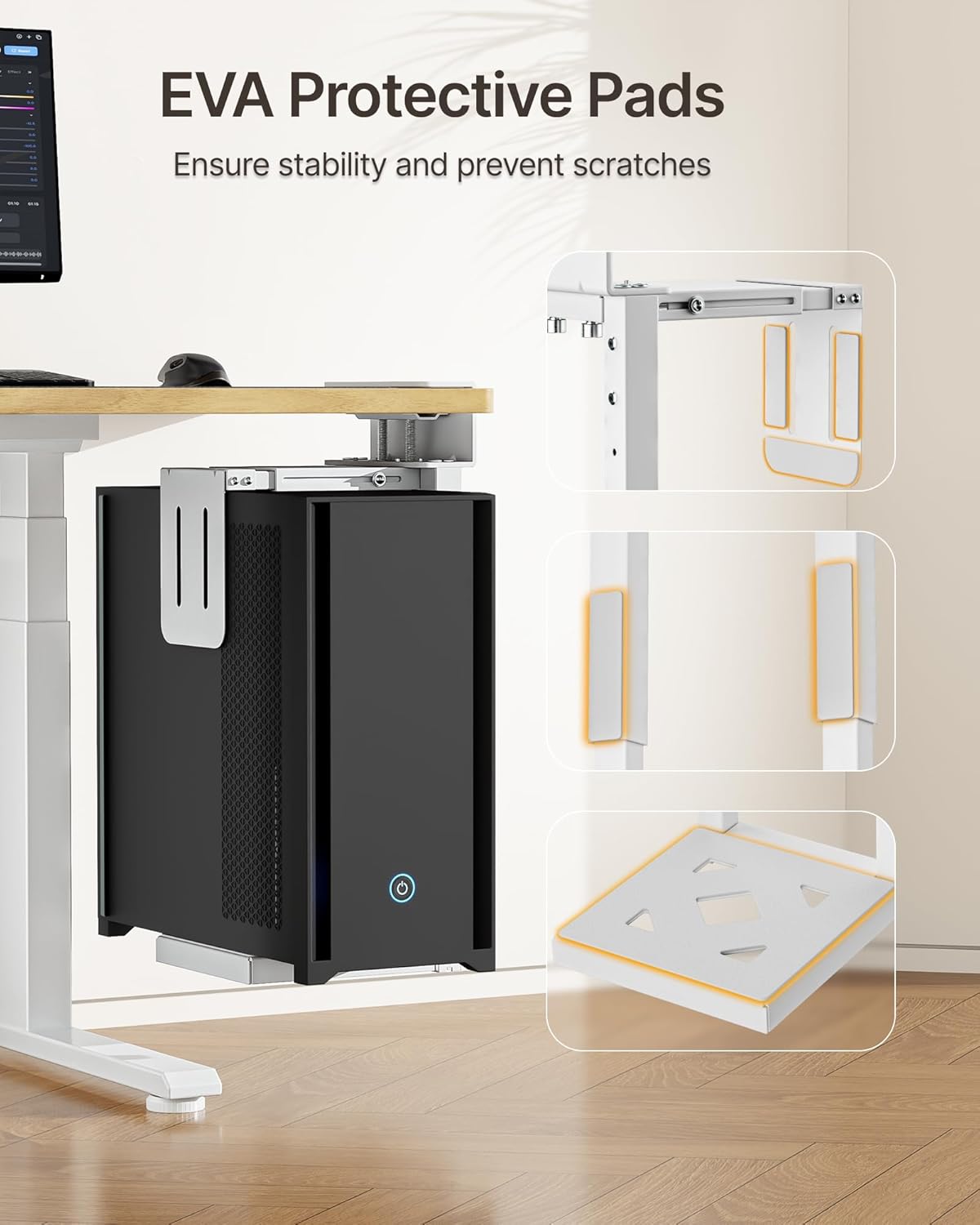
Image: Illustration of the EVA protective pads, highlighting their placement on the mount to protect the PC case.
Step 2: Adjust Height and Width
Before clamping to the desk, adjust the mount to fit your PC tower's dimensions.
- Height Adjustment: The mount offers 7-level height adjustment from 16.1 inches (409mm) to 25.6 inches (650mm). Loosen the height adjustment screws, slide the frame to the desired height, and re-tighten securely.
- Width Adjustment: The top section allows for sliding width adjustment from 7.1 inches (180mm) to 11.8 inches (300mm). Adjust the width to snugly fit your PC tower.
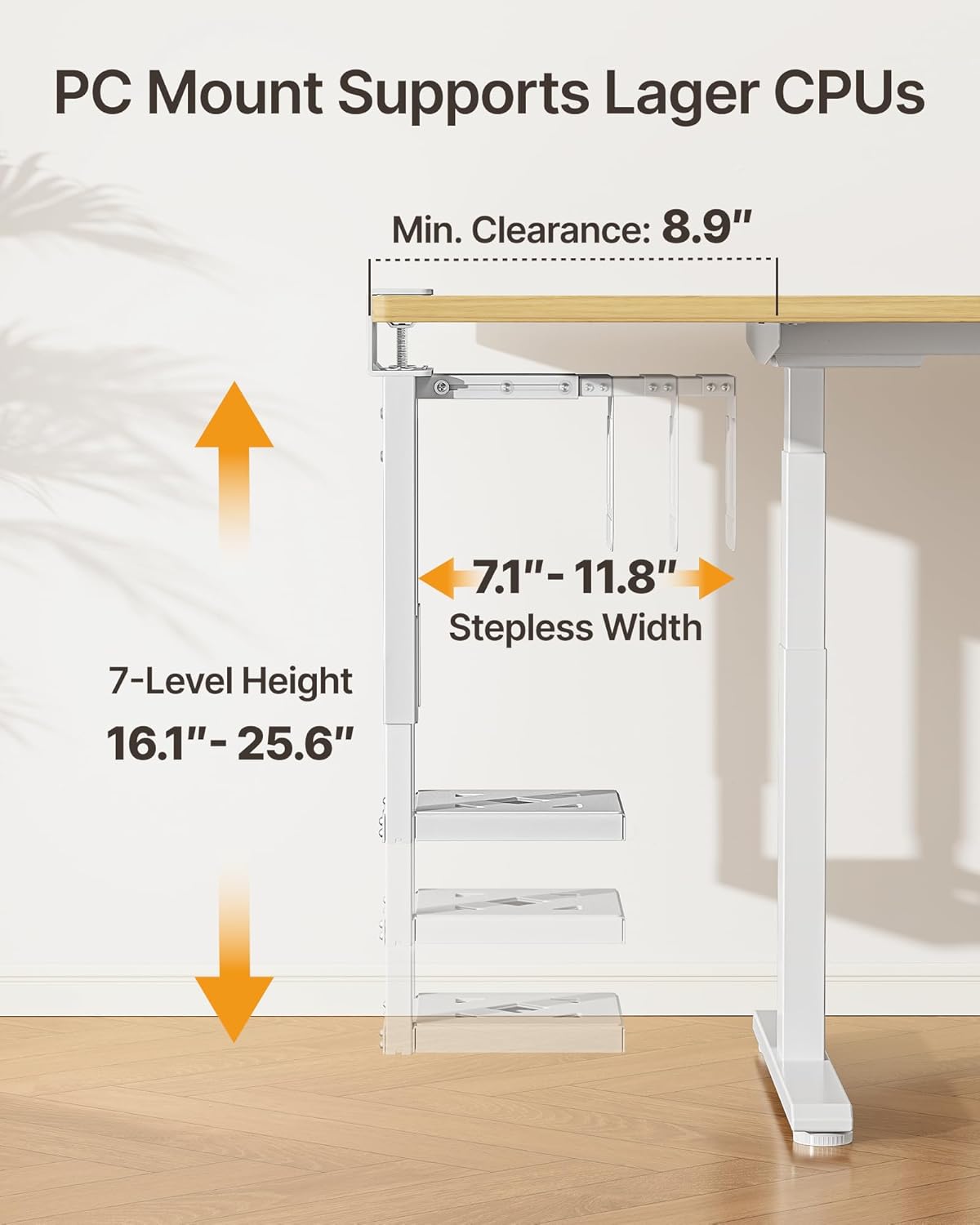
Image: Detailed diagram illustrating the adjustable height and width ranges of the PC mount, along with the minimum clearance required under the desk.
Step 3: Clamp to Desk
The C-clamp design allows for tool-free installation without drilling.
- Ensure your desk thickness is between 0.59 inches (1.5 cm) and 2.36 inches (6 cm).
- Confirm there is at least 8.9 inches (22.6 cm) of clearance beneath the desk for proper installation.
- Position the C-clamp mechanism on the edge of your desk where you intend to mount the PC.
- Turn the top adjustment knob clockwise to tighten the clamp firmly onto the desk surface. Ensure a rock-solid grip to prevent movement.

Image: Visual guide to the C-clamp design, demonstrating how it attaches to the desk without drilling and the acceptable desk thickness range.
Step 4: Place PC into Mount
Carefully lift your PC tower and place it into the adjusted mount. Ensure it sits securely on the protective pads and is cradled by the side supports.

Image: The monTEK PC mount in an office setting, demonstrating how it integrates under a desk to create a clean and organized workspace.
Operating Instructions
Once installed, the monTEK PC mount requires minimal operation. Its primary function is to securely hold your PC tower.
- Accessing PC: The open design allows for easy access to your PC's ports and power button.
- Cable Management: Utilize the space created under your desk for improved cable management, keeping wires tidy and out of the way.
- Space Optimization: Enjoy the increased floor and desk space, which also facilitates easier cleaning by robotic vacuums.
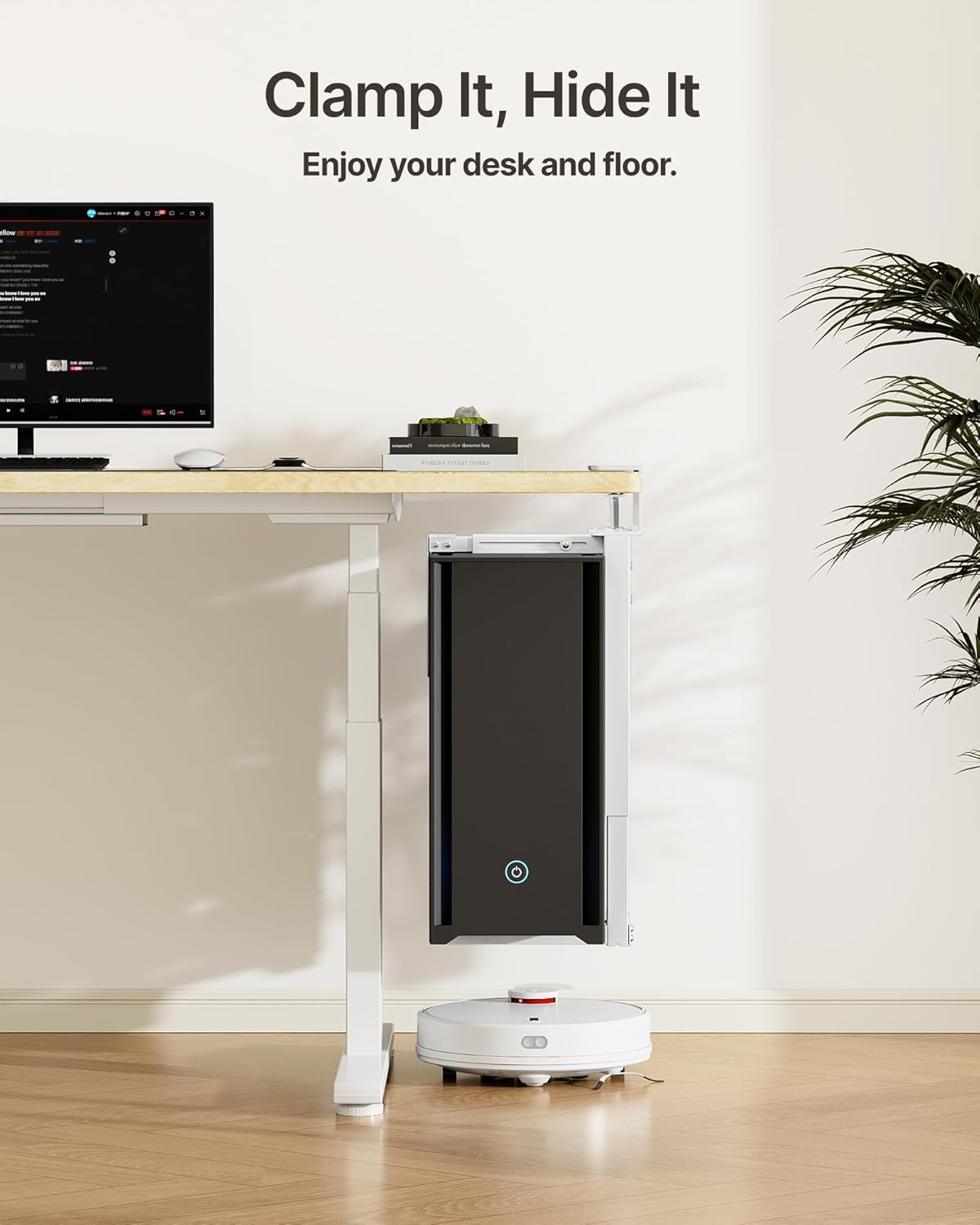
Image: The PC mount in use, showing how it lifts the computer off the floor, allowing for easier cleaning and a tidier environment.
Maintenance
Regular maintenance ensures the longevity and safety of your PC mount.
- Cleaning: Wipe the mount with a soft, damp cloth to remove dust. Avoid abrasive cleaners.
- Check Tightness: Periodically check all adjustment knobs and screws to ensure they remain tight and secure. Re-tighten if any looseness is detected.
- Inspect Pads: Ensure the EVA protective pads are still in place and providing adequate cushioning. Replace if worn.
Troubleshooting
| Problem | Possible Cause | Solution |
|---|---|---|
| Mount feels unstable or wobbles. | C-clamp not tightened sufficiently; PC tower not seated correctly; desk surface too thin or unstable. | Ensure the C-clamp adjustment knob is fully tightened. Verify PC is centered and snug. Check desk stability and thickness compatibility. |
| PC tower scratches or slips. | Protective pads are missing or worn; width adjustment is too loose. | Ensure all EVA protective pads are correctly installed. Adjust the width to securely hold the PC without excessive pressure. |
| Cannot clamp mount to desk. | Desk thickness is outside the compatible range (0.59" to 2.36"); insufficient clearance under desk (less than 8.9"). | Verify desk thickness. Ensure adequate clearance under the desk. The mount is not compatible with desks outside these specifications. |
Specifications
| Feature | Detail |
|---|---|
| Brand | monTEK |
| Model | B0G7ZSFBXM |
| Color | White |
| Material | Metal |
| Mounting Type | Surface Mount (C-Clamp) |
| Weight Capacity | Up to 30 kg (66.1 lbs) |
| Height Adjustment | 16.1" – 25.6" (409mm – 650mm) |
| Width Adjustment | 7.1" – 11.8" (180mm – 300mm) |
| Compatible Desk Thickness | 0.59" – 2.36" (1.5 cm – 6 cm) |
| Minimum Under-Desk Clearance | 8.9" (22.6 cm) |
| Assembly Required | Yes (minor assembly) |

Image: Technical drawing showing all key dimensions and specifications of the monTEK PC mount.
Warranty and Support
monTEK products are designed for durability and performance. For warranty information or technical support, please refer to the official monTEK website or contact customer service through your purchase platform. Please have your model number (B0G7ZSFBXM) ready when contacting support.
For further assistance, visit the monTEK Store on Amazon.