
1. Product Overview
The Redragon H889 is a versatile wireless gaming headset designed for multi-platform compatibility. It offers four connection modes: 2.4G wireless, Bluetooth, 3.5mm auxiliary, and USB, ensuring seamless connectivity across various devices including PC, PlayStation, Nintendo Switch, Xbox One (via 3.5mm wired mode), and mobile phones. Featuring 53mm drivers, 7.1 surround sound, and spatial audio, it delivers an immersive audio experience. The headset also includes a detachable omnidirectional microphone for clear communication.
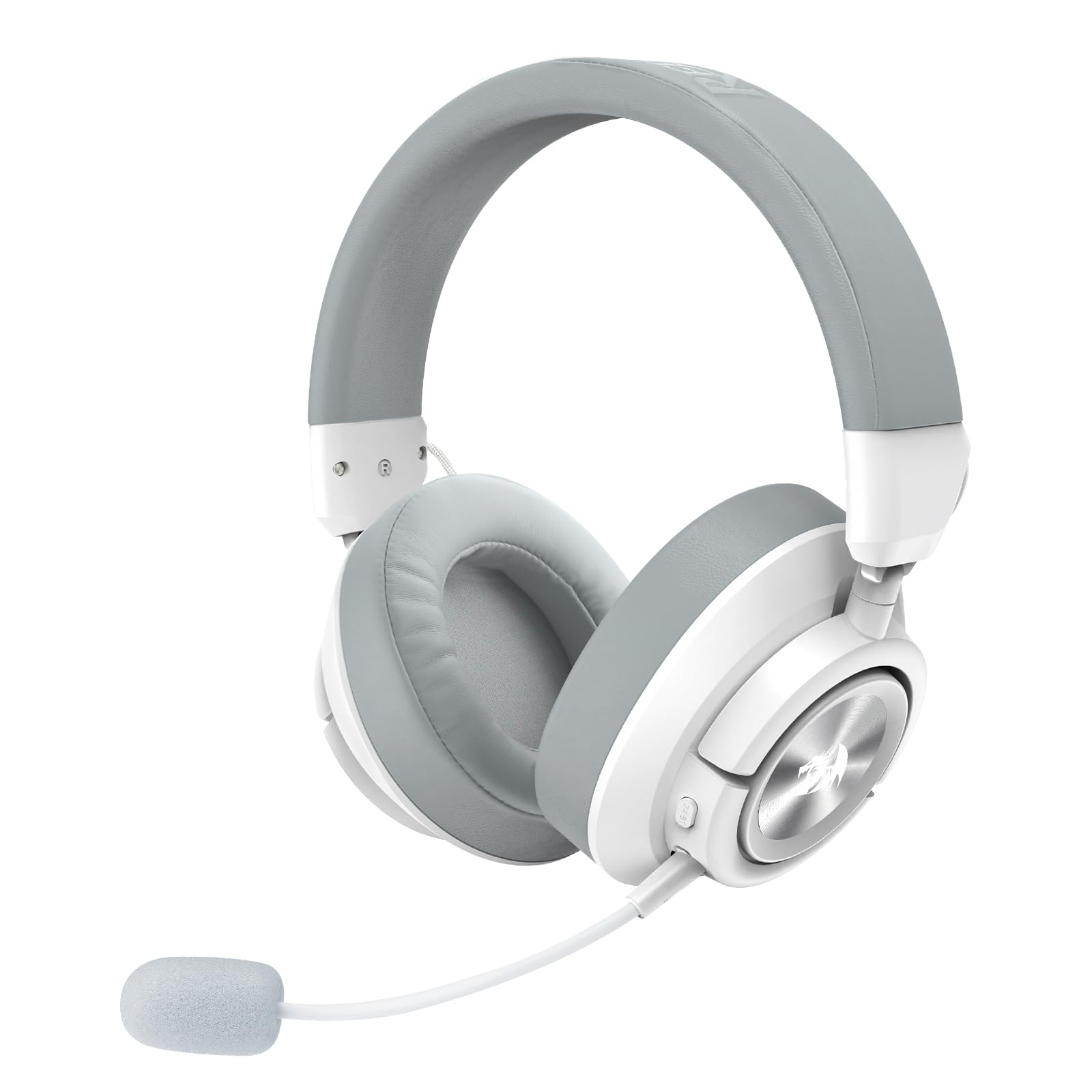
Figure 1: Front view of the Redragon H889 Wireless Gaming Headset.
2. What's in the Box
Carefully unpack the box and ensure all items are present:
- Redragon H889 Spectra Pro Headset
- Detachable Omnidirectional Microphone
- USB-A & Type-C 2.4G Wireless Receiver
- 3.5mm to Type-C Audio Cable
- USB-A to Type-C Charging Cable

Figure 2: Redragon H889 Headset with its detachable microphone, 2.4G receiver, and various cables.
3. Setup
3.1 Initial Charging
Before first use, fully charge the headset. Connect the USB-A to Type-C charging cable to the headset's Type-C port and a USB power source (e.g., computer USB port, USB wall adapter). The LED indicator on the headset will show charging status and turn off or change color when fully charged. A full charge takes approximately 2.5 hours.
3.2 Attaching the Microphone
The headset features a detachable microphone. Align the microphone's 3.5mm jack with the port on the left earcup and push firmly until it clicks into place. Ensure the notch on the microphone plug aligns correctly with the port for a secure connection. To remove, gently pull the microphone out.
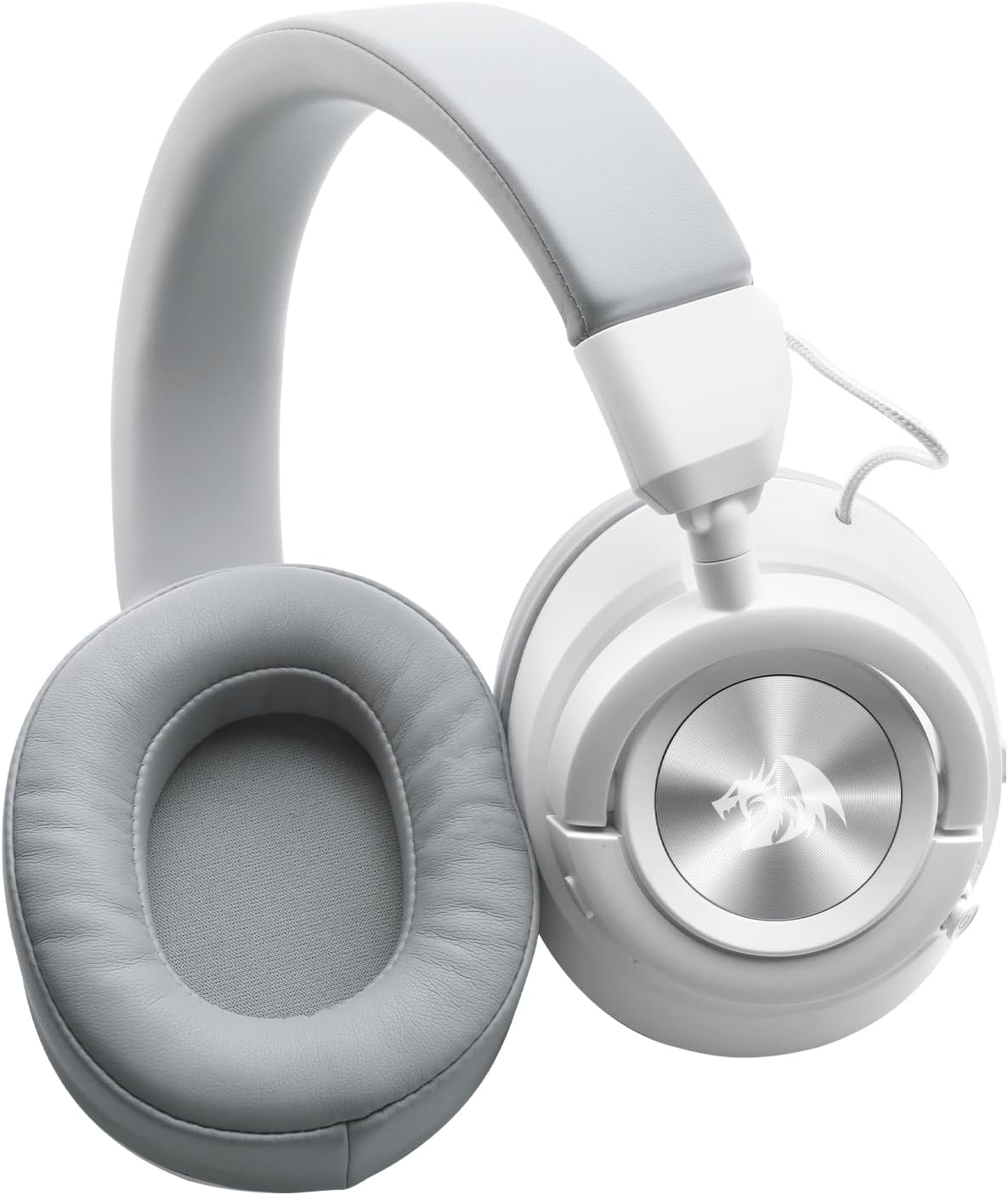
Figure 3: The Redragon H889 Headset with its detachable microphone connected.
4. Operating Modes
The Redragon H889 offers four distinct connection modes:
4.1 2.4G Wireless Mode (PC, PS4/PS5, Nintendo Switch Docked)
- Insert the USB-A & Type-C 2.4G wireless receiver into an available USB port on your device.
- Power on the headset.
- Press the Mode button on the headset until the LED indicator shows 2.4G mode (refer to LED indicator guide in section 5).
- The headset will automatically pair with the receiver. Once connected, the LED will stabilize.
- On your device, ensure the Redragon H889 is selected as the audio input and output device.
4.2 Bluetooth Mode (Mobile, Laptop, Nintendo Switch Handheld)
- Power on the headset.
- Press the Mode button on the headset until the LED indicator shows Bluetooth mode.
- On your device, enable Bluetooth and search for available devices.
- Select "Redragon H889" from the list to pair. Once connected, the LED will stabilize.
4.3 3.5mm Wired Mode (Xbox One, PC, PS4/PS5, Nintendo Switch, Mobile)
- Connect the 3.5mm end of the 3.5mm to Type-C audio cable to your device's 3.5mm audio jack.
- Connect the Type-C end of the cable to the headset's Type-C port.
- The headset will automatically switch to wired mode. No power is required for this mode, but the microphone will still function if attached.
4.4 USB Wired Mode (PC, PS4/PS5)
- Connect the USB-A end of the USB-A to Type-C charging cable to your device's USB port.
- Connect the Type-C end of the cable to the headset's Type-C port.
- The headset will function as a USB audio device. Ensure it is selected as the default audio device in your system settings.
5. Controls and Functions
The headset features intuitive controls located on the earcups:
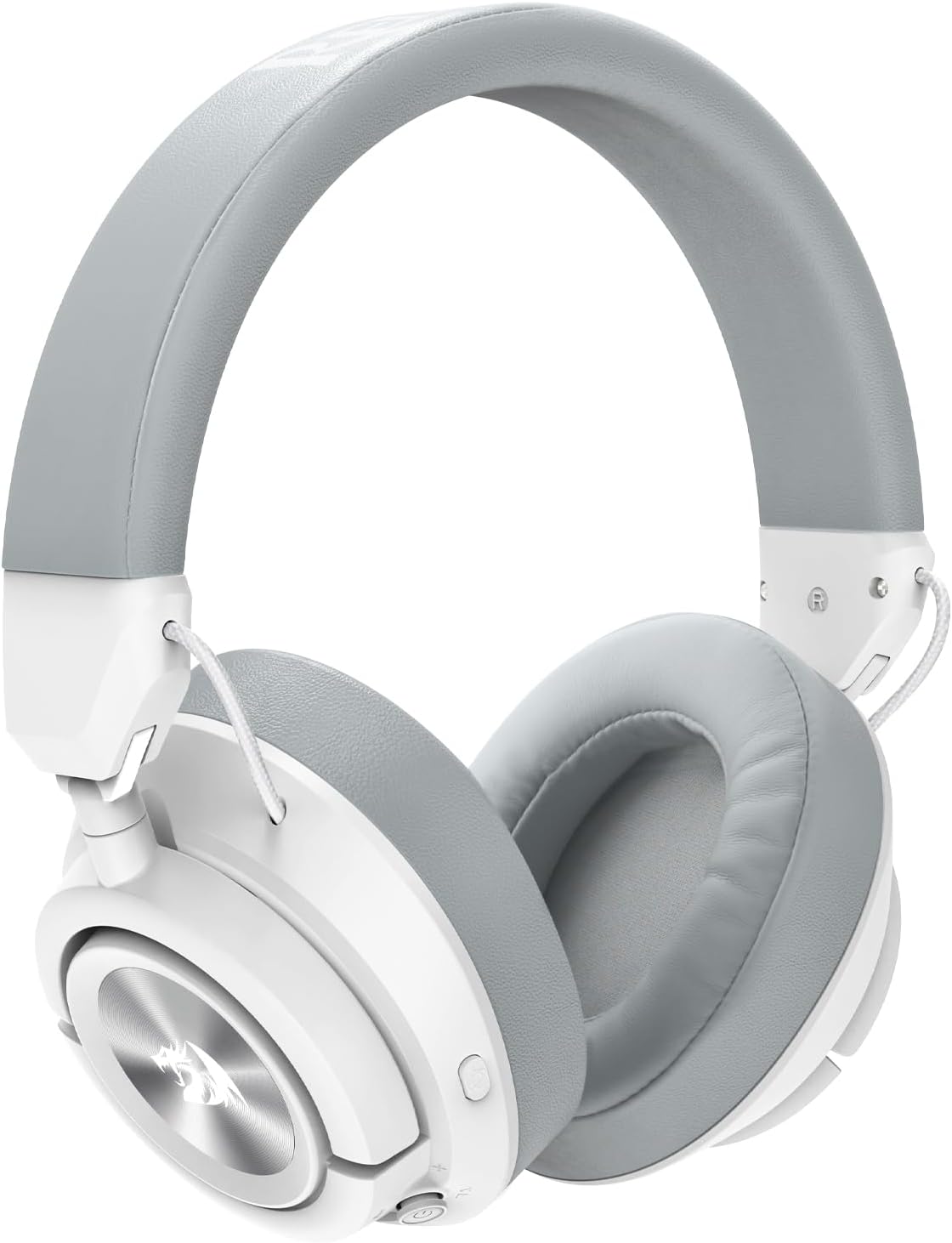
Figure 4: Side view of the headset highlighting control button placement.
- Power Button: Press and hold to power on/off. Short press to play/pause audio.
- Mode Button: Short press to cycle through 2.4G, Bluetooth, and USB modes.
- Volume Joystick: Move up/down to adjust volume. Push left/right for track control (Bluetooth mode).
- Microphone Mute Button: Press to mute/unmute the microphone.
- Spatial Audio Button: Press to toggle Spatial Audio on/off.
- LED Indicator: Displays connection status, charging status, and active mode.
6. Maintenance
6.1 Cleaning
Wipe the headset surfaces with a soft, dry cloth. For earcups, use a slightly damp cloth with mild soap if necessary, then dry thoroughly. Do not use harsh chemicals or abrasive cleaners. Ensure no liquid enters the ports or speaker grilles.
6.2 Storage
Store the headset in a cool, dry place away from direct sunlight and extreme temperatures. When not in use for extended periods, ensure the headset is powered off to conserve battery life.
7. Troubleshooting
- No Sound:
- Check volume levels on both the headset and your connected device.
- Ensure the correct connection mode (2.4G, BT, 3.5mm, USB) is selected and properly established.
- For wireless modes, ensure the headset is charged.
- Verify the headset is selected as the default audio output device in your system settings.
- Microphone Not Working:
- Ensure the microphone is securely attached and not muted (check the mute button).
- Verify the headset is selected as the default audio input device in your system settings.
- Check application-specific microphone settings (e.g., in-game voice chat, communication software).
- Connection Issues (2.4G/Bluetooth):
- Ensure the headset is in the correct pairing mode.
- Move closer to the connected device to reduce interference.
- Try restarting both the headset and the connected device.
- For Bluetooth, try unpairing and re-pairing the headset.
- Short Battery Life:
- Ensure the headset is fully charged before use.
- Reduce volume levels, as higher volumes consume more power.
- The smart power-saving function automatically shuts off the headset after 10 minutes of no audio source or disconnection.
8. Specifications
| Feature | Specification |
|---|---|
| Model Name | Spectra Pro (H889) |
| Drivers | 53mm |
| Impedance | 64 Ohms |
| Sensitivity | 96dB ± 3dB |
| Frequency Response | 20Hz - 20KHz |
| Battery Capacity | 750mAh, 3.7V |
| Charging Time | Approx. 2.5 hours |
| Battery Life (2.4G Mode) | Up to 26 hours (at 50% volume) |
| Battery Life (Bluetooth Mode) | Up to 51 hours (at 50% volume) |
| Microphone Type | Omnidirectional, Detachable |
| Microphone Output Impedance | 2.2K Ohms |
| Weight | 300 ± 10 grams |
| Connectivity | 2.4G Wireless, Bluetooth, 3.5mm Aux, USB |
| Compatibility | PC, PS5, PS4, Nintendo Switch, Xbox One (3.5mm wired), Mobile |
9. Warranty and Support
9.1 Warranty Information
This Redragon H889 Wireless Gaming Headset comes with a 1-year limited warranty from the date of purchase. This warranty covers manufacturing defects and workmanship under normal use. It does not cover damage caused by misuse, accidents, unauthorized modifications, or normal wear and tear.
9.2 Customer Support
For technical assistance, warranty claims, or further inquiries, please contact Redragon customer support through their official website or the retailer where the product was purchased. Please have your product model number (H889) and proof of purchase ready when contacting support.


