
Introduction
This manual provides essential information for the proper setup, operation, and maintenance of your AOC Q27G42ZE 27-inch QHD 240Hz Gaming Monitor. Please read these instructions carefully before using the product to ensure optimal performance and safety.
The AOC Q27G42ZE features a Fast IPS panel, delivering rapid pixel response times of up to 0.3ms GtG, a 240Hz refresh rate for fluid visuals, and QHD (2560 x 1440) resolution for sharp imagery. It is G-Sync Compatible and includes features like Low Input Lag mode and Eye Care technology for an enhanced user experience.
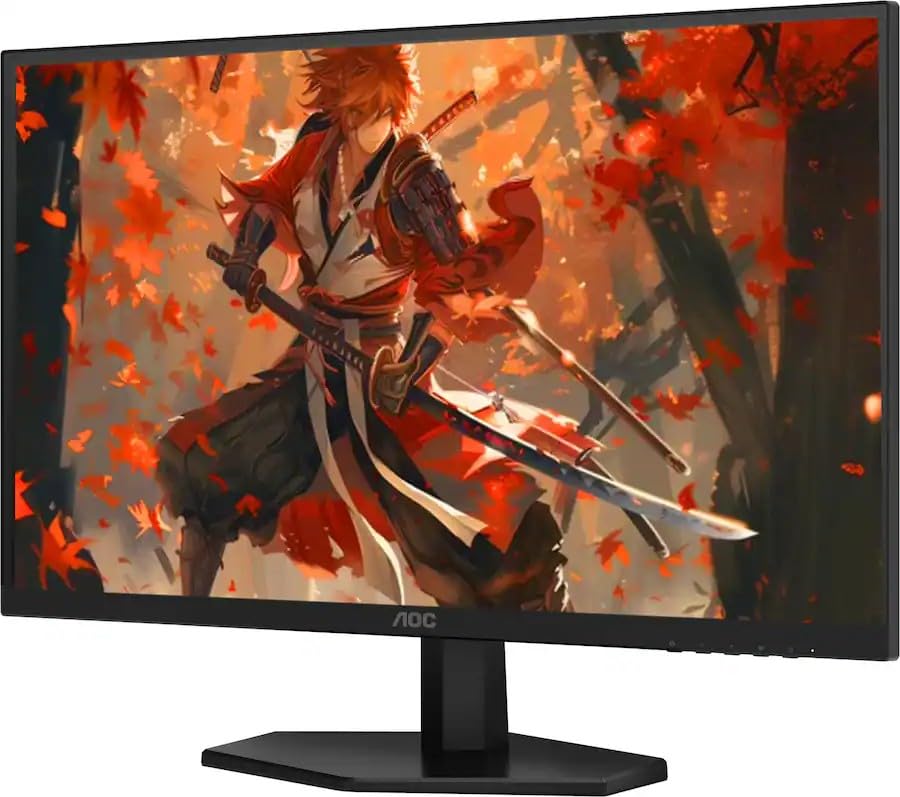
Front view of the AOC Q27G42ZE monitor, showcasing its display capabilities.
What's in the Box
Verify that all components are present in the packaging:
- Monitor
- HDMI Cable
- Power Cord
- User Manual (this document)
Setup
1. Assembling the Stand
Carefully remove the monitor and stand components from the packaging. Attach the stand base to the stand neck, securing it with the provided screw. Then, attach the assembled stand to the back of the monitor until it clicks into place or is secured with screws, depending on the model's design. Ensure the monitor is placed on a stable, flat surface.
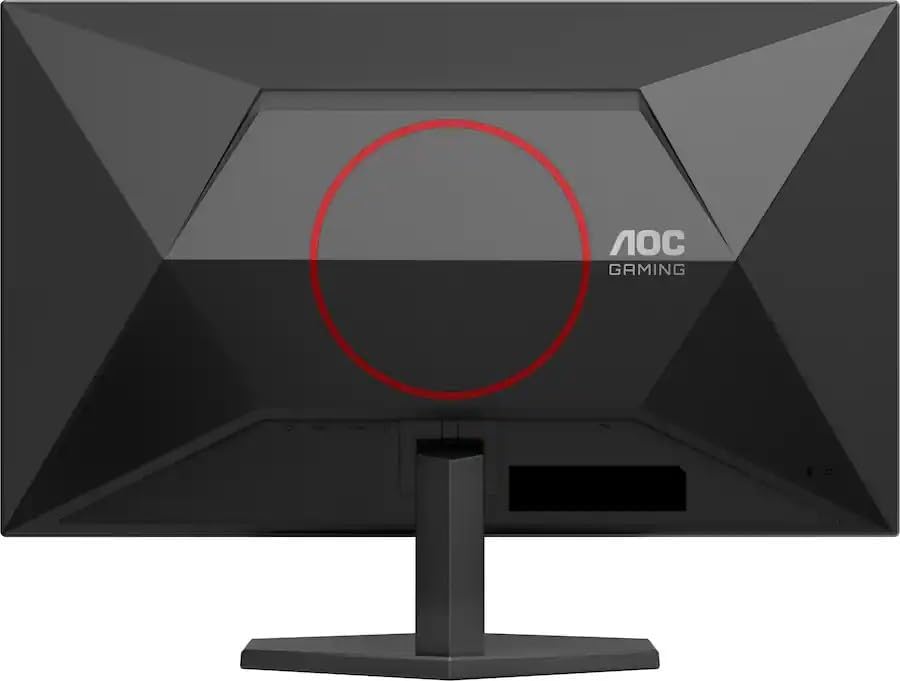
Rear view of the monitor with the stand, highlighting the AOC Gaming design.
2. Connecting Cables
Connect the power cord to the monitor's power input and then to a power outlet. For video input, connect either an HDMI cable or a DisplayPort cable from your computer's graphics card to the corresponding port on the monitor. Ensure all connections are secure.
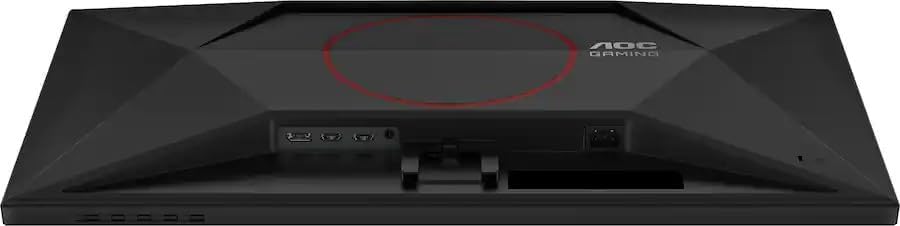
Bottom view of the monitor displaying the connectivity ports.
3. Initial Power-On
Press the power button located on the monitor. The power indicator light should illuminate, and the AOC logo will appear on the screen. If no image is displayed, ensure your computer is powered on and the correct input source is selected on the monitor.
Operating
On-Screen Display (OSD) Menu
The monitor's settings can be adjusted using the On-Screen Display (OSD) menu. Access the OSD menu by pressing the designated OSD button (refer to the monitor's physical buttons for exact location). Navigate through the menu using the directional buttons and confirm selections with the OK/Enter button.
Key Settings and Features:
- Brightness/Contrast: Adjust these settings to suit your viewing environment.
- Color Settings: Modify color temperature, gamma, and other color-related options.
- Picture Boost: Enhance specific areas of the screen.
- Game Settings: Access features like:
- Game Mode: Preset modes optimized for different game genres.
- Shadow Control: Adjust dark areas without affecting the rest of the image.
- Low Input Lag: Reduces processing delay for faster response times.
- Adaptive Sync: Synchronizes the monitor's refresh rate with your GPU for tear-free gaming. Ensure your graphics card supports G-Sync Compatible technology.
- OSD Setup: Customize OSD language, transparency, and timeout.
- Extra: Access information about the monitor, reset settings, and enable/disable DDC/CI.
Maintenance
Cleaning the Monitor
To clean the screen, gently wipe it with a soft, lint-free cloth. For stubborn marks, lightly dampen the cloth with water or a non-abrasive screen cleaner. Avoid using alcohol, ammonia, or abrasive cleaners, as these can damage the screen surface. For the casing, use a soft, dry cloth.
Storage
When storing the monitor for an extended period, ensure it is powered off and disconnected from all cables. Store it in a cool, dry place, preferably in its original packaging, to protect it from dust and physical damage.
Troubleshooting
If you encounter issues with your monitor, refer to the following common problems and solutions:
| Problem | Possible Solution |
|---|---|
| No Power | Ensure the power cord is securely connected to both the monitor and a working power outlet. Check if the power button is pressed. |
| No Signal | Verify that the video cable (HDMI/DisplayPort) is correctly connected to both the monitor and your computer. Ensure your computer is powered on. Select the correct input source via the OSD menu. |
| Flickering Screen | Check the video cable for damage or loose connections. Try a different video cable or port. Adjust the refresh rate in your computer's display settings. |
| Image is too dark/bright | Adjust the Brightness and Contrast settings in the OSD menu. |
| Colors are incorrect | Adjust color settings in the OSD menu. Ensure your graphics card drivers are up to date. |
Specifications
| Feature | Specification |
|---|---|
| Brand | AOC |
| Model Number | Q27G42ZE |
| Screen Size | 27 Inches |
| Resolution | QHD (2560 x 1440 Pixels) |
| Aspect Ratio | 16:9 |
| Refresh Rate | 240 Hz |
| Response Time | 0.3 Milliseconds |
| Display Type | LCD (Fast IPS Panel) |
| Screen Surface | Matte |
| Contrast Ratio | 3000:1 |
| Connectivity Technology | DisplayPort, HDMI |
| Adaptive Sync | G-Sync Compatible |
| Additional Features | Adaptive Sync, Eye Care, Frameless |
| Item Weight | 8.47 Pounds |
| Mounting Type | Desk Mount |
Warranty Information
This AOC Q27G42ZE monitor comes with a 90-day limited warranty. Please retain your proof of purchase for warranty claims. For detailed terms and conditions, refer to the warranty card included with your product or contact AOC customer support.
Support
For further assistance, technical support, or service inquiries, please visit the official AOC website or contact their customer service department. You may need to provide your monitor's model number (Q27G42ZE) and serial number when seeking support.


