
Introduction
Thank you for choosing the Philips TAB4120BK/94 Wireless Bluetooth Soundbar. This manual provides essential information for setting up, operating, and maintaining your soundbar. Please read these instructions carefully before using the product to ensure proper function and safety. Keep this manual for future reference.
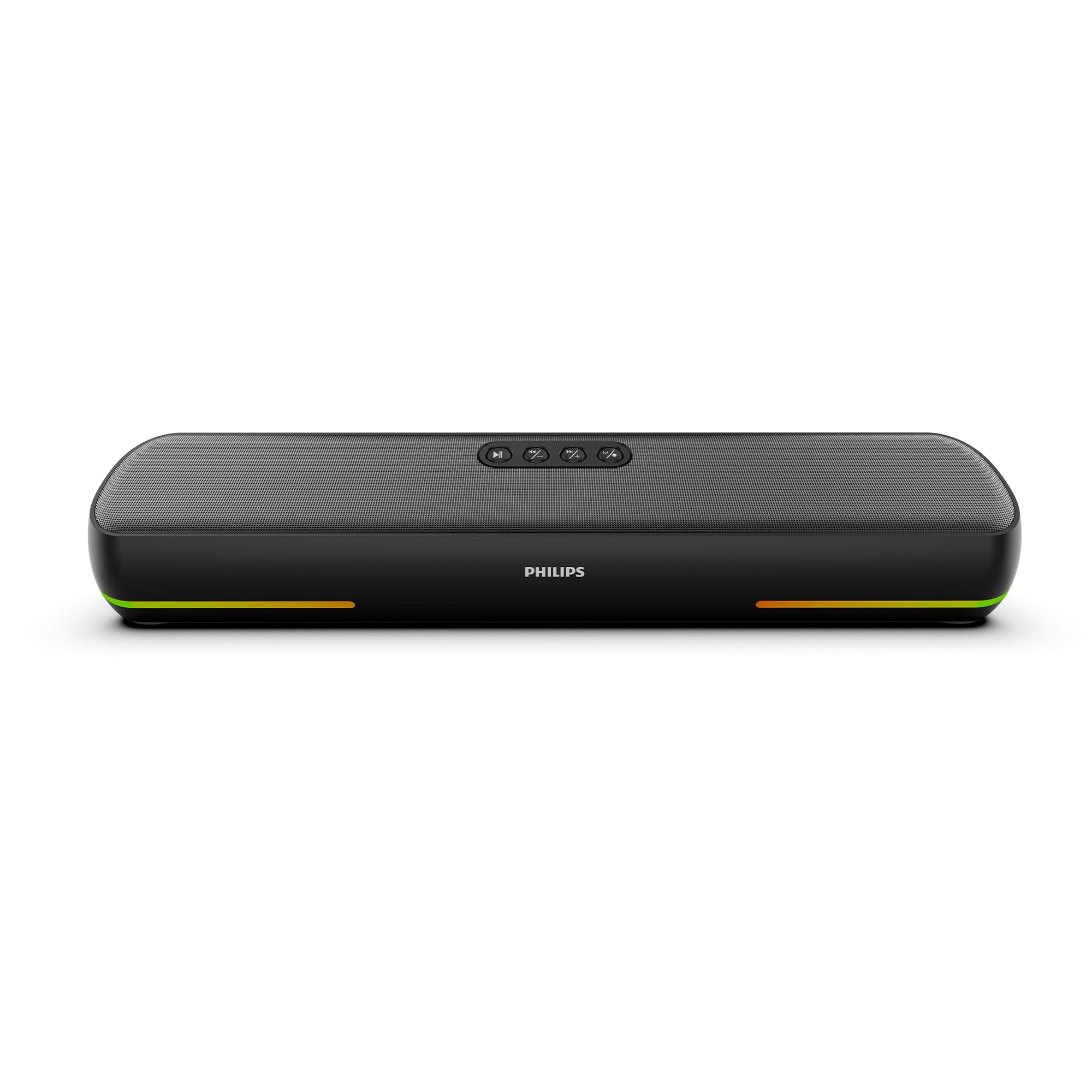
Image: The Philips TAB4120BK/94 Wireless Bluetooth Soundbar, a sleek black unit with subtle RGB lighting at the base, shown in a modern setting.
What's in the Box
Carefully unpack the box and ensure all items are present:
- Philips TAB4120BK/94 Soundbar
- Aux Cable
- USB Cable (for charging)
- User Manual (this document)
Product Overview
Controls

Image: Top view of the soundbar showing control buttons for power, volume, mode, and play/pause.
- Power Button: Press and hold to turn on/off. Short press to change mode.
- Volume Down (-): Decrease volume.
- Volume Up (+): Increase volume.
- Play/Pause Button: Play or pause audio. Answer/end calls.
- Mode Button: Short press to cycle through input modes (Bluetooth, AUX, USB, TF Card). Long press to customize RGB lighting.
Ports and Indicators

Image: Close-up of the soundbar's rear panel showing the ON/OFF switch, AUX port, TF card slot, USB port, and USB-C charging port.
- ON/OFF Switch: Main power switch.
- AUX Input: 3.5mm audio jack for wired connection.
- TF Card Slot: For playing audio from a TF (MicroSD) card.
- USB Port: For playing audio from a USB drive.
- DC 5V (USB-C) Port: For charging the soundbar.
- LED Indicator: Displays charging status and current mode.
Setup
Powering On/Off
- Ensure the main ON/OFF switch on the rear of the soundbar is in the 'ON' position.
- Press and hold the Power Button on the top panel for approximately 3 seconds to turn the soundbar on or off.
Charging the Soundbar
The soundbar has a built-in 2000 mAh battery, providing up to 8 hours of playtime at 50% volume.
- Connect the provided USB-C cable to the DC 5V port on the soundbar.
- Connect the other end of the USB-C cable to a compatible USB power adapter (not included) or a computer's USB port.
- The LED indicator will show charging status. A full charge typically takes 3-4 hours.

Image: The soundbar positioned against a backdrop illustrating day and night, emphasizing its 8-hour battery life.
Operating Instructions
Bluetooth Pairing
The soundbar features Bluetooth 5.1 for stable wireless streaming up to 10 meters.
- Turn on the soundbar. It will automatically enter Bluetooth pairing mode (LED indicator will flash blue).
- On your device (smartphone, tablet, laptop), enable Bluetooth and search for available devices.
- Select "Philips TAB4120BK/94" from the list.
- Once paired, the LED indicator will turn solid blue, and you will hear a confirmation tone.
True Wireless Stereo (TWS) Mode
Pair two Philips TAB4120BK/94 soundbars for an enhanced stereo audio experience.

Image: Two Philips TAB4120BK/94 soundbars placed on a table, illustrating the True Wireless Stereo pairing capability.
- Ensure both soundbars are turned on and not connected to any Bluetooth device.
- On one soundbar (this will be the primary unit), double-press the Mode Button. It will enter TWS pairing mode.
- The primary soundbar will automatically search for and connect to the secondary soundbar.
- Once connected, the LED indicators on both soundbars will confirm the TWS connection.
- Now, connect your device to the primary soundbar via Bluetooth as described above. Audio will play through both units in stereo.
AUX Input
For wired audio connection:
- Connect one end of the 3.5mm AUX cable to the AUX port on the soundbar.
- Connect the other end to the audio output jack of your device (e.g., TV, computer).
- Short press the Mode Button until the soundbar enters AUX mode.
USB Drive Playback
Insert a USB drive containing audio files into the USB port. The soundbar will automatically switch to USB mode and begin playback. If not, short press the Mode Button to select USB mode.
TF Card Playback
Insert a TF (MicroSD) card containing audio files into the TF card slot. The soundbar will automatically switch to TF card mode and begin playback. If not, short press the Mode Button to select TF card mode.
Voice Assistant
The built-in microphone supports voice assistant functionality when connected via Bluetooth to a compatible smartphone. Press the Play/Pause Button to activate your device's voice assistant.
RGB Light Control
The soundbar features dynamic RGB lighting. Long press the Mode Button to cycle through different RGB light modes or to turn the lights off.

Image: The soundbar displaying its vibrant RGB lighting, enhancing the visual experience.
Maintenance
To ensure the longevity and optimal performance of your soundbar:
- Cleaning: Use a soft, dry cloth to wipe the surface of the soundbar. Do not use liquid cleaners or abrasive materials.
- Storage: When not in use for extended periods, store the soundbar in a cool, dry place away from direct sunlight and extreme temperatures.
- Avoid Water: This product is not waterproof. Keep it away from water and high humidity.
Troubleshooting
If you encounter issues with your soundbar, refer to the following common problems and solutions:
| Problem | Possible Cause | Solution |
|---|---|---|
| Soundbar does not turn on | Battery is depleted; Main power switch is off | Charge the soundbar; Ensure the rear ON/OFF switch is in the 'ON' position. |
| No sound | Volume too low; Incorrect input mode; Device not connected | Increase volume on soundbar and connected device; Press Mode button to select correct input; Re-pair Bluetooth or check AUX/USB/TF connections. |
| Bluetooth connection unstable or fails | Device too far; Interference; Soundbar already connected to another device | Move device closer to soundbar (within 10m); Avoid obstacles; Disconnect from other devices and re-pair. |
| TWS pairing fails | Soundbars already connected to other devices; Incorrect pairing procedure | Ensure both soundbars are disconnected from all Bluetooth devices; Follow TWS pairing steps carefully. |
| RGB lights not working | Lights turned off; Malfunction | Long press the Mode button to cycle through light modes; If issue persists, contact support. |
Specifications
| Feature | Detail |
|---|---|
| Brand | Philips |
| Model Number | TAB4120BK/94 |
| Speaker Maximum Output Power | 20 Watts |
| Connectivity Technology | Auxiliary, Bluetooth, TF Card, USB |
| Bluetooth Version | 5.1 |
| Bluetooth Range | 10 Metres |
| Audio Output Mode | Stereo (2.0 Channels) |
| Speaker Type | Soundbar |
| Product Features | Built-in Microphone, LED Light (RGB), Portable, USB Port |
| Battery Capacity | 2000 Milliamp Hours |
| Battery Average Life | 8 Hours (at 50% volume) |
| Battery Charge Time | 3-4 Hours |
| Control Method | Touch, Voice |
| Woofer Driver Diameter | 52 Millimetres |
| Item Dimensions (D x W x H) | 38D x 8.9W x 7.5H Centimeters |
| Item Weight | 775 Grams |
| Compatible Devices | Desktop, Laptop, Smartphone, Tablet |
| Water Resistance Level | Not Water Resistant |
Warranty Information
This Philips TAB4120BK/94 Soundbar comes with a 1-Year Limited Warranty from the date of purchase. Please retain your purchase receipt as proof of purchase for warranty claims. The warranty covers manufacturing defects under normal use. It does not cover damage caused by misuse, accidents, unauthorized modifications, or normal wear and tear.
Customer Support
For further assistance, technical support, or warranty inquiries, please contact Philips customer service. Refer to the contact information provided with your product packaging or visit the official Philips support website for your region.
Manufacturer: TPV Technology India Pvt. Ltd.
Address: Unit No. 307-308, 3rd Floor, SEWA Corporate Park, M.G. Road, Gurugram, Haryana -122002, India


