
1. Introduction
Thank you for choosing the suevery Prebuilt Gaming Desktop Computer. This manual provides essential information for setting up, operating, maintaining, and troubleshooting your new computer. Please read this manual thoroughly before using the product to ensure proper operation and to maximize its lifespan.
This gaming desktop is equipped with an AMD Ryzen 5 6-core processor, an NVIDIA RTX 3050 6G graphics card, 16GB of DDR4 RAM, and a 512GB SSD, offering a powerful platform for gaming, business, and personal computing tasks.
2. Setup Instructions
2.1 Unpacking
- Carefully remove the computer from its packaging.
- Check for any visible damage during shipping. If damage is found, contact your retailer immediately.
- Ensure all accessories listed in the packing contents are present.
2.2 Connecting Peripherals
Connect your monitor, keyboard, mouse, and other peripherals to the appropriate ports on the rear and front of the computer.
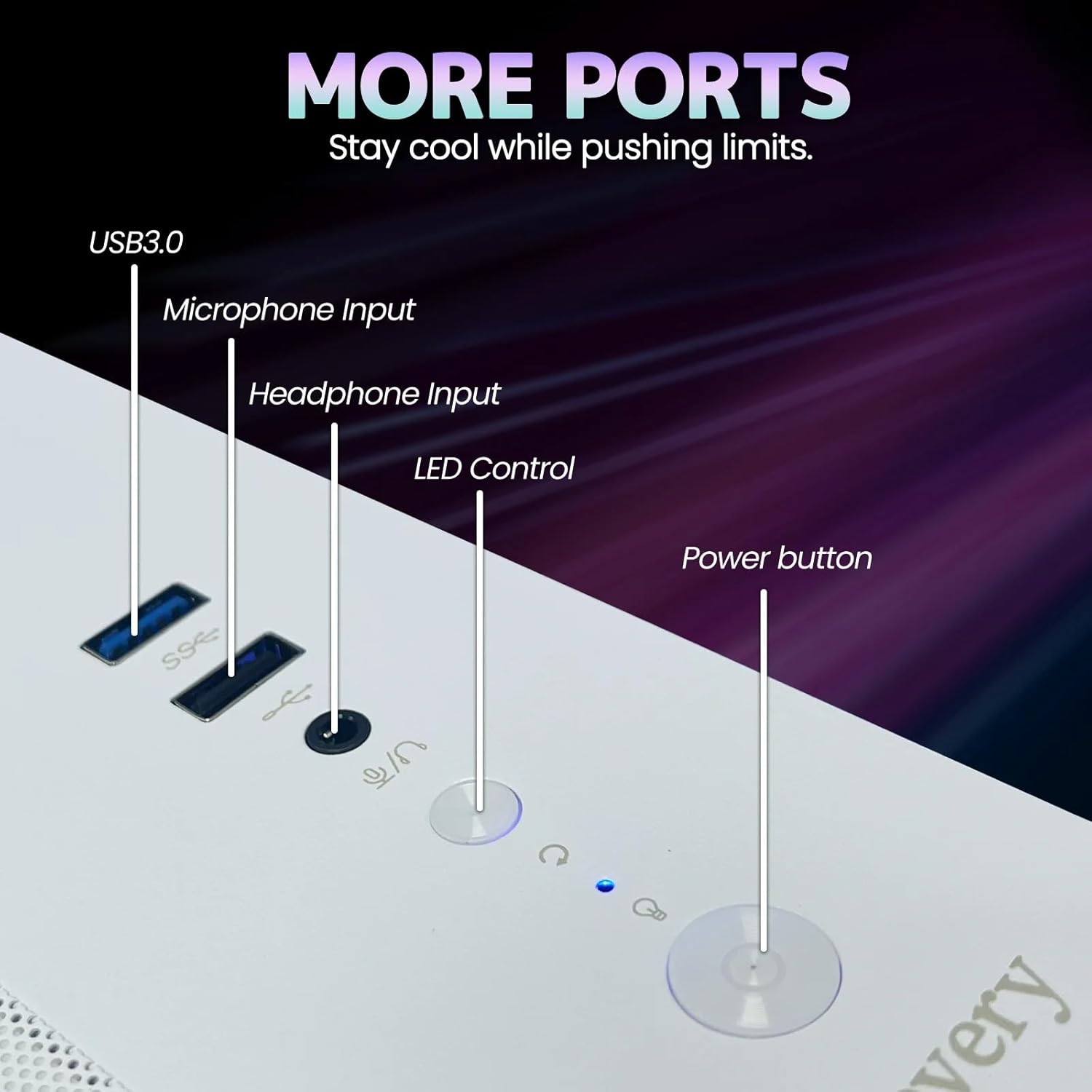
Image: Front Panel Ports. This image displays the front panel of the suevery gaming desktop, highlighting the USB 3.0 ports, microphone input, headphone input, LED control button, and the main power button for easy access.

Image: Rear Panel Ports. This image illustrates the rear panel of the suevery gaming desktop, detailing the available input/output ports such as USB ports, HDMI, DisplayPort, and audio connections for connecting external devices and displays.
- Monitor: Connect your monitor to the graphics card's HDMI or DisplayPort output. Ensure the cable is securely fastened.
- Keyboard and Mouse: Connect to any available USB ports.
- Audio: Connect speakers or headphones to the audio output jacks.
- Network: For wired internet, connect an Ethernet cable to the LAN port. For wireless, ensure the Wi-Fi antenna (if included) is attached.
2.3 Power Connection
- Connect the power cable to the power supply unit (PSU) at the rear of the computer.
- Plug the other end of the power cable into a grounded electrical outlet.
2.4 Initial Power On
- Press the power button located on the front panel of the computer.
- The computer will boot up. Since the system comes with DOS, you will need to install your preferred operating system (e.g., Windows) to utilize its full functionality. Refer to your operating system's installation guide for detailed steps.
3. Operating Instructions
3.1 Installing an Operating System
Your suevery desktop computer is shipped with DOS. To use the computer for daily tasks, gaming, or productivity, you must install a compatible operating system such as Microsoft Windows or a Linux distribution. Follow the instructions provided with your chosen operating system for installation.
3.2 Basic Usage
- Power On/Off: Press the power button to turn on the computer. To shut down, use the operating system's shutdown function. Avoid direct power-off unless necessary to prevent data loss.
- Restart: Use the operating system's restart function.
- Connecting to Wi-Fi: Once an operating system is installed, use its network settings to connect to available Wi-Fi networks. The system supports Wi-Fi 6 for fast wireless connectivity.
- USB Devices: Connect USB devices such as external drives, game controllers, or webcams to the available USB ports.
3.3 Intended Use Scenarios
This computer is designed for a variety of demanding tasks:
- Gaming: The AMD Ryzen 5 processor and RTX 3050 6G graphics card provide smooth performance for modern games.
- Graphic Design & Video Editing: The powerful CPU and ample RAM support resource-intensive creative applications.
- Business & Personal Computing: Efficient for everyday productivity, multitasking, and general home use.

Image: Usage Scenarios. This image illustrates various applications for the suevery gaming desktop, including competitive esports, professional graphic design, general business office tasks, and demanding video editing workflows.
4. Maintenance
4.1 Cleaning
- Exterior: Use a soft, damp cloth to clean the exterior surfaces. Avoid abrasive cleaners or solvents.
- Dust: Regularly clean dust from the vents and fans using compressed air. Ensure the computer is powered off and unplugged before cleaning.
- Dust Cover Pad: The system includes a dust cover pad. Clean or replace it periodically to maintain optimal airflow and prevent dust buildup inside the chassis.
4.2 Software Updates
- Regularly update your operating system, drivers (especially graphics drivers), and security software to ensure optimal performance and protection.
4.3 Environmental Conditions
- Operate the computer in a well-ventilated area to prevent overheating.
- Avoid exposing the computer to extreme temperatures, humidity, or direct sunlight.
5. Troubleshooting
This section addresses common issues you might encounter. For more complex problems, contact technical support.
| Problem | Possible Cause | Solution |
|---|---|---|
| Computer does not power on. | Power cable loose, power outlet faulty, PSU switch off. | Check power cable connections. Try a different outlet. Ensure PSU switch (if present) is ON. |
| No display on monitor. | Monitor cable loose, monitor off, incorrect input selected on monitor. | Ensure monitor cable is securely connected to the graphics card. Turn monitor on. Select correct input source on monitor. |
| System is slow or unresponsive. | Too many programs running, insufficient RAM, malware, outdated drivers. | Close unnecessary programs. Check for malware. Update drivers and operating system. Consider upgrading RAM if frequently maxed out. |
| Wi-Fi not connecting. | Wi-Fi disabled, incorrect password, router issue, driver issue. | Ensure Wi-Fi is enabled in OS settings. Verify password. Restart router. Update Wi-Fi drivers. |
6. Specifications
The following table outlines the key technical specifications of your suevery Prebuilt Gaming Desktop Computer:
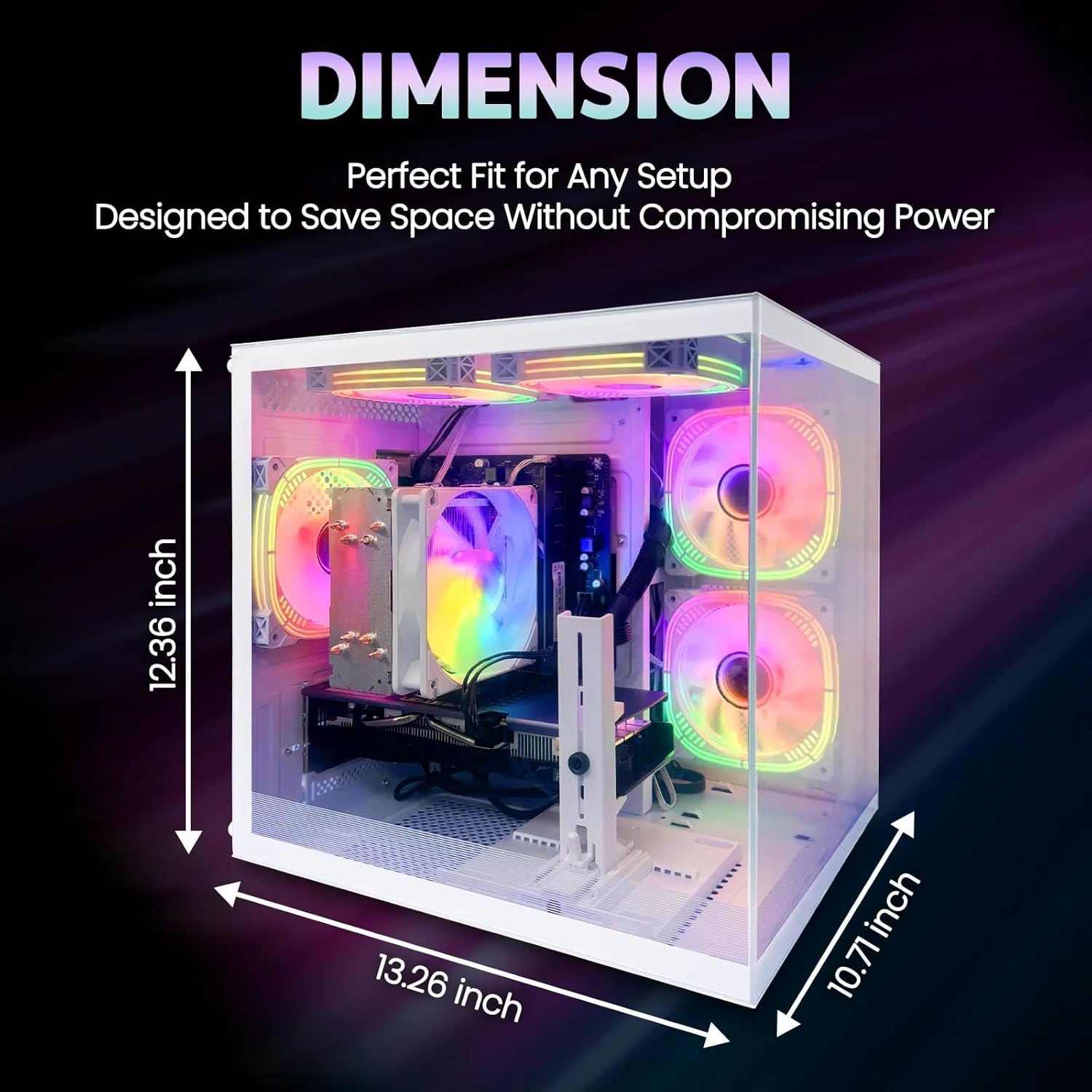
Image: Product Dimensions. This diagram provides the physical dimensions of the suevery gaming desktop, indicating a width of 13.26 inches, a height of 12.36 inches, and a depth of 10.71 inches.
| Component | Specification |
|---|---|
| Processor (CPU) | AMD Ryzen 5 6-core, 3.6 GHz (up to 4.1 GHz Boost), 32MB L3 Cache |
| Graphics Card (GPU) | NVIDIA GeForce RTX 3050 6G (Dedicated) |
| Memory (RAM) | 16GB DDR4 (3200 MHz), Max 32GB |
| Storage | 512GB SSD (Serial ATA-600) |
| Operating System | DOS (User-installable OS required) |
| Wireless Connectivity | Wi-Fi 6 |
| Wired Connectivity | Ethernet (LAN) |
| Video Output | 1x HDMI, DisplayPort |
| USB Ports | Total 6 USB Ports (Type B - 3 pin North American power plug) |
| Audio | Microphone Input, Headphone Input |
| Cooling Method | Air Cooling |
| Dimensions (L x W x H) | 41.61 x 37.8 x 33.5 cm (approx. 16.38 x 14.88 x 13.19 inches) |
| Weight | 8.36 kg (approx. 18.43 lbs) |
| Color | White |
7. Warranty Information
Your suevery Prebuilt Gaming Desktop Computer is covered by a manufacturer's warranty. Please refer to the warranty card included with your product or visit the official suevery website for detailed terms and conditions, warranty period, and claim procedures. Keep your proof of purchase for warranty service.
8. Customer Support
If you encounter any issues not covered in this manual or require further assistance, please contact suevery customer support. Contact information can typically be found on the official suevery website or on the product packaging.
- Online Support: Visit the suevery official website for FAQs, driver downloads, and support resources.
- Email Support: Refer to your product documentation for the customer support email address.