
DAUZ KYX-0035
DAUZ WiFi Digital Wall Clock (Model KYX-0035) Instruction Manual
Your guide to setting up and operating your new digital wall clock.
1. Introduction
Thank you for choosing the DAUZ WiFi Digital Wall Clock. This clock is designed to provide accurate timekeeping, along with useful information such as temperature, humidity, and date. It features customizable brightness, remote control operation, and automatic time calibration via WiFi for precise timekeeping. Please read this manual carefully before use to ensure proper operation and maintenance.
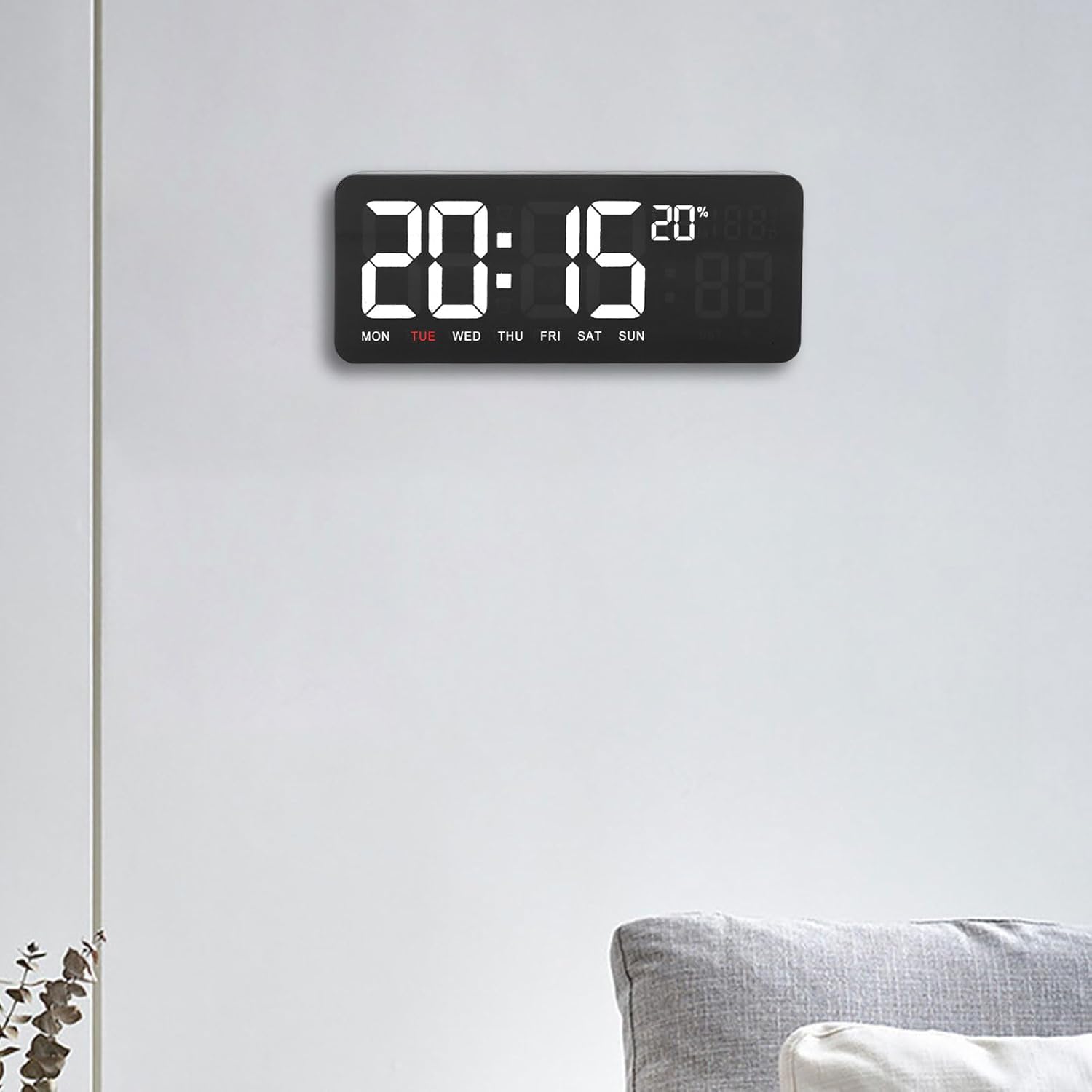
Figure 1: DAUZ WiFi Digital Wall Clock in a typical home setting.
2. Important Safety Information
- Keep the product away from direct sunlight to prevent damage to the display and internal components.
- Protect the device from water and high humidity. This product is not waterproof.
- Do not attempt to disassemble or repair the clock yourself. Refer all servicing to qualified personnel.
- Use only the provided power cord and accessories.
- Ensure the clock is securely mounted if wall-mounted to prevent falling.
3. Package Contents
Please check the package for the following items:
- 1 x DAUZ WiFi Digital Wall Clock (Model KYX-0035)
- 1 x User Manual (this document)
- 1 x USB Power Cable (approx. 3 meters / 9.84 feet)
- 2 x Wall Mounting Nails
- 1 x Remote Control

Figure 2: All included accessories and the digital wall clock.
4. Product Overview
The DAUZ WiFi Digital Wall Clock features a clear digital display and a sleek design. Key display elements include:
- Time Display: Large, easy-to-read digits for hours and minutes.
- Date Display: Shows month and day.
- Day of Week: Indicates the current day (MON, TUE, WED, etc.).
- Temperature Display: Shows ambient temperature.
- Humidity Display: Shows ambient humidity percentage.

Figure 3: Detailed view of the clock's display elements.
4.1 Remote Control Functions
The included remote control allows for convenient adjustment of various clock settings from up to 10 meters away. Refer to the button layout on the remote for specific functions.
- Power Button: Turns the clock display on/off.
- UP/DOWN Buttons: Adjust brightness levels or navigate menu options.
- OK Button: Confirm selections.
- EDIT Button: Enter settings mode.
- Clock Button: Access time/date settings.
- Timer/Stopwatch/Reminder Buttons: Activate respective functions.
- P1/P2 Buttons: Preset functions (specific usage may vary, refer to on-screen prompts).
5. Setup
5.1 Power Connection
- Connect the provided USB power cable to the clock's power input port.
- Plug the other end of the USB power cable into a compatible USB power adapter (not included) or a powered USB port.
- The clock display will illuminate.
5.2 Remote Control Battery Installation
The remote control requires a 120MAH battery (typically a CR2025 or similar coin cell battery). Open the battery compartment on the back of the remote control, insert the battery with the correct polarity, and close the compartment.
5.3 Wall Mounting
- Choose a suitable location on a wall, ensuring it is away from direct sunlight and moisture.
- Mark the positions for the two wall mounting nails using the clock's mounting holes as a guide.
- Carefully insert the provided wall mounting nails into the marked positions.
- Hang the clock securely onto the installed nails.
5.4 WiFi Connection and Time Calibration
The clock automatically calibrates its time via WiFi connection. Ensure the clock is within range of a stable WiFi network. The clock will attempt to connect and synchronize time upon power-up. If manual setup is required, use the remote control to access network settings (refer to the "Operating Instructions" section for remote control usage).
6. Operating Instructions
6.1 Adjusting Brightness
The clock offers three levels of brightness. Use the UP and DOWN buttons on the remote control to cycle through the brightness settings to your preferred level.
6.2 Display Modes (Temperature, Humidity, Date)
The clock automatically cycles through temperature, humidity, and date information every 3 seconds. No manual intervention is typically required for this feature.
6.3 Setting Time and Date Manually (if needed)
- Press the EDIT button on the remote control to enter settings mode.
- Use the UP/DOWN buttons to navigate to "Time" or "Date" settings.
- Press OK to select.
- Use the numeric buttons or UP/DOWN to adjust values.
- Press OK to confirm each setting.
- Press EDIT again to exit settings mode.
6.4 Using Timer, Stopwatch, and Reminder Functions
The clock includes various timing functions:
- Count Up/Down Timer: Press the dedicated Timer button. Use UP/DOWN to set the desired time, then OK to start.
- Stopwatch: Press the dedicated Stopwatch button. Press OK to start/pause, and EDIT to reset.
- Reminder: Press the dedicated Reminder button. Follow on-screen prompts to set a specific reminder time.
7. Maintenance
- Cleaning: Use a soft, dry cloth to clean the clock's surface. Do not use abrasive cleaners or solvents.
- Environment: Ensure the clock is kept in a dry environment and avoid exposure to extreme temperatures.
- Power: Disconnect power before cleaning or if the clock will not be used for an extended period.
8. Troubleshooting
| Problem | Possible Cause | Solution |
|---|---|---|
| Clock display is off. | No power or power cable disconnected. | Check power cable connection. Ensure USB adapter is working. Press the power button on the remote. |
| Incorrect time displayed. | No WiFi connection or manual setting error. | Ensure clock is within WiFi range. Check WiFi network status. Manually set time using the remote control if WiFi calibration fails. |
| Remote control not responding. | Battery depleted or incorrect insertion. Obstruction between remote and clock. | Replace remote control battery. Ensure correct battery polarity. Remove any obstructions. Ensure remote is pointed at the clock. |
| Temperature/Humidity not displaying. | Sensor issue or display mode setting. | The clock cycles automatically. If still not showing, try restarting the clock by unplugging and replugging the power. |
9. Specifications
| Feature | Detail |
|---|---|
| Model | KYX-0035 |
| Material | ABS, Acrylic Panel |
| Screen Color Options | Yellow, Green, Blue (Note: Product images show white digits, actual color may vary by variant.) |
| Operation Method | Remote Control |
| Power Supply | Plug-in (USB Power) |
| Power Cord Length | Approx. 3 meters (9.84 feet) |
| Installation | Wall Mounting |
| Remote Control Battery | 120MAH (e.g., CR2025 coin cell) |
| Functions | Time, Date, Week, Temperature, Humidity Display, Count Up/Down Timer, Stopwatch, Reminder |
| Display Type | Digital |
| Special Features | Humidity Display, Temperature Display, WiFi Time Calibration, Customizable Brightness |
10. Warranty and Support
For warranty information or technical support, please refer to the purchase documentation or contact DAUZ customer service directly. Contact details are typically available on the manufacturer's official website or through your retailer.
Ask a question about this manual
Ask about setup, troubleshooting, compatibility, parts, safety, or missing instructions. Manuals+ will review the question and use this page’s manual context to help answer it.