
1. Introduction
The Wolf Guard WT4F-W06 is an advanced 4G+WiFi smart home alarm system designed to provide comprehensive security for your property. Featuring a 7-inch touch screen, this system offers reliable protection even during power outages or internet disruptions, thanks to its integrated 4G module and powerful backup battery. Control your system remotely via the Tuya Smart Life app, remote controls, or directly from the main unit.
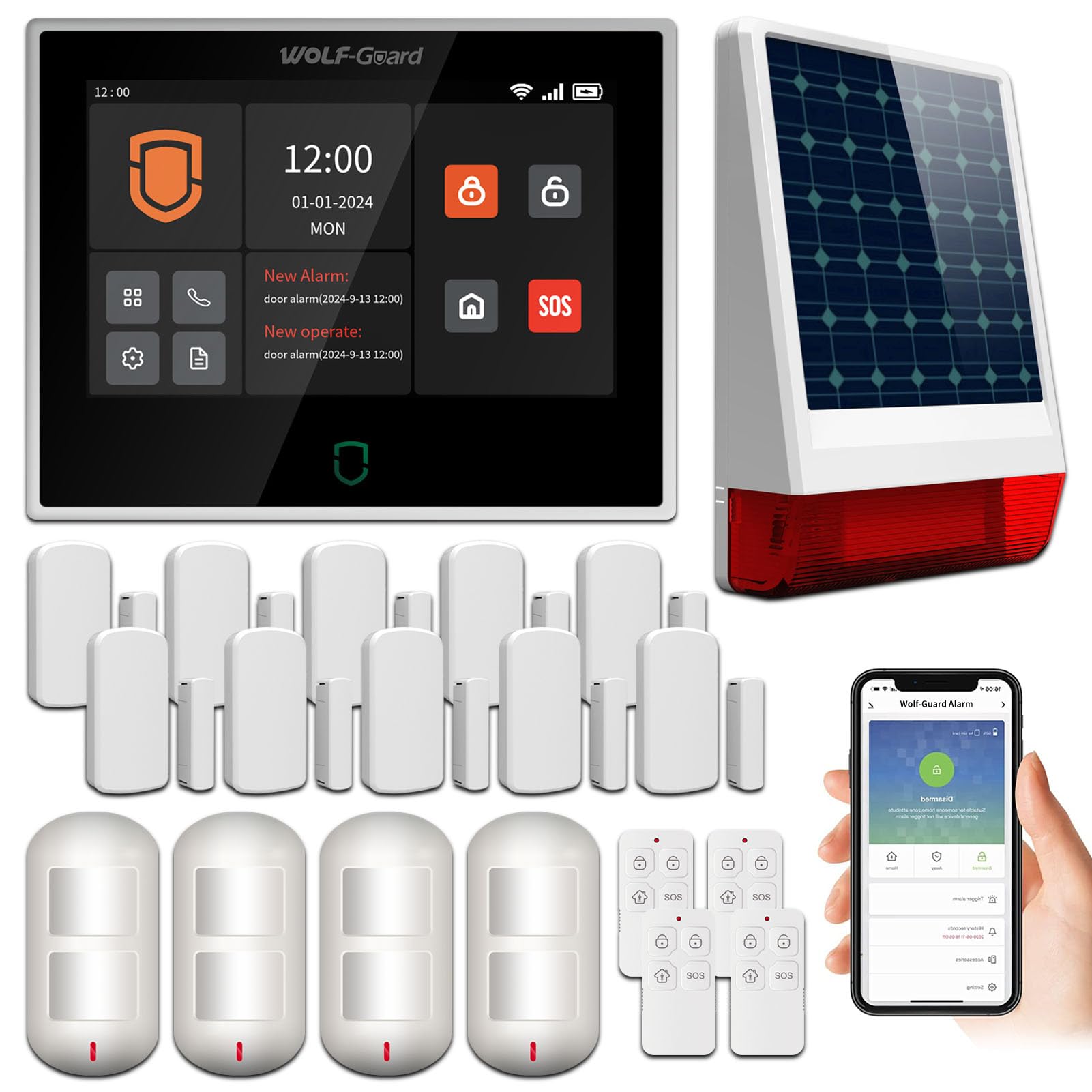
Image: The main unit of the Wolf Guard WT4F-W06 Smart Home Alarm System, featuring a 7-inch touch screen display.
2. Safety Information
Please read all safety instructions carefully before installing and operating the system. Keep this manual for future reference.
- Ensure the system is installed in a dry environment, away from direct sunlight and extreme temperatures.
- Use only the provided power adapters.
- Do not attempt to disassemble or repair the unit yourself. Contact qualified personnel for service.
- Keep the system and its components out of reach of children.
- Regularly check the battery status of all wireless sensors and the main unit's backup battery.
3. Package Contents
Verify that all items are present in your package:
- 1x Main Control Panel with 7-inch Touch Screen
- 1x Wireless Solar Outdoor Strobe Siren (120 dB)
- 10x Door/Window Sensors
- 4x Pet-Immune PIR Motion Detectors
- 4x Remote Controls
- 1x USB Cable
- 2x Power Adapters
- Mounting Accessories / Small Screwdriver
- 1x Wolf Guard Window Sticker
- 1x Quick Start Guide

Image: An overview of the Wolf Guard Smart Home Alarm System components, including the main panel, solar siren, door/window sensors, PIR motion detectors, and remote controls.
4. Setup
4.1 Main Unit Installation
The main control panel can be placed on a flat surface using its built-in stand or mounted on a wall. Ensure it is within range of your Wi-Fi network and has access to a power outlet.

Image: Illustration showing the main control panel with its built-in stand for surface placement and options for wall mounting.
4.2 Powering On and SIM Card Insertion
- Connect one of the provided power adapters to the main unit's 5V charging port and plug it into a wall outlet.
- (Optional) If using 4G functionality, insert a 4G SIM card into the SIM card slot located at the back of the main unit.
- Turn on the power switch. The system will boot up.

Image: Detailed view of the back of the main control panel, highlighting the SIM card slot, power switch, and various ports.
4.3 Network Connection (Wi-Fi)
To connect the system to your Wi-Fi network for app control and notifications:
- On the main unit, navigate to Menu > About > Wi-Fi.
- Select Smartlink for Fast Network Mode or Softap for Hotspot Mode.
- Follow the on-screen instructions to connect to your 2.4GHz Wi-Fi network.

Image: A visual guide illustrating the steps to connect the Wolf Guard alarm system to a Wi-Fi network using either Fast Network Mode (Smartlink) or Hotspot Mode (Softap).
4.4 Tuya Smart Life App Installation and Pairing
- Download the "Tuya Smart" or "Smart Life" app from your smartphone's app store (Android/iOS).
- Register or log in to your account.
- In the app, select "Add Device" and choose "Security & Video Surveillance" > "Alarm (Wi-Fi)".
- Follow the app's instructions to pair your alarm system.
- Once paired, you can manage the system remotely.

Image: The Wolf Guard main panel display alongside a smartphone showing the Smart Life app interface, demonstrating remote control capabilities.
4.5 Sensor and Remote Control Pairing
The included sensors and remote controls are typically pre-configured. If you need to add new sensors or re-pair existing ones:
- On the main unit, go to the "Accessories" or "Sensors" menu.
- Select "Add Sensor" or "Add Remote".
- Trigger the sensor (e.g., open a door for a door sensor, wave hand for PIR) or press a button on the remote control.
- The main unit will detect and pair the device. Assign a name and zone type (e.g., "Main Door", "Living Room PIR").

Image: A Wolf Guard pet-immune PIR motion detector, designed to prevent false alarms from pets.

Image: The Wolf Guard solar-powered outdoor strobe siren, shown installed on the exterior of a house, indicating its wireless operation and 433MHz communication.
4.6 Voice Assistant Integration (Alexa, Google Assistant)
The system is compatible with Amazon Alexa and Google Assistant for convenient voice control.
- Ensure your alarm system is connected to the Tuya Smart Life app.
- Open the Alexa or Google Home app on your smartphone.
- Enable the "Tuya Smart" or "Smart Life" skill/service.
- Link your Tuya/Smart Life account with your voice assistant account.
- Discover devices. Your alarm system should appear.
- You can now use voice commands like "Alexa, arm alarm system" or "Hey Google, disarm security."

Image: A woman interacting with an Amazon Alexa device to arm her Wolf Guard security system, demonstrating voice control functionality.
5. Operating Instructions
5.1 Main Panel Overview
The 7-inch touch screen displays key information and allows for direct control.

Image: A diagram illustrating the main interface of the Wolf Guard control panel, with labels for time/date, system status, Wi-Fi, 4G signal, power, menu, dial-up, language settings, operation records, alarm records, latest alarm records, and latest operation records.
5.2 Arming and Disarming the System
- Via Main Panel: Tap the "Arm" or "Disarm" icons on the touch screen and enter your PIN if required.
- Via Remote Control: Press the arm or disarm button on your remote.
- Via App: Use the "Arm" or "Disarm" functions within the Tuya Smart Life app.
- Via Voice Assistant: Use configured voice commands (e.g., "Alexa, arm home").
5.3 Zone Settings
The system supports various zone types to customize security:
- Access Zone: Triggers alarm immediately when opened.
- Internal Zone: Triggers alarm after an entry delay.
- Perimeter Zone: Triggers alarm when armed in "Home" mode.
- 24-Hour Zone: Always active, triggers alarm regardless of arming status (e.g., smoke detectors).
- Doorbell Zone: Acts as a doorbell chime.
You can customize zone names for clarity (e.g., "Front Door", "Living Room Window", "Bedroom PIR").
5.4 Alarm Notifications
In case of an alarm, the system can send notifications via multiple channels:
- 4G Calls/SMS: If a SIM card is installed, the system will call and send SMS messages to pre-set numbers.
- App Notifications: The Tuya Smart Life app will push real-time alerts to your smartphone.

Image: A smartphone screen showing multiple alert messages from the alarm system, indicating an attempted entry or SOS activation.
5.5 SOS Function
The SOS button on the main panel and remote controls can be used in emergencies. Pressing it will immediately trigger an alarm and send notifications to pre-configured emergency contacts.

Image: An elderly man on the floor reaching for a remote control, illustrating the use of the SOS function in an emergency.
5.6 Language Settings
The system supports multiple languages. To change the language, navigate to the language settings menu on the main panel.

Image: The Wolf Guard main panel showing a selection of 10 languages, including English, German, French, Spanish, and Italian, overlaid on a world map.
6. Maintenance
- Battery Check: Regularly check the battery levels of all wireless sensors and remote controls. Replace batteries as needed. The main unit has a built-in backup battery that activates during power outages.
- Solar Siren: Ensure the solar panel on the outdoor siren is clean and free from obstructions to allow for efficient charging.
- Cleaning: Wipe the main panel and sensors with a soft, dry cloth. Do not use abrasive cleaners or solvents.
- Firmware Updates: Check the Tuya Smart Life app periodically for any available firmware updates for your alarm system to ensure optimal performance and security.
7. Troubleshooting
| Problem | Possible Cause | Solution |
|---|---|---|
| System not powering on. | Power adapter not connected, power switch off, or power outage. | Ensure power adapter is securely connected and plugged in. Check power switch. If power outage, backup battery should activate. |
| Cannot connect to Wi-Fi. | Incorrect Wi-Fi password, 5GHz network, or weak signal. | Verify Wi-Fi password. Ensure you are connecting to a 2.4GHz network. Move the main unit closer to the router or use a Wi-Fi extender. |
| Sensors not triggering alarm. | Sensor battery low, sensor not paired, or incorrect zone setting. | Check/replace sensor batteries. Re-pair the sensor if necessary. Verify the sensor's zone type is correctly configured (e.g., not set to "Doorbell Zone"). |
| False alarms. | Improper sensor placement, pet interference (for non-pet-immune sensors), or environmental factors. | Adjust sensor placement to avoid direct sunlight, drafts, or moving objects. Ensure pet-immune sensors are used in areas with pets. Check for loose connections. |
| App not receiving notifications. | App permissions, phone settings, or internet connectivity issues. | Check app notification permissions on your smartphone. Ensure your phone has internet access. Verify the alarm system is connected to Wi-Fi or has a working 4G SIM. |
| Voice commands not working. | Incorrect voice assistant setup or command phrasing. | Ensure the Tuya Smart Life skill/service is correctly linked in your Alexa/Google Home app. Use precise commands. Check internet connection for both the alarm system and voice assistant device. |
8. Specifications
| Feature | Detail |
|---|---|
| Brand | Wolf Guard |
| Model Number | WT4F-W06 |
| Connectivity Technology | Wireless (Wi-Fi, 4G) |
| Power Source | Corded Electric, Lithium Polymer Battery (backup) |
| Compatible Devices | Smartphone (Android, iOS) |
| Item Dimensions (LxWxH) | 13.5 x 2.1 x 18.5 cm |
| Alarm Type | Audio and Motion |
| Control Method | App, Remote, Touch, Voice |
| Acoustic Level (Siren) | 110 Decibels (Outdoor Siren: 120 dB) |
| Sensor Technology | Motion Sensor (PIR) |
| Smart Home Compatibility | Tuya Smart Life, Amazon Alexa, Google Assistant |
| Installation Method | Self-adhesive / Wall Mount |
9. Warranty and Support
Wolf Guard products are designed for reliability and performance. For specific warranty details, please refer to the warranty card included in your package or contact your retailer. Keep your purchase receipt as proof of purchase.
Customer Support
For technical assistance, troubleshooting, or general inquiries, please contact Wolf Guard customer support through the official website or the contact information provided in your product documentation. You may also refer to the Tuya Smart Life app for in-app support resources.


