
Introduction
The STF Elite On-Ear Wireless Headphones offer versatile audio connectivity and comfortable listening. This manual provides essential information for setting up, operating, maintaining, and troubleshooting your headphones to ensure optimal performance.
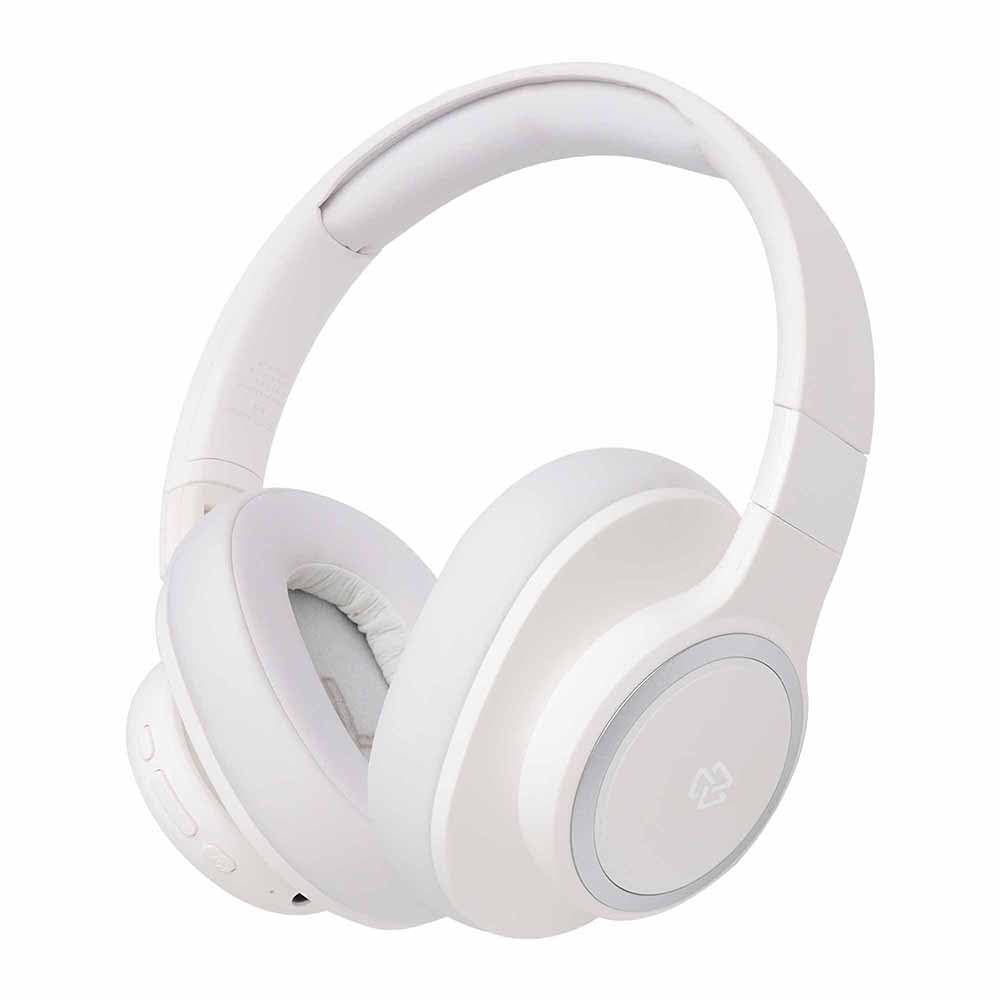
Image: Front view of the STF Elite On-Ear Wireless Headphones in white.
Setup
1. Charging the Headphones
Before first use, fully charge the headphones. Use the provided Type-C charging cable to connect the headphones to a compatible USB power source (e.g., computer USB port, USB wall adapter).
- A full charge takes approximately 2 hours.
- The LED indicator will show charging status (e.g., red for charging, blue for fully charged).
- A fully charged battery provides up to 7 hours of continuous use.

Image: Side view of the STF Elite headphones, highlighting the charging port and control buttons.
2. Bluetooth Pairing
- Ensure the headphones are turned off.
- Press and hold the Power button until the LED indicator flashes blue and red alternately, indicating pairing mode.
- On your device (smartphone, tablet, computer), enable Bluetooth and search for available devices.
- Select "STF Elite" from the list of found devices.
- Once connected, the LED indicator will flash blue slowly or remain solid blue.
- The headphones will automatically attempt to reconnect to the last paired device when powered on.
3. Auxiliary (Wired) Connection
To use the headphones with a wired connection, connect one end of the provided 3.5mm audio cable to the auxiliary input port on the headphones and the other end to your audio device's 3.5mm output jack. The headphones will automatically switch to auxiliary mode.
4. MicroSD Card Playback
Insert a MicroSD card (with audio files) into the designated slot on the headphones. The headphones will automatically detect the card and begin playing audio files. Use the control buttons to manage playback.
Operating Instructions
Power On/Off
- Power On: Press and hold the Power button for approximately 3 seconds until the LED indicator lights up.
- Power Off: Press and hold the Power button for approximately 3 seconds until the LED indicator turns off.
Music Playback Controls
- Play/Pause: Press the Multi-function button (often the Power button or a dedicated play/pause button) once.
- Volume Up: Press the Volume Up (+) button.
- Volume Down: Press the Volume Down (-) button.
- Next Track: Press and hold the Volume Up (+) button.
- Previous Track: Press and hold the Volume Down (-) button.
Call Management
- Answer/End Call: Press the Multi-function button once.
- Reject Call: Press and hold the Multi-function button for approximately 2 seconds.
- Redial Last Number: Double-press the Multi-function button.
Mode Switching
The headphones support Bluetooth, Auxiliary, and MicroSD playback modes. The headphones will automatically switch to Auxiliary mode when the 3.5mm cable is connected. To switch between Bluetooth and MicroSD modes, use the dedicated mode button if available, or disconnect the auxiliary cable to revert to wireless modes.
Maintenance
- Cleaning: Use a soft, dry cloth to clean the headphone surfaces and earcups. Do not use abrasive cleaners or immerse the headphones in water.
- Storage: When not in use, store the headphones in a cool, dry place, away from direct sunlight and extreme temperatures. The foldable design allows for compact storage.
- Battery Care: To prolong battery life, avoid fully discharging the headphones frequently. Charge them regularly, even if not used for extended periods.
Troubleshooting
No Power
- Ensure the headphones are fully charged. Connect them to a power source using the Type-C cable and check the charging indicator.
Cannot Pair via Bluetooth
- Make sure the headphones are in pairing mode (LED flashing blue and red).
- Ensure Bluetooth is enabled on your device and it is within 10 meters of the headphones.
- Turn off and on the Bluetooth function on your device.
- If previously paired, try "forgetting" or "unpairing" "STF Elite" from your device's Bluetooth list and then re-pair.
- Ensure no other Bluetooth devices are actively connected to the headphones.
No Sound
- Check the volume level on both the headphones and your connected device.
- If using Bluetooth, ensure the headphones are properly paired and connected.
- If using the auxiliary cable, ensure it is fully inserted into both the headphones and the audio source.
- If using a MicroSD card, ensure it is inserted correctly and contains compatible audio files.
- Try restarting both the headphones and the audio source device.
Poor Audio Quality
- If using Bluetooth, ensure there are no obstructions between the headphones and your device, and that you are within the 10-meter range.
- Try playing a different audio file or from a different source to rule out source issues.
- Ensure the auxiliary cable is not damaged and is securely connected.
Specifications
| Model | Elite |
| Bluetooth Version | 5.3 |
| Bluetooth Range | Up to 10 meters |
| Driver Size | 40 mm |
| Frequency Response | 20 Hz - 20 kHz |
| Impedance | 32 Ohm |
| Sound Pressure Level (SPL) | 100 dB |
| Battery Capacity | 200 mAh |
| Playback Time | Up to 7 hours |
| Charging Time | Approximately 2 hours |
| Charging Port | Type-C |
| Connectivity Options | Bluetooth, 3.5mm Aux, MicroSD |
| Microphone | Integrated |
| Weight | 280 Grams |
Warranty and Support
The STF Elite On-Ear Wireless Headphones come with a 1-year warranty from the date of purchase. This warranty covers manufacturing defects under normal use. It does not cover damage caused by misuse, accidents, unauthorized modifications, or normal wear and tear.
For warranty claims, technical support, or further assistance, please contact STF customer service through their official website or the retailer where the product was purchased. Please retain your proof of purchase for warranty validation.
