
1. Introduction
Thank you for choosing the WIWU iPad Case with Keyboard Mk007. This manual provides essential information for setting up, operating, and maintaining your new device. This case is designed to enhance your iPad experience with its versatile features and robust protection.
1.1 Compatibility
This keyboard case is specifically designed for:
- iPad Air 13 inch (M4 2026 / M3 2025 / M2 2024)
- iPad Pro 12.9 inch (6th / 5th / 4th / 3rd Generation)
Please verify your iPad model number before installation. Refer to the image below for visual guidance on compatible models.

Image: Overview of compatible iPad models, showing various iPad Pro 12.9 inch and iPad Air 13 inch generations.
2. Package Contents
Ensure all items are present in your package:
- WIWU iPad Case (Grey)
- Magnetic Detachable Keyboard
- USB-C Charging Cable
- User Manual (this document)
- Additional Camera Protector (for specific iPad models)
3. Product Features
The WIWU iPad Case with Keyboard offers a range of features for enhanced productivity and protection:
- 360° Adjustable Stand: Provides multiple viewing angles for typing, watching, or sketching.
- Magnetic Detachable Keyboard: Allows for flexible use, easily switching between laptop mode and tablet mode.
- 7-Color Backlit Keys: Customizable backlighting for comfortable typing in various lighting conditions.
- Precision Touchpad: Supports 18 iPadOS gestures for intuitive navigation.
- Hidden Stylus Pen Storage: Secure slot for your stylus and a bonus compartment for spare tips.
- N52 Strong Magnetic Connection: Ensures secure attachment of the keyboard and iPad.
- Bluetooth 5.3 Connectivity: Provides stable and lag-free wireless connection.
- Long Battery Life: Up to 100 hours of use and 3 months standby time on a single charge.

Image: Detailed view of the 360° rotating stand, protruding silicone case for lens protection, and stylus pen storage with tip compartment.
4. Setup
4.1 Installing Your iPad
- Gently align your iPad with the protective case.
- Press firmly around the edges to ensure the iPad is securely seated within the case.
- If your iPad model requires a different camera protector, carefully swap the pre-installed one with the appropriate alternative provided.
4.2 Connecting the Keyboard via Bluetooth
- Ensure the keyboard is charged. Turn on the keyboard using the power switch located on the side.
- On your iPad, go to Settings > Bluetooth and turn Bluetooth ON.
- On the keyboard, press the Fn key and the Bluetooth icon key (usually 'C' or a dedicated Bluetooth key) simultaneously to enter pairing mode. The Bluetooth indicator light on the keyboard will flash.
- On your iPad, select "MK-007" (or similar name) from the list of available devices.
- Once connected, the Bluetooth indicator light on the keyboard will stop flashing.
4.3 Activating the Touchpad
After successfully connecting the keyboard via Bluetooth, press the Fn key and the Touchpad icon key (usually a dedicated key near the spacebar) to activate the touchpad function. The touchpad indicator light will illuminate.

Image: Visual guide for Bluetooth pairing and touchpad activation on the keyboard.
5. Operating Instructions
5.1 Using the 360° Adjustable Stand
The integrated stand allows for versatile viewing and typing positions:
- Adjusting Angle: Pull out the kickstand from the back of the case. Adjust it to your desired angle between 0-120°.
- Rotating View: The stand base rotates 360°, allowing you to switch between portrait and landscape orientations without removing the iPad from the case.

Image: The 360° rotating stand in various positions, demonstrating flexibility for work and play.
5.2 Using the Keyboard
The keyboard provides a laptop-like typing experience:
- Backlight Control: Press the Fn key and the light bulb icon key to cycle through 7 different backlight colors and adjust brightness levels.
- iPadOS Shortcuts: Utilize the dedicated multimedia shortcut keys for quick access to functions like screenshot, return to desktop, volume control, and more.
- Detaching the Keyboard: The keyboard is magnetically attached. Simply pull it away from the case when you prefer to use your iPad without the keyboard.

Image: The keyboard displaying its 7-color backlit keys, highlighting the customizable typing experience.
5.3 Using the Precision Touchpad
The integrated touchpad supports various iPadOS gestures for efficient navigation:
- Single Finger: Click, click and hold, drag and move, wake up iPad, open dock, back to home screen, show side dock, open control center, open notification center.
- Two Fingers: Scroll, right-click (secondary click), zoom in/out.
- Three Fingers: Swipe up for App Switcher, swipe left/right to switch between apps, swipe down for Home Screen.
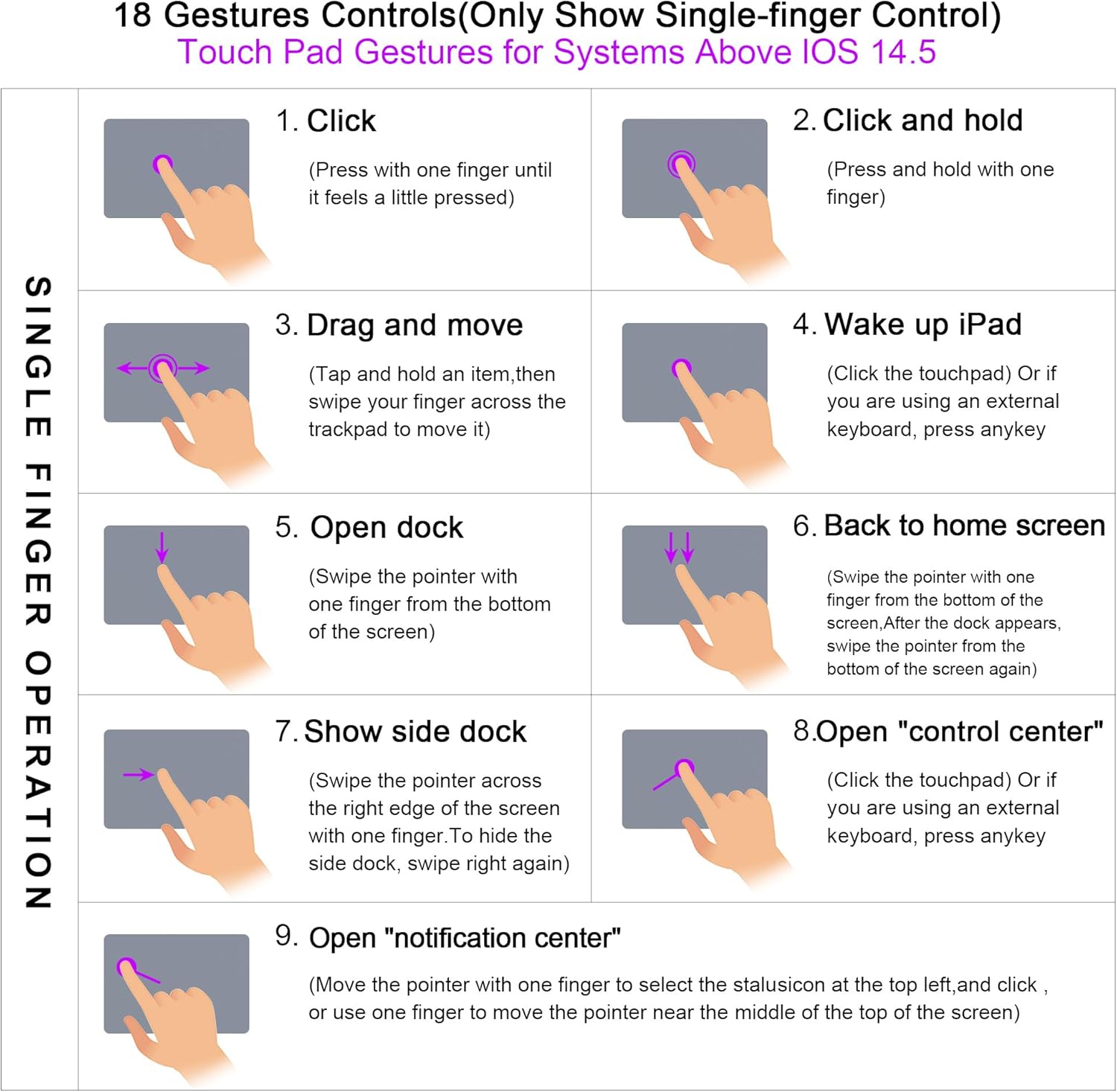
Image: A comprehensive diagram illustrating 18 smart touch gestures for the touchpad, compatible with iPadOS 14.5 and above.
5.4 Stylus Pen Storage
The case includes a dedicated slot for your stylus pen, ensuring it is always secure and charged. A bonus storage compartment is also available for spare pen tips.
6. Charging and Battery
The keyboard features a long-lasting battery:
- Battery Life: Up to 100 hours of continuous use.
- Standby Time: Up to 3 months.
- Charging Time: Approximately 2 hours for a full charge.
- Charging Indicator: The keyboard has an indicator light to show charging status and low battery warnings.
To charge the keyboard, connect the provided USB-C cable to the charging port on the side of the keyboard and to a suitable USB power source.

Image: Visual representation of the keyboard's battery performance, including 100 days standby, 100 hours work time, and 2 hours charging time.
7. Maintenance
To ensure the longevity and optimal performance of your WIWU iPad Case with Keyboard, follow these maintenance guidelines:
- Cleaning: Use a soft, damp cloth to wipe the exterior of the case and keyboard. Avoid harsh chemicals or abrasive materials.
- Storage: When not in use for extended periods, store the keyboard case in a cool, dry place.
- Avoid Liquids: Keep the keyboard away from liquids to prevent damage to electronic components.
- Handle with Care: While durable, avoid dropping or subjecting the case to excessive force.
8. Troubleshooting
If you encounter issues with your WIWU iPad Case with Keyboard, refer to the following common solutions:
- Keyboard Not Connecting:
- Ensure the keyboard is powered on and fully charged.
- Verify Bluetooth is enabled on your iPad.
- Re-enter pairing mode on the keyboard (Fn + Bluetooth icon key) and re-select it on your iPad.
- Forget the device on your iPad's Bluetooth settings and attempt to pair again.
- Touchpad Not Responding:
- Ensure the touchpad is activated (Fn + Touchpad icon key).
- Check if the keyboard is properly connected via Bluetooth.
- Restart your iPad and the keyboard.
- Keys Not Responding:
- Check keyboard battery level.
- Ensure a stable Bluetooth connection.
- Clean any debris from around the keys.
- Backlight Not Working:
- Ensure the keyboard is powered on.
- Press Fn + light bulb icon key to cycle through modes and brightness.
- Check battery level.
9. Specifications
| Feature | Detail |
|---|---|
| Brand | WIWU |
| Model Number | Mk007 |
| Compatible Devices | iPad Air 13 inch (M4 2026/M3 2025 /M2 2024), iPad Pro 12.9 inch 6th/5th/4th/3rd Generation |
| Connectivity Technology | Bluetooth 5.3 |
| Keyboard Description | Multi Functional, QWERTY Layout |
| Special Features | Backlit (7 colors), Case, Silent Keys, Touchpad, Magnetic Detachable, 360° Rotating Stand, Pencil Holder |
| Color | Grey |
| Product Dimensions | 10"L x 1"W x 12.4"H |
| Material | Plastic |
| Power Source | Battery Powered |
| Battery Life (Use) | 100+ hours |
| Battery Life (Standby) | 3 months (100 days) |
| Charging Time | Approx. 2 hours |
10. Warranty and Support
WIWU products are manufactured with high-quality standards. For any warranty claims or technical support, please refer to the retailer where you purchased the product or visit the official WIWU website for contact information. Please retain your proof of purchase for warranty purposes.


