
1. Introduction
This manual provides essential information for setting up, operating, and maintaining your ASUS TUF Gaming A18 laptop. Please read this manual thoroughly before using your device to ensure proper function and longevity.
2. Package Contents
Verify that all items are present in your package:
- ASUS TUF Gaming A18 Laptop
- AC Adapter
- Power Cord
- User Manual (this document)
3. Product Overview
Familiarize yourself with the main components and ports of your ASUS TUF Gaming A18 laptop.

Figure 1: Front view of the ASUS TUF Gaming A18 laptop with the screen open, showcasing the keyboard and display.

Figure 2: Angled view of the ASUS TUF Gaming A18 laptop, highlighting the screen and keyboard layout.
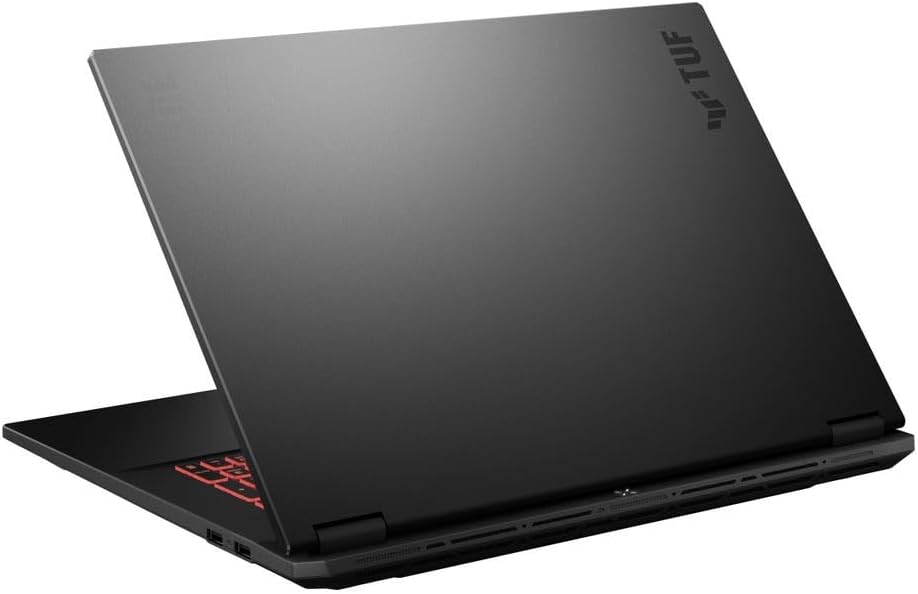
Figure 3: Rear view of the ASUS TUF Gaming A18 laptop with the lid closed, showing the chassis design.
Ports and Connectors

Figure 4: Left side of the laptop showing the power input, Ethernet port, HDMI, USB-C ports, and audio jack.

Figure 5: Right side of the laptop showing additional USB-A ports.
- USB Type-C (DisplayPort support): 1 port
- USB 3.2 Gen 2 Type-C (Power Delivery / DisplayPort / G-Sync / 10Gbps support): 1 port
- USB 3.2 Gen 2 Type-A (10Gbps support): 2 ports
- USB 2.0 Type-A: 1 port
- HDMI V2.1: 1 port
- RJ-45 LAN: 1 port
- Headphone/Microphone Combo Jack: 1 port
4. Setup Guide
4.1 Initial Power On
- Connect the AC Adapter: Plug the AC adapter into the laptop's power input port and then into a power outlet. Ensure the power indicator light illuminates.
- Open the Display: Carefully lift the laptop display to your desired viewing angle.
- Power On: Press the power button, typically located above the keyboard or on the side. The power indicator will light up, and the system will begin to boot.
- Initial Windows Setup: Follow the on-screen instructions to complete the Windows 11 Home setup, including language selection, network connection, and user account creation.
4.2 Connecting Peripherals
You can connect various external devices to your laptop:
- External Displays: Use the HDMI 2.1 port or a USB Type-C port with DisplayPort support to connect external monitors.
- USB Devices: Connect mice, keyboards, external storage, or other USB accessories to the available USB-A or USB-C ports.
- Network Connection: For a wired internet connection, plug an Ethernet cable into the RJ-45 LAN port. For wireless, connect via Wi-Fi 6E through Windows settings.
- Audio Devices: Connect headphones or external speakers to the Headphone/Microphone Combo Jack.
5. Operating Instructions
5.1 Keyboard and Touchpad
- Backlit Keyboard: The laptop features a Fullsize Single-Zone RGB Backlit Keyboard. Adjust brightness and effects through the ASUS Armoury Crate software or dedicated function keys.
- Numeric Keypad: Utilize the integrated numeric keypad for efficient data entry.
- Touchpad: The precision touchpad supports multi-touch gestures for navigation. Refer to Windows settings for customization.
5.2 Display Features
- 144Hz Refresh Rate: The 18-inch WUXGA (1920x1200) display operates at a 144Hz refresh rate for smooth visuals, especially in gaming.
- G-Sync Support: NVIDIA G-Sync technology synchronizes the display's refresh rate with the GPU's frame rate to eliminate screen tearing and minimize stuttering. Ensure G-Sync is enabled in NVIDIA Control Panel for compatible applications.
- Anti-Glare Coating: The display features an anti-glare coating to reduce reflections and improve visibility in various lighting conditions.
5.3 Power Management
- Battery Life: The laptop is equipped with a 90 Wh Lithium-Ion Battery, providing up to 6 hours of average usage.
- Charging: Always use the provided 240 W AC Adapter for optimal charging and performance.
- Power Modes: Adjust power settings in Windows or through ASUS Armoury Crate to optimize performance or battery life.
6. Maintenance and Care
- Cleaning the Display: Use a soft, lint-free cloth specifically designed for electronics. Dampen it slightly with water or a screen cleaner solution. Avoid harsh chemicals.
- Cleaning the Keyboard and Chassis: Use a soft brush or compressed air to remove dust and debris. Wipe surfaces with a slightly damp, soft cloth.
- Battery Care: To prolong battery life, avoid frequently discharging the battery completely. Store the laptop in a cool, dry place if not used for extended periods.
- Ventilation: Ensure the laptop's ventilation openings are not obstructed to prevent overheating. Use the laptop on a hard, flat surface.
- Software Updates: Regularly update your operating system, drivers, and ASUS software to ensure optimal performance and security.
7. Troubleshooting
7.1 Common Issues and Solutions
| Issue | Possible Cause | Solution |
|---|---|---|
| Laptop does not power on | No power, discharged battery, faulty adapter | Ensure AC adapter is securely connected and power outlet is functional. Charge the battery for at least 30 minutes before attempting to power on again. |
| Display is blank or black | Sleep mode, external display connected, display driver issue | Press any key or move the mouse to wake from sleep. Disconnect external displays. Try pressing Fn + F7 (or equivalent display toggle key) to cycle display outputs. Restart the laptop. |
| Wi-Fi connection issues | Wi-Fi disabled, router issue, driver issue | Ensure Wi-Fi is enabled in Windows settings. Restart your router. Update Wi-Fi drivers. |
| Slow performance | Too many applications running, low disk space, overheating | Close unnecessary applications. Free up disk space. Ensure proper ventilation and clean vents. Check for malware. |
For more advanced troubleshooting or persistent issues, please contact ASUS customer support.
8. Specifications
| Feature | Detail |
|---|---|
| Brand | ASUS |
| Model Name | TUF Gaming A18 |
| Model Number | FAUM |
| Screen Size | 18 Inches |
| Resolution | 1920 x 1200 (WUXGA) |
| Refresh Rate | 144 Hz |
| Display Technology | IPS, Anti-Glare Coating, G-Sync |
| CPU Model | AMD Ryzen 7 260 (8 Cores, 16 Threads, up to 5.1 GHz) |
| Graphics Coprocessor | NVIDIA GeForce RTX 5060 (8 GB GDDR7 Dedicated) |
| RAM Memory Installed Size | 64 GB DDR5 SDRAM (5600 MHz) |
| Hard Disk Size | 8 TB NVMe M.2 SSD |
| Operating System | Windows 11 Home |
| Wireless Connectivity | Realtek Wi-Fi 6E (802.11ax), Bluetooth 5.3 |
| Ports | 1x USB Type-C (DisplayPort), 1x USB 3.2 Gen 2 Type-C (PD/DP/G-Sync/10Gbps), 2x USB 3.2 Gen 2 Type-A, 1x USB 2.0 Type-A, 1x HDMI V2.1, 1x RJ-45 LAN, 1x Headphone/Microphone Combo Jack |
| Keyboard | Fullsize Single-Zone RGB Backlit Keyboard with Numpad |
| Webcam | 1080p + IR Camera |
| Battery | 90 Wh Lithium-Ion, up to 6 hours average usage |
| AC Adapter | 240 W |
| Dimensions (L x W x H) | 15.71" x 11.14" x 1.05" |
| Weight | 5.73 lbs |
| Color | Jaeger Gray |
| UPC | 757129107980 |
| ASIN | B0G6Y6SRPR |
9. Warranty and Support
Your ASUS TUF Gaming A18 laptop comes with a manufacturer's warranty. For detailed warranty terms and conditions, please refer to the warranty card included in your product packaging or visit the official ASUS support website.
For technical support, driver downloads, and frequently asked questions, please visit the official ASUS support website: www.asus.com/support