
1. Introduction
Thank you for purchasing the Generic Y3 Ultra 4K Foldable Drone. This drone is designed for both beginners and intermediate users, offering advanced features such as a 4K HD camera, brushless motors, 360° obstacle avoidance, and app control. Please read this manual thoroughly before operating the drone to ensure safe and optimal performance.
2. Safety Precautions
- Flight Environment: Fly in open areas, away from people, buildings, and obstacles. Avoid flying near airports, power lines, or crowded places.
- Weather Conditions: Do not fly in strong winds, rain, snow, or fog. Optimal flight conditions are calm and clear.
- Battery Safety: Use only the original charger and battery. Do not overcharge or puncture batteries. Discontinue use if batteries are damaged or swollen.
- Propeller Safety: Keep hands, face, and loose clothing away from rotating propellers. Ensure propellers are correctly installed before flight.
- Operator Responsibility: The operator is responsible for safe operation and adherence to local regulations.
- Age Recommendation: This product is not suitable for children under 14 years old.
3. Package Contents
Verify that all items listed below are included in your package:
- 1 x Y3 Ultra Drone (MAX)
- 1 x Remote Control
- 1 x USB Charging Cable
- Extra Propellers
- 1 x Instruction Manual

Image 1: Y3 Ultra Drone and Remote Control neatly packed in its carrying case, alongside accessories.

Image 2: Y3 Ultra Drone and Remote Control displayed outside the carrying case, with the instruction manual visible.
4. Product Overview
4.1 Drone Components

Image 3: Front view of the Y3 Ultra Drone in its folded state, highlighting the camera and obstacle sensors.
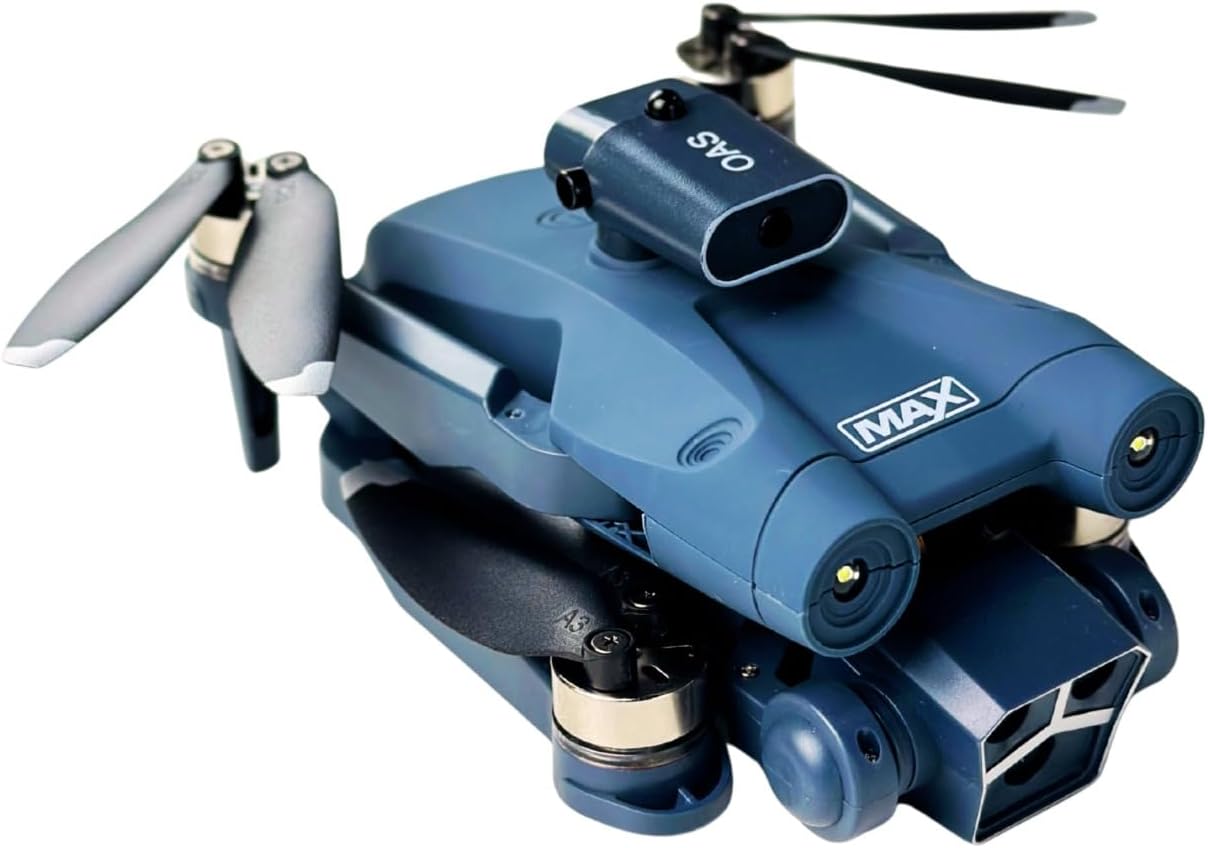
Image 4: Top-down view of the Y3 Ultra Drone in its folded state, showing the compact design and propeller arms.
- Foldable Design: Compact and portable for easy transport and storage.
- 4K HD Camera: Electronically adjustable for optimal aerial photo and video capture.
- Brushless Motors: Provides stable, quiet, and durable flight performance.
- 360° Obstacle Avoidance: Infrared sensors detect and help avoid collisions.
- Optical Flow Positioning: Enhances flight stability and precision.
- LED Lights: Colorful lights for improved visibility during flight.
4.2 Remote Control Overview
The remote control allows for precise manipulation of the drone. Familiarize yourself with its buttons and joysticks.
- Left Joystick: Controls altitude (up/down) and rotation (left/right).
- Right Joystick: Controls forward/backward and left/right movement.
- Power Button: Turns the remote control on/off.
- Takeoff/Landing Button: One-key takeoff and landing.
- Photo/Video Button: Captures photos or starts/stops video recording.
- Headless Mode Button: Activates/deactivates headless mode.
- Speed Switch: Adjusts flight speed (low/medium/high).
- Phone Holder: Securely holds your smartphone for FPV (First Person View) via the app.
5. Setup
5.1 Charging the Battery
- Remove the drone battery from the drone.
- Connect the battery to the USB charging cable.
- Plug the USB cable into a 5V/2A USB power adapter (not included).
- The indicator light on the charging cable will show charging status. Charge time is approximately 60-90 minutes.
- Charge the remote control using its dedicated charging port and cable if applicable (refer to remote control specific instructions).
5.2 Installing Propellers
- Ensure the drone is powered off.
- Match the propellers to the corresponding motor arms (A and B markings).
- Press down firmly to secure the propellers onto the motor shafts.
- Check that all propellers are securely attached and rotate freely.
5.3 Unfolding the Drone
- Gently unfold the front arms of the drone until they lock into place.
- Then, unfold the rear arms.
- Ensure all arms are fully extended and locked before flight.
5.4 Installing the App
Download the dedicated control app by scanning the QR code in the manual or searching for "Y3 Ultra Drone" in your smartphone's app store (iOS/Android). Install the app and allow necessary permissions.
6. Operating Instructions
6.1 Powering On and Pairing
- Place the drone on a flat, level surface.
- Press and hold the power button on the drone until the indicator lights turn on.
- Turn on the remote control. The remote control will beep, and its indicator light will flash.
- Push the left joystick up and then pull it down. The remote control will beep, and the drone lights will become solid, indicating successful pairing.
- Connect to Wi-Fi: On your smartphone, go to Wi-Fi settings and connect to the drone's Wi-Fi network (e.g., "Y3 Ultra-XXXXXX").
- Open the Y3 Ultra app. You should see the live camera feed.
6.2 Calibration
Before first flight or after a crash, calibrate the drone:
- Gyro Calibration: After pairing, push both joysticks to the bottom-left corner simultaneously for a few seconds. The drone lights will flash rapidly and then become solid, indicating successful gyro calibration.
- Compass Calibration: (If applicable, refer to app instructions) Follow the on-screen prompts in the app to perform compass calibration, usually involving rotating the drone horizontally and vertically.
6.3 Takeoff and Landing
- Manual Takeoff: After calibration, push both joysticks to the bottom-right corner simultaneously to unlock the motors. The propellers will start spinning slowly. Then, gently push the left joystick up to ascend.
- One-Key Takeoff: Press the dedicated Takeoff/Landing button on the remote control or in the app. The drone will automatically ascend to a safe height.
- Manual Landing: Gently pull the left joystick down to descend. Once on the ground, hold the left joystick down for 2-3 seconds to stop the motors.
- One-Key Landing: Press the dedicated Takeoff/Landing button. The drone will automatically descend and land.
6.4 Flight Controls
- Altitude: Left joystick up/down.
- Rotation (Yaw): Left joystick left/right.
- Forward/Backward: Right joystick up/down.
- Left/Right (Roll): Right joystick left/right.
- Speed Adjustment: Use the speed switch button on the remote to cycle through low, medium, and high speeds.
6.5 Advanced Features
- Headless Mode: Press the Headless Mode button. In this mode, the drone's orientation is relative to the pilot, making it easier for beginners to control.
- 360° Obstacle Avoidance: The infrared sensors provide automatic obstacle detection. The drone will attempt to avoid obstacles within its sensor range.
- Gesture Photography: Perform specific hand gestures in front of the camera to trigger photo or video recording (refer to app instructions for specific gestures).
- Optical Flow: This technology helps maintain the drone's position and altitude, especially indoors or in areas with good ground texture.
6.6 Camera Operation
- Taking Photos: Press the photo button on the remote control or tap the photo icon in the app.
- Recording Video: Press the video button on the remote control or tap the video icon in the app to start/stop recording.
- Adjusting Camera Angle: Use the dedicated button on the remote control or the slider in the app to electronically adjust the camera's tilt angle.
- Viewing Media: Photos and videos are saved to your smartphone via the app. You can access them through the app's gallery or your phone's photo album.
7. Maintenance
- Cleaning: Use a soft, dry cloth to clean the drone and remote control. Do not use harsh chemicals or solvents.
- Propeller Inspection: Regularly check propellers for damage (cracks, bends). Replace damaged propellers immediately using the provided spare parts.
- Motor Care: Keep motors free from dust and debris. Avoid flying in sandy or dusty environments.
- Battery Storage: Store batteries in a cool, dry place, away from direct sunlight and extreme temperatures. For long-term storage, charge batteries to about 50-60%.
- Firmware Updates: Check the app regularly for any available firmware updates for the drone.
8. Troubleshooting
| Problem | Possible Cause | Solution |
|---|---|---|
| Drone does not power on. | Battery is low or not installed correctly. | Charge the battery fully. Ensure the battery is securely inserted. |
| Drone cannot pair with remote. | Incorrect pairing sequence or low remote battery. | Ensure drone and remote are powered on. Repeat pairing steps (6.1). Charge remote control. |
| Drone drifts during flight. | Not calibrated or flying in windy conditions. | Perform gyro calibration (6.2). Fly in calm conditions. Adjust trim settings on remote if available. |
| No live video feed in app. | Not connected to drone's Wi-Fi or app not open. | Connect your phone to the drone's Wi-Fi network. Ensure the app is open and permissions are granted. |
| Propellers not spinning. | Motors not unlocked or drone not paired. | Ensure drone is paired. Unlock motors by pushing joysticks to bottom-right (6.3). |
9. Specifications
| Feature | Detail |
|---|---|
| Model Name | Y3 Ultra |
| Brand | Generic |
| Video Capture Resolution | 4K |
| Effective Still Resolution | 12 MP |
| Connectivity Technology | Wi-Fi |
| Item Weight | 160 Grams |
| Item Dimensions (L x W x H) | 26 cm x 21 cm x 8 cm |
| Part Number | Y3U-DRN360 |
| Special Features | Foldable Design, HD Camera with Electronic Adjustment, Brushless Motor, 360° Obstacle Sensor, Optical Flow, APP Control, Gesture Photography, Headless Mode, LED Lights |
10. Warranty and Support
For warranty information and customer support, please refer to the purchase documentation or contact your retailer. Keep your proof of purchase for any warranty claims.
For technical assistance or further inquiries, please visit the manufacturer's website or contact their customer service department. Contact details are typically found on the product packaging or the official brand website.


