
Introduction
Welcome to the NIMO N179 17.3-inch Laptop User Manual. This document provides essential information to help you set up, operate, maintain, and troubleshoot your new laptop. The NIMO N179 is designed for productivity and entertainment, featuring an AMD Ryzen 7 7735HS processor, 32GB DDR5 RAM, a 1TB PCIe 4.0 SSD, and a vibrant 17.3-inch Full HD display running Windows 11 Home.
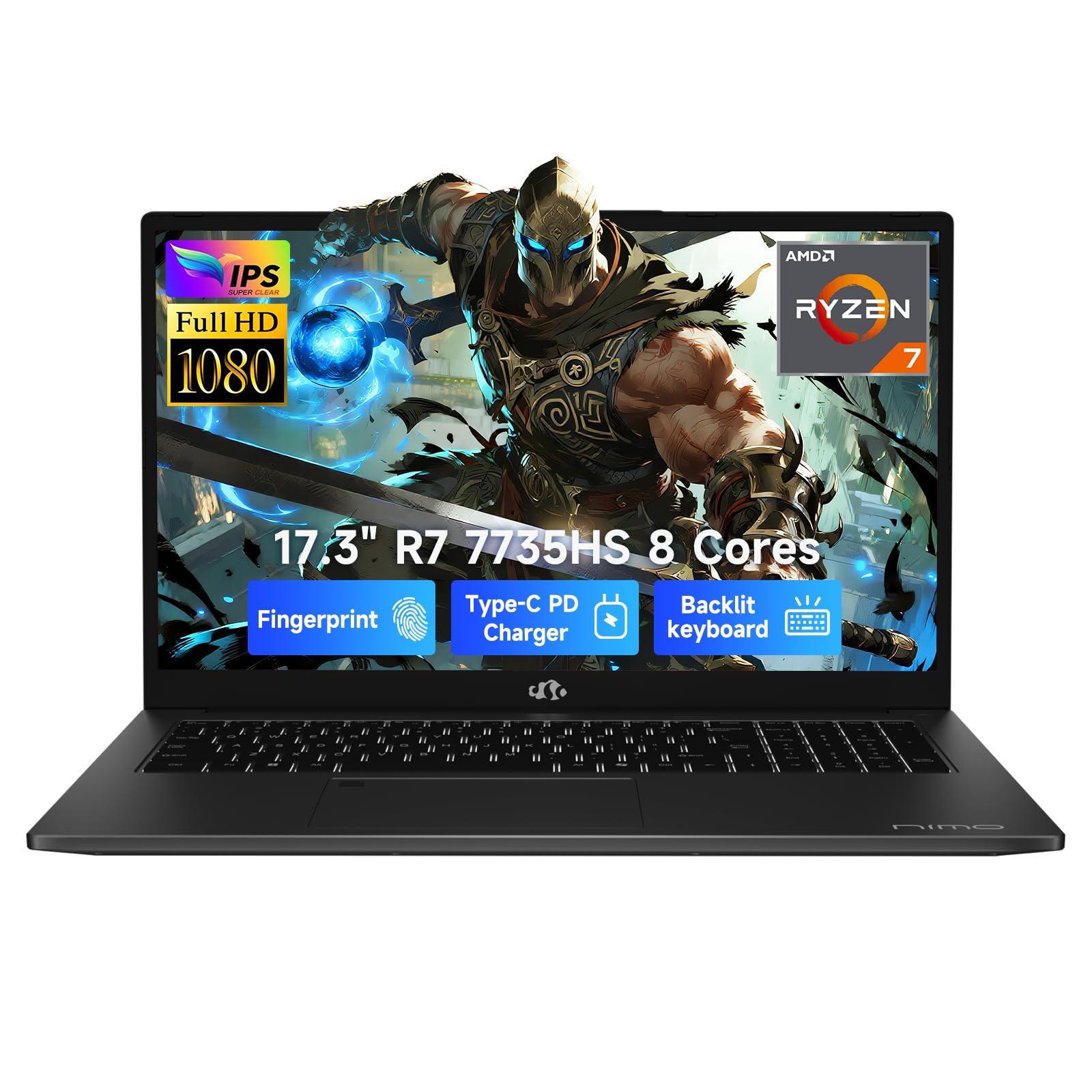
Image: The NIMO N179 17.3-inch laptop, showcasing its sleek design.
1. Setup
1.1 Unboxing and Initial Inspection
Carefully remove all components from the packaging. Ensure the following items are present:
- NIMO N179 Laptop
- Type-C 100W PD Fast Charger
- User Manual (this document)
- Windows 11 Home operating system (pre-installed)
1.2 Connecting the Power Adapter
Connect the Type-C 100W PD Fast Charger to the USB-C port on your laptop and then plug the charger into a power outlet. It is recommended to fully charge the laptop before first use.

Image: The NIMO N179 laptop connected to its 100W PD Fast Charger, illustrating efficient power delivery.
1.3 Initial Power-On and Windows 11 Setup
Press the power button located on the top right of the keyboard. The laptop will boot up and guide you through the Windows 11 Home setup process. Follow the on-screen instructions to configure your language, region, network, and user account.
Video: A brief overview of the NIMO N179 laptop, showing the initial power-on, keyboard, and Windows 11 interface.
2. Operating Your Laptop
2.1 Keyboard and Touchpad
The NIMO N179 features a full-sized backlit keyboard with a dedicated numeric pad for efficient data entry. The touchpad supports multi-touch gestures for navigation. An integrated fingerprint reader is located on the touchpad for secure Windows Hello login.
2.2 Display
Your laptop is equipped with a 17.3-inch Full HD (1920x1080) anti-glare display, providing a clear viewing experience. Adjust brightness using the function keys (Fn + F5/F6).

Image: The NIMO N179's 17.3-inch Full HD display, highlighting its larger screen space compared to a 15.6-inch laptop.
2.3 Ports and Connectivity
The NIMO N179 offers a variety of ports for connecting peripherals and external devices:
- USB-C (Full-function): Supports 100W PD Fast Charging, data transfer, and display output.
- USB 3.0: High-speed data transfer for compatible devices.
- USB 2.0: Standard USB connectivity.
- HDMI 2.1: Connect to external monitors or TVs.
- SD Card Reader: For transferring files from memory cards.
- Audio Jack: For headphones or external speakers.
Wireless connectivity includes WiFi 6 for fast internet access and Bluetooth 5.2 for connecting wireless accessories.

Image: Detailed view of the NIMO N179's various high-speed interfaces, including USB, HDMI, and USB-C ports.
2.4 Webcam and Audio
The laptop features a 2.0MP HD camera with a physical privacy shutter for enhanced security. Noise-canceling microphones and high-fidelity stereo speakers ensure clear audio for video calls and media consumption.

Image: The NIMO N179's security and comfort features, including the webcam privacy shutter, fingerprint unlock, and backlit keyboard.
Video: Demonstrating the NIMO N179's features, including webcam usage, Bluetooth connectivity, display quality, and port accessibility.
3. Maintenance
3.1 Cleaning Your Laptop
To maintain optimal performance and appearance, regularly clean your laptop:
- Screen: Use a soft, lint-free cloth lightly dampened with water or a screen cleaner. Avoid harsh chemicals.
- Keyboard and Chassis: Use a soft cloth to wipe surfaces. Compressed air can be used to remove dust from between keys.
- Vents: Periodically check and clean the cooling vents to prevent dust buildup, which can affect performance.

Image: An internal view of the NIMO N179's cooling system, showing dual fans and heat pipes designed for consistent performance.
3.2 Battery Care
To prolong battery life:
- Avoid extreme temperatures.
- Do not leave the laptop fully charged or fully discharged for extended periods.
- Calibrate the battery occasionally by fully discharging and recharging it.
3.3 Storage Management
The NIMO N179 comes with a 1TB PCIe 4.0 SSD. It features dual M.2 2280 slots, allowing for future storage expansion if needed. Regularly delete unnecessary files and use disk cleanup tools to maintain optimal performance.
3.4 Software Updates
Keep your Windows 11 operating system and drivers updated to ensure security, stability, and access to the latest features. You can check for updates via Windows Settings > Windows Update.
4. Troubleshooting
This section addresses common issues you might encounter with your NIMO N179 laptop.
4.1 Power Issues
- Laptop does not turn on: Ensure the power adapter is securely connected to both the laptop and a working power outlet. Check if the power indicator light is on.
- Battery not charging: Verify the power adapter is functioning correctly. Try a different outlet.
4.2 Display Problems
- Screen is blank: Press Fn + F5/F6 to adjust brightness. Ensure the laptop is not in sleep mode. Connect to an external monitor via HDMI to check if the issue is with the laptop's display.
- Flickering screen: Update your graphics drivers.
4.3 Connectivity Issues
- No Wi-Fi connection: Check if Wi-Fi is enabled in Windows settings. Restart your router and laptop.
- Bluetooth device not connecting: Ensure Bluetooth is enabled on both devices. Try re-pairing the device.
4.4 Performance Issues
- Laptop is slow: Close unnecessary applications. Check for background processes consuming high resources. Ensure sufficient free storage space.
- Overheating: Ensure cooling vents are clear. Use the laptop on a hard, flat surface to allow proper airflow.
5. Specifications
Detailed technical specifications for the NIMO N179 laptop:
| Feature | Specification |
|---|---|
| Model Name | NIMO N179 |
| Processor | AMD Ryzen 7 7735HS (8 Cores/16 Threads, up to 4.75GHz) |
| RAM | 32GB DDR5 (4800 MHz) |
| Storage | 1TB PCIe 4.0 SSD (Dual M.2 2280 slots) |
| Display | 17.3-inch Full HD (1920x1080) Anti-Glare |
| Graphics | Integrated AMD Radeon 680M |
| Operating System | Windows 11 Home |
| Ports | USB-C (100W PD, Data, Display), USB 3.0 (4), USB 2.0 (1), HDMI 2.1, SD Card Reader, Audio Jack |
| Wireless Connectivity | WiFi 6, Bluetooth 5.2 |
| Webcam | 2.0MP HD with Privacy Shutter |
| Battery Life | Up to 15.5 hours (58Wh) |
| Dimensions (LxWxH) | 15.66 x 9.99 x 0.74 inches |
| Weight | 4.6 pounds |
| Special Features | Backlit Keyboard, Numeric Keypad, Fingerprint Reader |
5.1 Processor Details

Image: Visual representation of the AMD Ryzen 7 7735HS processor, highlighting its 8 cores, 16 threads, and dynamic power range.
5.2 Graphics Details

Image: Illustration of the AMD Radeon 680M Graphics, indicating its capability for creative applications and light gaming.
6. Warranty and Support
6.1 Product Warranty
The NIMO N179 laptop comes with an industry-leading 2-year warranty from the manufacturer, covering defects in materials and workmanship under normal use. Please retain your proof of purchase for warranty claims.
6.2 Return Policy
A 90-day return policy is offered for this product. Please refer to your retailer's specific return instructions for details.
6.3 Customer Support
For technical assistance, troubleshooting beyond this manual, or warranty inquiries, please contact NIMO customer support. Refer to the contact information provided with your product packaging or visit the official NIMO website for support details.


