1. Safety Information
Please read all safety instructions carefully before using this product. Keep this manual for future reference.
- Electrical Safety: Do not expose this appliance to rain or moisture to reduce the risk of fire or electric shock. Ensure the power adapter is connected to a suitable power source.
- Ventilation: Do not block any ventilation openings. Install in accordance with the manufacturer's instructions.
- Heat: Do not install near any heat sources such as radiators, heat registers, stoves, or other apparatus (including amplifiers) that produce heat.
- Cleaning: Clean only with a dry cloth.
- Servicing: Do not attempt to service this product yourself. Refer all servicing to qualified service personnel.
2. Package Contents
Verify that all items listed below are included in your package:
- 1 x ULTIMEA Poseidon M20 Pro Soundbar
- 1 x Power Adaptor for Soundbar
- 1 x Remote Control (Batteries Not Included)
- 1 x User Manual
- 1 x Stereo 3.5mm to 3.5mm Audio Cable (1.5m AUX Cable)
- 1 x Digital Optical Cable (1.5m)
- 4 x Wall Mount Kit
- 2 x Wall Bracket
- 2 x Mounting Screw on Speakers

Figure 2.1: Included accessories and cables.
3. Product Overview
The ULTIMEA Poseidon M20 Pro is a 2.1ch surround sound bar designed to enhance your audio experience with powerful sound and versatile features.
3.1 All-In-One Design
This soundbar features built-in dual speakers, a 3-inch subwoofer, and side-firing bass ports to deliver deeper lows and expanded surround effects. It offers a 2.1 channel sound experience with 132W peak power.

Figure 3.1: All-in-one soundbar design.
3.2 BassMX Technology
Ultimea's exclusive BassMX technology enhances low frequencies with adjustable bass, providing a powerful sound experience from a compact size.
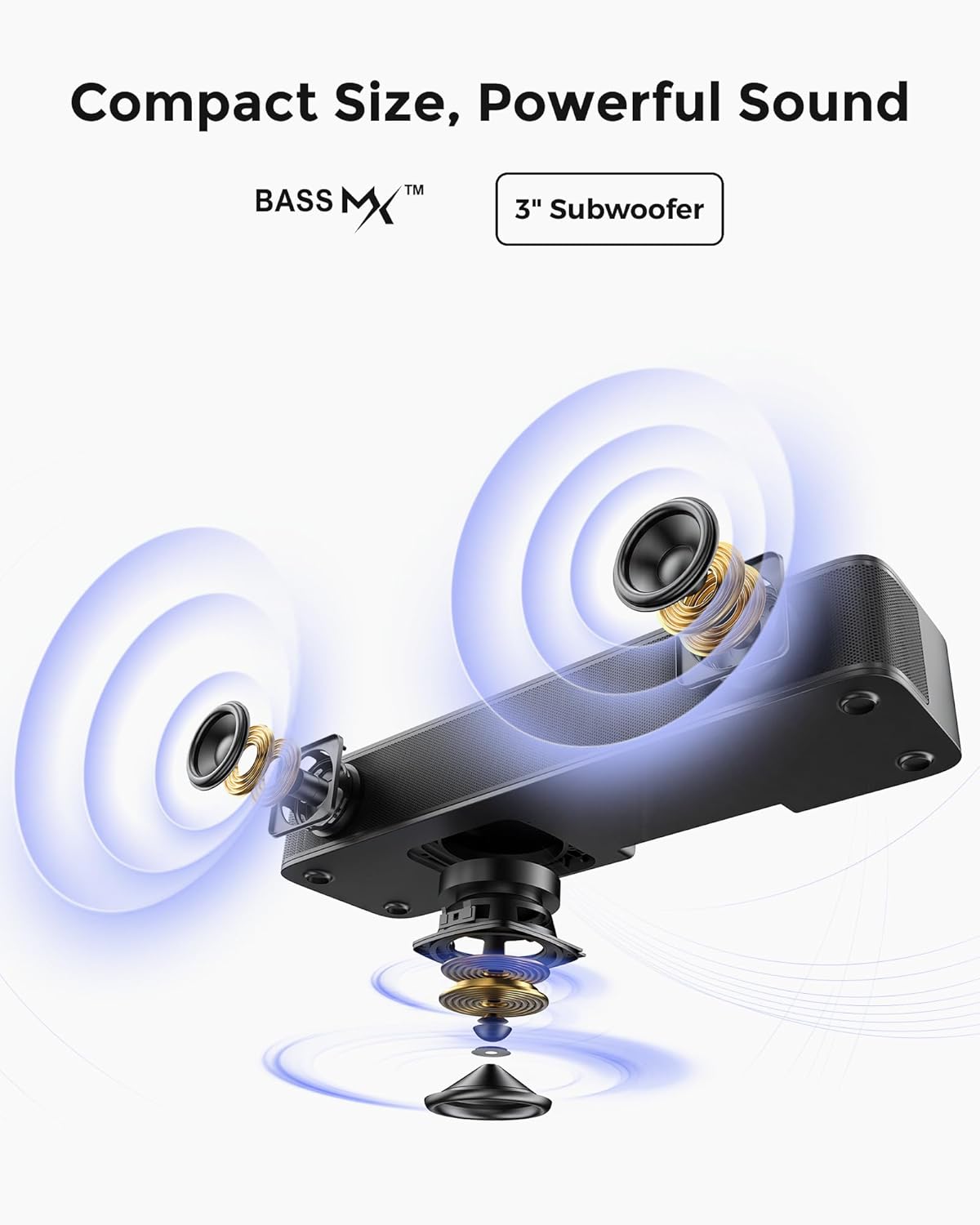
Figure 3.2: BassMX technology for enhanced bass.
3.3 VoiceMX for Crystal-Clear Dialogue
VoiceMX technology dynamically optimizes speech frequencies in real-time, ensuring crystal-clear dialogue in all content.

Figure 3.3: VoiceMX for enhanced vocal clarity.
3.4 Compact Size & Flexible Placement
The compact design allows for versatile placement options, including on a stand, cabinet, under the TV, or wall-mounted.

Figure 3.4: Flexible placement options for the soundbar.
3.5 Connectivity Options
The soundbar supports multiple input options including Optical, AUX, Bluetooth 5.4, and USB. An additional "SUB OUT" port is available for connecting an external active subwoofer (not included).

Figure 3.5: Rear panel connectivity ports.
4. Setup
4.1 Placement
Position the soundbar centrally in front of your TV or mount it on the wall using the provided wall mount kit. Ensure there is adequate space for ventilation.
4.2 Power Connection
- Connect the power adapter to the 'DC IN' port on the back of the soundbar.
- Plug the other end of the power adapter into a wall outlet.
4.3 Connecting to Your TV
Choose one of the following connection methods:
4.3.1 Optical Connection (Recommended)
- Remove the protective caps from both ends of the Digital Optical Cable.
- Insert one end of the optical cable into the 'OPTICAL' port on your TV.
- Insert the other end into the 'OPTICAL' port on the soundbar.
- On the soundbar remote, press the 'OPT' button to select the Optical input.

Figure 4.1: Optical connection diagram.
4.3.2 AUX Connection
- Connect one end of the 3.5mm AUX cable to the 'AUX' output port on your TV.
- Connect the other end to the 'AUX' input port on the soundbar.
- On the soundbar remote, press the 'AUX' button to select the AUX input.

Figure 4.2: AUX connection diagram.
4.3.3 Bluetooth Connection
- On the soundbar remote, press the 'BT' button to enter Bluetooth pairing mode. The indicator light will blink blue.
- Enable Bluetooth on your TV or mobile device and search for 'Poseidon M20 Pro'.
- Select 'Poseidon M20 Pro' to pair. The indicator light will turn solid blue once connected.

Figure 4.3: Bluetooth connection diagram.
4.4 Instructional Video
Video 4.1: Detailed instructional video for setting up the Poseidon M20 Pro soundbar, including unboxing and connection steps.
5. Operating Instructions
5.1 Soundbar Controls
The soundbar can be controlled using the touch buttons on its top panel or the included remote control.
- Power Button: Turns the soundbar on/off.
- Input Button: Cycles through input sources (Optical, AUX, Bluetooth, USB).
- Volume Buttons (+/-): Adjusts the volume level.
- Bluetooth Button: Enters Bluetooth pairing mode.
5.2 Using the ULTIMEA Smart App
Download the ULTIMEA Smart App to access advanced control features and customization options for your soundbar.

Figure 5.1: ULTIMEA Smart App interface.
5.2.1 10-Band Equalizer Settings
The app allows you to fine-tune your audio with a 10-band equalizer. Adjust frequencies to match your personal taste and environment.

Figure 5.2: Detailed 10-band equalizer settings in the app.
5.2.2 Preset EQ Matrices & Modes
Access 121 preset equalizer matrices tailored for distinct sonic preferences (Bass, Pop, Classical, Rock) and 6 tailored EQ modes (Movie, Music, Voice, Sport, Game, Night) for quick sound optimization.
6. Maintenance
To ensure the longevity and optimal performance of your soundbar, follow these maintenance guidelines:
- Cleaning: Use a soft, dry cloth to clean the surface of the soundbar. Do not use liquid cleaners or aerosol sprays.
- Ventilation: Keep the ventilation openings clear of dust and debris.
- Storage: If storing the soundbar for an extended period, unplug it from the power source and store it in a cool, dry place.
7. Troubleshooting
If you encounter issues with your soundbar, refer to the following common troubleshooting steps:
7.1 No Sound After Connection
- Check Input Source: Ensure the correct input source (Optical, AUX, Bluetooth) is selected on the soundbar using the remote control or the soundbar's input button.
- Check Cable Connections: Verify that all audio cables are securely connected to both the soundbar and your TV.
- TV Audio Output Settings: Access your TV's audio settings and ensure the audio output is set to the correct external device (e.g., Optical Out, AUX Out, or Bluetooth Speaker). Many TVs require setting the Digital Audio Output Format to 'PCM' for optical connections.
- Volume Levels: Increase the volume on both the soundbar and your TV.
- Power Cycle: Turn off both the TV and the soundbar, unplug them from the power outlet, wait a few minutes, then plug them back in and power them on.
7.2 Bluetooth Pairing Issues
- Soundbar in Pairing Mode: Ensure the soundbar is in Bluetooth pairing mode (blinking blue indicator light).
- Device Bluetooth On: Confirm Bluetooth is enabled on your TV or mobile device.
- Forget Device: If previously paired, try 'forgetting' or 'unpairing' the soundbar from your device's Bluetooth list and then re-pair.
- Distance: Ensure your device is within 10 meters (33 feet) of the soundbar.
8. Specifications
| Feature | Description |
|---|---|
| Model Name | Poseidon M20 Pro |
| Item Model Number | U2203 |
| Speaker Type | Soundbar (2.1ch with built-in subwoofer) |
| Speaker Maximum Output Power | 132 Watts (Peak) |
| Connectivity Technology | Bluetooth 5.4, Optical, AUX, USB (does not support HDMI) |
| Control Method | App, Remote |
| Product Dimensions | 15.75"D x 2.76"W x 4.25"H |
| Item Weight | 4.41 Pounds |
| Mounting Type | Tabletop Mount, Wall Mount |

Figure 8.1: Soundbar dimensions.
9. Warranty and Support
For warranty information or technical support, please contact ULTIMEA customer service through the retailer where the product was purchased or visit the official ULTIMEA website. Please have your model number (U2203) and purchase details ready.


