
GravaStar GS V60 PRO
GravaStar Mercury V60 Pro 60% HE Magnetic Gaming Keyboard User Manual
Model: GS V60 PRO | Brand: GravaStar
1. Introduction
The GravaStar Mercury V60 Pro is a high-performance 60% Hall Effect magnetic gaming keyboard designed for competitive gaming and efficient daily use. It features a durable full aluminum frame, advanced magnetic switches, and extensive customization options through a web-based driver.

Figure 1: GravaStar Mercury V60 Pro Keyboard with vibrant purple RGB lighting.

Figure 2: Close-up of the keyboard's side, highlighting the full aluminum electroplating for a precise, bold metallic look.
2. Setup
The Mercury V60 Pro keyboard utilizes a detachable USB-C wired connection for reliable performance. Follow these steps to set up your keyboard:
- Connect the USB-C Cable: Locate the USB-C port on the back of the keyboard. Connect one end of the provided USB-C cable to this port.
- Connect to Your Device: Plug the other end of the USB-C cable into an available USB port on your computer (Windows or macOS) or a supported gaming console.
- System Recognition: Your operating system should automatically detect and install the necessary drivers for the keyboard. No additional software installation is required for basic functionality.
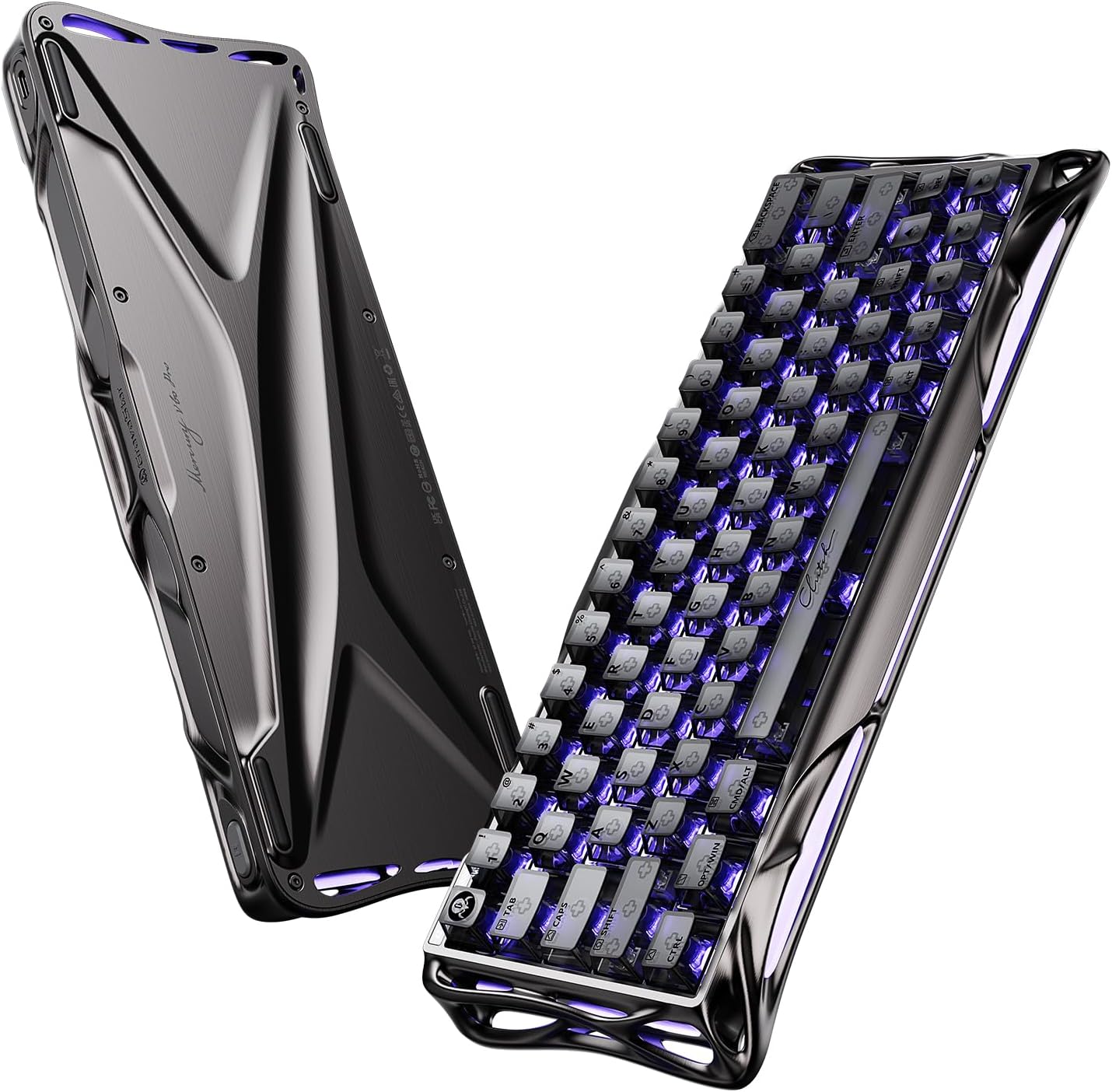
Figure 3: The underside of the keyboard, highlighting its unique design and rubber feet for stability.
3. Operating Instructions
The Mercury V60 Pro features a compact 60% QWERTY layout. While compact, it retains full functionality through the use of a Function (Fn) key.
3.1 Basic Key Functions
- Standard Keys: All standard alphanumeric keys function as labeled.
- Function Layer: Access secondary functions (e.g., F1-F12, arrow keys, media controls) by holding down the Fn key and pressing the corresponding key.
3.2 Profile Switching
The keyboard supports up to four customizable profiles. You can switch between these profiles using the dedicated button located on the left side of the keyboard.
- Switching Profiles: Press the profile button (often marked with a 'G' or similar indicator) to cycle through your saved configurations.
- Visual Indicator: The small screen on the top-left of the keyboard will change color to indicate the currently active profile.
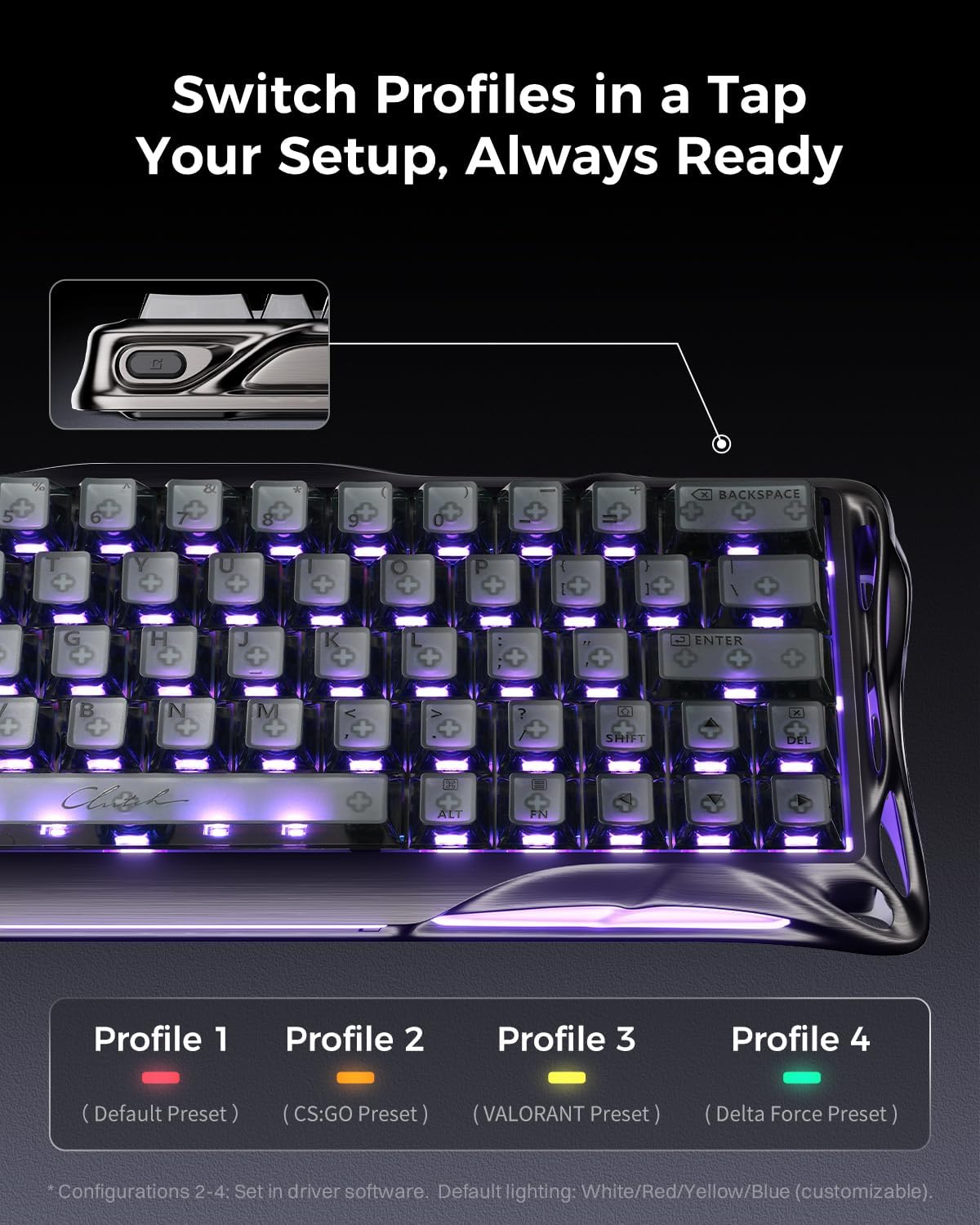
Figure 4: Close-up of the profile switch button, allowing quick changes between custom settings.
4. Customization
The Mercury V60 Pro offers extensive customization through its web-based driver. No bulky software installation is required.
4.1 Accessing the Web-Based Driver
To access the customization options, open your web browser and navigate to the official GravaStar web-based driver interface (refer to the user manual included in the box for the exact URL or check the official GravaStar website).
4.2 Key Mapping and Macros
- Remap Keys: Assign any key to a different function.
- Create Macros: Program complex sequences of keystrokes to a single key for enhanced efficiency in gaming or productivity.
4.3 Actuation Point and Rapid Trigger
Leverage the Hall Effect magnetic switches for precise control over key actuation:
- Adjustable Actuation: Set the actuation point for individual keys from 0.1mm to 4.0mm, allowing for personalized responsiveness.
- Rapid Trigger: Enable Rapid Trigger technology for instant key resets upon release, crucial for competitive gaming.
- SOCD / LKP: Configure Simultaneous Opposite Cardinal Direction (SOCD) or Last Keystroke Prioritized (LKP) handling for precise movement control in games.

Figure 5: Detailed view of the UFO Magnetic Gaming Switch, highlighting its components and specifications.
4.4 RGB Lighting
Customize the keyboard's vibrant RGB lighting effects:
- Per-Key RGB: Adjust the color and effect for individual keys.
- Side Lighting: Control the diffused RGB bars on the front and sides of the keyboard.
- Lighting Modes: Choose from various effects such as Always On, Breathing, Marquee, Rainbow, ColorCycle, and LaserLight.
- Brightness and Speed: Adjust the intensity and speed of lighting effects.

Figure 6: Overview of the web-based driver interface for customizing RGB lighting effects.
5. Maintenance
Regular maintenance ensures the longevity and optimal performance of your GravaStar Mercury V60 Pro keyboard.
- Cleaning: Use the provided cleaning brush and cloth to remove dust and debris from between the keycaps and the keyboard surface. For deeper cleaning, carefully remove keycaps using the keycap puller.
- Dust Protection: When not in use, cover the keyboard with the provided dust cover bag to prevent dust accumulation.
- Cable Care: Handle the detachable USB-C cable with care to avoid damage.

Figure 7: Internal construction of the keyboard, showing acoustic foams and silicone pads for enhanced sound and feel.
6. Troubleshooting
If you encounter issues with your keyboard, refer to the following common troubleshooting steps:
- Keyboard Not Responding:
- Ensure the USB-C cable is securely connected to both the keyboard and your device.
- Try connecting the keyboard to a different USB port on your device.
- Test the keyboard on another computer to rule out a device-specific issue.
- RGB Lighting Issues:
- Check the RGB settings in the web-based driver to ensure desired effects and brightness levels are selected.
- Ensure the keyboard's firmware is up to date via the web-based driver.
- Key Actuation Problems:
- Verify actuation point settings for specific keys in the web-based driver.
- Clean around the affected switch to ensure no debris is interfering with its movement.
For further assistance, please contact GravaStar customer support.
7. Specifications
| Feature | Detail |
|---|---|
| Model Number | GS V60 PRO |
| Brand | GravaStar |
| Layout | 60% Compact QWERTY Layout |
| Switches | GravaStar Hall Effect Magnetic Switches (Linear) |
| Actuation Range | 0.1mm to 4.0mm (Adjustable) |
| Polling Rate | 8000Hz |
| Latency | 0.125ms |
| Connectivity | USB-C Wired |
| Compatible Devices | Gaming Console, Laptop, PC (Windows, macOS) |
| Frame Material | CNC-machined 6063 Aluminum |
| Keycaps | Frosted/Translucent PBT Keycaps (Hot-swappable) |
| RGB Backlighting | Per-key RGB, Side Flowing Light, Indicator Light |
| Dimensions (L x W x H) | 11.5"L x 6.1"W x 1.8"H |

Figure 8: Key performance parameters of the Mercury V60 Pro keyboard.
8. What's in the Box
The GravaStar Mercury V60 Pro package includes the following items:
- GravaStar V60 Pro HE Magnetic Switch Gaming Keyboard (Gunmetal Smoke) x 1
- UFO Magnetic Switches x 4 (additional)
- Keycap Puller x 1
- USB Cable x 1
- Cleaning Brush x 1
- Cleaning Cloth x 1
- Dust Cover Bag x 1
- Brand Stickers
- User Manual

Figure 9: Contents of the GravaStar Mercury V60 Pro package, including the keyboard, extra switches, and maintenance tools.
9. Warranty and Support
The GravaStar Mercury V60 Pro comes with a 1-Year Manufacturer Warranty.
For product support, warranty claims, or additional information, please visit the official GravaStar Store or contact their customer service directly.
10. Product Overview Video
Video 1: Official product showcase of the GravaStar V60 Pro HE Gaming Keyboard by GravaStar Flagship.
Ask a question about this manual
Ask about setup, troubleshooting, compatibility, parts, safety, or missing instructions. Manuals+ will review the question and use this page’s manual context to help answer it.