
Introduction
This manual provides detailed instructions for the installation, operation, and maintenance of your Thlevel Smart Key Lock Box (Model G22). This electronic Bluetooth lock box offers secure key management through Tuya APP control and various PIN code types, making it ideal for homeowners, Airbnb hosts, realtors, and offices.
The lock box is constructed from durable zinc alloy with IP65 certification, ensuring resistance to water, dust, and extreme temperatures (-20°C to 55°C). It features a spacious interior capable of holding multiple keys, access cards, and car key fobs. Dual backup power options, including AAA batteries and a USB-C emergency port, ensure continuous functionality.

Image: The Thlevel Smart Key Lock Box is suitable for various applications, including securing keys for garages, Airbnb properties, and facilitating courier access.
Setup
1. Battery Installation
The lock box requires 3 AAA batteries (not included) for operation. Follow these steps to install them:
- Open the lock box by pulling down the front cover.
- Locate the battery compartment on the inside of the keypad panel.
- Use a screwdriver to remove the screw securing the battery cover.
- Insert 3 AAA batteries, ensuring correct polarity.
- Replace the battery cover and secure it with the screw.
- Close the lock box. The keypad should light up, indicating power.
2. App Connection (Tuya App)
To connect your lock box to the Tuya App, follow these instructions:

Image: A visual guide demonstrating the five steps to connect the lock box to the Tuya App, including enabling Bluetooth and adding the device.
- Ensure your mobile phone's Wi-Fi or mobile network and Bluetooth are turned on.
- Open the Tuya App and log in to your account. If you don't have an account, register for one.
- Lightly press any button on the lock box keypad to wake up the device.
- In the Tuya App, tap the "+" icon in the upper-right corner, then select "Add Device".
- The app will search for nearby devices. Once the lock box (G22F) appears, click its icon to add it.
Important Tip:
Before binding the device, you need to press any button to wake up the device for Bluetooth connection. The Bluetooth connection time after wake-up is 20 seconds, during which the device is set up. If the timeout occurs and the Bluetooth is disconnected, press again to wake up the Bluetooth and connect again. Then proceed to the next step.
3. Physical Installation (Wall Mount)
To securely mount your lock box, follow these steps:

Image: A four-panel illustration showing the process of marking holes, drilling, inserting wall anchors, and screwing the lock box into the wall.
- Position the lock box on the desired wall surface and mark the screw location holes.
- Drill holes at the marked locations.
- Insert the provided wall anchors (expanded colloi) into the drilled holes.
- Align the lock box with the anchors and secure it to the wall using the provided screws.
Operating Instructions
1. Unlocking via Tuya App
Once the lock box is connected to the Tuya App, you can unlock it remotely via Bluetooth:
- Open the Tuya App and select your lock box device.
- On the device interface, slide the unlock button to unlock the lock box. The keypad will illuminate, and the lock box will open.
2. Creating and Sharing PIN Codes
The Tuya App allows you to generate various types of PIN codes for different access needs:
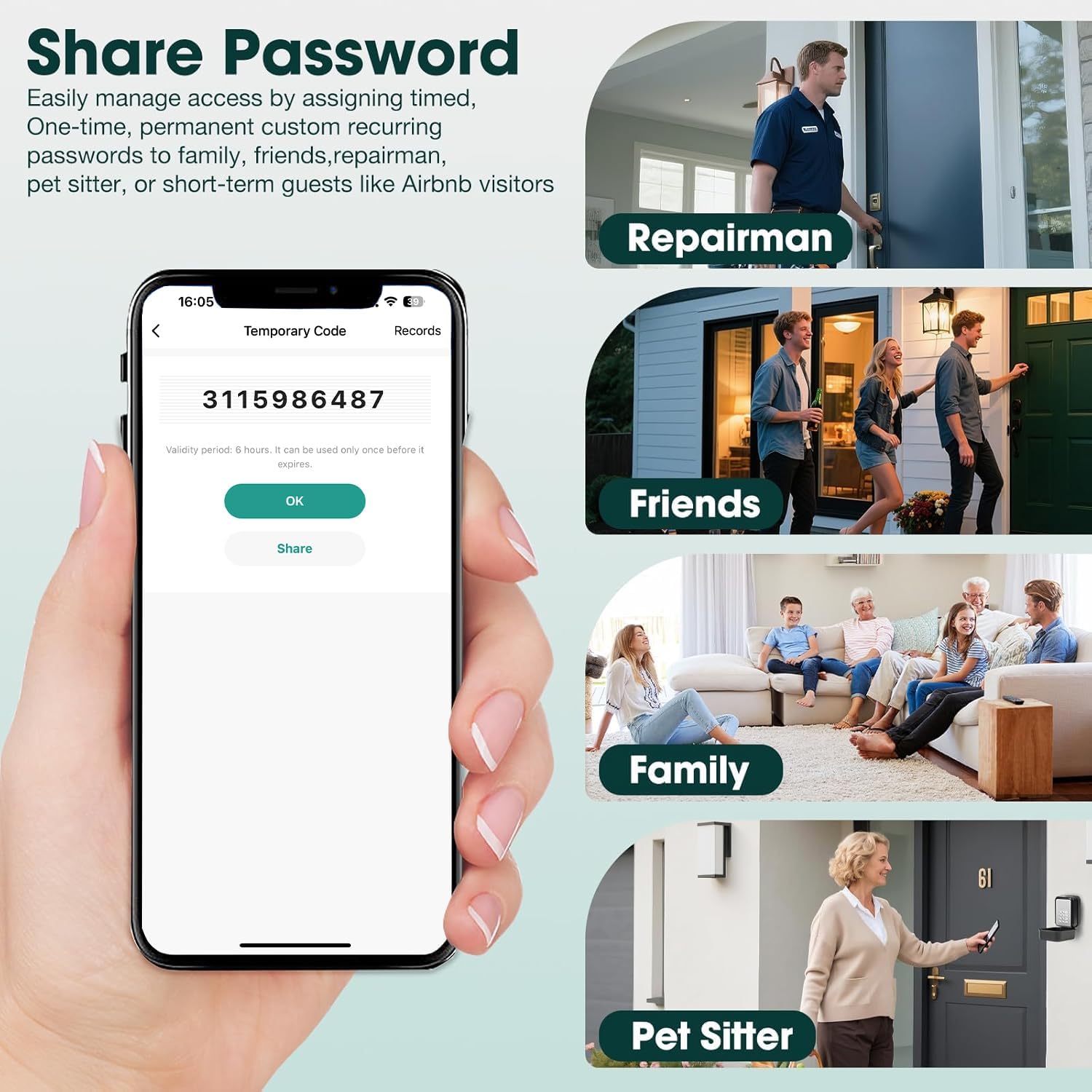
Image: The Tuya App interface for creating and sharing temporary codes, with options for custom, time-limited, and one-time passwords, suitable for repairmen, friends, family, or pet sitters.
- In the Tuya App, navigate to the lock box device.
- Select the "Temporary Code" option.
- Choose the desired code type: Custom (you set the code), Time-Limited (valid for a specific duration), or One-Time (valid for a single use).
- For Time-Limited or Custom codes, set the effective time and expiration time as needed.
- Enter a 6-10 digit password or use the random generation option.
- Save the code. You can then share this code with family, tenants, pet sitters, or other authorized individuals.
3. Manual PIN Code Entry
Users with a valid PIN code can unlock the box directly using the keypad:
- Press any button on the keypad to activate it.
- Enter the 6-10 digit PIN code.
- Press the unlock button (often represented by a lock icon or 'OK' button).
- The lock box will open if the code is correct.
4. Member Management
The Tuya App allows you to manage access for multiple users:
- In the Tuya App, navigate to the lock box device.
- Select "Member Management".
- You can add new members, assign them specific codes, and define their access permissions (e.g., permanent, time-limited).
- You can also remove members or modify their access rights as needed.

Image: The smart key box features both Bluetooth connectivity for app control and a physical PIN pad for direct code entry.
Maintenance
1. Battery Replacement and Emergency Power
The lock box is powered by 3 AAA batteries. The Tuya App will send real-time low-battery alerts. To ensure continuous operation:
- Replace batteries promptly when low-battery alerts are received.
- In case of complete power depletion, use a USB-C power bank to provide emergency power for immediate access. Connect the USB-C cable to the emergency power port on the lock box.
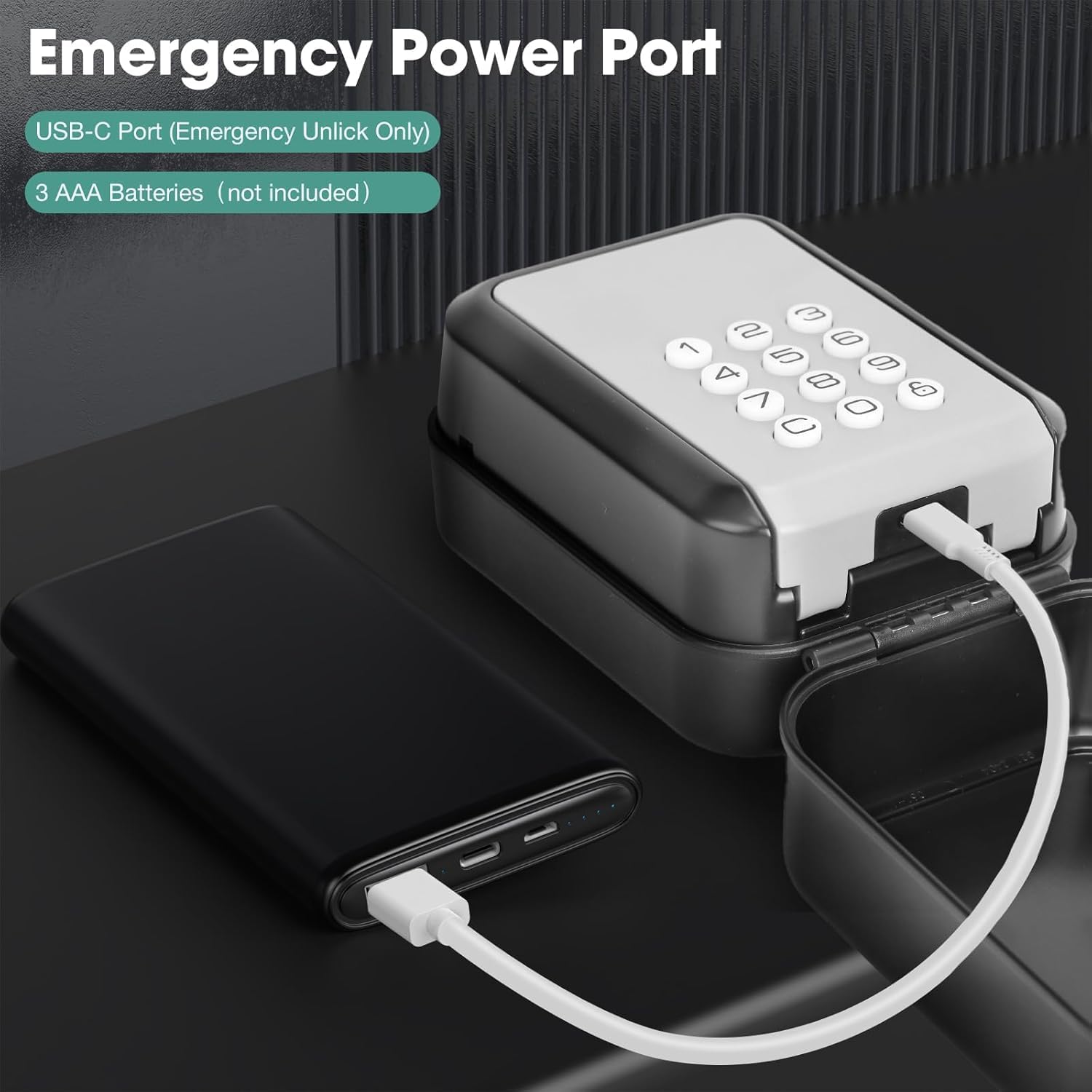
Image: The lock box features a USB-C port for emergency unlocking, allowing it to be powered by an external power bank if the internal AAA batteries are depleted.
2. Cleaning
Wipe the exterior of the lock box with a soft, damp cloth. Avoid using abrasive cleaners or solvents that could damage the finish or electronic components.
Troubleshooting
- Device not connecting to App: Ensure your phone's Bluetooth is enabled and you have pressed a button on the lock box to wake it up. The device needs to be awake for Bluetooth pairing. If the connection times out (20 seconds), press a button again and retry.
- Keypad not responding: Check the battery level. If batteries are depleted, use a USB-C power bank for emergency power to unlock the box and replace the batteries.
- Incorrect PIN code entry: Ensure you are entering the correct 6-10 digit password. If using a temporary code, verify its effective and expiration times in the app.
- Lock box not opening: After entering the correct PIN or using the app, ensure the lock box mechanism is not obstructed. If issues persist, try replacing the batteries.
Specifications
| Feature | Detail |
|---|---|
| Brand | Thlevel |
| Model Number | G22 |
| Lock Type | Combination Lock |
| Color | Gray |
| Material | Zinc Alloy + ABS Plastic |
| Special Feature | Battery Indicator |
| Mounting Type | Wall Mount |
| Included Components | Lock Box |
| Item Weight | 0.54 Kilograms |
| Number of Items | 1 |

Image: The Thlevel Smart Key Lock Box, illustrating its internal storage capacity for car keys, house keys, cards, and cash, along with external dimensions.
Warranty and Support
For warranty information and customer support, please refer to the product packaging or contact Thlevel customer service directly. Keep your purchase receipt for warranty claims.