
1. Introduction
The DIGIQUEST AX3 Tivùsat Universal 4K Combo Decoder is a versatile device designed to provide access to digital terrestrial (DVB-T2 HEVC Main 10), satellite (DVB-S2), and Tivùsat channels, combined with smart functions powered by Android TV. This manual provides essential information for setting up, operating, and maintaining your decoder.
Key features include:
- Triple Tuner: Integrates DVB-T2 HEVC Main 10 (10 bit), DVB-S2, and Tivùsat capabilities.
- Android TV: Transforms any TV into a smart TV with access to the Google Play Store for apps and streaming services.
- Voice Control: Utilize Google Assistant for intuitive control of channels, apps, and functions.
- 4K Ultra HD: Delivers crisp and detailed images for compatible content.
- Google Cast: Easily cast photos, videos, and music from compatible mobile devices to your TV.
Note: Recording functionality is not available on this model. Netflix is also not available.
2. Package Contents
Please verify that all items are present in the box:
- DIGIQUEST AX3 Tivùsat Universal 4K Combo Decoder
- Remote Control
- Tivùsat Smartcard
- Power Adapter
- HDMI Cable
- User Manual (this document)
3. Product Overview
3.1 Front Panel
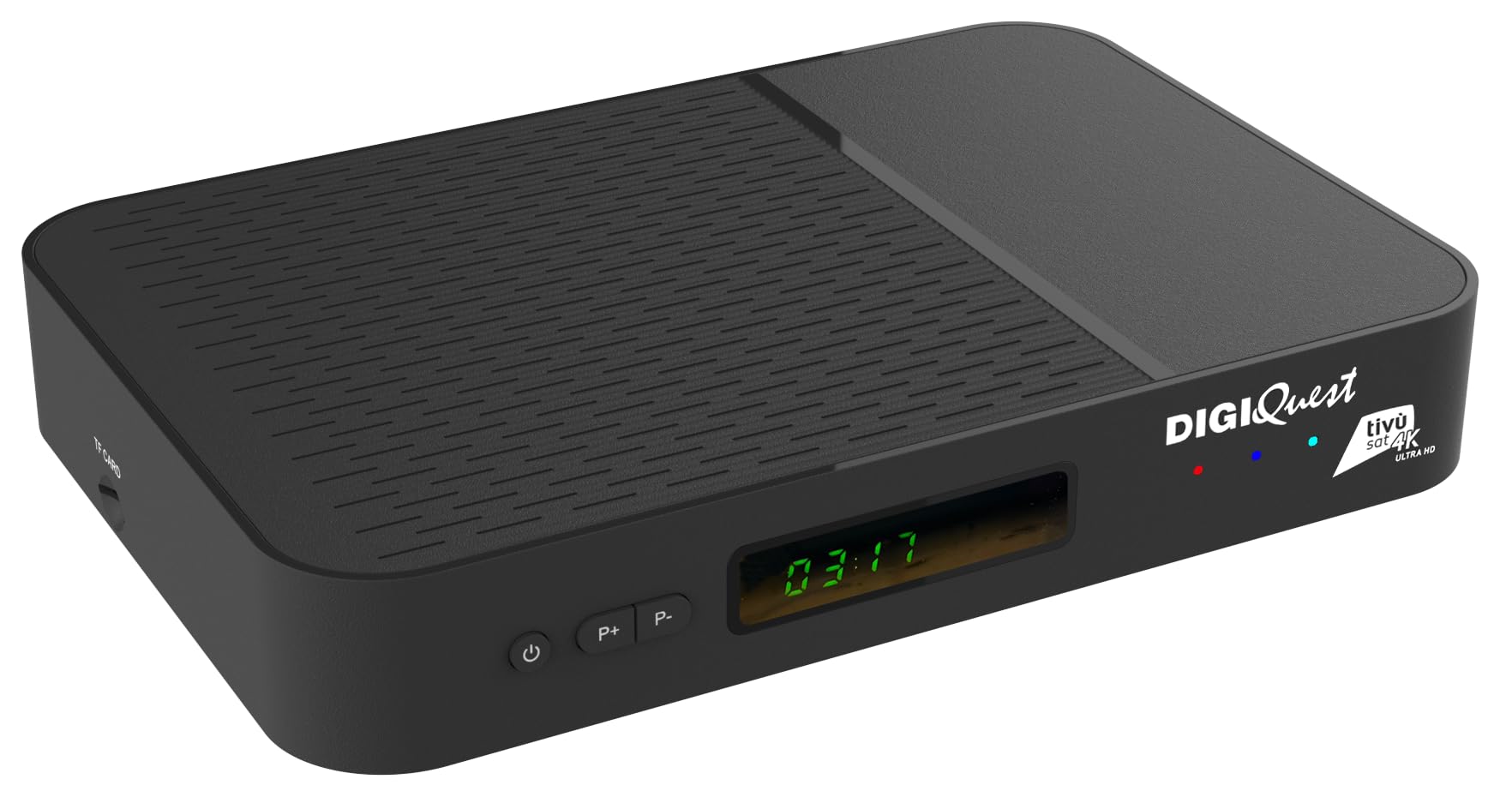
The front panel features the power button, channel navigation buttons (P+, P-), and a digital display indicating channel number or time.
3.2 Rear Panel Connections

The rear panel provides essential connectivity options:
- SAT IN (13/18V === 400mA MAX): For connecting your satellite dish.
- SAT OUT: For looping through the satellite signal to another device.
- RF IN: For connecting your terrestrial antenna.
- AV: Analog audio/video output.
- HDMI: High-Definition Multimedia Interface for connecting to your TV.
- LAN: Ethernet port for wired internet connection.
- USB 2.0 (5V === 0.5A): For connecting USB devices.
- USB 3.0 (5V === 0.9A): For connecting USB devices, offering faster data transfer.
- DC IN (12V === 1.5A): Power input.
- ON/OFF: Main power switch.
3.3 Side Panels

One side panel features the Smart Card slot. Insert your Tivùsat Smartcard with the chip facing downwards as indicated.

The other side panel includes a TF Card slot for additional storage.
3.4 Remote Control

The included remote control allows full operation of the decoder, including channel selection, volume control, menu navigation, and access to smart features. It also supports voice control via Google Assistant.
4. Setup
4.1 Connecting the Decoder
- Connect Antenna/Dish:
- For terrestrial channels, connect your DVB-T2 antenna to the RF IN port.
- For satellite channels, connect your satellite dish to the SAT IN port.
- Connect to TV: Use the provided HDMI cable to connect the HDMI port on the decoder to an HDMI input on your television.
- Connect to Internet:
- For a wired connection, connect an Ethernet cable from your router to the LAN port.
- For a wireless connection, you will configure Wi-Fi during the initial setup.
- Insert Smartcard: Carefully insert the Tivùsat Smartcard into the Smart Card slot on the side of the decoder, ensuring the chip faces downwards.

This image shows the correct orientation for inserting the Tivùsat smartcard into the decoder's side slot.
- Connect Power: Connect the power adapter to the DC IN port and then plug it into a power outlet.
- Power On: Flip the ON/OFF switch on the rear panel to the 'ON' position.
4.2 Initial Setup Wizard
Upon first power-on, the decoder will guide you through an initial setup wizard. Follow the on-screen instructions to:
- Select your language.
- Connect to a Wi-Fi network (if not using wired LAN).
- Log in with your Google account to access Android TV features and the Google Play Store.
- Perform channel scanning for DVB-T2 and DVB-S2/Tivùsat.
Ensure your satellite dish is correctly pointed to the Eutelsat 13°E (Hot Bird) satellite for Tivùsat channels.

This image illustrates the core functionalities of the decoder, combining terrestrial, satellite, and on-demand content via Android TV.
5. Operating Instructions
5.1 Basic Operation
- Power On/Off: Press the red power button on the remote control to turn the decoder on or off (standby mode).
- Channel Selection: Use the CH+/- buttons to change channels sequentially, or enter the channel number directly using the numeric keypad.
- Volume Control: Use the VOL+/- buttons to adjust the volume.
- Menu Access: Press the MENU button to access the main menu for settings and features.
- Information: Press the INFO button to display current program information.
- EPG (Electronic Program Guide): Press the EPG button to view the program schedule.
5.2 Smart TV Features (Android TV)
The DIGIQUEST AX3 is powered by Android TV, allowing you to access a wide range of applications and streaming services.

This image displays the variety of streaming services and apps available through the Android TV interface, transforming your television into a comprehensive smart entertainment system.
- Google Play Store: Access the Google Play Store to download and install additional applications.
- Pre-installed Apps: Enjoy pre-installed apps such as Prime Video, Rai Play, Mediaset Infinity, YouTube, Now, Dazn, Disney+, and Paramount.
- App Navigation: Use the remote control's directional pad and OK button to navigate through the Android TV interface and launch applications.
Important: Netflix is not supported on this model.
5.3 Voice Control (Google Assistant)
The remote control features integrated Google Assistant for voice commands.

This image highlights the remote's voice control capability, allowing users to interact with the decoder using spoken commands.
- Activate Voice Control: Press the Google Assistant button (microphone icon) on your remote control.
- Speak Commands: Speak clearly into the remote control's microphone. Examples:
- "Open YouTube"
- "Show action movies"
- "Switch to Rai 1"
5.4 Google Cast
The decoder includes built-in Google Cast functionality, allowing you to stream content from your compatible smartphone or tablet to your TV.

This image demonstrates the Google Cast feature, enabling seamless content sharing from mobile devices to the television screen.
- Ensure your smartphone/tablet and the decoder are connected to the same Wi-Fi network.
- Open a compatible app on your mobile device (e.g., YouTube, Google Photos).
- Tap the Cast icon (a rectangle with a Wi-Fi symbol in the corner) within the app.
- Select your DIGIQUEST AX3 decoder from the list of available devices.
5.5 Tivùsat Service
The decoder supports Tivùsat, providing access to a wide range of Italian and international satellite channels, including 4K and HD content.

This image illustrates the extensive channel offering of Tivùsat, including 4K and HD options, accessible through the decoder.
- Ensure your Tivùsat Smartcard is correctly inserted and activated.
- During initial setup, perform a satellite channel scan to find all available Tivùsat channels.
- For activation or further information on Tivùsat, please refer to the official Tivùsat website or contact their customer support.
6. Maintenance
- Cleaning: Use a soft, dry cloth to clean the decoder's exterior. Do not use liquid cleaners or abrasive materials.
- Ventilation: Ensure the decoder is placed in a well-ventilated area to prevent overheating. Do not block ventilation openings.
- Software Updates: Periodically check for software updates through the decoder's settings menu to ensure optimal performance and access to the latest features.
- Storage: If storing the decoder for an extended period, disconnect it from power and store it in a cool, dry place.
7. Troubleshooting
If you encounter issues with your DIGIQUEST AX3 decoder, refer to the following common problems and solutions:
| Problem | Possible Cause | Solution |
|---|---|---|
| No power | Power cable disconnected, main switch off, power outlet issue. | Check power cable connection, ensure rear ON/OFF switch is on, try a different power outlet. |
| No signal / Black screen | Antenna/dish not connected, incorrect input selected on TV, signal issues. | Verify antenna/dish connections, ensure TV is on the correct HDMI input, perform a channel scan. Check antenna/dish alignment if necessary. |
| Remote control not working | Dead batteries, obstruction, remote not paired. | Replace batteries, remove obstructions, ensure remote is paired with the decoder (refer to remote pairing instructions in the full manual if available). |
| Cannot access smart features / Internet | No internet connection, incorrect Wi-Fi password. | Check LAN cable or Wi-Fi connection in settings. Re-enter Wi-Fi password if needed. Restart router. |
| Tivùsat channels not available | Smartcard not inserted correctly, smartcard not activated, incorrect satellite. | Ensure smartcard is fully inserted with chip down. Verify smartcard activation status. Confirm satellite dish is pointed to Eutelsat 13°E. |
| Netflix not working | Netflix app is not supported on this model. | This model does not support Netflix. Please use other supported streaming services. |
For further assistance, please contact DIGIQUEST customer support.
8. Specifications
| Brand | DIGIQUEST |
| Model Number | RICD1247 |
| Product Dimensions (DxWxH) | 15.3 x 21 x 4 cm |
| Connectivity Technology | HDMI, USB, LAN, Wi-Fi (internal) |
| Total USB Ports | 2 (1x USB 2.0, 1x USB 3.0) |
| Total HDMI Ports | 1 |
| Compatible Devices | Television |
| Voltage | 240 Volt |
| Recommended Use | Residential |
| Satellite Service | Tivùsat |
| Video Output Resolution | 4K pixels |
| Supported Standards | DVB-S2, DVB-T2 HEVC Main 10 (10 bit), H.265, MP4 |
| Screen Format | 16:9 |
| Smart Home Compatibility | Compatible with smart home systems |
| Country of Origin | China |
| Manufacturer | DIGIQUEST |
9. Warranty and Support
Product Warranty: The DIGIQUEST AX3 Tivùsat Universal 4K Combo Decoder comes with a 2-year warranty from the date of purchase. Please retain your proof of purchase for warranty claims.
Customer Support: DIGIQUEST offers dedicated customer support within Italy. For technical assistance, troubleshooting, or warranty inquiries, please visit the official DIGIQUEST website or refer to their social media channels for contact information.
You can find more information and support resources on the DIGIQUEST Brand Store.


