
1. Introduction
The Casio FX-9910CW ClassWiz Scientific Calculator is an advanced tool designed for students and professionals requiring comprehensive mathematical capabilities. This model features a high-definition quadruple-graded LCD with Natural Textbook Display, simplifying the input and review of complex equations. It supports a wide range of calculations including algebra, trigonometry, statistics, and advanced mathematics. Enhanced menus and shortcut keys streamline workflow, while built-in tools like spreadsheets, probability simulations, and variable memory storage assist in various academic and professional tasks.
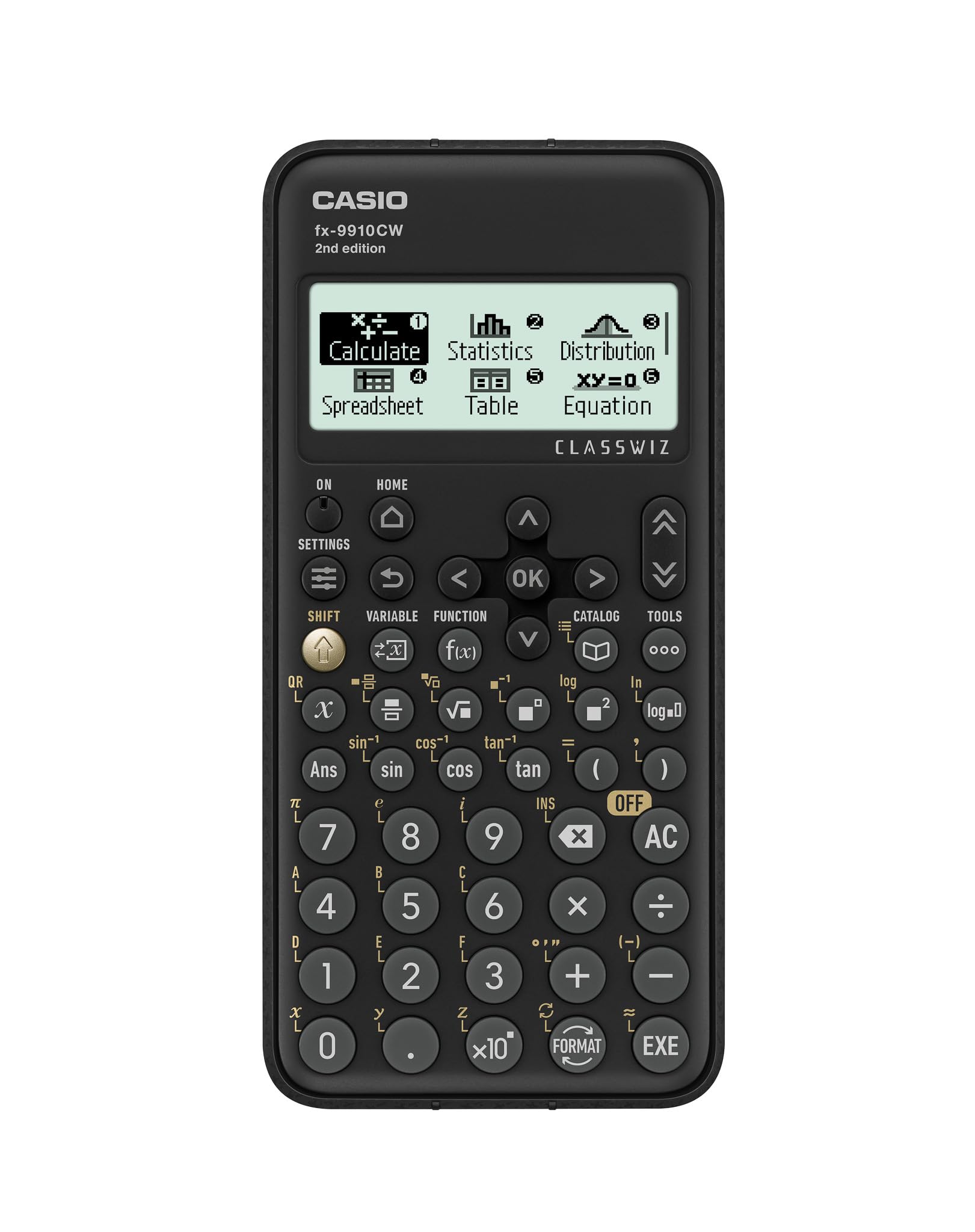
The image shows the Casio FX-9910CW scientific calculator, black in color, with its display showing various menu options like Calculate, Statistics, Distribution, Spreadsheet, Table, and Equation. The calculator features a clear button layout with numerical and function keys. To the right, its black protective slide-on cover is shown.
2. Setup
2.1. Power Source
The FX-9910CW calculator is primarily solar-powered, ensuring continuous operation in well-lit environments. It also includes a 1 AAA battery as a backup power source for use in low-light conditions. The battery is pre-installed.
2.2. Initial Power On
- To turn on the calculator, press the ON button located on the top left of the keypad.
- The display will show the main menu, allowing you to select various calculation modes.
2.3. Adjusting Display Contrast
If the display appears too dim or too dark, you can adjust the contrast:
- Press SHIFT then MENU (SETTINGS).
- Navigate to the Contrast setting using the arrow keys.
- Use the left and right arrow keys to adjust the contrast level.
- Press AC to exit the settings menu.
3. Operating Instructions
The Casio FX-9910CW features a user-friendly interface with a Natural Textbook Display, allowing mathematical expressions to be entered and displayed as they appear in textbooks. The main menu provides access to various modes:
- Calculate: For general arithmetic and function calculations.
- Statistics: For statistical calculations, including regression analysis.
- Distribution: For probability distribution calculations.
- Spreadsheet: For basic spreadsheet functions.
- Table: To generate numerical tables for functions.
- Equation: To solve linear and polynomial equations.
3.1. Basic Calculations
To perform basic arithmetic, ensure you are in the Calculate mode. Enter numbers and operators as you would write them. Press = to get the result.
- Fractions: Use the QR button (fraction key) to input fractions.
- Powers/Roots: Use x² for squares, √ for square roots, and ^ for other powers.
- Trigonometric Functions: Use sin, cos, tan keys. For inverse functions, press SHIFT then the respective function key.
- Logarithms: Use log for base-10 logarithm and ln for natural logarithm.
3.2. Menu Navigation
The calculator features an intuitive menu system. Use the arrow keys (^, V, <, >) to navigate through options. Press OK to select an item. The HOME button returns you to the main menu.
Many menu options also have numeric shortcuts, allowing for faster selection. For example, from the main menu, pressing 1 might select "Calculate" mode directly.
3.3. Variable Memory
The calculator includes variable memory storage. To store a value:
- Enter the value you wish to store.
- Press SHIFT then STO (located above the RCL button).
- Press the alpha key corresponding to the desired variable (e.g., A, B, C).
To recall a stored value, press RCL then the alpha key for the variable.
4. Maintenance
4.1. Cleaning
To maintain the calculator's condition, wipe it with a soft, dry cloth. Avoid using harsh chemicals, abrasive cleaners, or solvents, as these can damage the casing and display.
4.2. Storage
When not in use, store the calculator in its protective slide-on cover to prevent scratches and damage to the keys and display. Keep it away from extreme temperatures, direct sunlight for prolonged periods (unless actively using solar power), and high humidity.
4.3. Battery Replacement
While the calculator is solar-powered, the AAA backup battery may eventually need replacement. If the display becomes dim or the calculator functions erratically in low light, replace the battery. Refer to the full manufacturer's manual for detailed battery replacement instructions.
5. Troubleshooting
5.1. Calculator Does Not Turn On
- Ensure there is sufficient light for the solar panel to operate.
- Check if the AAA backup battery is correctly installed and not depleted. Replace if necessary.
- Press the ON button firmly.
5.2. Display is Dim or Unclear
- Adjust the display contrast as described in Section 2.3.
- Ensure adequate lighting for the solar panel.
- If the issue persists, the backup battery might be low.
5.3. Stored Data Loss
The Casio FX-9910CW is designed to retain stored data even when powered off. If you experience unexpected data loss, ensure the backup battery is functional. Prolonged storage without light or a dead backup battery could potentially affect data retention in some extreme cases, though this model is generally reliable.
5.4. Calculator Freezes or Malfunctions
If the calculator becomes unresponsive, try performing a soft reset by pressing the RESET button (usually a small recessed button on the back, requiring a thin object like a paperclip). Note that a reset will clear all memory and settings.
6. Specifications
| Brand | Casio |
| Model Name | FX-9910CW-W-IT |
| Model Number | FX-9910CW |
| Calculator Type | Engineering/Scientific |
| Color | Black |
| Power Source | Battery Powered (1 AAA included), Solar Powered |
| Screen Size | 6.5 Centimeters |
| Display Type | LCD |
| Enclosure Material | Plastic |
| Item Dimensions (L x W) | 7"L x 3.5"W |
| UPC | 889232620442 |
| ASIN | B0G66NC732 |
7. Warranty & Support
7.1. Warranty Information
This Casio FX-9910CW Scientific Calculator comes with a 1 Year Manufacturer Warranty. For specific terms and conditions, please refer to the warranty card included with your product or visit the official Casio website.
7.2. Customer Support
For further assistance, technical support, or inquiries regarding your Casio FX-9910CW calculator, please visit the official Casio support website or contact their customer service department. Contact details can typically be found on the manufacturer's website or in the packaging materials.


