
1. Introduction
This manual provides detailed instructions for the proper use and maintenance of your OWLNV T3 Thermal Imaging Scope. Please read this manual thoroughly before operating the device to ensure optimal performance and safety.
The OWLNV T3 is a high-performance thermal imaging scope designed for various outdoor activities, including hunting and observation. It features a 384x288 thermal sensor, 3.5X optical zoom, an integrated ballistic calculator, WiFi video recording, and a durable IP67 weatherproof construction.
2. Package Contents
Verify that all items are present in the package:
- OWLNV T3 Thermal Imaging Scope
- Picatinny Mount
- USB Type-C Charging Cable
- Soft Carrying Pouch
- Quick Start Guide
- Warranty Card
- Hex Wrenches (for mounting)
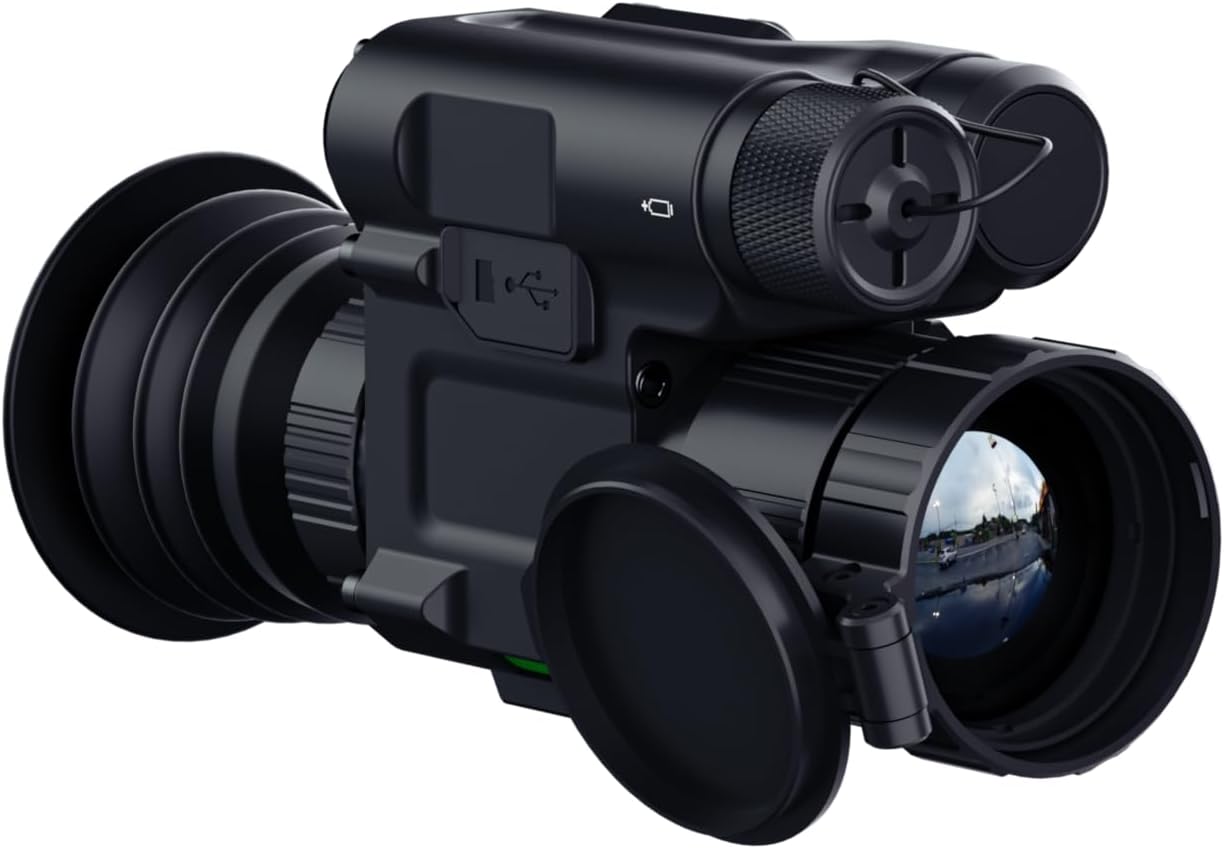
Image: Contents of the OWLNV T3 Thermal Imaging Scope package, including the scope, mount, cables, and documentation.
Video: An unboxing demonstration of the OWLNV T3 thermal imaging scope, showing all included components.
3. Setup
3.1 Charging the Device
Before first use, fully charge the OWLNV T3 using the provided USB Type-C cable. Connect the cable to the Type-C port on the device and a compatible USB power source. The charging indicator will show the charging status.

Image: The OWLNV T3 scope showing its Type-C charging port, compatible with power banks for convenient charging.
3.2 Mounting the Scope
The OWLNV T3 can be used as a handheld monocular or mounted as a rifle scope using the included Picatinny mount.
- Monocular Use: Hold the device firmly and adjust the eyepiece and objective lens for clear viewing.
- Rifle Scope Use: Attach the Picatinny mount to your rifle's Picatinny rail. Secure the OWLNV T3 to the mount using the provided hex wrenches. Ensure the scope is level and securely fastened.

Image: Comparison of the OWLNV T3 being used as a rifle scope and as a handheld monocular.

Image: A user attaching the OWLNV T3 thermal scope to a rifle's Picatinny rail.
3.3 Initial Focus Adjustment
Achieving a clear image involves a two-step focusing process:
- Eyepiece Diopter Adjustment: Rotate the eyepiece diopter ring until the on-screen icons and text appear sharp and clear. This adjusts the focus for your individual eyesight.
- Objective Lens Adjustment: Rotate the objective lens to bring your target into sharp focus. This ensures a crisp, non-pixelated view of the thermal image.
Video: A demonstration of the T3's two-step focusing operation for optimal image clarity.
4. Operating Instructions
4.1 Controls Overview
The OWLNV T3 features intuitive, glove-friendly buttons for easy operation. Refer to the diagram below for button functions.

Image: Detailed view of the OWLNV T3 control panel, highlighting glove-friendly buttons and the power/sleep function.
4.2 Power On/Off and Sleep Mode
- Power On: Press and hold the Power button until the device powers on.
- Power Off: Press and hold the Power button until the device powers off.
- One-Touch Sleep Mode: Briefly press the Power button to enter or exit sleep mode, conserving battery life without fully powering down.
4.3 Thermal Palettes and Scene Modes
The T3 offers 6 professional thermal palettes and various scene modes to optimize image contrast for different environments.
- Palettes: White-Hot, Black-Hot, Red-Hot, Edge, Sky, In-Hot. Cycle through these options via the menu to suit your viewing preference.
- Scene Modes: Select between City, Rain, and Forest modes to enhance image clarity based on ambient conditions.
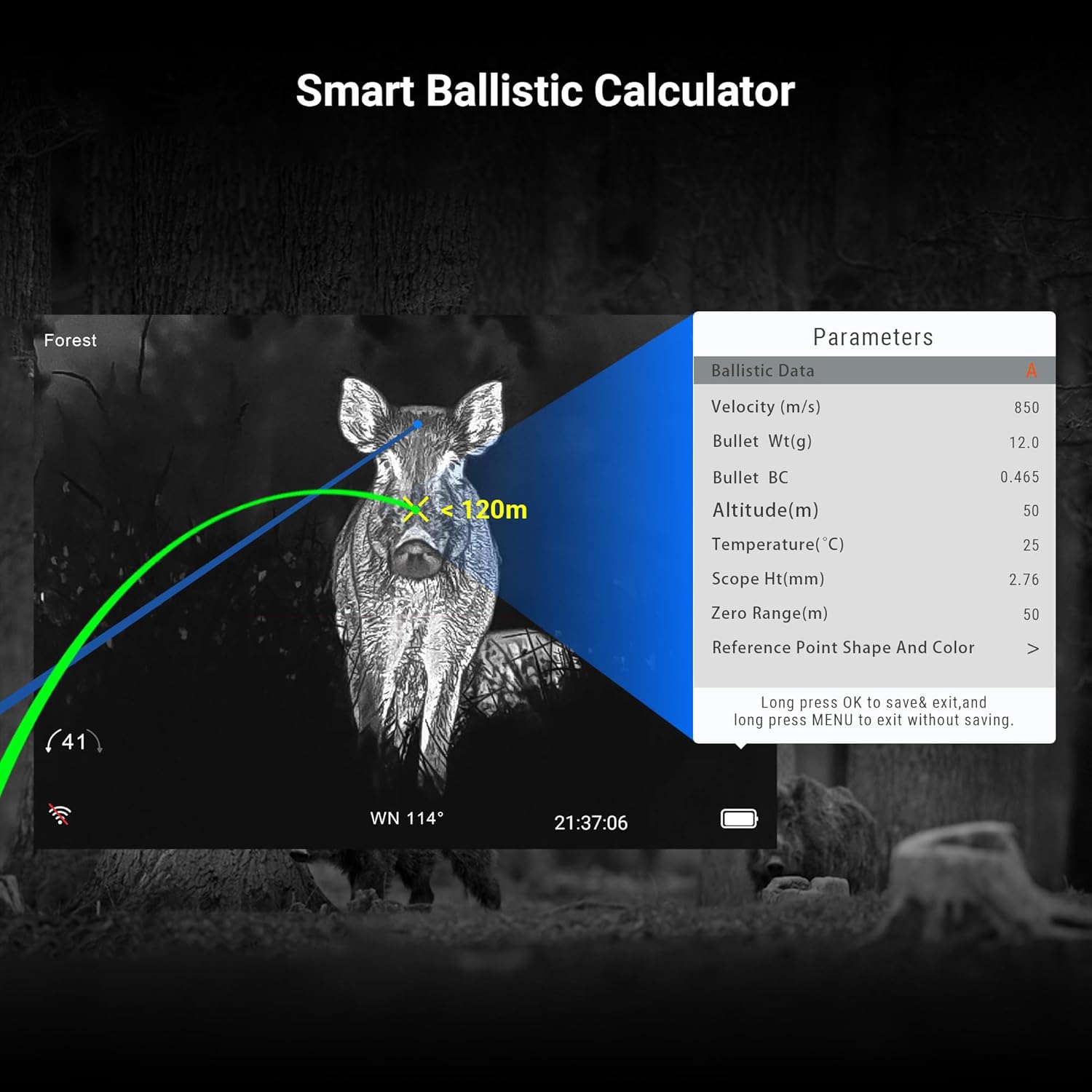
Image: Visual representation of the six thermal palettes available on the OWLNV T3, adapting to various hunting situations.
4.4 Reticle Styles
Choose from 6 reticle styles, available in 4 different colors, to customize your aiming point.
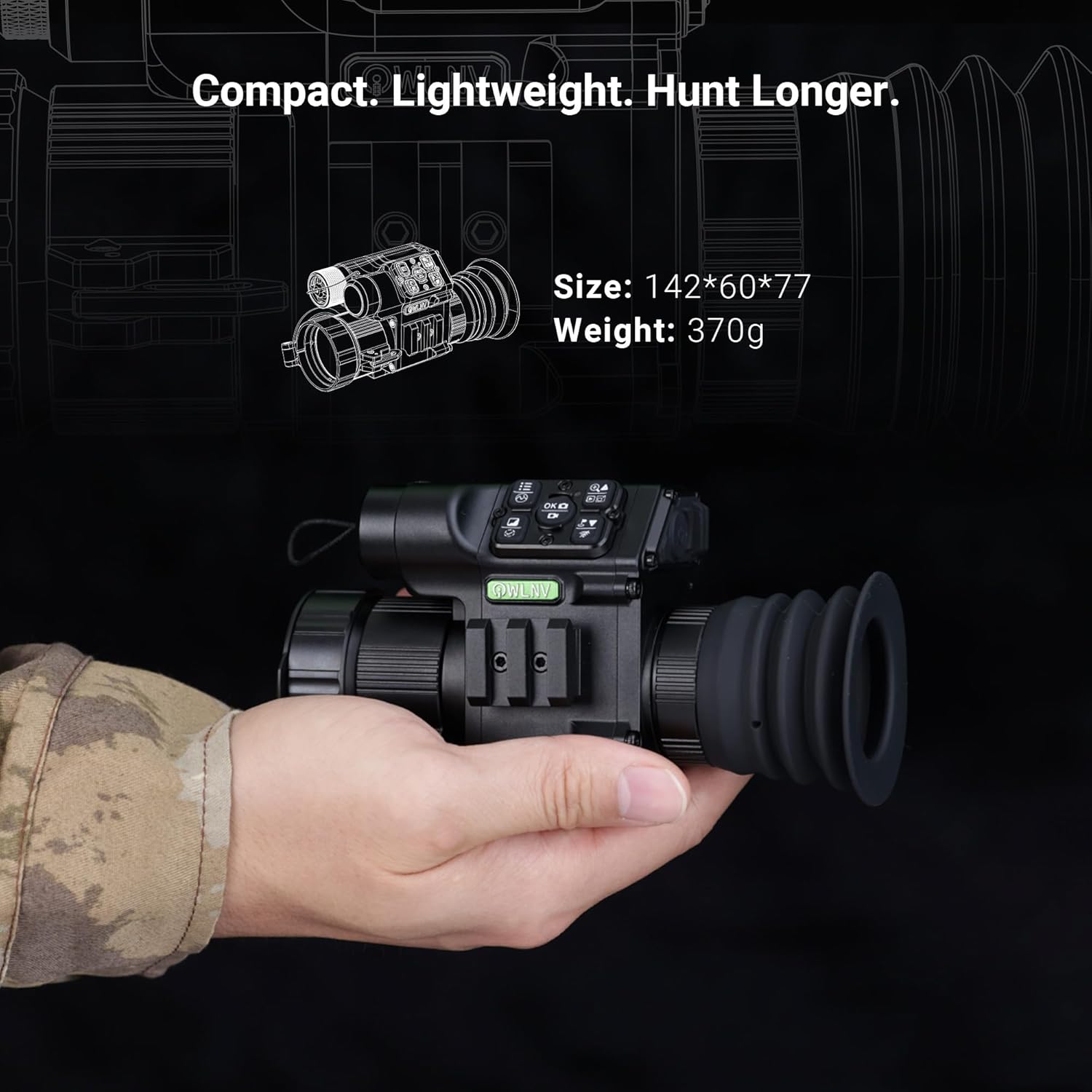
Image: Six distinct reticle styles displayed on the OWLNV T3 screen, with options for four different colors.
4.5 Picture-in-Picture (PIP) Mode
Activate PIP mode to maintain a full field of view while simultaneously displaying a magnified image of your target in a smaller window. This allows for precise tracking without losing situational awareness.

Image: The Picture-in-Picture (PIP) mode in action, showing a magnified target within the main thermal view.
4.6 Ballistic Calculator
The integrated ballistic calculator assists in estimating bullet drop and windage, enhancing first-shot accuracy. Input relevant data such as velocity, bullet weight, and environmental factors to utilize this feature.
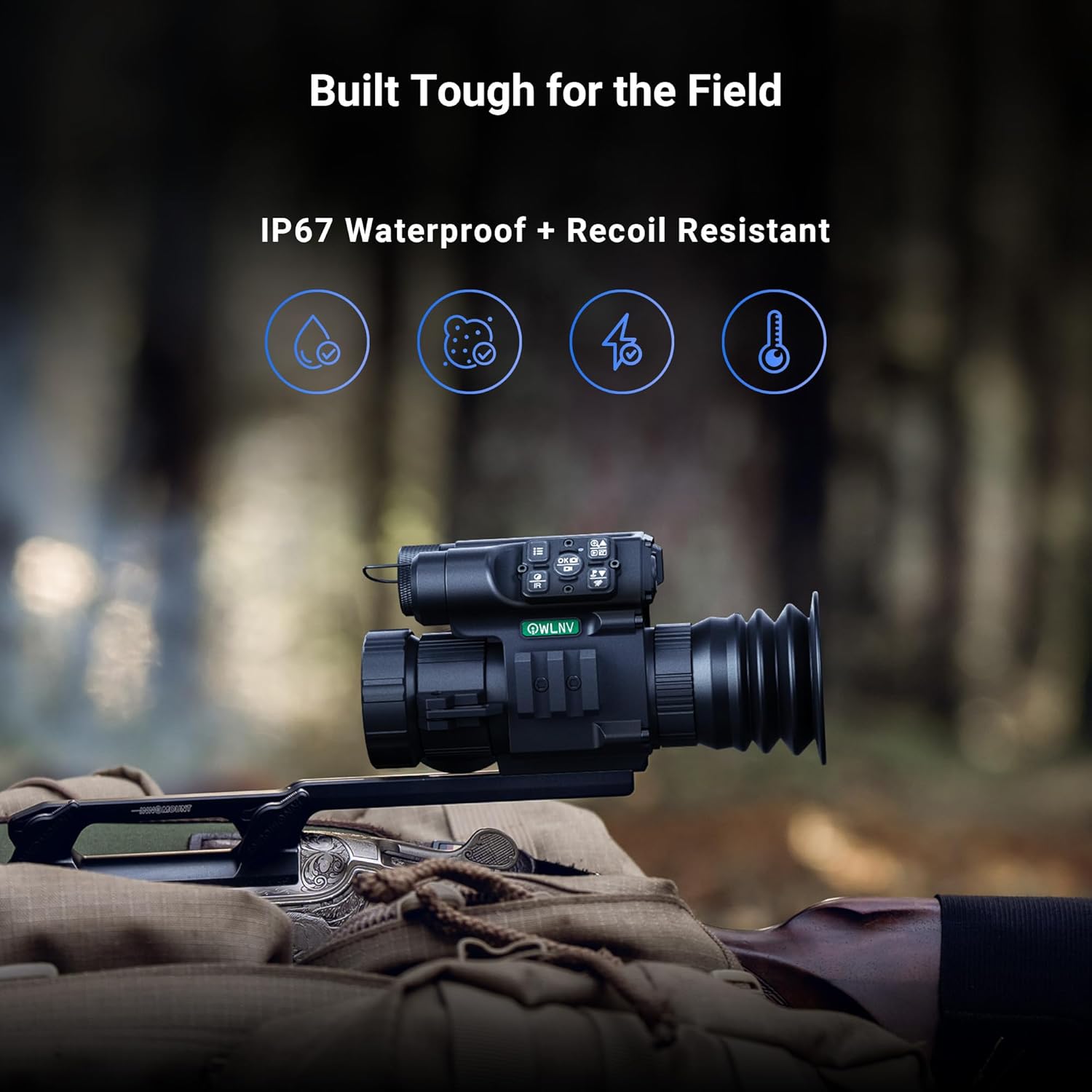
Image: The Smart Ballistic Calculator interface displayed on the OWLNV T3, showing various parameters for precision targeting.
Video: A demonstration of the T3 thermal scope's integrated precision ballistic calculator.
4.7 Video Recording and WiFi Streaming
Record high-definition videos with audio and capture 2592x1944 photos directly to the device's internal storage. Utilize the built-in WiFi to stream live footage to your smartphone, save recordings, and share your experiences.
- Recording: Press the designated record button to start/stop video recording.
- Photo Capture: Press the designated photo button to take a still image.
- WiFi Connection: Access the menu to enable WiFi and connect to your smartphone using the OWLNV app.
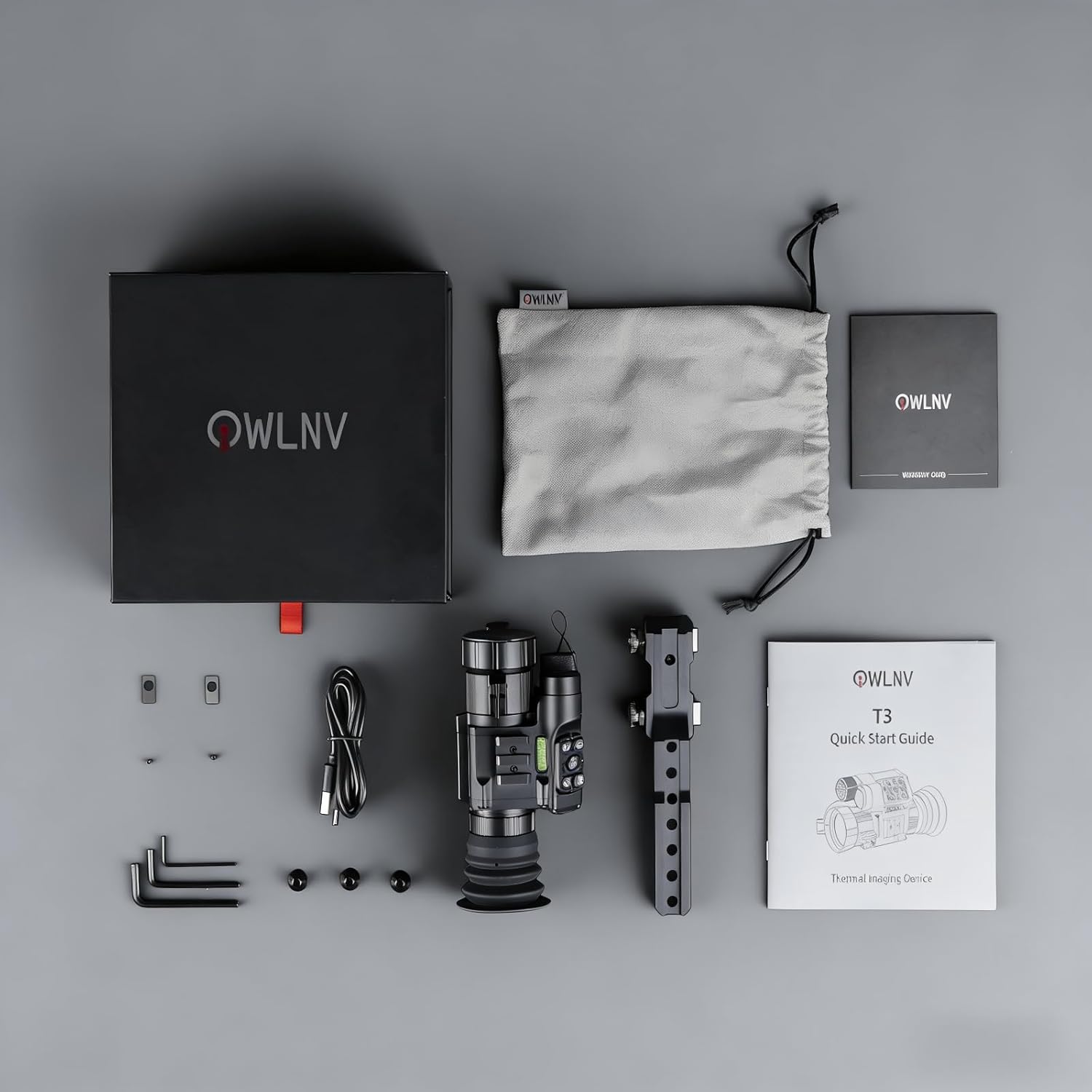
Image: The OWLNV T3 scope demonstrating WiFi streaming and video recording capabilities, with live feed shown on a smartphone.
Video: Operational instructions for the Owlnv thermal imaging scope, covering various functions.
5. Maintenance
5.1 Cleaning
- Lenses: Use a soft, lint-free cloth specifically designed for optics. Gently wipe the objective and eyepiece lenses. For stubborn smudges, use a small amount of lens cleaning solution.
- Body: Wipe the device body with a soft, damp cloth. Avoid abrasive cleaners or solvents.
5.2 Storage
When not in use, store the OWLNV T3 in a cool, dry place, away from direct sunlight and extreme temperatures. Ensure the lens caps are in place to protect the optics. If storing for extended periods, ensure the battery is partially charged (around 50%) to prolong its lifespan.
5.3 Battery Care
The OWLNV T3 uses a rechargeable battery. To maximize battery life:
- Avoid fully discharging the battery frequently.
- Do not expose the device to extreme heat or cold during charging or operation.
- Use only the provided or approved charging cables.
6. Troubleshooting
| Problem | Possible Cause | Solution |
|---|---|---|
| Device does not power on. | Low or depleted battery. | Charge the device fully using the Type-C cable. |
| Image is blurry or out of focus. | Incorrect focus adjustment. | Perform the two-step focus adjustment (eyepiece diopter then objective lens). |
| No thermal image detected. | Lens cap still on; device malfunction. | Remove the lens cap. If problem persists, contact support. |
| WiFi connection issues. | Incorrect settings; app issues. | Ensure WiFi is enabled on the device and your smartphone. Restart both devices and the app. |
| Device unresponsive. | Software glitch. | Perform a soft reset by holding the power button for an extended period (e.g., 10-15 seconds) or until it restarts. |
If you encounter issues not listed here or if the suggested solutions do not resolve the problem, please contact OWLNV customer support for assistance.
7. Specifications
| Feature | Detail |
|---|---|
| Brand | OWLNV |
| Model Name | T3 |
| Model Number | T3-384 |
| Thermal Sensor | 384×288, 12µm, ≤25mK NETD |
| Display Resolution | 1440×1080 HD OLED |
| Optical Zoom | 3.5X |
| Digital Zoom | Up to 8X |
| Objective Lens Diameter | 35 mm |
| Eye Relief | 30 mm |
| Video Recording | Yes, with audio |
| Photo Resolution | 2592×1944 |
| Connectivity | WiFi |
| Ballistic Calculator | Integrated |
| Weather Resistance | IP67 Waterproof |
| Recoil Resistance | Up to 6000J |
| Power Source | Type-C rechargeable |
| Material | Aluminum |
| Product Dimensions | 5.6"L x 2.4"W x 3"H (142 x 60 x 77 mm) |
| Item Weight | 370 Grams |
| Mounting Type | Picatinny Mount |
8. Warranty and Support
8.1 Warranty Information
Your OWLNV T3 Thermal Imaging Scope comes with a manufacturer's warranty. Please refer to the included Warranty Card for specific terms, conditions, and duration of coverage. Keep your proof of purchase for warranty claims.
8.2 Customer Support
For any questions, technical assistance, or support needs, please contact OWLNV customer service. You can typically reach support through the Amazon platform where the product was purchased. A dedicated 24/7 support team is available to provide assistance, including quick-start videos or PDF guides.