
1. Introduction
Thank you for choosing the InnoView 15.6" 4K UHD Portable Monitor. This manual provides essential information for setting up, operating, and maintaining your device. Please read it thoroughly before use to ensure proper functionality and to prevent damage.
2. Safety Information
- Do not expose the monitor to rain, moisture, or extreme temperatures.
- Avoid placing the monitor near heat sources or in direct sunlight.
- Use only the provided power adapter and cables.
- Do not attempt to disassemble or repair the monitor yourself. Contact customer support for assistance.
- Keep the monitor away from strong magnetic fields.
3. Package Contents
Verify that all items are present in the package:
- 15.6" 4K Portable Monitor x 1
- Standard HDMI Cable x 1
- USB-C Full-Featured Cable x 1
- USB-C Power Charging Cable x 1
- 30W Power Adapter x 1
- User Manual x 1
- Storage Bag x 1

This image displays the InnoView 15.6 inch 4K portable monitor along with all the accessories included in the box, such as various cables, a power adapter, and a protective storage bag.
4. Product Overview
Familiarize yourself with the monitor's ports and controls:
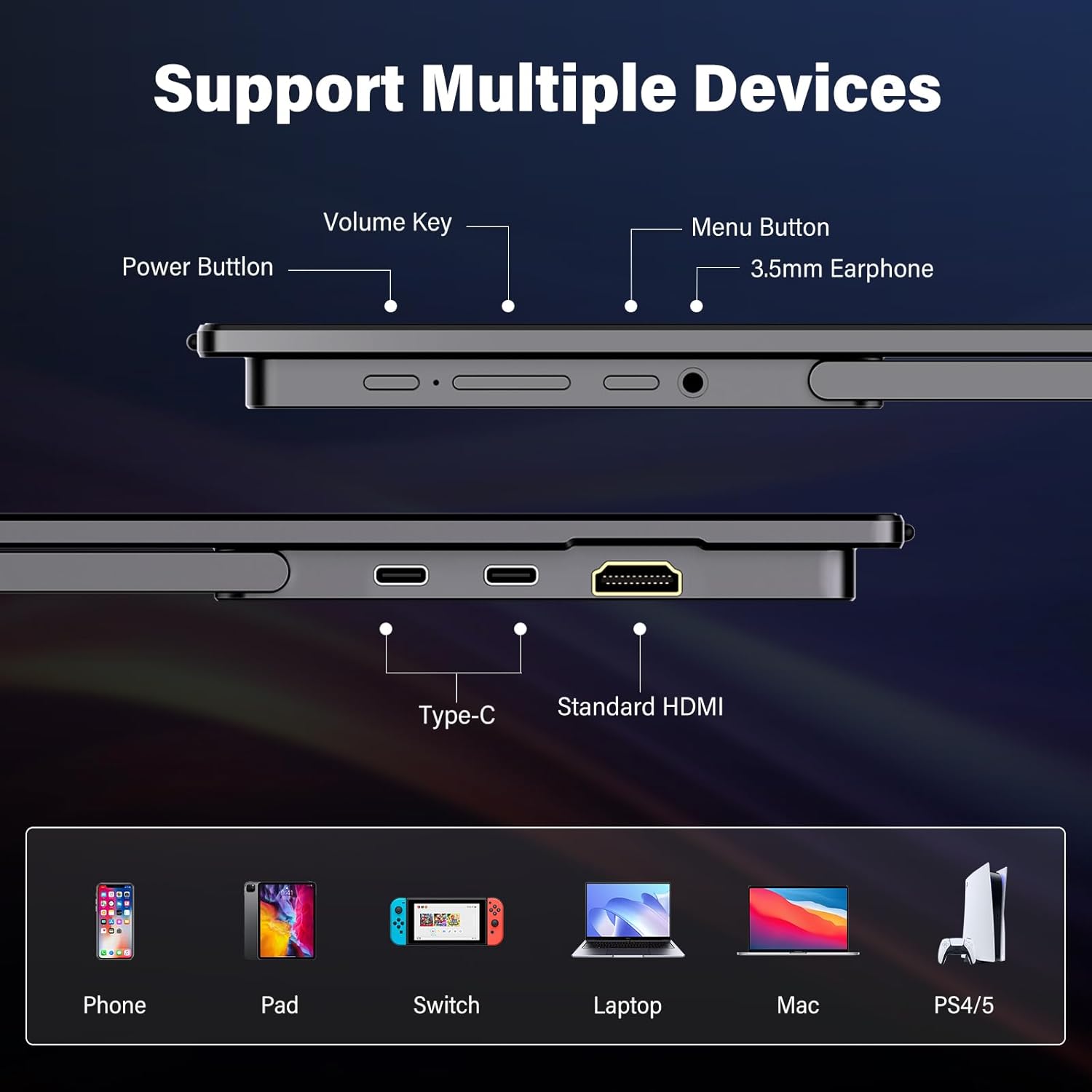
This diagram illustrates the various input and control elements on the side of the portable monitor, including the power button, volume and menu keys, earphone jack, two USB-C ports, and an HDMI port.
- Power Button: Turns the monitor on/off.
- Volume Key: Adjusts audio output.
- Menu Button: Accesses the On-Screen Display (OSD) menu for settings adjustments.
- 3.5mm Earphone Jack: For connecting headphones or external speakers.
- Type-C Ports (x2): Full-function USB-C 3.1 ports for power, video, and data transmission.
- Standard HDMI Port: For video input from compatible devices.
5. Setup
5.1 Connecting to Devices
The monitor supports various connection methods:

This image provides a visual guide for connecting the portable monitor to a laptop using either a single USB-C cable (which carries both power and video) or an HDMI cable, both requiring the 30W power adapter for the monitor.
USB-C Connection (Full-Featured)
For devices with a full-featured USB-C port (supporting DisplayPort Alternate Mode and Power Delivery):
- Connect one end of the USB-C full-featured cable to your device's USB-C port.
- Connect the other end to one of the monitor's Type-C ports.
- If your device cannot provide sufficient power, connect the 30W power adapter to the monitor's other Type-C port using the USB-C power charging cable.

This image serves as a quick guide to identify compatible USB-C ports on your computer. Look for symbols indicating power delivery, display output, or Thunderbolt support for full functionality with the portable monitor.
HDMI Connection
For devices with an HDMI output:
- Connect one end of the Standard HDMI cable to your device's HDMI port.
- Connect the other end to the monitor's Standard HDMI port.
- Connect the 30W power adapter to one of the monitor's Type-C ports using the USB-C power charging cable, as HDMI does not provide power.
5.2 Stand Adjustment
The integrated kickstand allows for flexible viewing angles:

This image highlights the monitor's integrated kickstand, which can be adjusted to provide stable support and a wide range of viewing angles, from flat to nearly upright (0-180 degrees).
- Gently pull out the kickstand from the back of the monitor.
- Adjust the angle to your preferred viewing position (0-180 degrees).
- Ensure the stand is stable on a flat surface before use.
6. Operating the Monitor
6.1 Power On/Off
Press the Power Button located on the side of the monitor to turn it on or off.
6.2 On-Screen Display (OSD) Menu
Use the Menu Button to access the OSD menu and the Volume Key to navigate and adjust settings.
- Brightness/Contrast: Adjust display brightness and contrast levels.
- Color Settings: Modify color temperature, hue, and saturation.
- Input Source: Manually select between USB-C and HDMI inputs.
- Audio: Adjust volume and mute settings.
- HDR Mode: Enable or disable High Dynamic Range for enhanced visuals.
- FreeSync: Enable for smoother gaming experience with compatible graphics cards.
6.3 Display Modes
The monitor supports various display modes when connected to a laptop or PC:
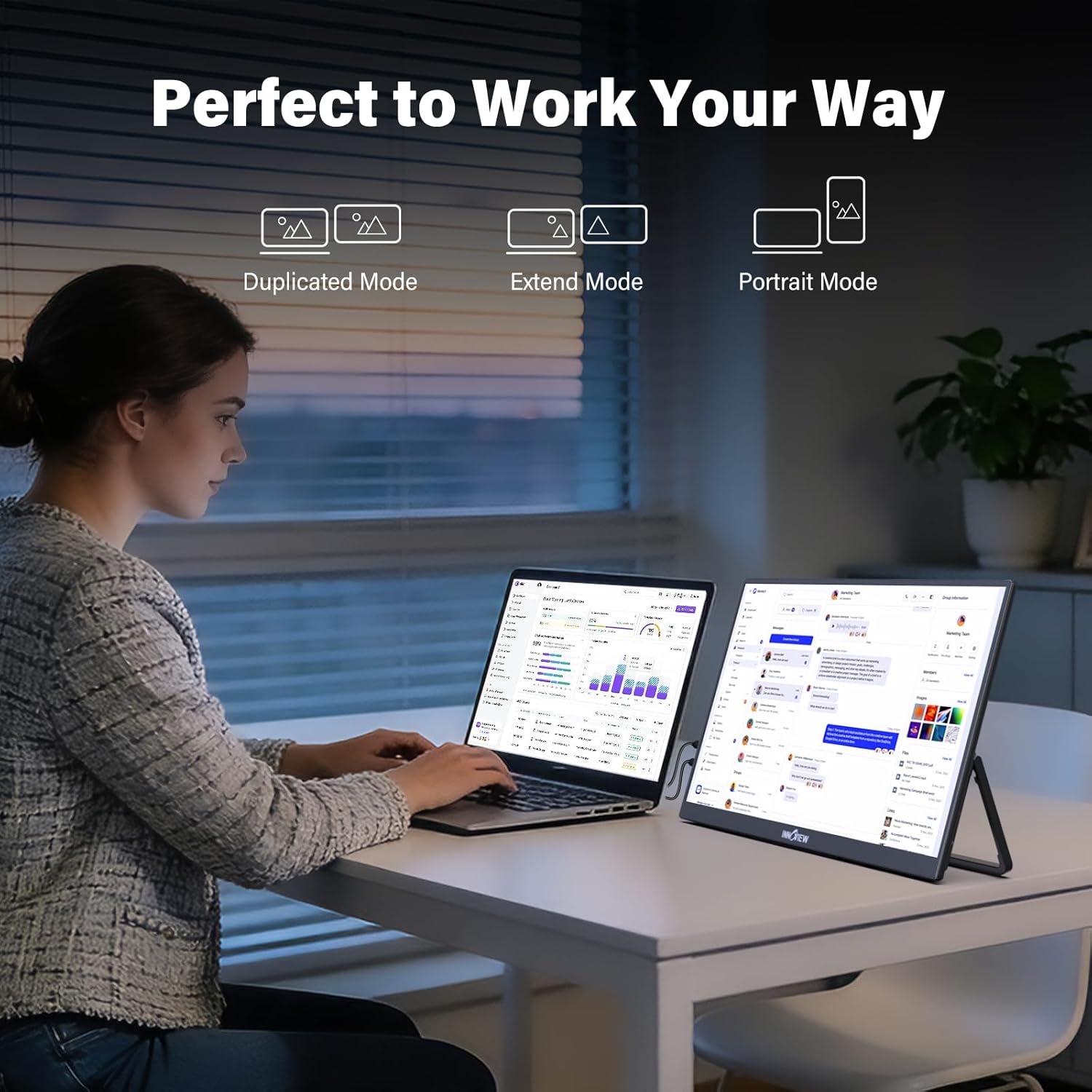
This image demonstrates the flexibility of the portable monitor, showing it used alongside a laptop in various configurations: duplicated mode (mirroring the laptop screen), extended mode (expanding the desktop), and portrait mode (for vertical content).
- Duplicate Mode: Mirrors your primary screen.
- Extend Mode: Extends your desktop, providing more screen real estate.
- Second Screen Only Mode: Displays content only on the portable monitor.
- Portrait Mode: Rotate the monitor for a vertical display, useful for documents or coding.
These modes can typically be configured through your operating system's display settings.
7. Maintenance
7.1 Cleaning
- Always power off and unplug the monitor before cleaning.
- Use a soft, lint-free cloth slightly dampened with water or a mild, non-abrasive screen cleaner.
- Do not spray cleaner directly onto the screen.
- Avoid using harsh chemicals or abrasive materials.
7.2 Storage
- When not in use, store the monitor in its protective sleeve to prevent scratches and dust accumulation.
- Store in a cool, dry place away from direct sunlight and extreme temperatures.
8. Troubleshooting
- No Signal: Ensure all cables are securely connected. Check if your device's output is enabled. Try a different cable or port.
- No Power: Verify the power adapter is connected correctly and the power outlet is functional. Ensure the monitor is switched on.
- Flickering Screen: Check cable connections. Adjust refresh rate in your device's display settings.
- Image Not 4K: Ensure your source device supports 4K resolution and is configured to output 3840x2160.
- No Sound: Check monitor volume and your device's audio output settings. Ensure headphones/speakers are properly connected to the 3.5mm jack.
- Touchscreen Not Working (if applicable): Ensure the USB-C cable is fully functional and connected to a compatible port on your device that supports touch data.
9. Specifications
| Feature | Specification |
|---|---|
| Brand | InnoView |
| Model Number | INVPM002-02B |
| Screen Size | 15.6 Inches |
| Native Resolution | 3840x2160 (4K UHD) |
| Refresh Rate | 60 Hz |
| Display Type | LCD (IPS Panel) |
| Aspect Ratio | 16:9 |
| Screen Finish | Matte |
| Contrast Ratio | 1200:1 |
| Brightness | 300 Candela (Nits) |
| Color Gamut | 100% sRGB |
| Viewing Angle | 178 Degrees |
| Response Time | 3 Milliseconds |
| Connectivity | 2x USB-C 3.1 (Full-function), 1x HDMI, 1x 3.5mm Audio |
| Additional Features | HDR, FreeSync, Blue Light Filter, Flicker-Free, Lightweight, Portable, Ultra-Slim |
| Item Dimensions (D x W x H) | 0.6"D x 14.07"W x 8.87"H |
| Item Weight | 750 Grams (1.65 lbs) |
| Power Consumption | 18 Watts |
| Compatible Devices | Laptop, MacBook, PS5, Xbox, Switch, PC, Smartphones |
10. Warranty and Support
Your InnoView portable monitor is backed by a comprehensive warranty and support policy:
- Warranty: 18-month warranty from the date of purchase.
- Return Policy: 30-day no-reason-return policy.
- For technical assistance, troubleshooting, or warranty claims, please contact InnoView customer support. Refer to the contact information provided on the product packaging or the official InnoView website.
11. Product Video Overview
This video provides a visual overview of the InnoView 15.6 inch 4K portable monitor, demonstrating its features, connectivity, and how it can be used to expand your screen space for various applications.


