
Akko MOD007 V5 HE
Akko MOD007 V5 HE Gaming Keyboard User Manual
Model: MOD007 V5 HE
1. Introduction
The Akko MOD007 V5 HE is a high-performance wired rapid trigger gaming keyboard designed for precision and customization. It features a durable aluminum build, a programmable display, and advanced magnetic switches for an optimized gaming and typing experience.
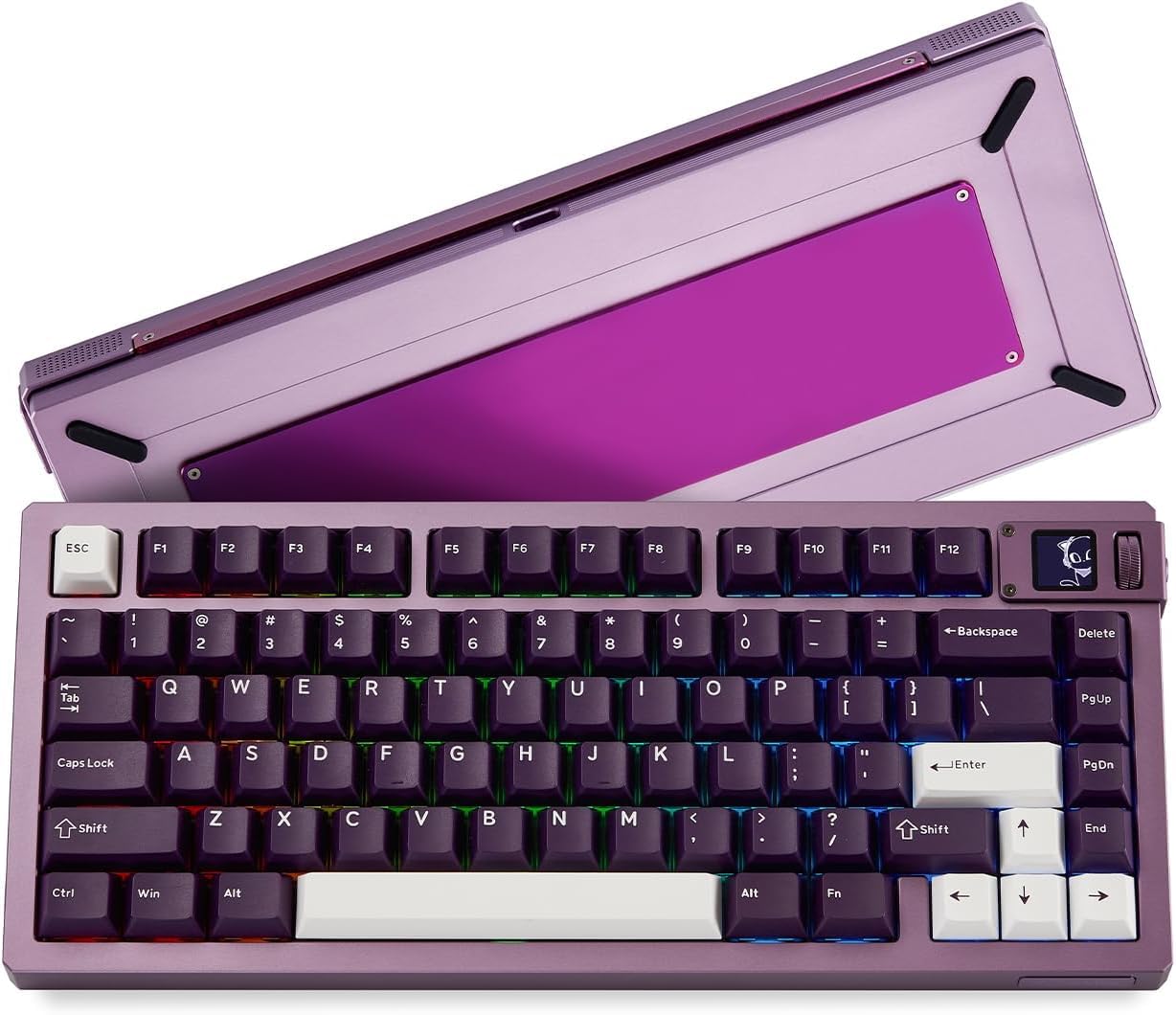
Image: Akko MOD007 V5 HE Gaming Keyboard overview.
Key features include ultra-precise rapid trigger technology, an 8000Hz polling rate, a 32K scan rate, a quick-release assembly system, and addressable RGB lighting.
2. Setup Guide
- Unboxing: Carefully remove the keyboard and all accessories from the packaging. Ensure all components are present, including the keyboard, USB-A cable, and any included tools.
- Connecting the Keyboard: Connect the provided USB-A cable to the USB-C port on the keyboard and then to an available USB-A port on your computer. The keyboard is plug-and-play for basic functionality.
- Software Installation: For full customization, including rapid trigger adjustments, programmable display settings, RGB lighting control, and key remapping, download and install the official Akko software (often referred to as 'Akko Cloud Driver' or 'Web Driver') from the official Akko website.
- Initial Configuration: Launch the Akko software. The software should automatically detect your keyboard. Follow any on-screen prompts for initial setup or firmware updates.
3. Operating Instructions
3.1 Rapid Trigger Adjustment
The MOD007 V5 HE features ultra-precise rapid trigger technology, allowing you to customize the actuation and release points of each key. This enables faster response times and enhanced precision, particularly beneficial in competitive gaming.
- Access the rapid trigger settings within the Akko software.
- Adjust the actuation distance in 0.005mm steps to fine-tune key sensitivity.
- Experiment with different settings to find your optimal preference for typing and gaming.
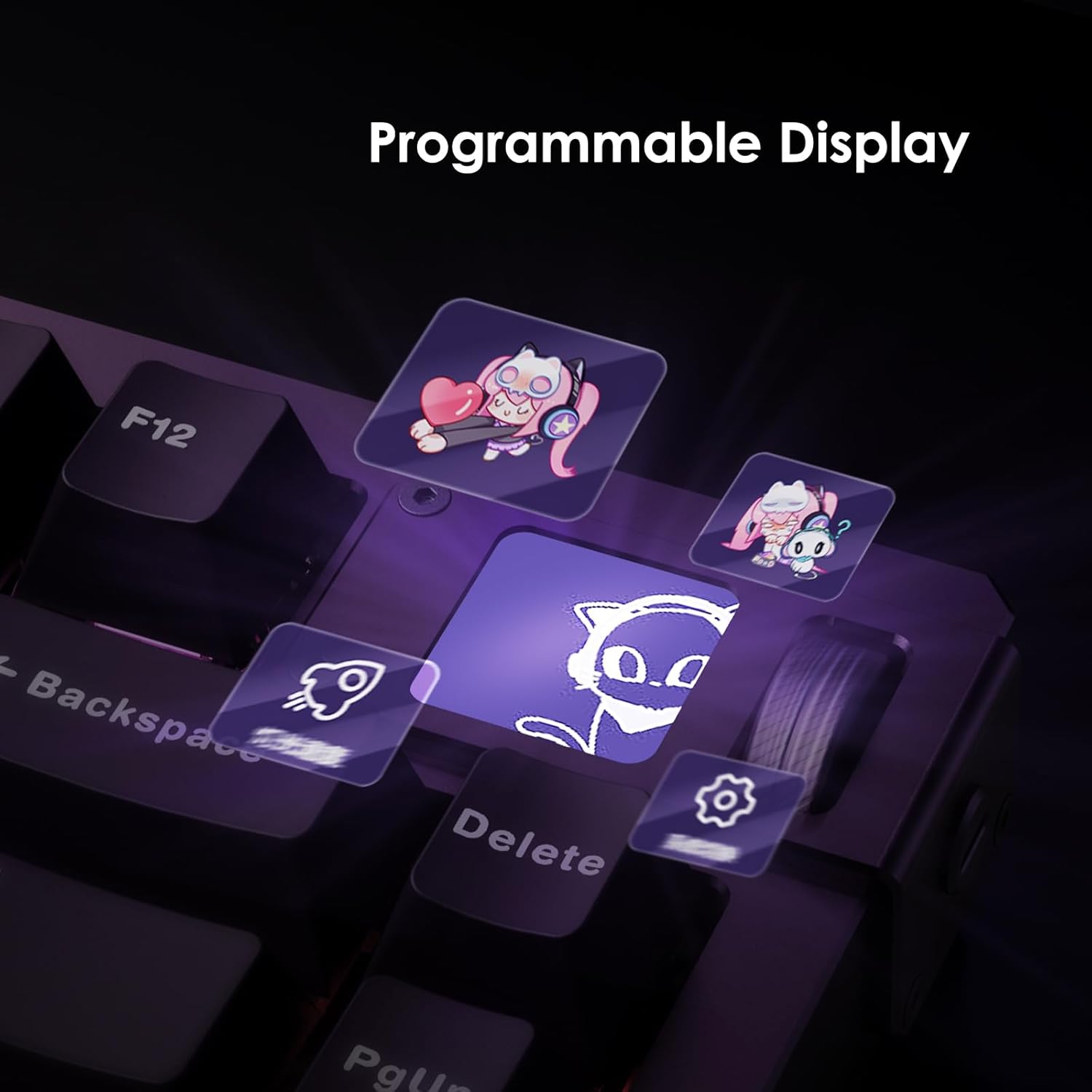
Image: Rapid Trigger stabilization feature.
3.2 Programmable Display
The integrated display allows for personalization with custom images and GIFs.
- Use the Akko software to upload and manage your preferred images or animated GIFs.
- The display can show system information, custom graphics, or other visual elements.

Image: Programmable display with custom graphics.
3.3 Polling Rate and Scan Rate
The keyboard features an 8000Hz polling rate and a 32K scan rate, ensuring minimal latency and rapid data transmission between the keyboard and your computer. This provides a highly responsive input experience.

Image: Keyboard highlighting 8000Hz polling rate.
3.4 Addressable RGB Lighting
Customize the keyboard's vibrant RGB lighting effects to match your setup or mood. The lighting features a 500Hz refresh rate for smooth, flicker-free illumination.
- Adjust lighting patterns, colors, and brightness through the Akko software.
- Save custom profiles for different applications or games.
3.5 Key Remapping and Macros
Utilize the Akko software to remap individual keys and create complex macros. This allows for personalized key functions and automation of repetitive tasks.
- Open the software and navigate to the key assignment or macro section.
- Assign new functions to keys or record sequences of keystrokes for macros.
- Save and activate your custom profiles.
4. Maintenance
4.1 Cleaning
- Keyboard Casing: Disconnect the keyboard from your computer. Use a soft, dry, lint-free cloth to wipe down the aluminum casing. Avoid abrasive cleaners or solvents.
- Keycaps: For deeper cleaning, gently remove the keycaps using the provided keycap puller. Clean them with a mild soap and water solution, then rinse thoroughly and allow them to air dry completely before reattaching.
- Under Keycaps: Use compressed air to remove dust and debris from underneath the keycaps and switches.
4.2 Switch and Keycap Replacement
The Akko MOD007 V5 HE features a quick-release system and hot-swappable switches, allowing for easy replacement or customization of switches and keycaps.
- Keycap Removal: Use the keycap puller to gently grasp and pull keycaps straight up.
- Switch Removal: Use the switch puller to carefully grip the top and bottom clips of the switch and pull it straight out. Ensure the keyboard is disconnected before attempting this.
- Switch Installation: Align the new switch's pins with the holes on the PCB and press firmly until it clicks into place. Ensure pins are not bent.
- Quick Release System: The innovative ball catch system allows for rapid assembly and disassembly of the keyboard's aluminum case without tools. Simply push to lock and pull to release components for maintenance or modification.

Image: Rapid assembly and disassembly mechanism.

Image: AstroAim mechanical switch components.
5. Troubleshooting
| Problem | Possible Cause | Solution |
|---|---|---|
| Keyboard not responding | Loose cable connection, faulty USB port, driver issue. | Ensure USB-A cable is securely connected. Try a different USB port. Restart computer. Reinstall Akko software/drivers. |
| Akko software is unresponsive/buggy | Outdated software, conflicting applications, corrupted installation. | Download the latest software from the official Akko website. Close other applications. Reinstall the software. |
| Keys not actuating correctly or inconsistently | Incorrect rapid trigger settings, debris under keycap/switch, faulty switch. | Adjust rapid trigger actuation points in Akko software. Clean under keycaps. Consider replacing the affected switch. |
| RGB lighting not working or incorrect | Software settings, firmware issue. | Check RGB settings in Akko software. Ensure software is running. Update keyboard firmware if available. |
6. Specifications
| Brand | Akko |
| Model | MOD007 V5 HE |
| Connectivity | Wired (USB-A) |
| Switch Type | Mechanical (AstroAim Switch) |
| Material | Aluminum Casing |
| Polling Rate | 8000Hz |
| Scan Rate | 32K |
| Actuation Adjustment | 0.005mm steps |
| Keyboard Layout | 75% (Compact) QWERTY |
| Special Features | Programmable Display, Rapid Trigger, Quick Release System, Addressable RGB |

Image: CNC Aluminum Case with PVD mirror accent and weighted base.
7. Warranty Information
Akko products typically come with a manufacturer's warranty. For detailed information regarding the warranty period, coverage, and terms and conditions for your Akko MOD007 V5 HE keyboard, please refer to the warranty card included with your purchase or visit the official Akko website.
8. Support
For further assistance, technical support, driver downloads, or frequently asked questions, please visit the official Akko support channels:
- Official Website: www.akkogear.com
- Akko Store on Amazon: Visit the Akko Store
Ensure you have your product model and serial number ready when contacting support.
Related documentsMOD007 V5 HE


Ask a question about this manual
Ask about setup, troubleshooting, compatibility, parts, safety, or missing instructions. Manuals+ will review the question and use this page’s manual context to help answer it.