
Introduction
Welcome to your new Power Acoustik CA1-77W car stereo. This manual provides detailed instructions for the installation, operation, and maintenance of your 7-inch flip-out car stereo with Wireless Apple CarPlay and Android Auto. Please read this manual thoroughly before using the product to ensure proper function and safety.
Safety Information
Observe the following safety precautions during installation and operation:
- Do not operate the unit in a manner that distracts you from driving. Always prioritize road safety.
- Ensure all wiring connections are secure and correctly insulated to prevent short circuits and electrical hazards.
- Consult a qualified professional for installation if you are unsure about any steps.
- Avoid exposing the unit to extreme temperatures, direct sunlight for prolonged periods, or excessive moisture.
- Do not attempt to disassemble or modify the unit. This may void the warranty and cause damage.
Package Contents
Verify that all items are present in the package:
- Power Acoustik CA1-77W Head Unit
- Wiring Harness
- Owner's Manual
- Mounting Bracket
- GPS Antenna
- Radio Removal Tools
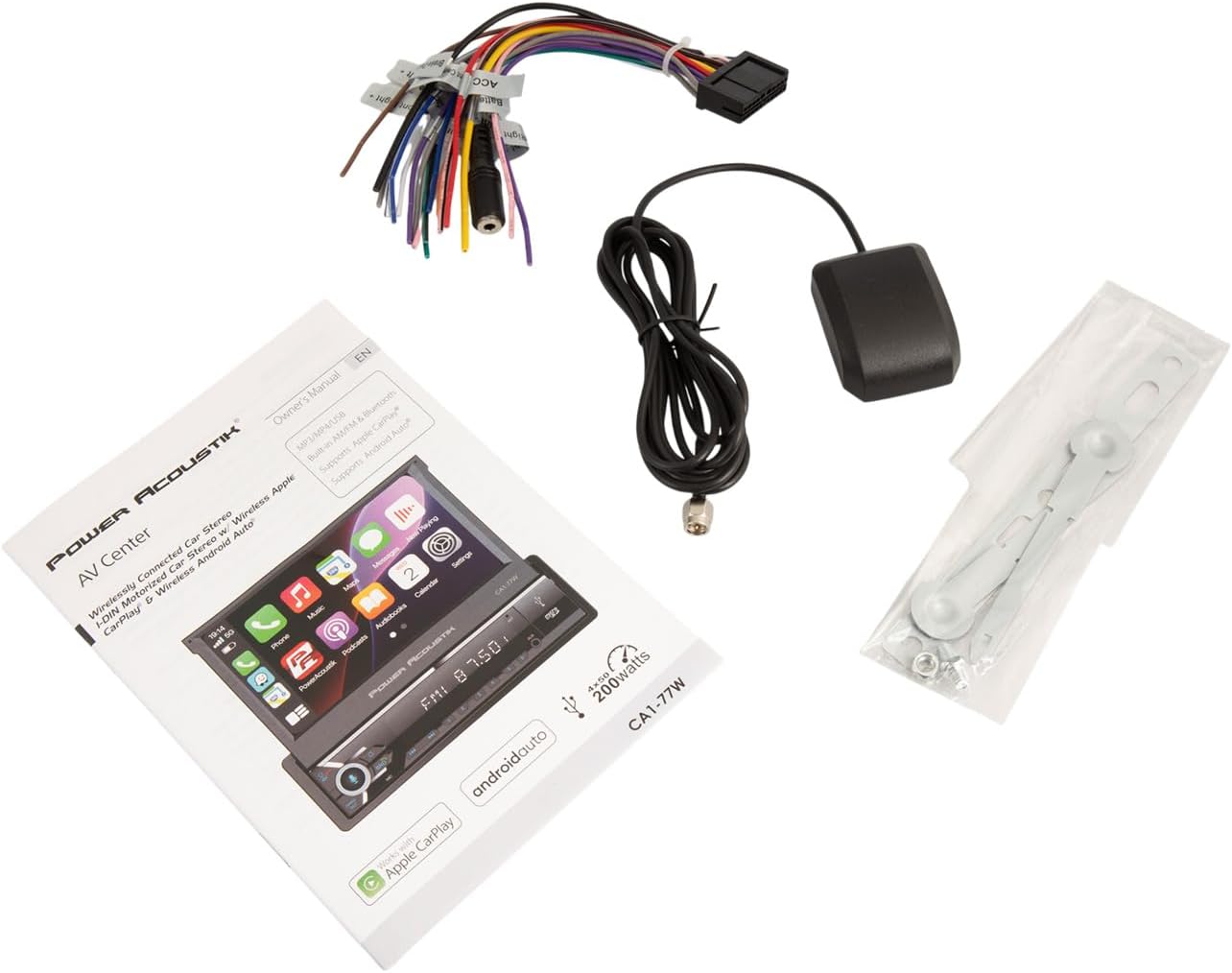
Image: All components included with the Power Acoustik CA1-77W car stereo.
Installation
Mounting the Unit
The CA1-77W is designed for single DIN dashboards. Ensure sufficient space for the motorized flip-out screen to extend and retract without obstruction.
- Remove the existing car stereo from the dashboard.
- Install the provided mounting bracket into the single DIN opening.
- Slide the CA1-77W head unit into the mounting bracket until it locks into place.

Image: Side view of the CA1-77W demonstrating the flip-out screen mechanism.
Wiring Diagram
Connect the wiring harness to the vehicle's electrical system. Refer to your vehicle's wiring diagram for specific connections. Ensure all connections are secure and properly insulated.
- Yellow (Constant 12V): Connect to a constant 12V power source.
- Red (Accessory 12V): Connect to a switched 12V accessory power source.
- Black (Ground): Connect to a chassis ground point.
- Orange (Illumination): Connect to the vehicle's illumination wire.
- Blue (Antenna/Amp Remote): Connect to power antenna or amplifier remote turn-on.
- Speaker Wires: Connect to corresponding vehicle speaker wires (e.g., White/White-Black for Front Left, Gray/Gray-Black for Front Right, Green/Green-Black for Rear Left, Purple/Purple-Black for Rear Right).
- Reverse Gear Wire: Connect to the vehicle's reverse light wire for automatic backup camera display.
- Parking Brake Wire: Connect to the parking brake switch for safety features.
- RCA Outputs: For external amplifiers (Front, Rear, Subwoofer).
- Video Input: For backup camera connection.
- USB/SD: Connect USB devices or insert SD cards for media playback.

Image: Rear panel connections of the CA1-77W, illustrating wiring points.
Initial Setup
First Power On
After installation, turn on your vehicle's ignition. The unit should power on and the screen will extend. Follow any on-screen prompts for initial setup, such as language selection, time, and date settings.
Screen Adjustment
Use the 'OPEN/TILT' button or on-screen controls to adjust the screen angle for optimal viewing. The screen can be tilted to reduce glare and improve visibility.
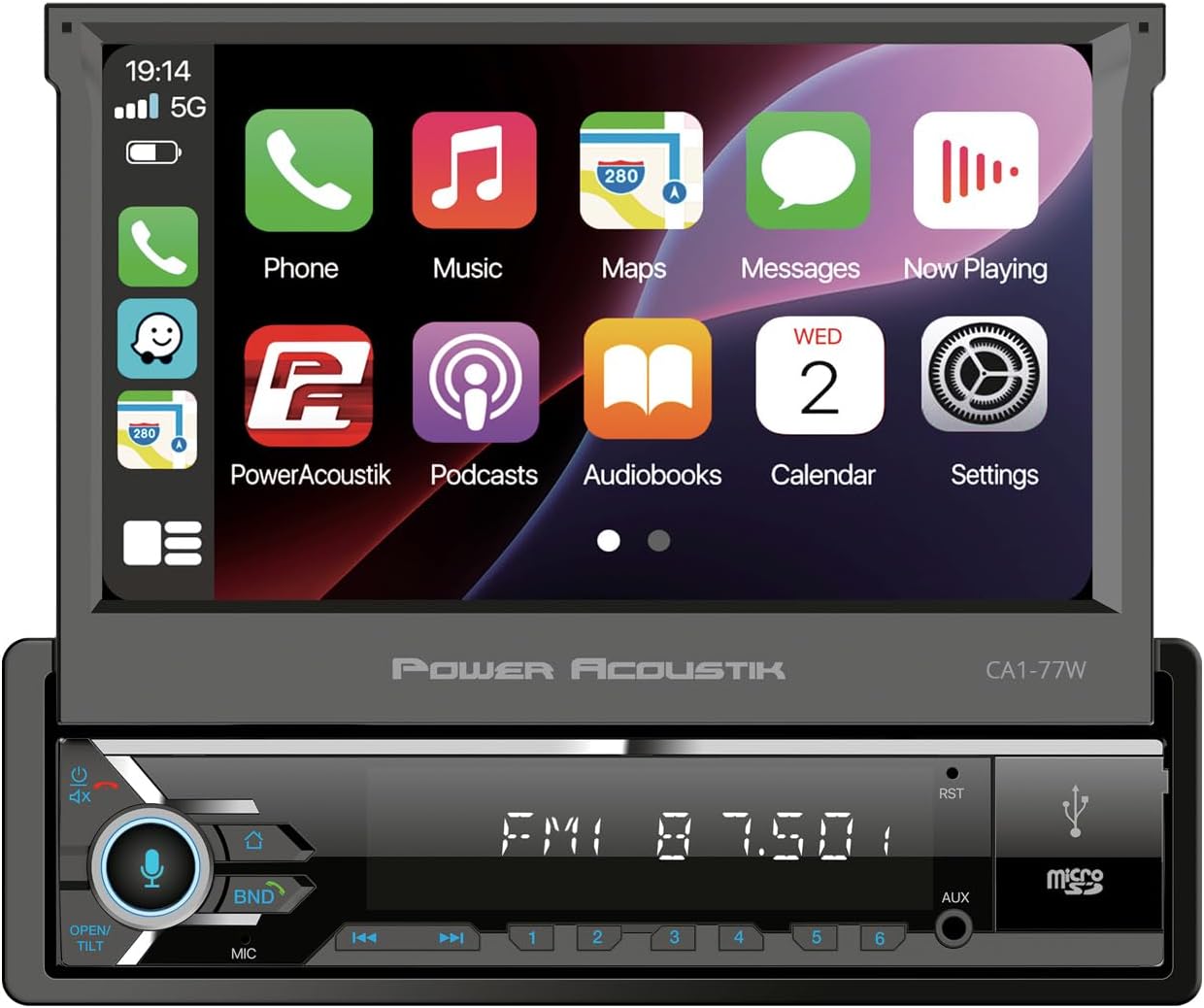
Image: Front view of the CA1-77W with the screen extended, showing controls.
Operating Instructions
General Controls
The unit features a touchscreen interface and physical buttons for common functions. Use the volume knob for audio level adjustments. The 'BND' button cycles through radio bands, and the 'MIC' button activates voice commands.
Wireless Apple CarPlay & Android Auto
Connect your compatible iPhone or Android smartphone wirelessly to access navigation, music, messages, and calls directly on the stereo's display.
- Ensure Bluetooth is enabled on your smartphone and the CA1-77W.
- Pair your phone with the CA1-77W via Bluetooth.
- Once paired, select the Apple CarPlay or Android Auto icon on the stereo's main menu.
- Follow any on-screen prompts on both the stereo and your phone to establish the connection.
- You can now control compatible apps using the touchscreen or voice commands.
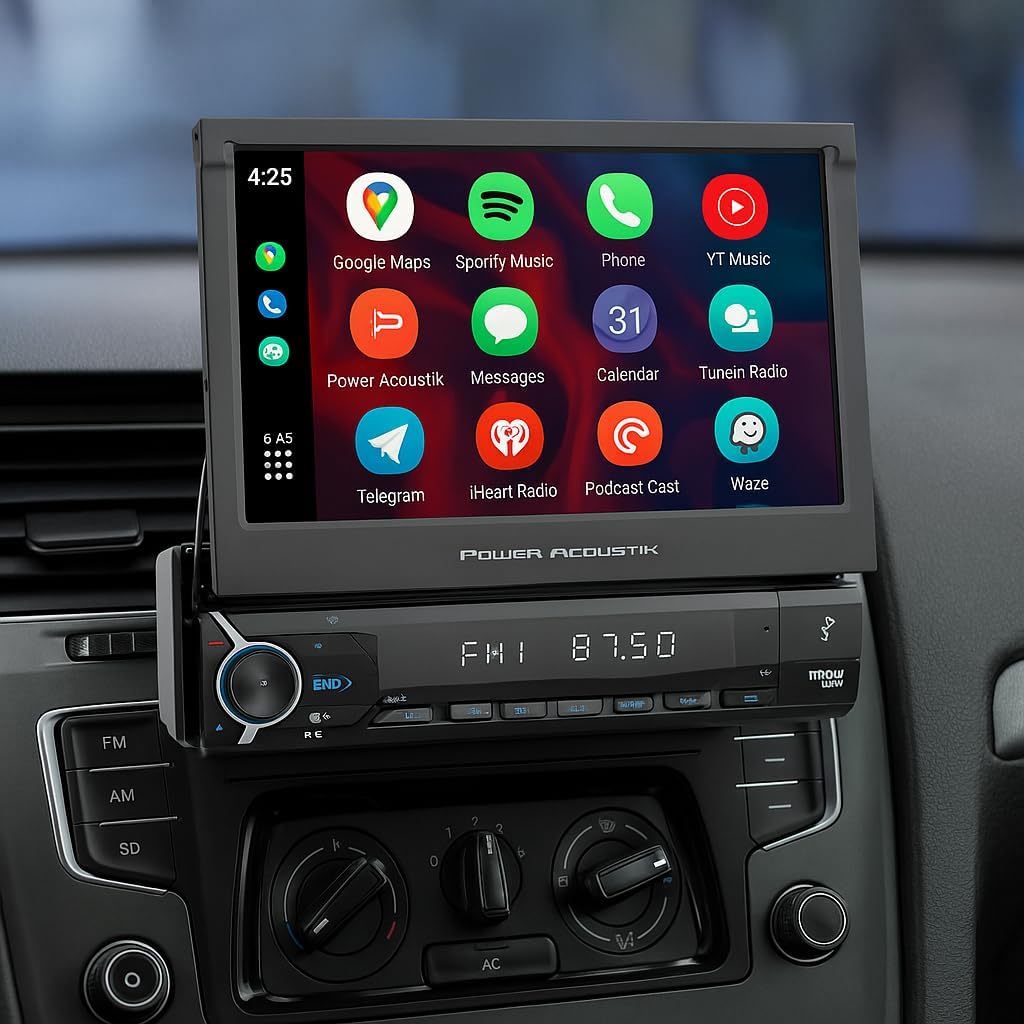
Image: The CA1-77W screen showing the Apple CarPlay interface.
Bluetooth Connectivity
For hands-free calling and audio streaming without CarPlay/Android Auto:
- Enable Bluetooth on your phone and the CA1-77W.
- Search for available devices on your phone and select "Power Acoustik CA1-77W".
- Confirm the pairing code if prompted.
- Once connected, you can make/receive calls and stream audio from your phone.
AM/FM Radio
Select the Radio source from the main menu. Use the touchscreen or physical buttons to tune to stations, scan for frequencies, and save your favorite stations as presets.
USB/SD Playback
Insert a USB drive into the USB port or an SD card into the micro SD slot. The unit will automatically detect the media and display playable files. Navigate through folders and select tracks using the touchscreen.
Backup Camera Support
If a backup camera is connected, the display will automatically switch to the camera view when the vehicle is put into reverse gear. On-screen parking guidelines may be available to assist with parking maneuvers.
Maintenance
Cleaning the Screen and Unit
Use a soft, dry cloth to wipe the screen and unit. For stubborn smudges, slightly dampen the cloth with water or a screen-safe cleaner. Avoid abrasive materials or harsh chemicals.
Software Updates
Periodically check the Power Acoustik website for any available software updates for your CA1-77W model. Updates can improve performance and add new features.
Troubleshooting
| Problem | Possible Cause | Solution |
|---|---|---|
| Unit does not power on. | Incorrect wiring, blown fuse. | Check power and ground connections. Inspect vehicle's fuse box and the unit's fuse. |
| No sound. | Volume too low, incorrect speaker wiring, mute activated. | Increase volume. Check speaker connections. Ensure unit is not muted. |
| Bluetooth not connecting. | Bluetooth off, device not in pairing mode, interference. | Ensure Bluetooth is on for both devices. Put phone in pairing mode. Try restarting both devices. |
| CarPlay/Android Auto not starting. | Phone not compatible, incorrect connection, software issue. | Verify phone compatibility. Ensure proper Bluetooth connection. Update phone OS and stereo firmware. |
| Screen not responding to touch. | Temporary software glitch, screen calibration needed. | Restart the unit. If issue persists, consult support. |
Specifications
| Feature | Specification |
|---|---|
| Model Number | CA1-77W |
| Screen Size | 7 Inch |
| Display Type | Flip-Out Touchscreen |
| Compatibility | Wireless Apple CarPlay, Android Auto |
| Connectivity | Bluetooth 5.0, USB, SD, RCA |
| Radio Tuner | AM/FM |
| Output Power | 200 Watts |
| Audio Output Mode | Stereo |
| Control Method | Touch |
| Item Weight | 4.9 Pounds |
Warranty and Support
Warranty Information
The Power Acoustik CA1-77W comes with a 1-Year Manufacturer Warranty. This warranty covers defects in materials and workmanship under normal use. Please retain your proof of purchase for warranty claims.
Customer Support
For technical assistance, troubleshooting, or warranty inquiries, please contact Power Acoustik customer support. Refer to the contact information provided on the official Power Acoustik website or in the included warranty card.


